
Mega Menu Tabs
The Mega Menu Tabs in the Soft theme allows you to create a structured navigation experience with product previews and categorized links. It helps customers quickly explore collections and products from the main menu.
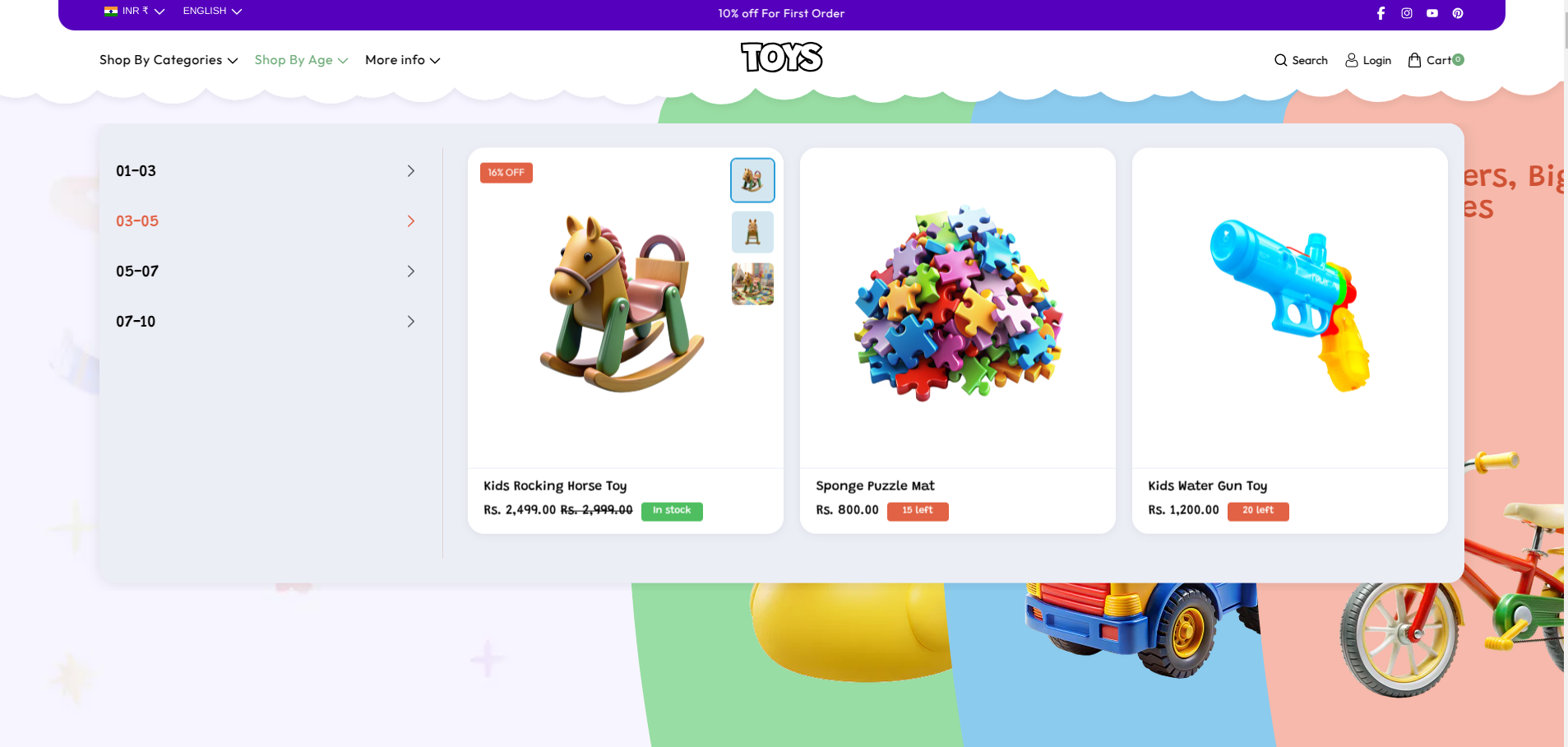
Mega Menu Tabs Configuration
This section includes general settings for controlling the mega menu layout and behavior:
- Color Scheme – Choose a predefined style for the mega menu (e.g., Scheme 9).
- Mega Menu Target Text – Enter the navigation menu handle where the mega menu should appear (e.g., shop-by-age). Use lowercase letters and hyphens only.
Product Cards Settings
The product card settings control how products are displayed inside the mega menu tabs dropdown.
- Image Aspect Ratio – Set product image display ratio (e.g., Square).
- Show Secondary Image on Hover – Enable to display a second product image when hovering over a product card.
- Show Vendor – Display product vendor/brand name under product cards.
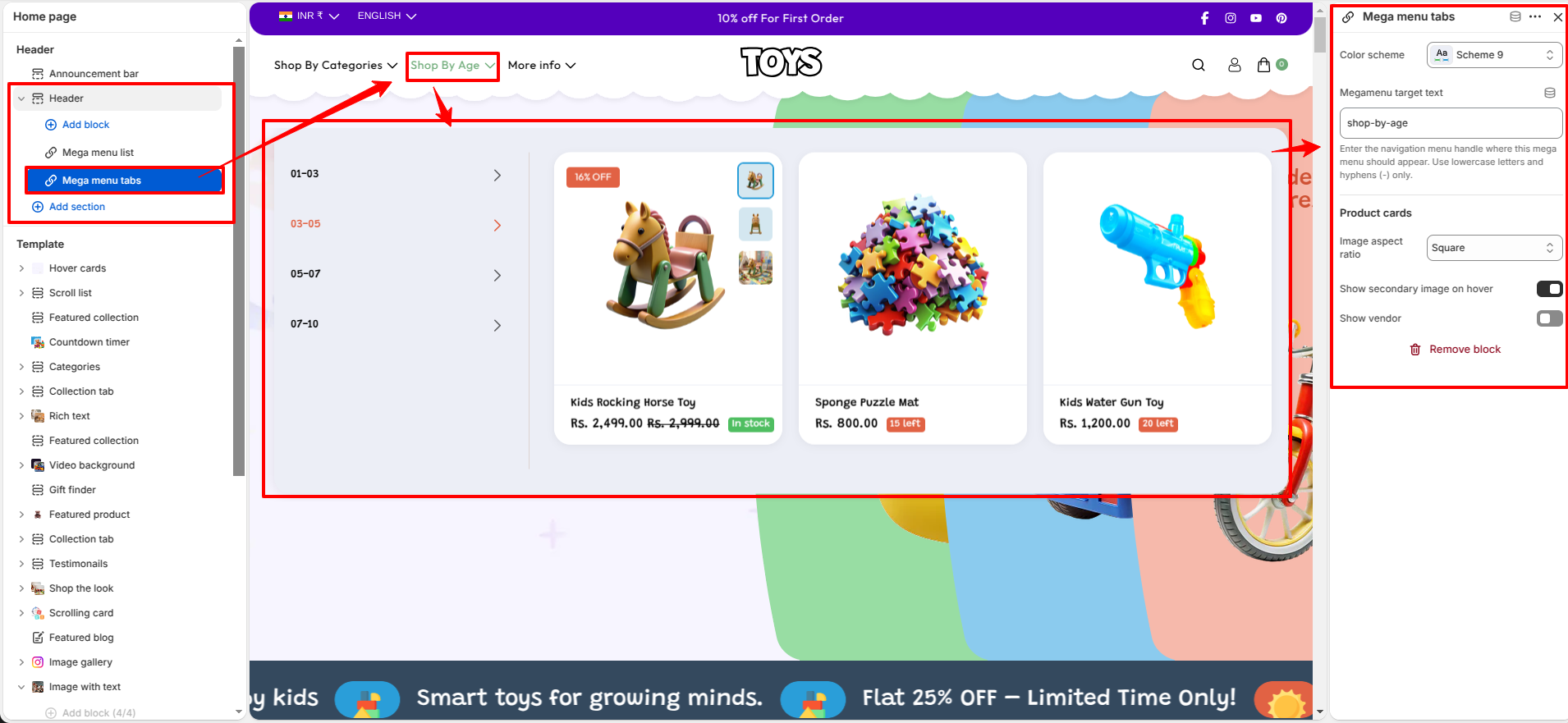
Steps
- Open Shopify Admin → Online Store → Themes.
- Click Customize on the Soft theme.
- Go to the Header section.
- Select the Mega Menu Tabs block.
- Set the Color Scheme and enter the correct menu handle (e.g., shop-by-age).
- Configure product card settings like image ratio, hover image, and vendor display.
- Click Save to apply changes.
FAQs
Why is my Mega Menu Tabs not showing?
Ensure the menu handle exactly matches your Shopify navigation name (e.g., shop-by-age).
Can I show product images in the menu?
Yes, product cards can display images with hover effects and vendor names if enabled.