
Collection Page
The Collection Page in the Soft theme displays products from a selected collection in a clean and structured layout. It allows customers to easily browse products, explore categories, and compare items within the same collection.
Products are displayed in a responsive grid along with filtering and sorting tools that help customers quickly find what they are looking for. The collection page also provides several customization options, allowing store owners to control the layout, product card appearance, filters, pagination behavior, and mobile layout.
How to Customize the Collection Page
Steps
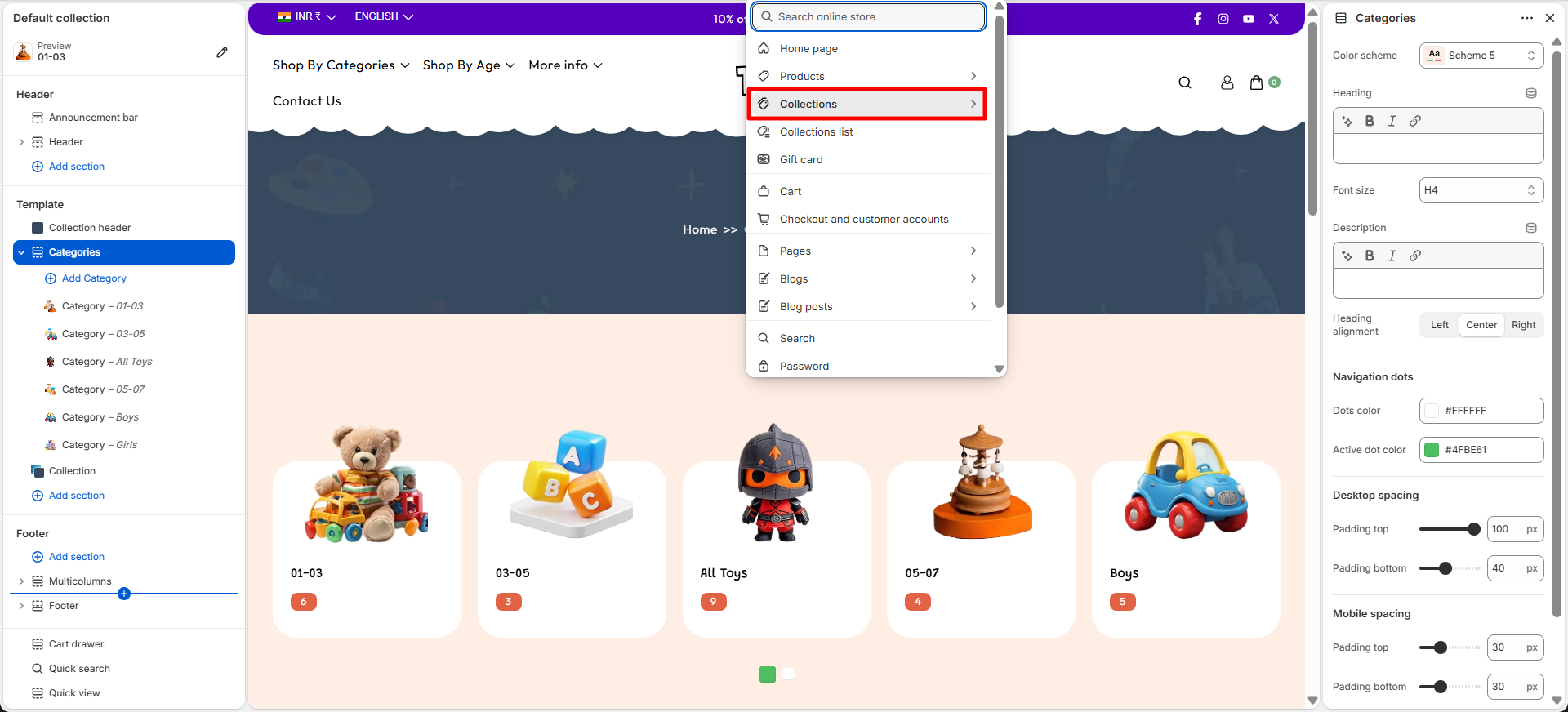
- From your Shopify admin, go to Online Store → Themes.
- Click Customize on the Soft theme.
- In the Theme Editor, open the page selector dropdown.
- Select Collections → Default collection.
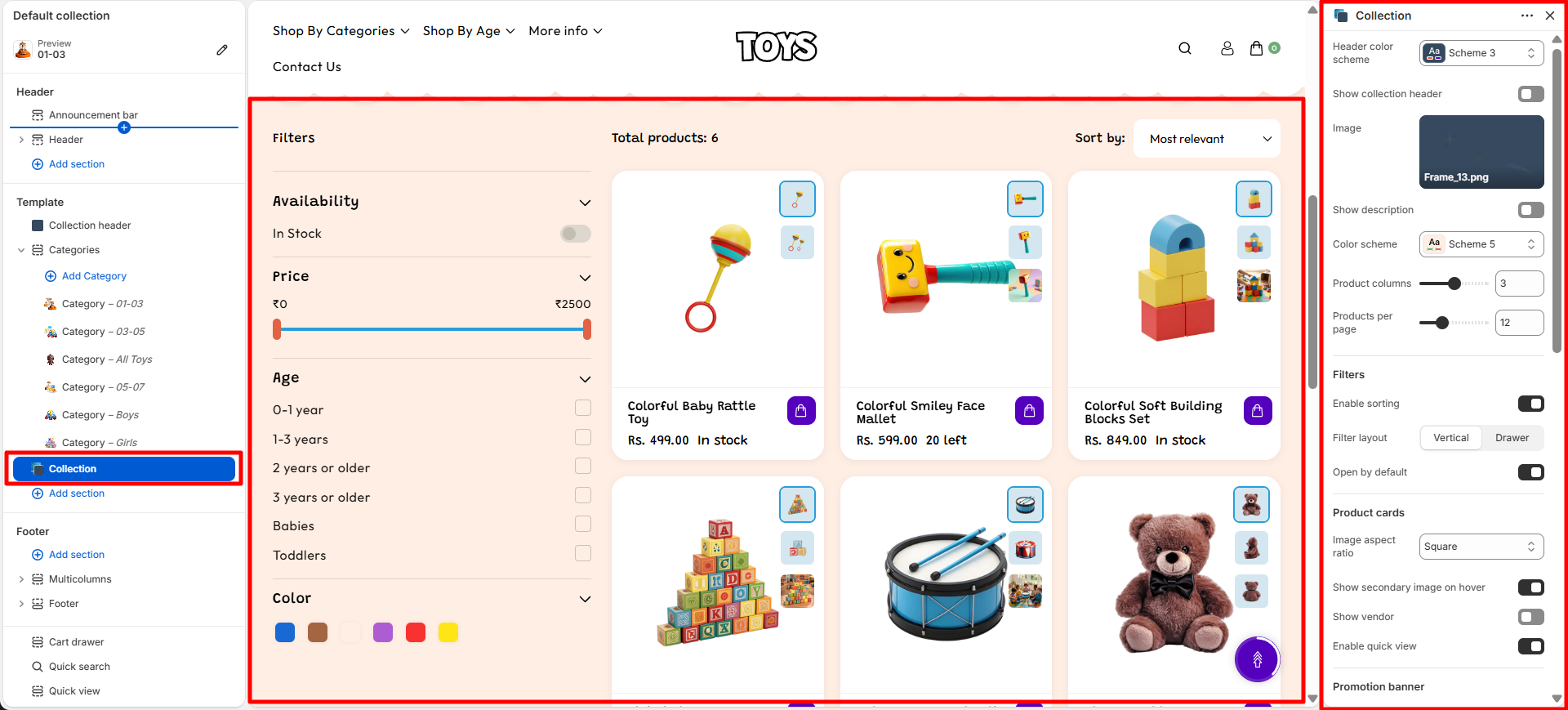
- Click the Collection section from the left sidebar.
- Adjust the collection layout, filters, product card settings, and pagination options.
- Click Save to apply the changes.
Collection Section Settings
- Header Color Scheme: Choose a predefined color scheme for the collection header section to control the background, text, and accent colors.
- Show Collection Header: Enable this option to display the collection header area at the top of the collection page.
- Image: Upload an image to display in the collection header section.
- Show Description: Enable this option to display the collection description below the collection title.
- Color Scheme: Select a color scheme for the collection content area to match your store design.
- Product Columns: Choose the number of product columns displayed in the collection grid.
- Products Per Page: Set the number of products shown on each collection page.
-
Filters: Manage product filtering options to help customers
find products easily.
- Enable Sorting: Allow customers to sort products based on available sorting options.
-
Filter Layout: Choose how product filters are displayed:
- Vertical: Displays filters in a sidebar layout.
- Drawer: Displays filters inside a collapsible drawer.
- Open by Default: Keep the filter options expanded by default when customers visit the collection page.
-
Product Cards: Customize the appearance and functionality
of product cards.
- Image Aspect Ratio: Choose the image display ratio for product card images.
- Show Secondary Image on Hover: Display an additional product image when customers hover over a product card.
- Show Vendor: Display the product vendor name on product cards.
- Enable Quick View: Allow customers to preview product details without leaving the collection page.
-
Promotion Banner: Add a promotional banner within the
product collection grid.
- Enable Promotion Banner: Display or hide the promotional banner in the collection layout.
- Banner Image: Upload an image to display in the promotion banner.
- Background Color: Choose the background color of the promotional banner.
- Text Color: Select the color of the promotional banner text.
- Heading: Add a title for the promotion banner, such as a discount offer or promotional message.
- Text: Add supporting content below the banner heading to provide more information about the offer.
- Banner Link: Add a link where customers will be redirected when clicking the promotional banner.
-
Desktop Padding: Adjust the spacing of the collection page
on desktop devices.
- Padding Top: Set the top spacing of the section.
- Padding Bottom: Set the bottom spacing of the section.
-
Mobile Padding: Adjust the spacing of the collection page
on mobile devices.
- Padding Top: Set the top spacing of the section.
- Padding Bottom: Set the bottom spacing of the section.
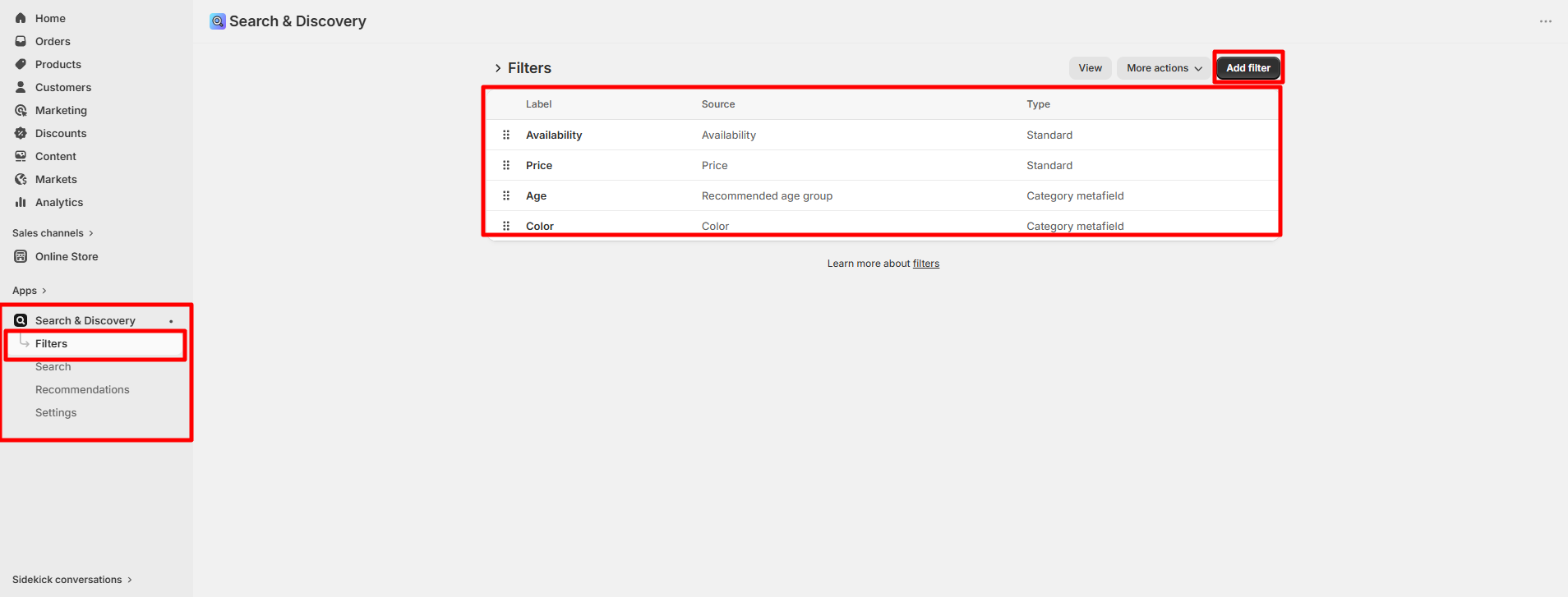
How to Customize Collection Filters Using Search & Discovery
Filters displayed on the collection page are managed through Shopify’s Search & Discovery app. This app allows you to create custom filters based on product attributes such as price, availability, product type, vendor, or metafields.
Steps
- Go to your Shopify Admin.
- Navigate to Apps and open the Search & Discovery app.
- Click on Filters.
- Select Edit Filters.
- Add, remove, or reorder filters to control which options appear on the collection page.
- Click Save to apply your changes.
For detailed guidance, refer to Shopify’s Search & Discovery filter documentation .
You can also review the Storefront Filters Customization Guide to further refine the filtering experience..
FAQs
Why are my products not appearing on the collection page?
Make sure the product is added to the selected collection and is set to Active in your Shopify admin. Also verify that the product is available for the Online Store sales channel and not set as draft or archived.
Why are filters not showing on the collection page?
Filters are managed using Shopify’s Search & Discovery app. Ensure that filters are created in the app and that the Show Filters option is enabled in the Collection section settings.
Can I change how many products appear in the collection grid?
Yes. In the Theme Editor, open the Collection section and adjust the Number of Columns per Row and Number of Products per Page settings to control the layout and number of products displayed.