
Header section
The Header is the first point of contact for your customers, making it essential for creating a lasting impression and reinforcing your brand identity. With Soft, you have full control over your header's layout and design, offering various options that seamlessly integrate with your store’s aesthetic.
The header includes elegantly designed icons for easy access to the cart, customer account, and search functionalities. To elevate your store’s navigation, Soft offers separate guides for configuring the Announcement Bar, Dropdown Menu, and Mega Menu, ensuring a streamlined experience for your customers.
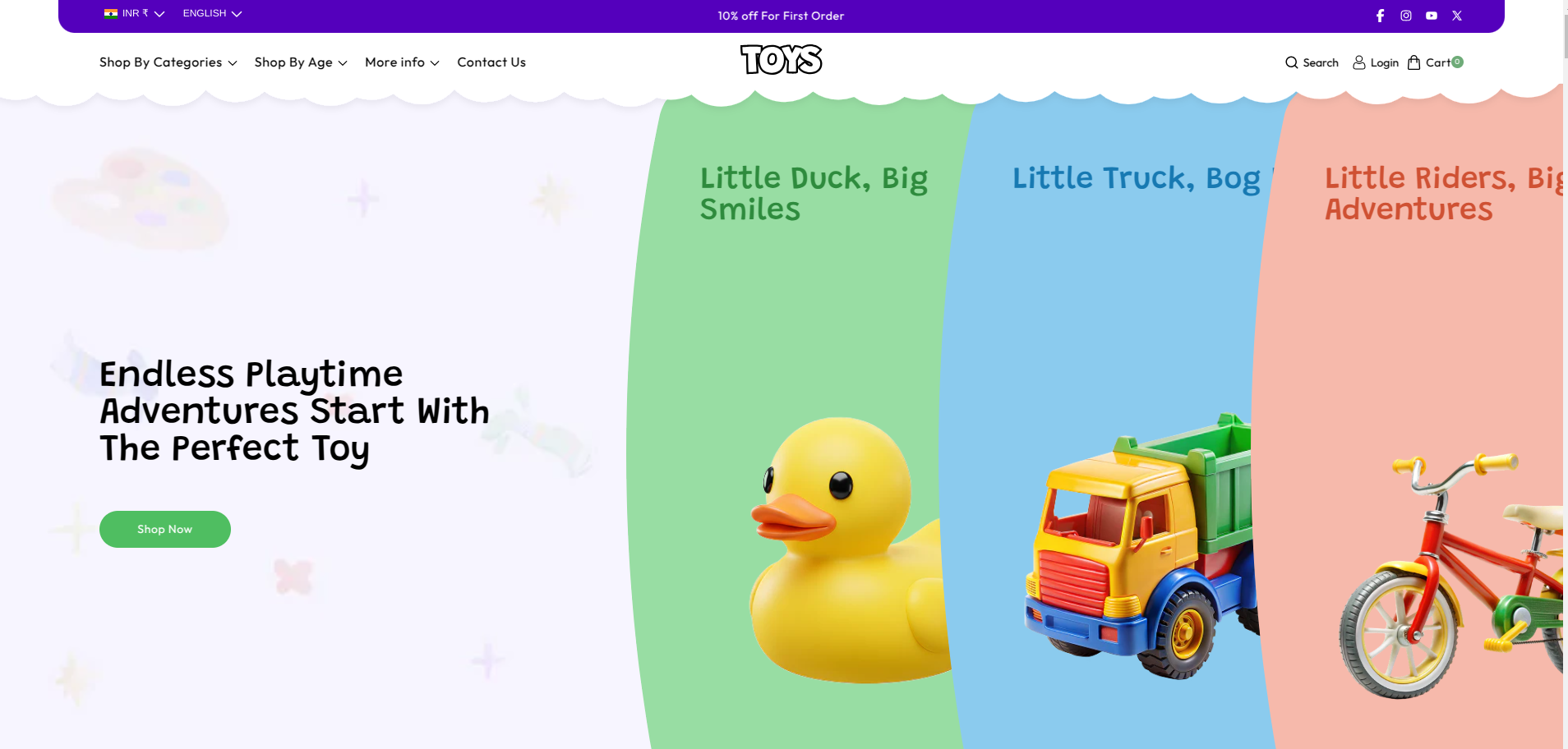
Steps to Set Up the Header Section in Your Shopify Theme, Soft
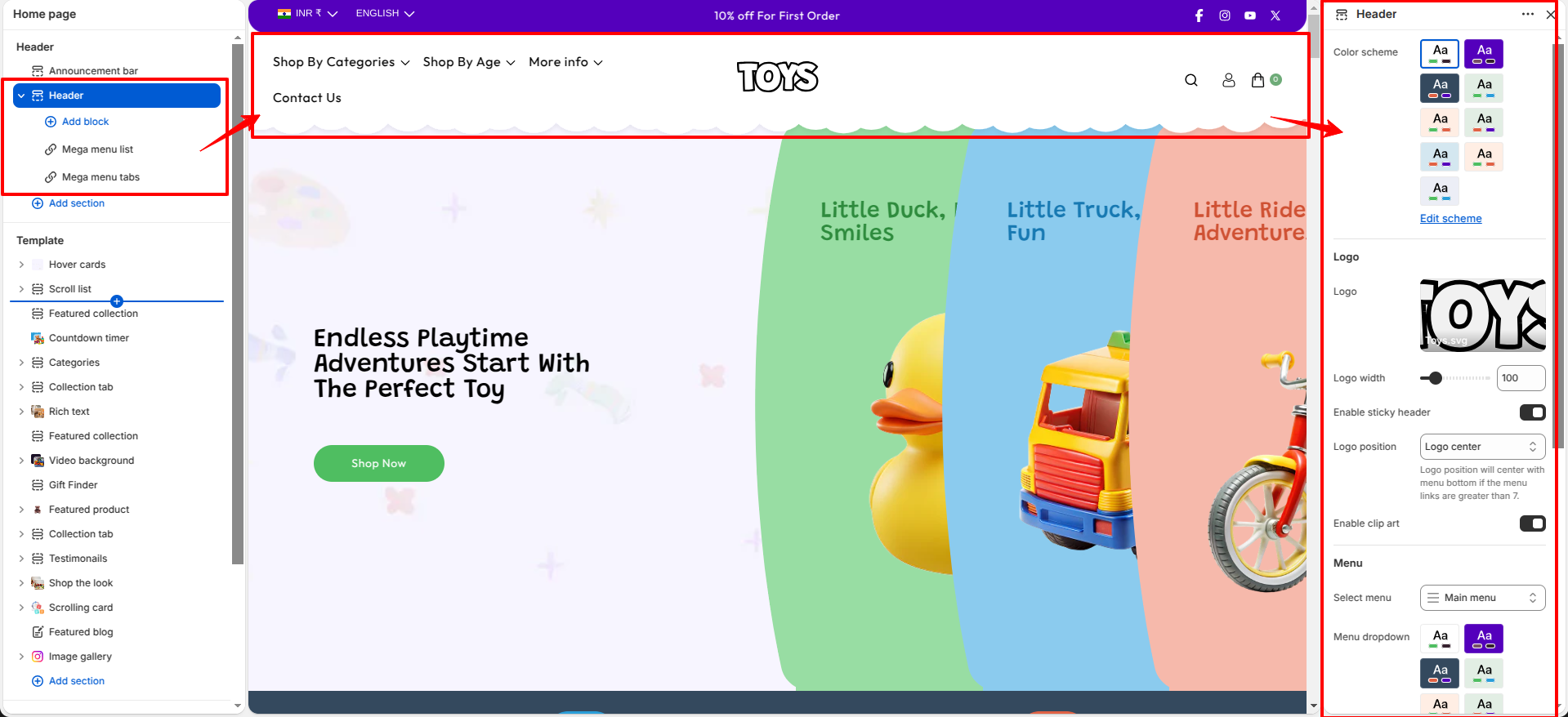
How to Configure the Header
Steps
- From your Shopify admin, go to Online Store → Themes.
- Click Customize on the Soft theme.
- In the Theme Editor, select the Header section from the left sidebar.
- Adjust the settings, blocks, and layout options according to your preferences.
- Click Save to apply your changes.
Follow these steps to configure your Header
- Color Scheme: Choose a color scheme to control the background and text colors of the header section.
-
Select Logo:
- Upload your store logo using the Select logo option.
- For best results, use a high-quality SVG or PNG image.
- Logo Width: Adjust the size of the logo displayed in the header using the width slider (for example, 160px).
-
Logo Position: Choose where the logo appears within the
header layout.
- Logo Left – Displays the logo on the left side.
- Logo Center – Displays the logo in the center.
- Logo Center, Menu Bottom – Displays the logo in the center with the navigation menu placed below the logo.
- Enable clip art: Enable this option to display decorative clip art in the header for visual enhancement.
- Select Menu: Choose the main navigation menu that will appear in the header (for example, Main Menu).
- Menu dropdown: Choose or create the menu color scheme (for example, Scheme 1).
-
Header Inner Padding: Controls spacing inside the header area (between header content and its border).
- Top spacing
- Bottom spacing
-
Header Outer Padding: Controls spacing outside the header area (between the header border and the top/bottom of the page).
- Top spacing
- Bottom spacing
FAQs
How can I set up my navigation and mega menu?
Setting up your navigation and mega menu is a breeze! Check out our comprehensive Mega Menu Guide for detailed, step-by-step instructions to create a visually stunning and functional menu layout.
Why isn’t my mega menu displaying an image?
Ensure that an image has been uploaded in the Mega Menu block and that it is properly saved and linked.