
Image Gallery
The Image Gallery section in the Soft theme allows you to showcase multiple images in a clean, organized layout. It’s perfect for highlighting products, lifestyle photos, or Instagram feeds directly on your homepage.
Customers can click images to open them in a larger view, while responsive settings ensure the gallery looks great on mobile and desktop devices.

Image Gallery Section Settings
The section settings give you full control over how your gallery appears.
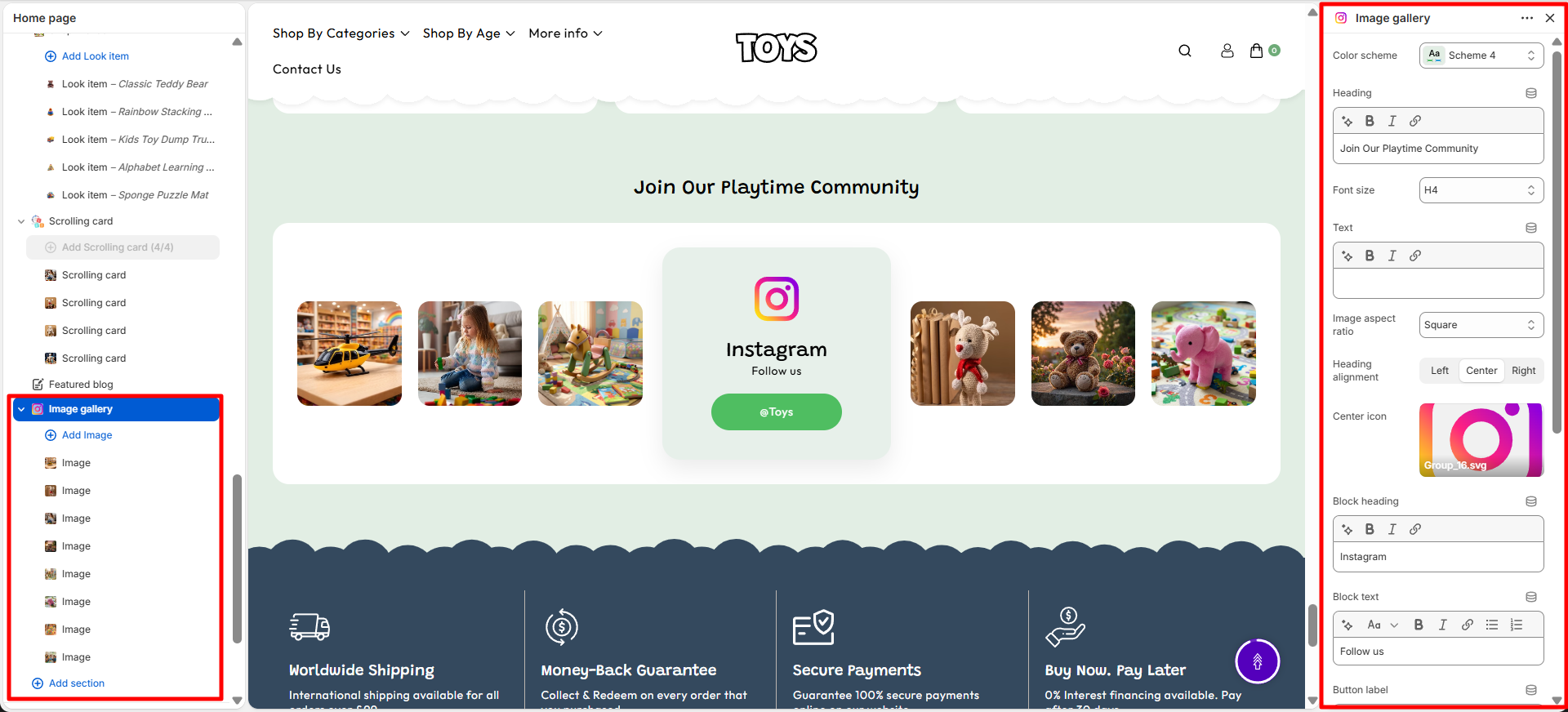
- Color Scheme – Choose a predefined color palette to match the section with your store branding.
- Heading – Add a main title for the section, such as “Join Our Playtime Community”, to introduce the social media section.
- Font Size – Adjust the size of the section heading text.
- Text – Add supporting content below the heading to provide additional information about the community section.
- Image Aspect Ratio – Select the image display ratio, such as Square, for social media images.
- Heading Alignment – Choose the alignment of the section heading, such as Left, Center, or Right.
- Icon – Upload an icon image to represent the social media platform or community block.
- Block Heading – Add a title for the social media block, such as “Instagram”.
- Block Text – Add supporting text for the social media block.
- Button Label – Customize the text displayed on the social media button.
- Button Link – Add the social media URL where customers will be redirected when clicking the button.
- Open Image Links in New Tab – Enable this option to open social media image links in a new browser tab.
- Desktop Spacing – Adjust the spacing of the section for desktop devices.
- Padding Top – Set the top spacing of the section on desktop devices.
- Padding Bottom – Set the bottom spacing of the section on desktop devices.
- Mobile Spacing – Adjust the spacing of the section for mobile devices.
- Mobile Padding Top – Set the top spacing of the section on mobile devices.
- Mobile Padding Bottom – Set the bottom spacing of the section on mobile devices.
Gallery Image Settings
Each image in the gallery can be individually configured.
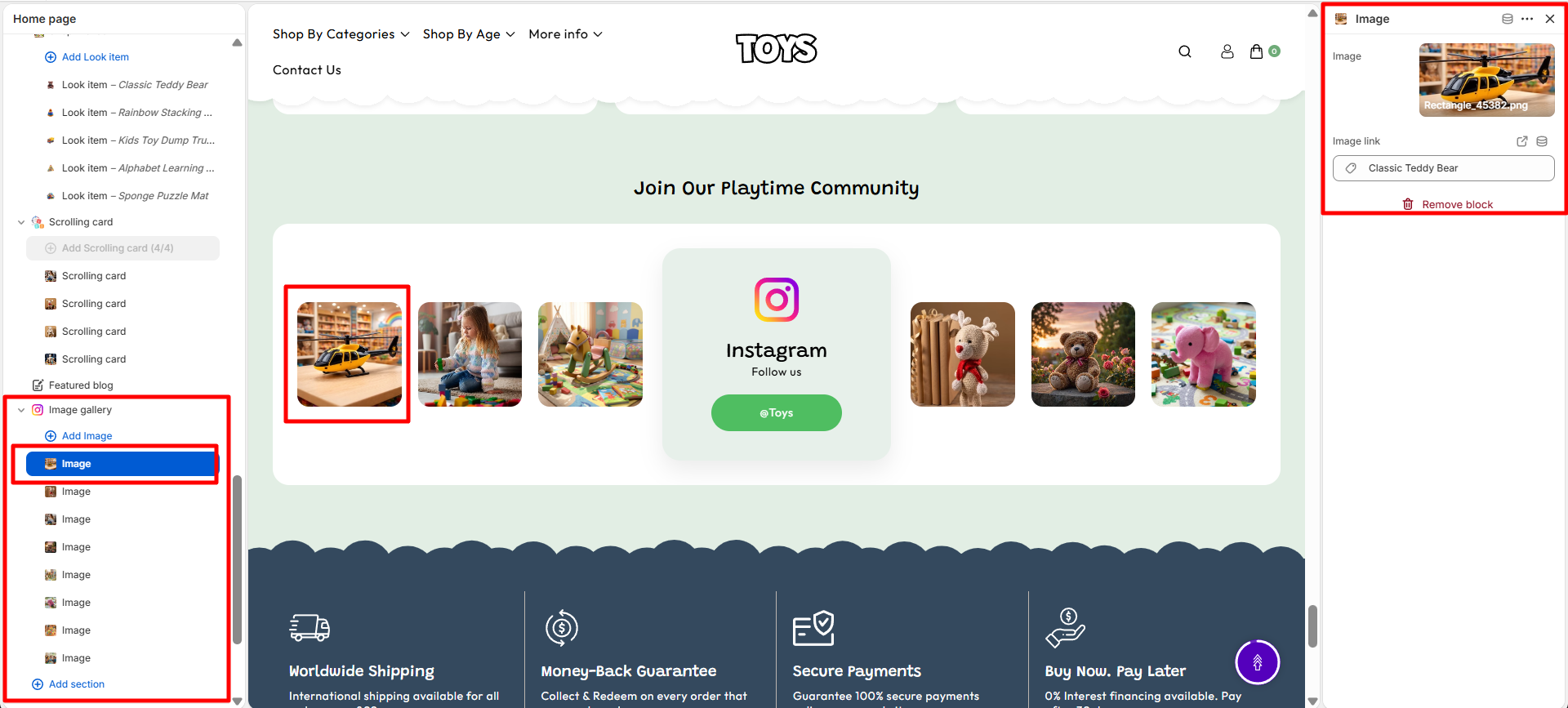
- Image – Upload the desired image for display.
- Image Link – Add a URL so customers are redirected when the image is clicked.
Steps
- Open the Theme Customizer.
- Navigate to the Image Gallery section on your homepage.
- Configure gallery settings such as color scheme, heading, columns, and spacing.
- Add images by clicking Add Image.
- Set a link for each image if desired and choose whether it opens in a new tab.
- Adjust mobile layout options and enable slider functionality if needed.
- Click Save to apply your changes.
FAQs
Where can I find the Image Gallery section?
The Image Gallery section is available in the Theme Customizer. From your Shopify admin, go to Online Store > Themes, click Customize, and locate the Image Gallery section on the homepage.
How do I add images to the gallery?
To add images, open the Image Gallery section, click Add Image, upload your image, optionally add a link, and save your changes. You can also configure the number of columns and enable a slider for multiple images.