
Footer section
The Footer is an important part of your store layout as it appears on every page and provides customers with quick access to essential information and navigation links. With the Soft theme, the footer is designed to be flexible and visually organized, allowing you to display menus, policies, newsletter signup, and important store details in a structured layout.
The footer helps improve the user experience by making it easier for customers to find information such as policies, contact details, and additional navigation links. It also supports branding elements like logos and social media icons, helping you maintain a consistent brand identity across your store.
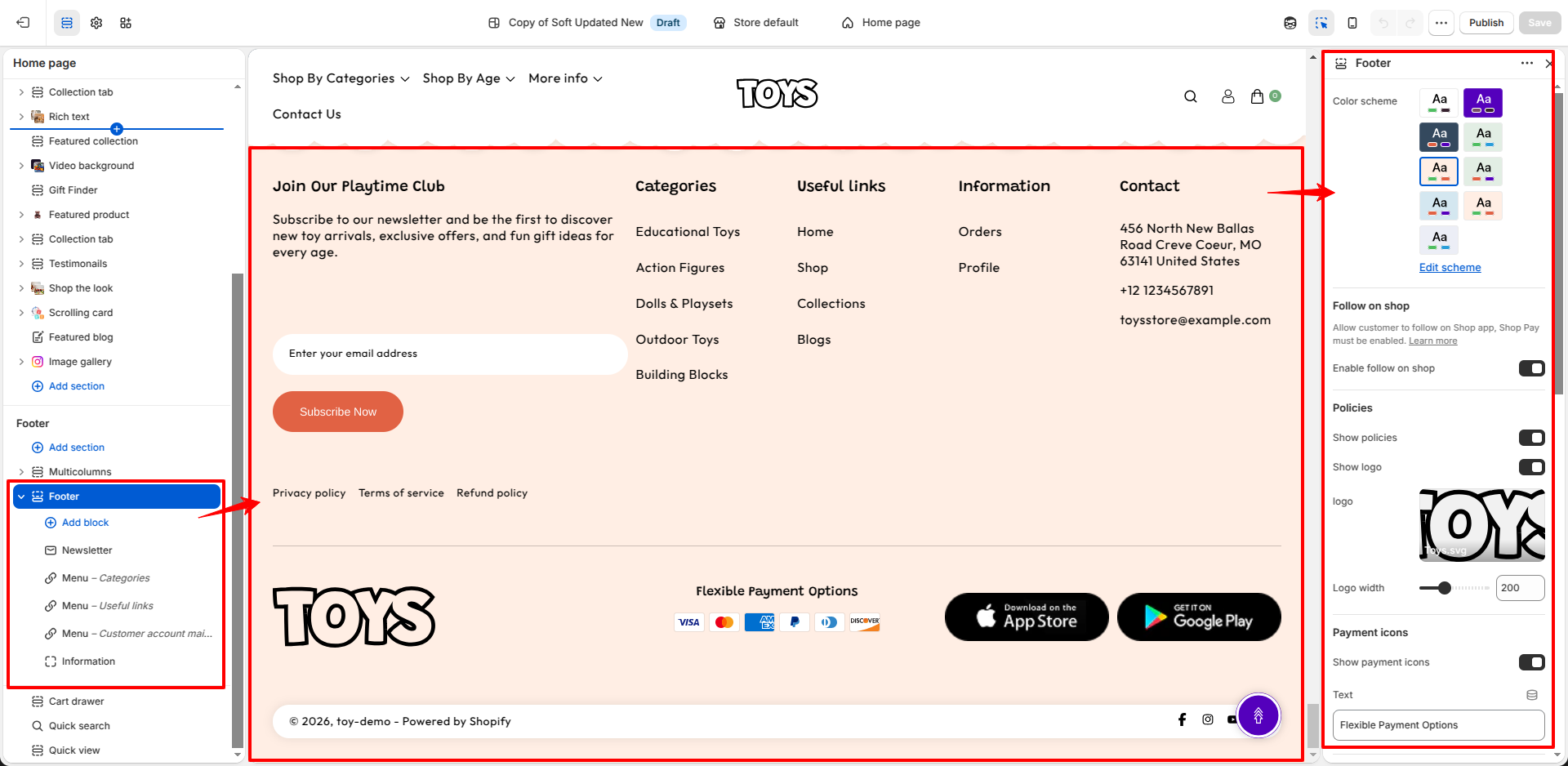
Steps to Set Up the Footer Section in Your Shopify Theme, Soft
Steps
- From your Shopify admin, go to Online Store → Themes.
- Click Customize on the Soft theme.
- In the Theme Editor, scroll down and select the Footer section from the left sidebar.
- Adjust the settings, blocks, and layout options according to your preferences.
- Click Save to apply your changes.
- Color Scheme: Choose a color scheme to control the background and text colors of the footer section.
- Enable Follow on Shop: Allow customers to follow your store through the Shop app. Shop Pay must be enabled.
- Show Policies: Display store policy links in the footer.
- Show Logo: Enable or disable the footer logo display.
- Logo: Upload a logo image to display in the footer.
- Logo Width: Adjust the width of the footer logo.
- Show Payment Icons: Display accepted payment method icons.
- Flexible Payment Options: Add custom text to highlight payment options or promotional information.
-
Additional Information:
- Image: Upload an image to display in the footer.
- Link: Add a URL to make the image clickable.
- Show Social Icons: Display social media icons linked to your store's social profiles.
- Background Color: Select the background color for the footer bottom section.
- Text Color: Select the text color used in the footer bottom section.
-
Desktop Padding:
- Padding Top: Adjust the top spacing on desktop devices.
- Padding Bottom: Adjust the bottom spacing on desktop devices.
-
Mobile Padding:
- Padding Top: Adjust the top spacing on mobile devices.
- Padding Bottom: Adjust the bottom spacing on mobile devices.
Available Blocks in Footer
-
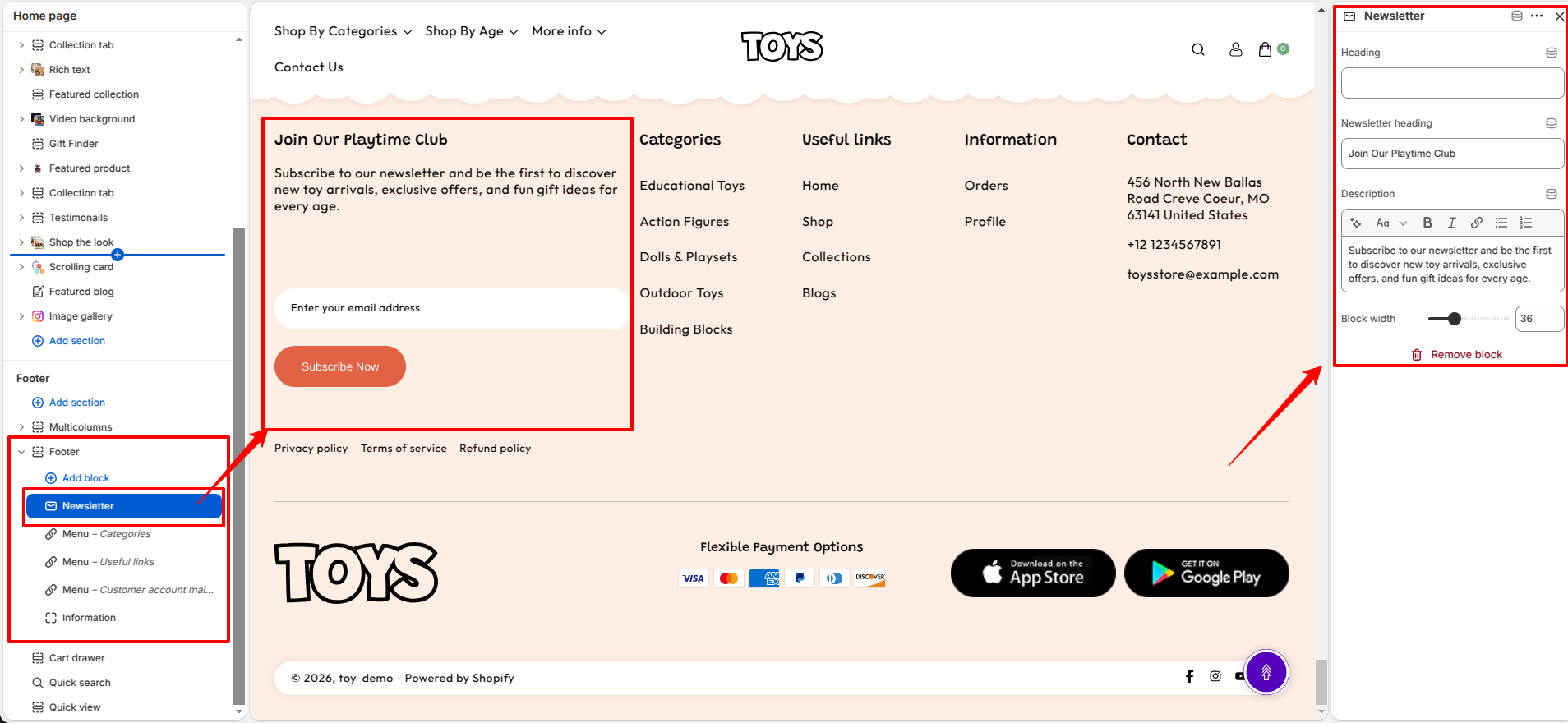
Newsletter Block:
The Newsletter block allows customers to subscribe to your email list
directly from the footer. It is useful for collecting customer emails
for promotions, updates, and exclusive offers.
Newsletter Block Configuration- Heading: Enter a title for the newsletter block. Example headings include Collections, Quick Links, or Policies.
- Newsletter heading: Enter a title for the newsletter block.
- Description: Enter a description for the newsletter block.
- Block width: Adjust the width of the newsletter column using the slider to control how much space the block occupies in the footer.
-
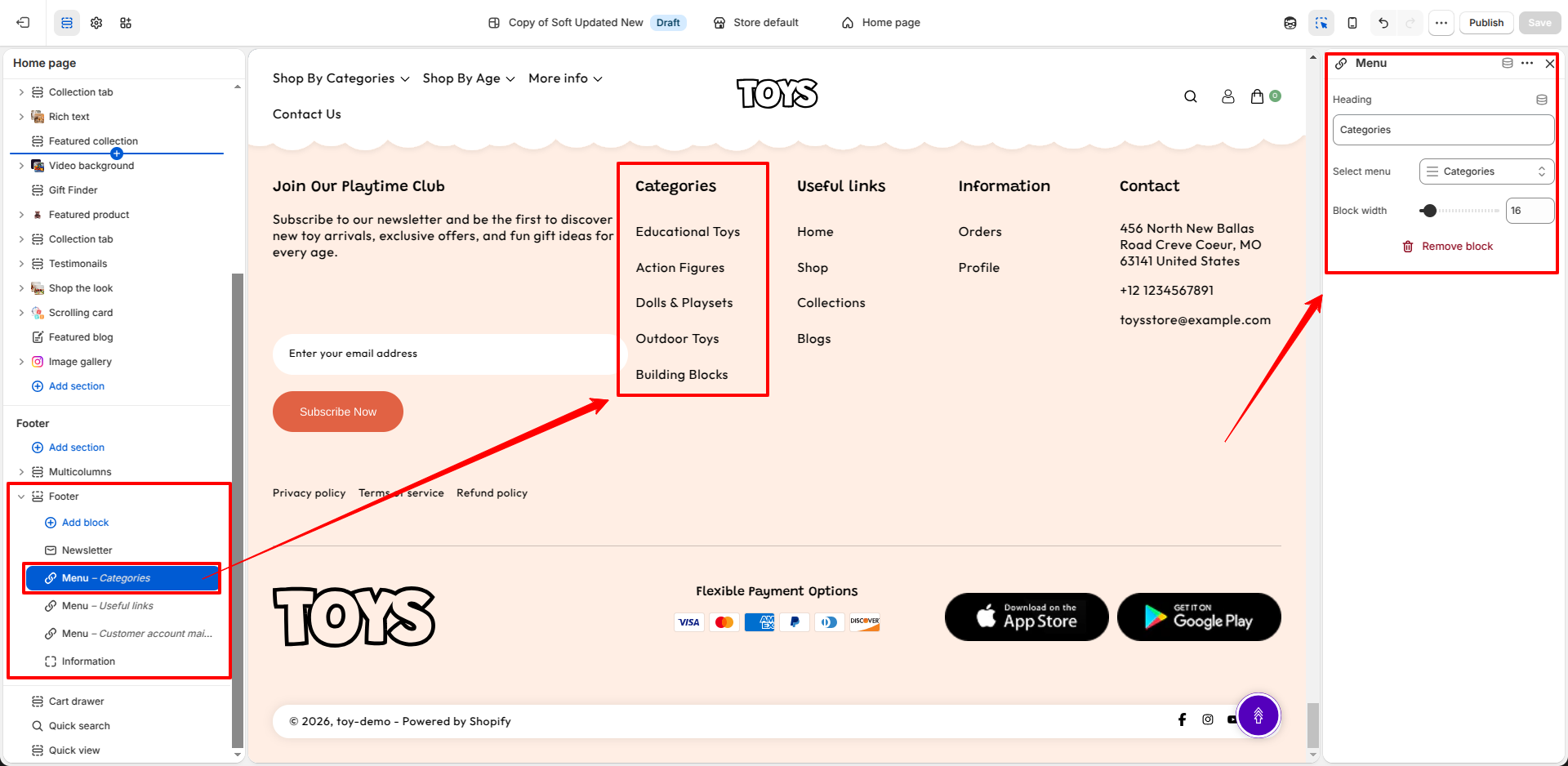
Menu Block:
The Menu block allows you to display navigation links in the footer.
You can use this block to organize important pages such as categories,
quick links, and information.
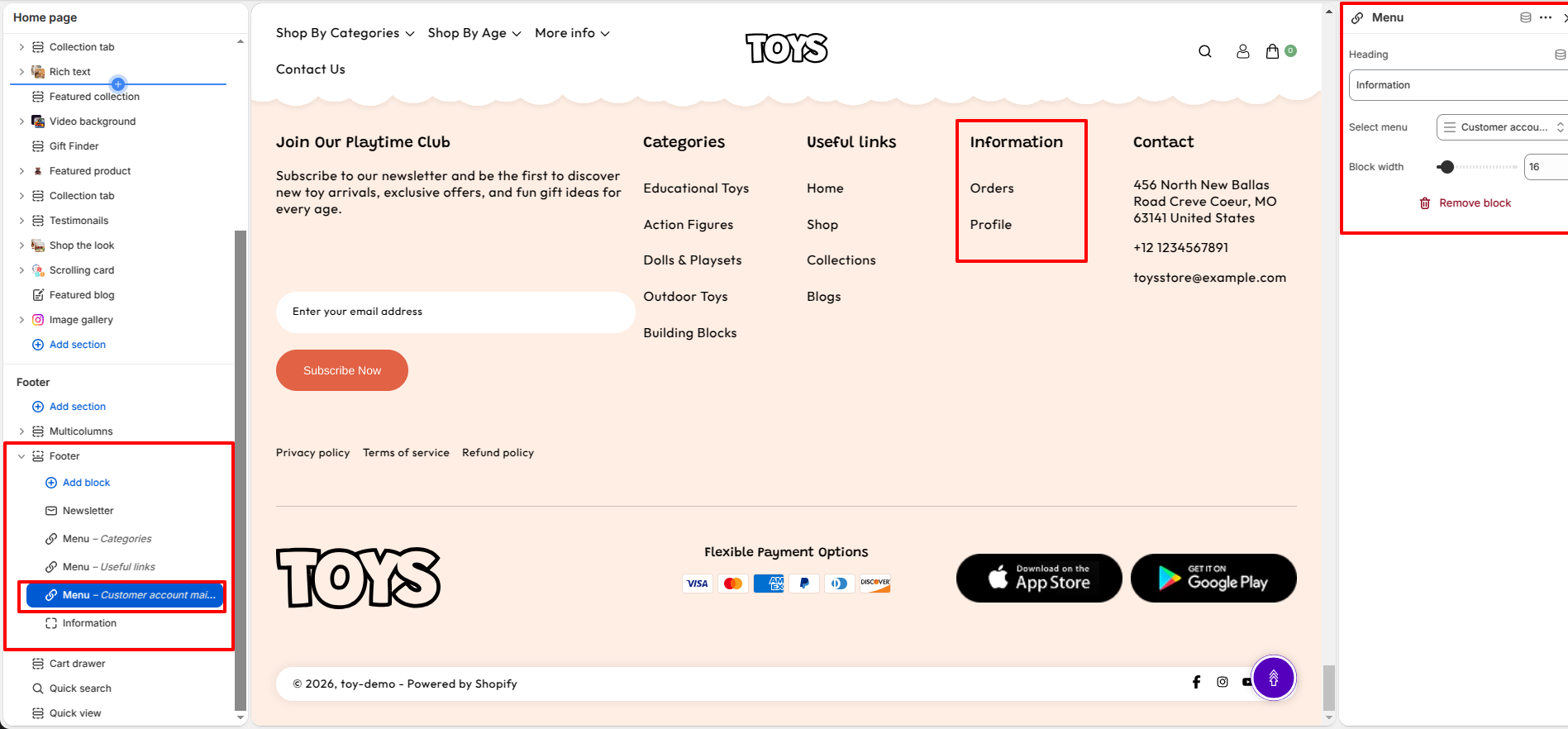
Menu Block Configuration- Heading: Enter a title for the menu block. This heading appears above the menu links in the footer. Examples include Categories, Quick Links, or Information.
- Select Menu: Choose a navigation menu from your Shopify menu list. The selected menu links will be displayed beneath the heading.
- Block Width: Adjust the width of the menu block using the slider to control how much horizontal space the menu occupies within the footer layout.
You can add multiple Menu blocks to display different groups of links in the footer area.
-
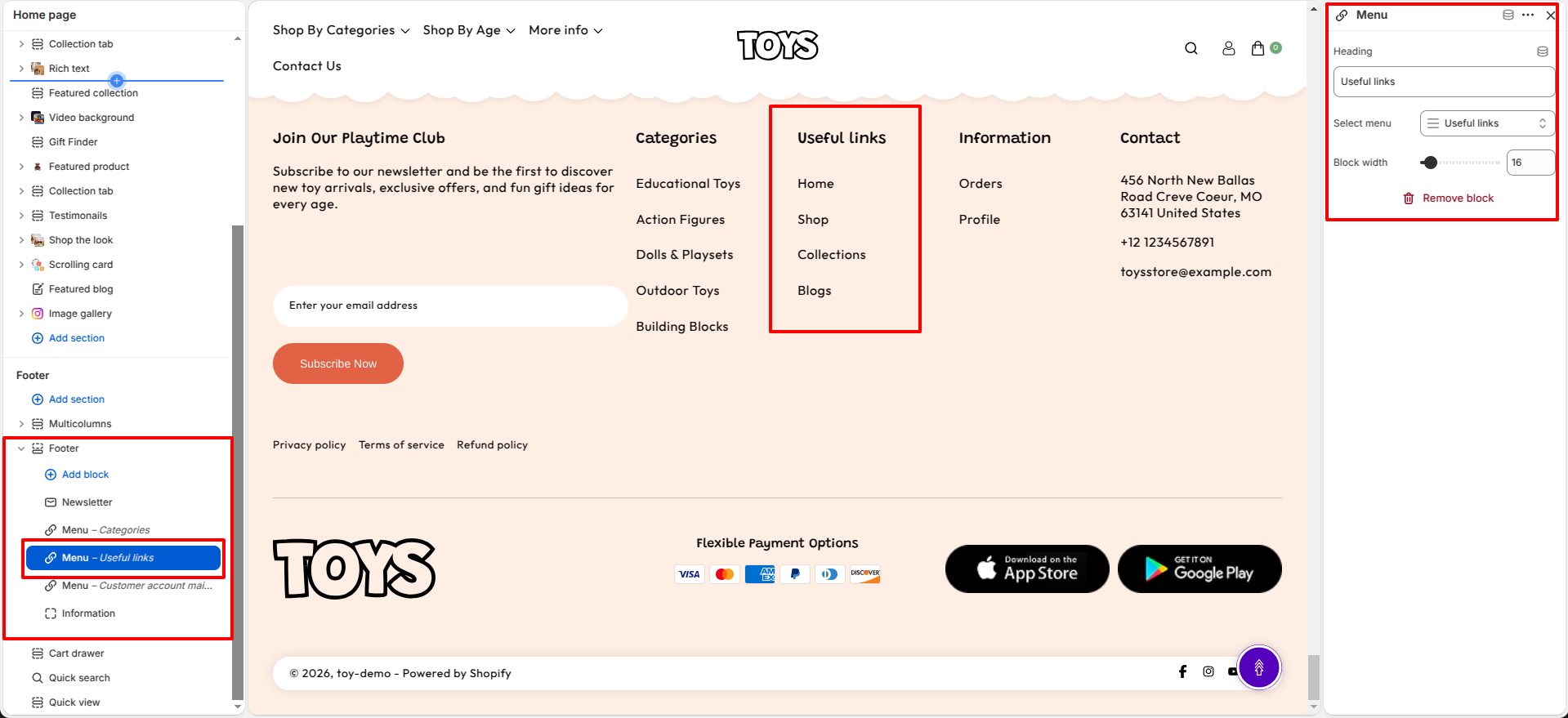
Menu Block:
The Menu block allows you to display navigation links in the footer.
You can use this block to organize important pages such as categories,
quick links, and information.
Menu Block Configuration- Heading: Enter a title for the menu block. This heading appears above the menu links in the footer. Examples include Categories, Quick Links, or Information.
- Select Menu: Choose a navigation menu from your Shopify menu list. The selected menu links will be displayed beneath the heading.
- Block Width: Adjust the width of the menu block using the slider to control how much horizontal space the menu occupies within the footer layout.
You can add multiple Menu blocks to display different groups of links in the footer area.
-
Menu Block:
The Menu block allows you to display navigation links in the footer.
You can use this block to organize important pages such as categories,
quick links, and information.
Menu Block Configuration- Heading: Enter a title for the menu block. This heading appears above the menu links in the footer. Examples include Categories, Quick Links, or Information.
- Select Menu: Choose a navigation menu from your Shopify menu list. The selected menu links will be displayed beneath the heading.
- Block Width: Adjust the width of the menu block using the slider to control how much horizontal space the menu occupies within the footer layout.
You can add multiple Menu blocks to display different groups of links in the footer area.
-
Text Block:
The Text block allows you to display custom text content in the footer.
It can be used to add store information, brand messages, contact details,
or any additional content you want customers to see in the footer area.
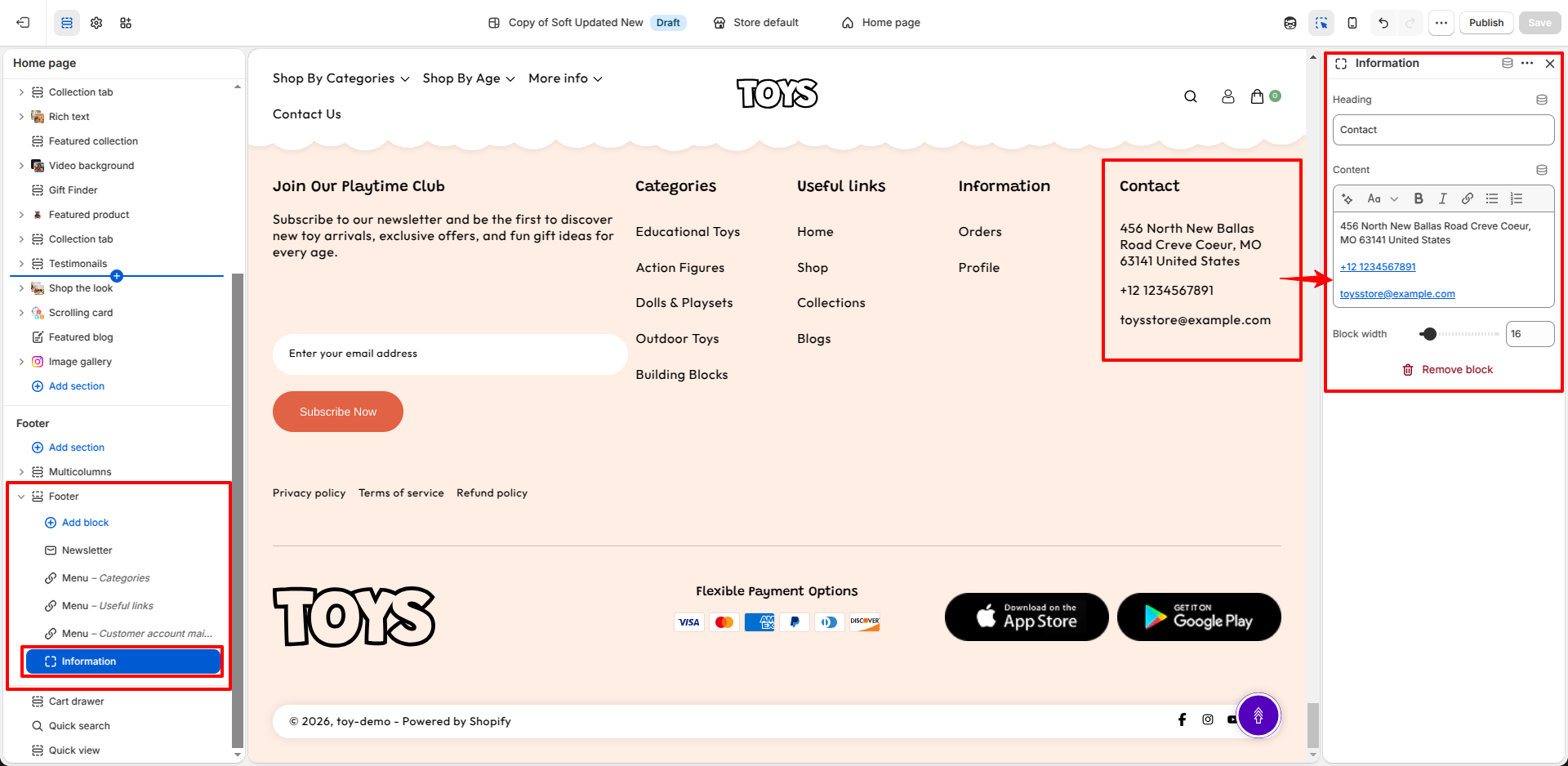
Text Block Configuration - Heading: Enter a title for the text block. This heading helps identify the content of the section, such as About Us, Store Information, or Contact.
- Content: Add the text or rich text content that will appear below the heading. You can include store information, contact details, business hours, addresses, email addresses, phone numbers, or any additional message you would like to share with your customers.
- Block Width: Adjust the width of the text block using the slider. This controls how much horizontal space the block occupies within the footer layout.
FAQs
How do I add or edit links in the footer menus?
You can manage footer links by editing the navigation menus in your Shopify admin. Go to Content → Menus, create or edit a menu, and assign it to the appropriate footer block inside the Theme Editor.
How can I add social media icons to the footer?
To display social media icons, go to Theme Settings → Social Media and add your social profile links. Then enable the Show Social Media option in the Footer section.