
Rich Text
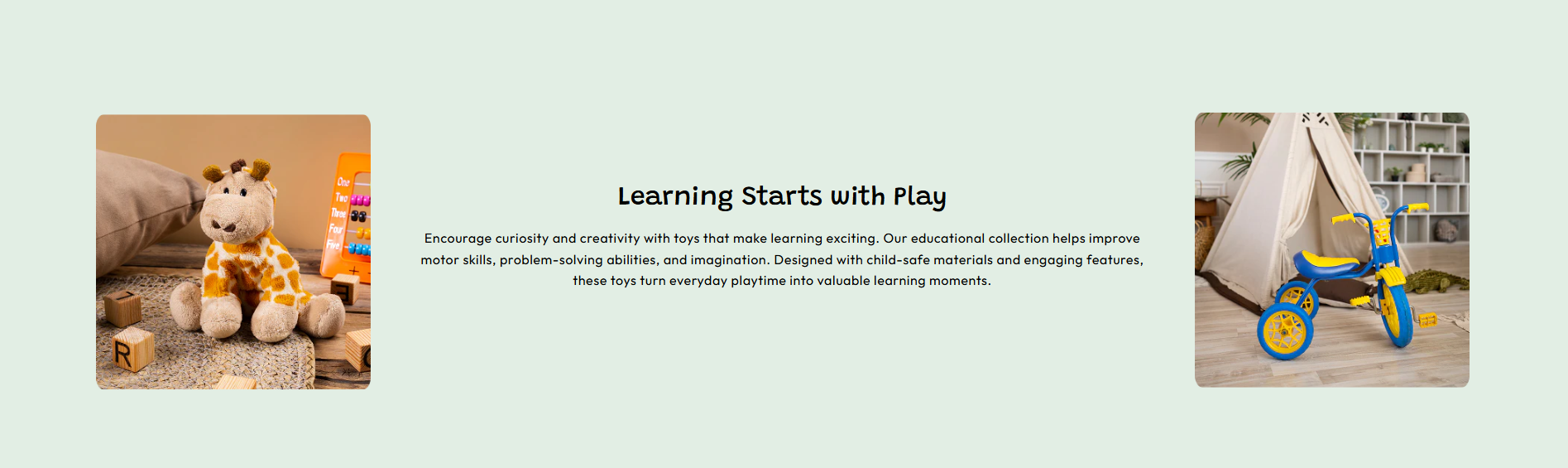
The Rich Text section is designed to emphasize the importance of educational toys in a child's development. It showcases how thoughtfully designed toys can enhance creativity, imagination, motor skills, and problem-solving abilities while keeping children engaged through play.
Featuring attractive lifestyle imagery and informative content, this section creates a visually engaging experience that reinforces the connection between learning and fun. It encourages customers to explore products that support both entertainment and educational growth.
Rich Text Section Settings
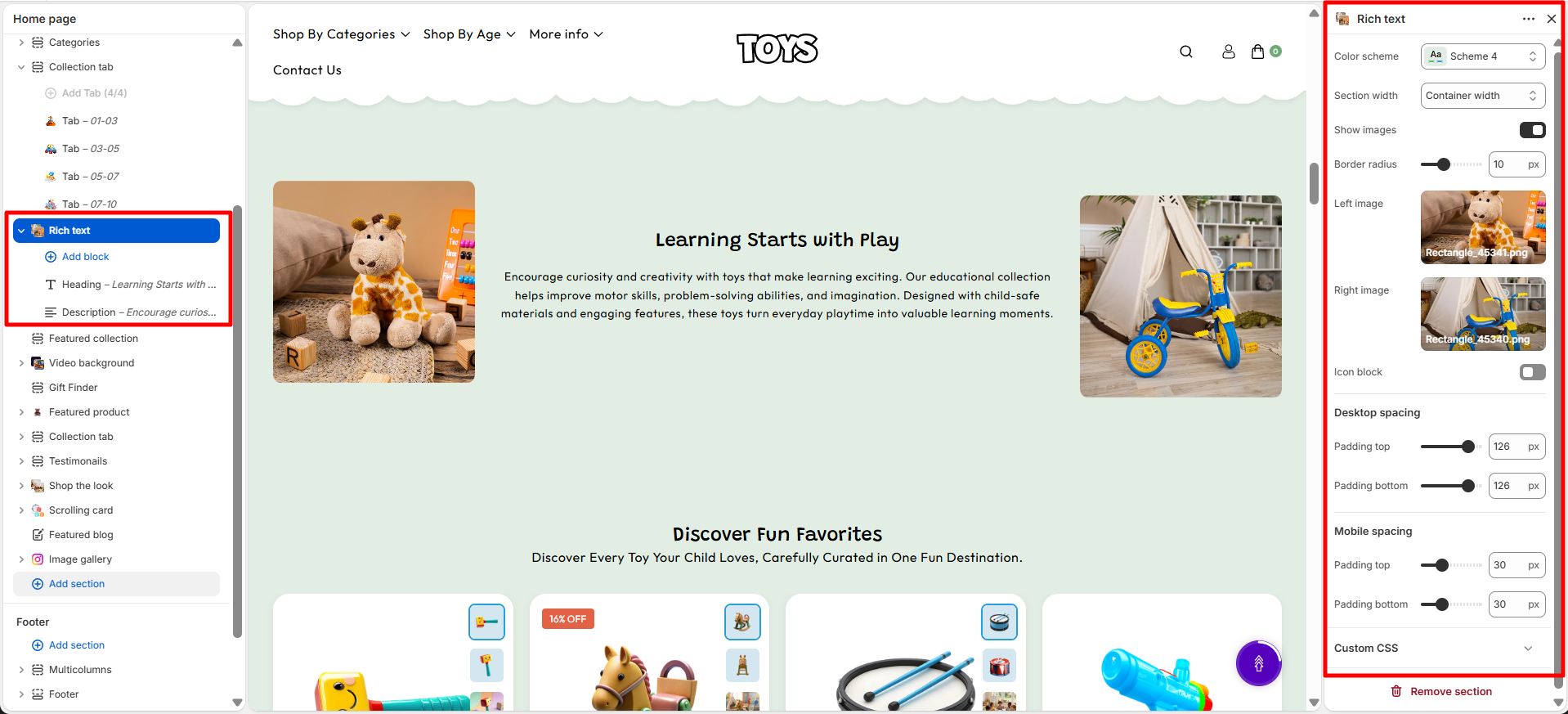
The Rich Text section includes several settings that allow you to customize the layout, heading, and visual appearance of the section.
- Color Scheme – Select the color scheme for the section to match the overall design of your store.
- Section Width – Choose the width layout of the section, such as container width, to control how much space the content occupies.
- Show Images – Enable this option to display images within the section.
- Border Radius – Adjust the corner roundness of the images to create rounded or sharp edges.
- Left Image – Upload an image that will be displayed on the left side of the section.
- Right Image – Upload an image that will be displayed on the right side of the section.
- Icon Block – Add and customize icon-based content blocks within the section.
- Desktop Spacing – Adjust the spacing of the section for desktop devices.
- Padding Top – Set the top spacing of the section on desktop.
- Padding Bottom – Set the bottom spacing of the section on desktop.
- Mobile Spacing – Adjust the spacing of the section for mobile devices.
- Mobile Padding Top – Set the top spacing of the section on mobile devices.
- Mobile Padding Bottom – Set the bottom spacing of the section on mobile devices.
Available Block Settings
There are two blocks available in this section that allow you to manage the heading and description content of the section.
Heading Block
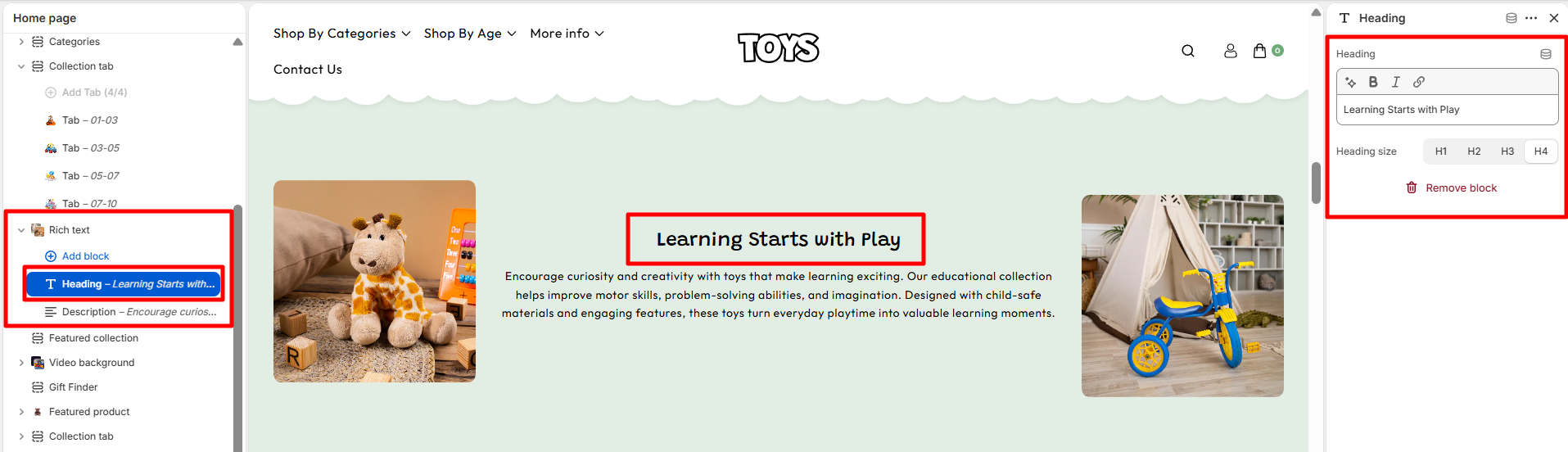
- Heading – Add a title for the section, such as “Learning Starts with Play”, to introduce the content.
- Heading Size – Choose the heading size from H1, H2, H3, or H4 to control the appearance and hierarchy of the section title.
Heading Block
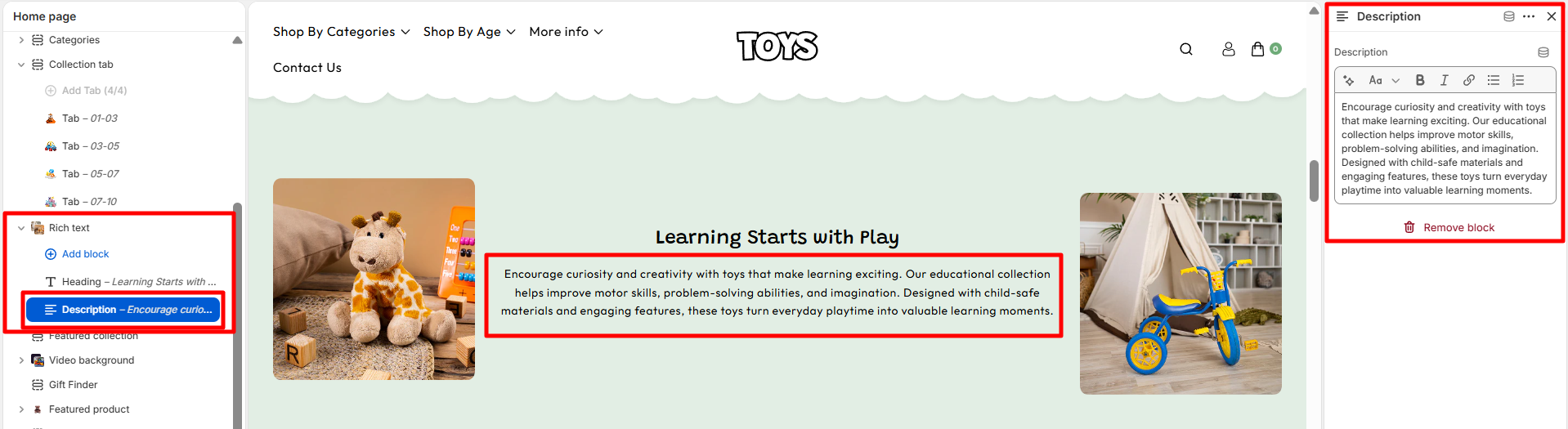
- Description – Add descriptive text for the section to provide more information about the content, products, or collections being displayed.
Steps
- Open the Theme Customizer.
- Navigate to the Rich Text section on the homepage.
- Add a section heading and configure settings such as color scheme, alignment, and image options.
- Upload the main image where you want to place hotspots.
- Click Add Hotspot to create a new hotspot marker.
- Adjust the horizontal and vertical position to place the hotspot correctly on the image.
- Select a collection, add a heading, description, and optional hover image for the popup.
- Click Save to apply your changes.
FAQs
Where can I find the Rich Text section?
You can find the Rich Text section in the Theme Customizer. From your Shopify admin go to Online Store > Themes and click Customize. In the homepage template, locate the Rich Text section to add images and configure hotspot markers.
How do I add a hotspot to the image?
To add a hotspot, open the Rich Text section in the Theme Customizer and click Add Hotspot. Adjust the horizontal and vertical position sliders to place the marker on the image. Then select a collection, add a heading and description, and save your changes.