
Categories
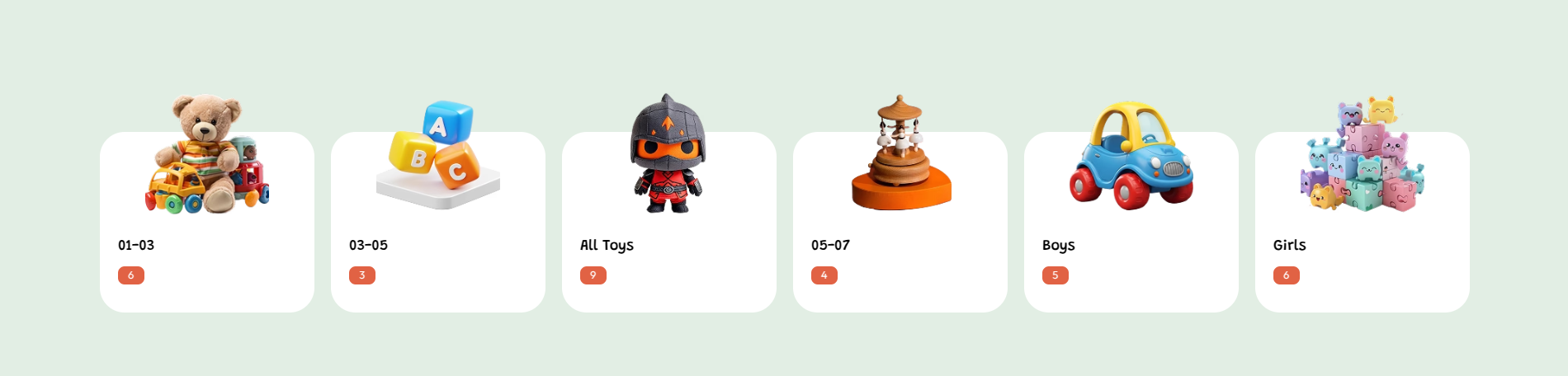
The Categories section in the Soft theme is designed to showcase different toy collections in an attractive card-based layout. It allows you to highlight various product categories such as age groups, toy types, or featured collections, helping customers quickly discover products that match their interests.
Each category card includes a visual image, category title, and product count to provide a clear overview of available items. The section creates an engaging browsing experience by displaying multiple categories together, making it easier for customers to navigate and explore different toy collections directly from the homepage.
Categories Settings
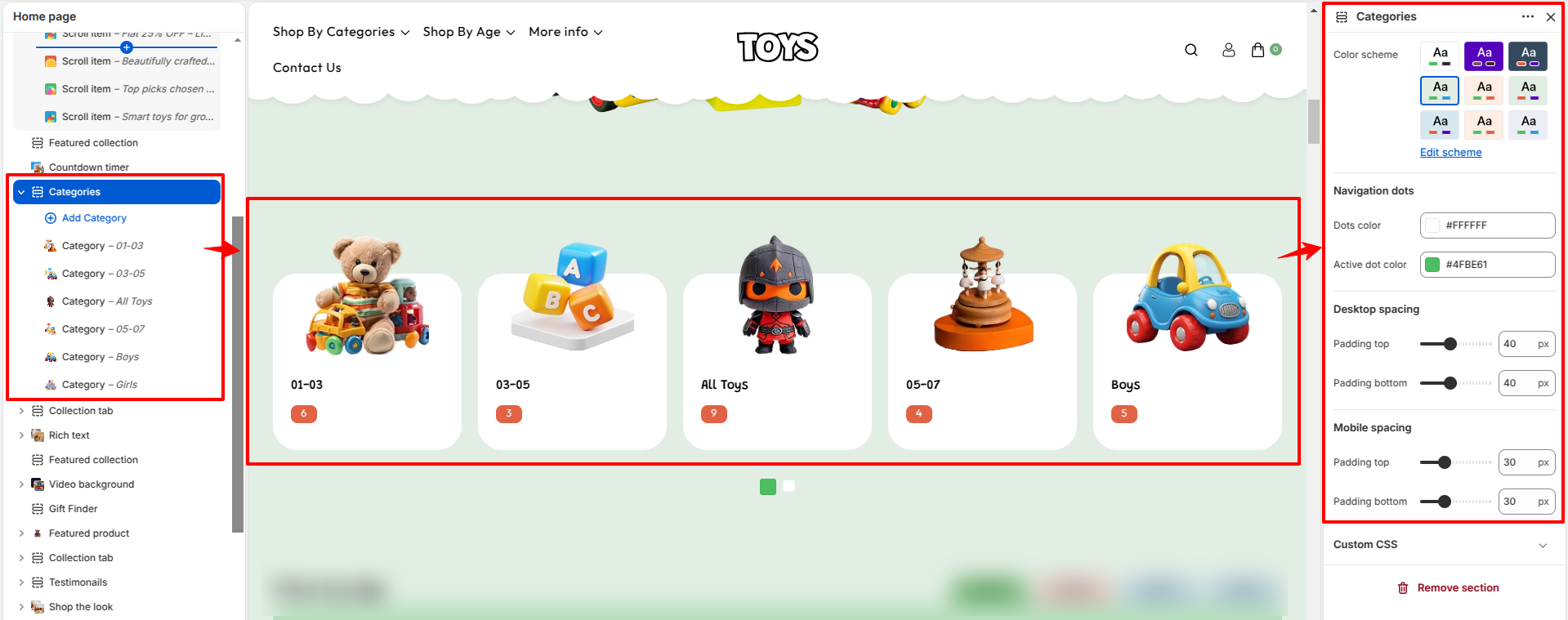
The Categories section includes several customization options that allow you to control the layout, style, and behavior of the section.
- Color Scheme – Select the color scheme for the section to match the overall design of your store.
- Navigation Dots – Display navigation dots below the slider to help users switch between slides.
- Dots Color – Set the default color of the navigation dots.
- Active Dot Color – Choose the color of the currently active slide dot.
-
Desktop Spacing – Adjust spacing for desktop devices:
- Padding Top – Space above the section.
- Padding Bottom – Space below the section.
-
Mobile Spacing – Adjust spacing for mobile devices:
- Padding Top – Space above the section.
- Padding Bottom – Space below the section.
Categories Block Settings
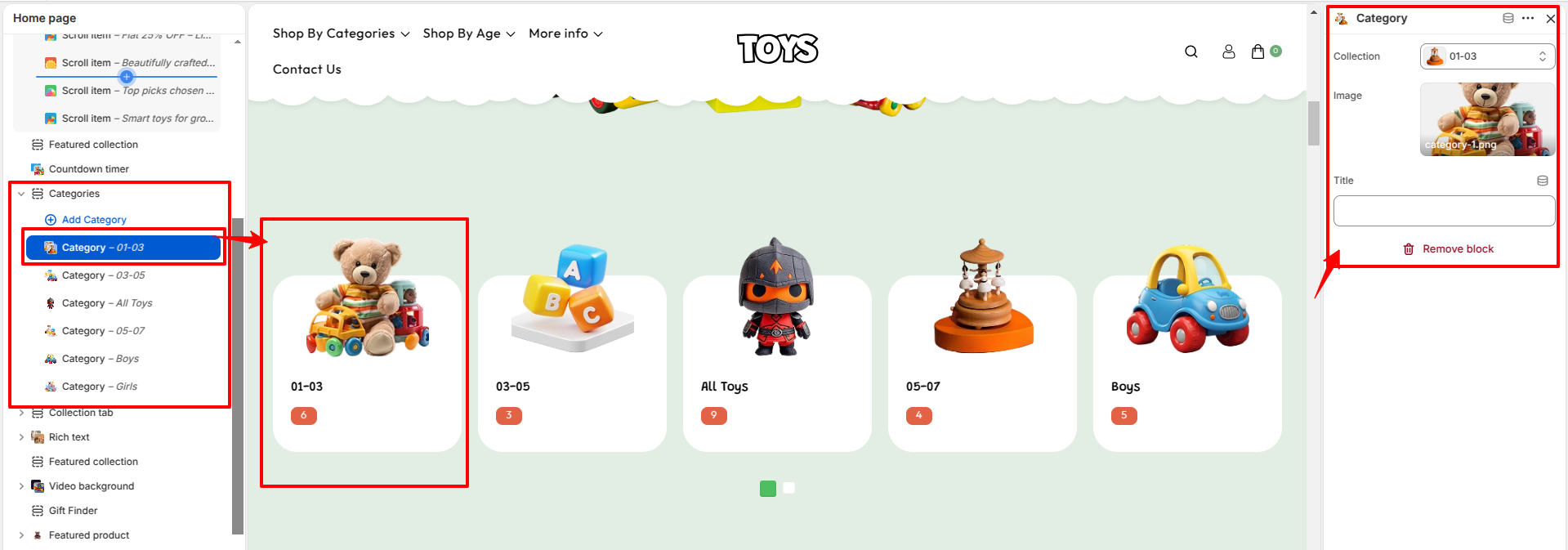
Each slide in the Categories represents a collection block. You can customize each block by selecting a collection, adding an image, and writing a short description.
- Select Categories – Choose the Shopify collection that will be displayed in this slider block.
- Select Image – Upload a custom image for the collection. This image will appear as the background of the collection card.
- Categories Title (Optional) – Add a custom title for the collection. If left empty, the original collection title will be used.
Steps
- Open the Theme Customizer.
- Navigate to the Categories section on the homepage.
- Add a section heading and choose a color scheme.
- Enable or disable the auto-rotate option for the slider if needed.
- Click Add Collection to create a new collection slide.
- Select the collection, upload an image, and optionally add a custom title and description.
- Repeat the process to add multiple collections to the slider.
- Click Save to apply the changes.
FAQs
Where can I find the Categories section?
You can find the Categories section in the Theme Customizer. From your Shopify admin, go to Online Store > Themes and click Customize. In the homepage template, locate the Categories section to manage collections, images, and slider settings.
How do I add collections to the Categories?
To add collections, open the Theme Customizer and navigate to the Categories section. Click Add Collection, select the collection you want to display, upload an image, and optionally add a custom title and description. Once finished, click Save to apply your changes.