
Testimonials
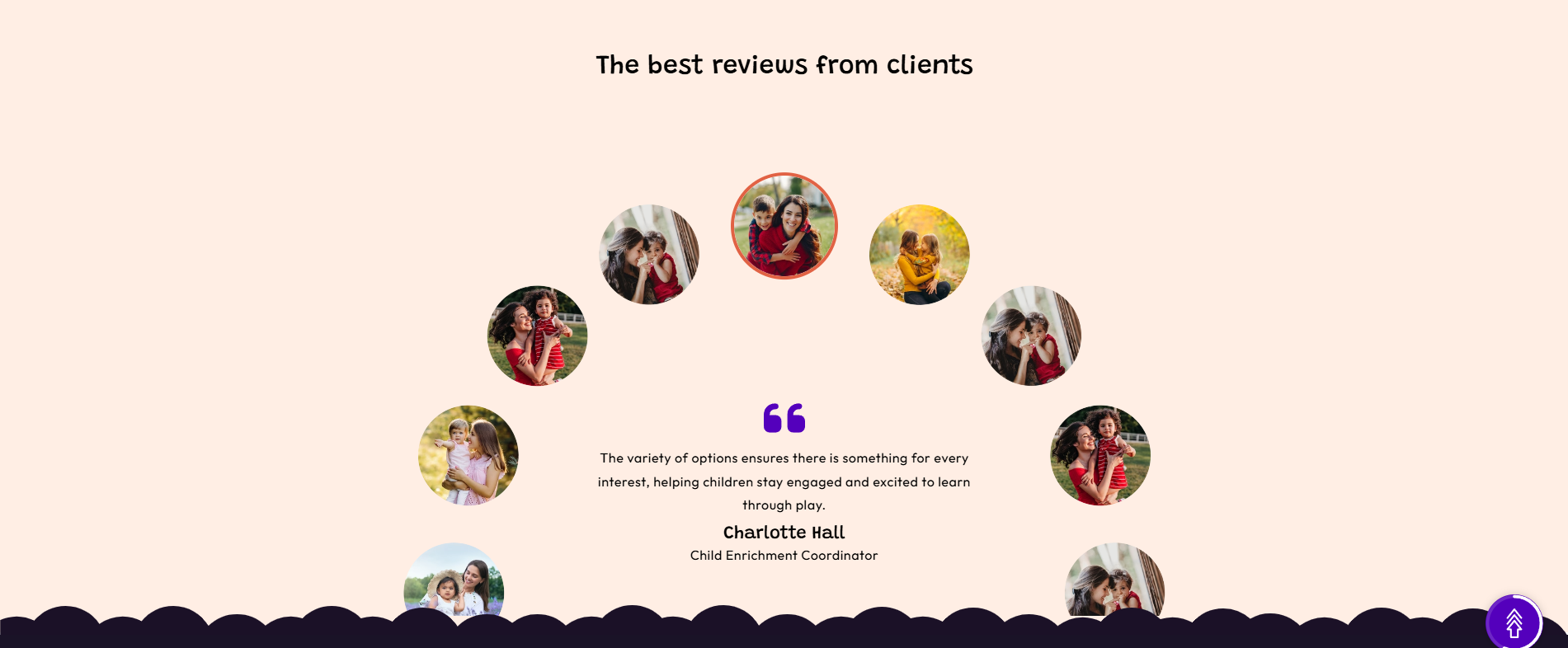
The Testimonials section in the Soft theme allows you to showcase customer feedback on your homepage in a visually appealing way. Each testimonial can include a customer review, author name, and ocupation. This section is designed to increase credibility and help build trust with potential customers.
Testimonials Section Settings
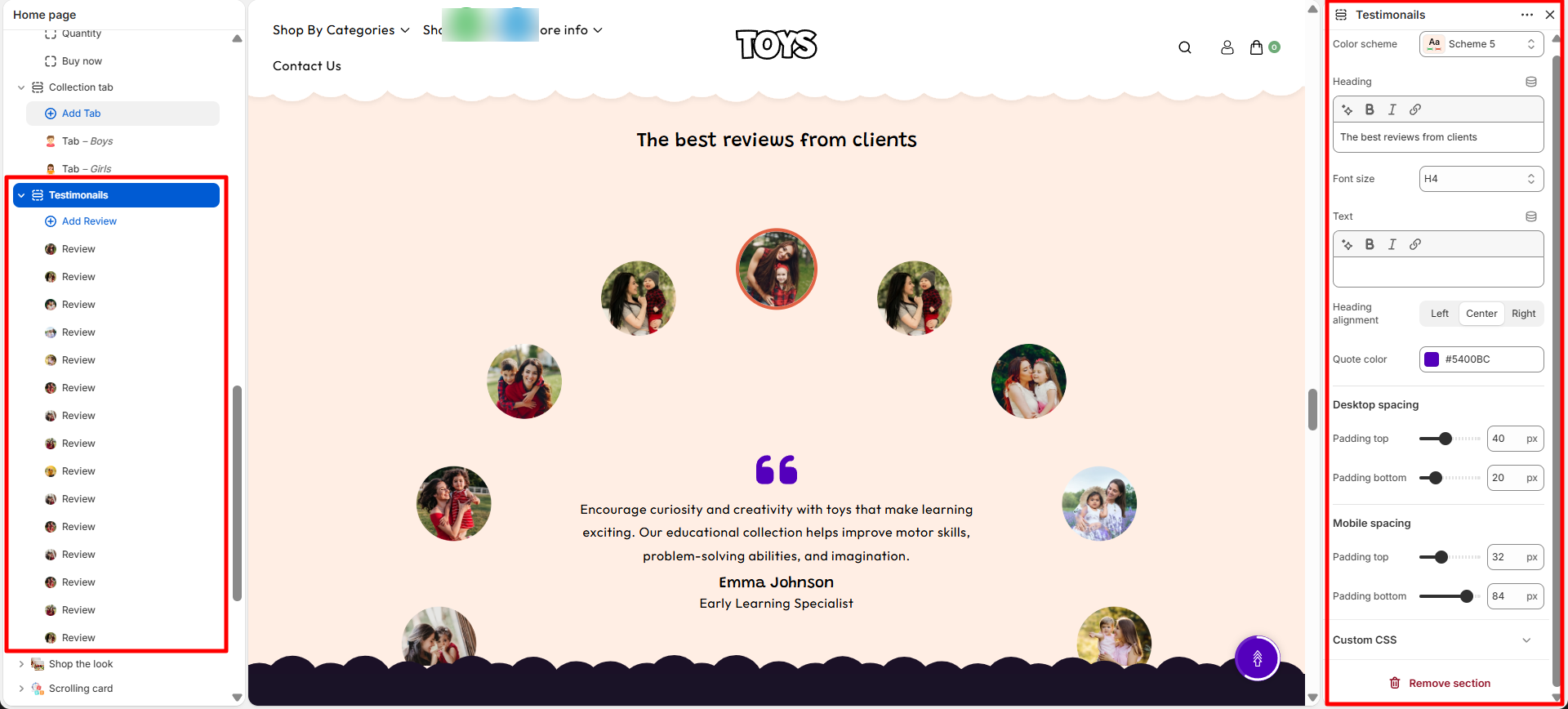
The section includes global settings to control the layout and appearance:
- Color Scheme – Choose a predefined color palette to match the look and feel of your store.
- Heading – Add a title for the section, such as “The best reviews from clients”, to introduce the testimonials.
- Font Size – Adjust the size of the section heading text to control its appearance.
- Text – Add supporting content or a short description for the testimonial section.
- Heading Alignment – Choose the alignment of the heading, such as Left, Center, or Right.
- Quote Color – Select the color of the quote icon or testimonial quote styling.
- Desktop Spacing – Adjust the spacing of the section for desktop devices.
- Padding Top – Set the top spacing of the section on desktop devices.
- Padding Bottom – Set the bottom spacing of the section on desktop devices.
- Mobile Spacing – Adjust the spacing of the section for mobile devices.
- Mobile Padding Top – Set the top spacing of the section on mobile devices.
- Mobile Padding Bottom – Set the bottom spacing of the section on mobile devices.
Review Block Settings
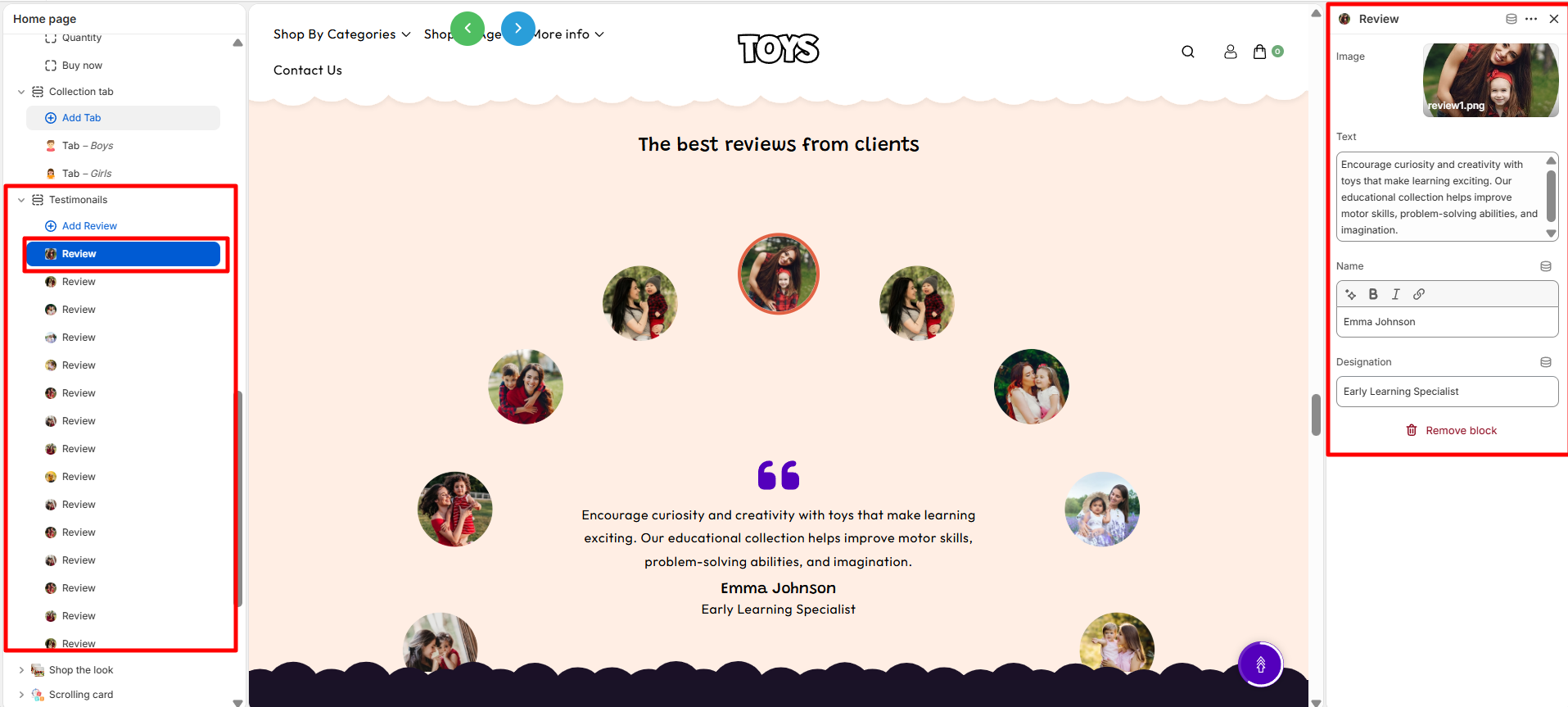
Each individual review block has its own customizable options:
- Image – Upload an image for the testimonial, such as a customer photo or profile picture.
- Text – Add the testimonial content or customer review that will be displayed in the section.
- Name – Enter the name of the customer or person providing the testimonial.
- Designation – Add the customer's role, profession, or title to provide additional information.
Steps
- Open the Theme Customizer from your Shopify admin.
- Navigate to the Testimonials section on the homepage.
- Add a section heading and select the desired color scheme, alignment, and spacing.
- Click Add Testimonial to create a new testimonial block.
- Set the star rating, enter the testimonial text, author name, and location.
- Repeat for additional testimonials as needed.
- Enable arrows if you want users to navigate through multiple testimonials.
- Click Save to apply your changes.
FAQs
Where can I find the Testimonials section?
You can find the Testimonials section in the Theme Customizer. Go to Online Store > Themes in Shopify admin, click Customize, and locate the Testimonials section on the homepage.
How do I add a new testimonial?
Open the Testimonials section in the Theme Customizer, click Add Testimonial, then enter the star rating, testimonial text, author name, and location. Click Save when finished.