
Video Background
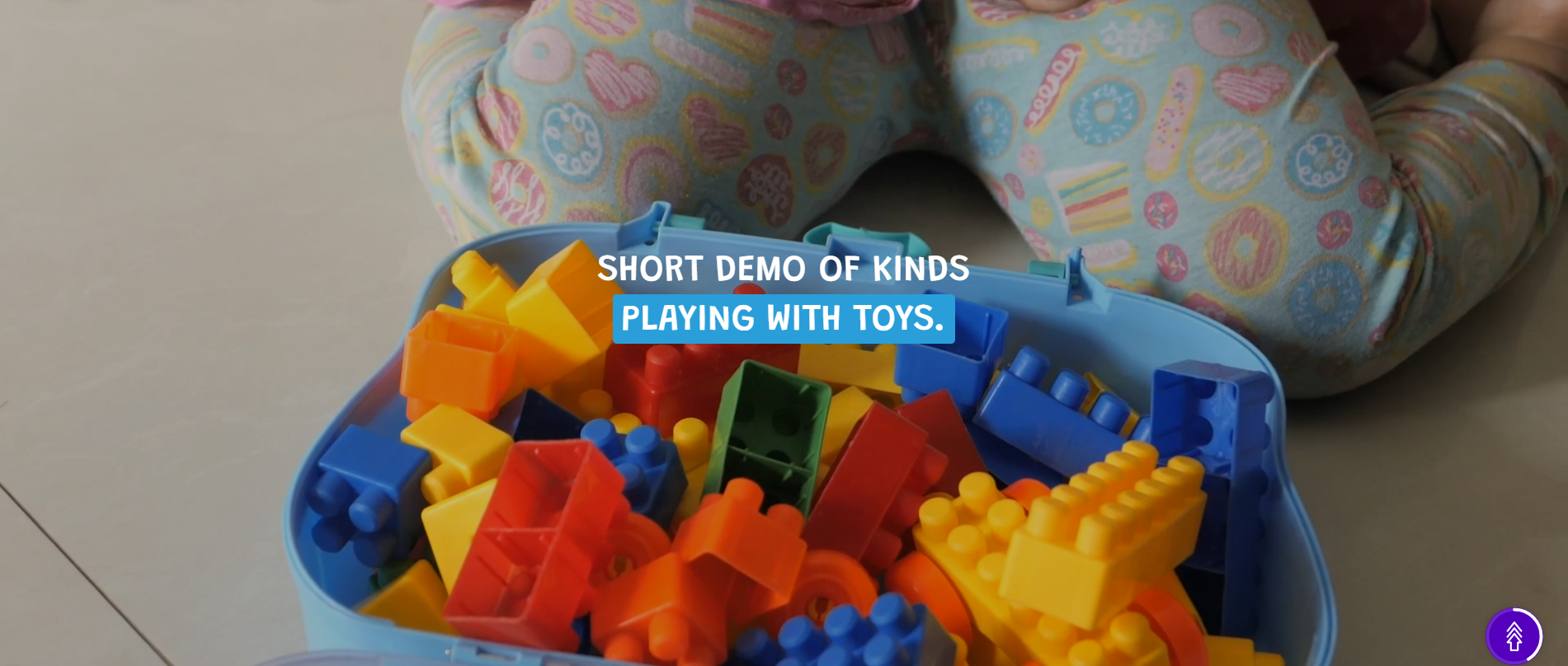
The Video Background section in the Soft theme allows you to showcase engaging video content as a prominent visual element on your store. It is designed to capture visitors' attention instantly and create an immersive browsing experience by combining motion visuals with promotional or brand-focused content.
The section also provides options to customize the heading, text content, text position, colors, font size, and call-to-action button. Additionally, a scroll-based zoom effect can be enabled, causing the video to gradually enlarge as visitors scroll through the page. Once the zoom animation is completed, the following content sections smoothly appear, creating an engaging and immersive browsing experience.
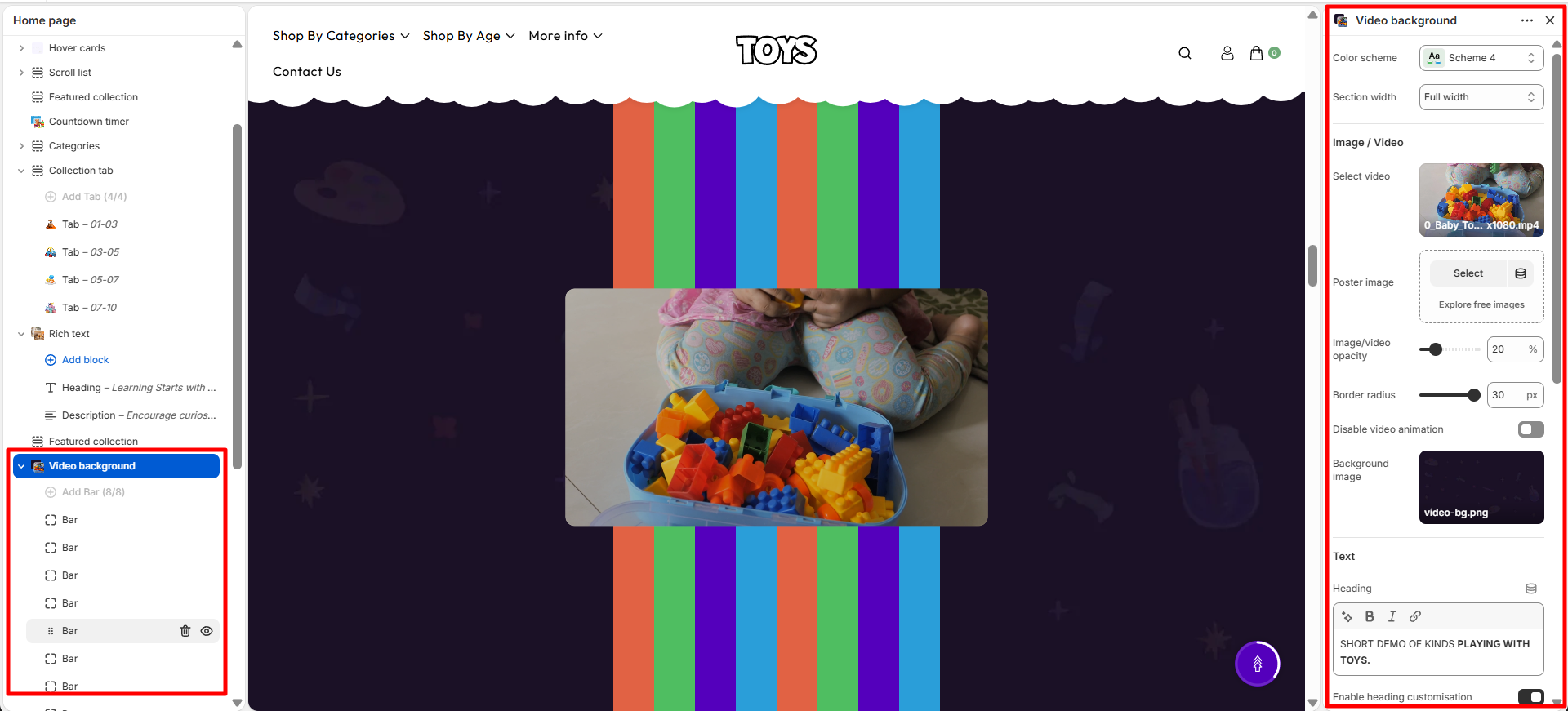
Video Background Settings
The Video Background section provides several customization options to control the media display, text content, and layout positioning.
- Color Scheme – Choose the color scheme for the banner section to match your store's branding and overall design.
- Section Width – Select the layout width of the banner, such as full width, to control how the section appears on the page.
- Select Video – Upload or select a video to display as the main banner media.
- Poster Image – Add a fallback image that will be displayed before the video loads or when the video cannot be played.
- Image/Video Opacity – Adjust the transparency of the banner media to improve the visibility of the text overlay.
- Border Radius – Set the corner roundness of the banner media to create rounded edges.
- Disable Video Animation – Enable this option to disable video animation effects within the banner.
- Background Image – Upload a background image that appears behind the banner content.
- Heading – Add a main title for the banner section to highlight your message or promotion.
- Enable Heading Customisation – Enable this option to customize the heading appearance and styling. Use Text Bold for Line Break and Background
- Text Color – Choose the color of the heading and banner text.
- Customisation Background Color – Select the background color used for customized text highlights.
- Font Size – Choose the heading size to control the text hierarchy.
- Text – Add supporting content below the heading to provide additional information about the banner.
- Button Label – Add text for the call-to-action button displayed on the banner.
- Button Link – Select the page, product, or collection customers will visit when clicking the button.
- Text Position – Choose the alignment and placement of the banner text, such as center alignment.
- Section Spacing – Adjust the spacing around the banner section.
- Top Spacing – Set the top padding of the section.
- Bottom Spacing – Set the bottom padding of the section.
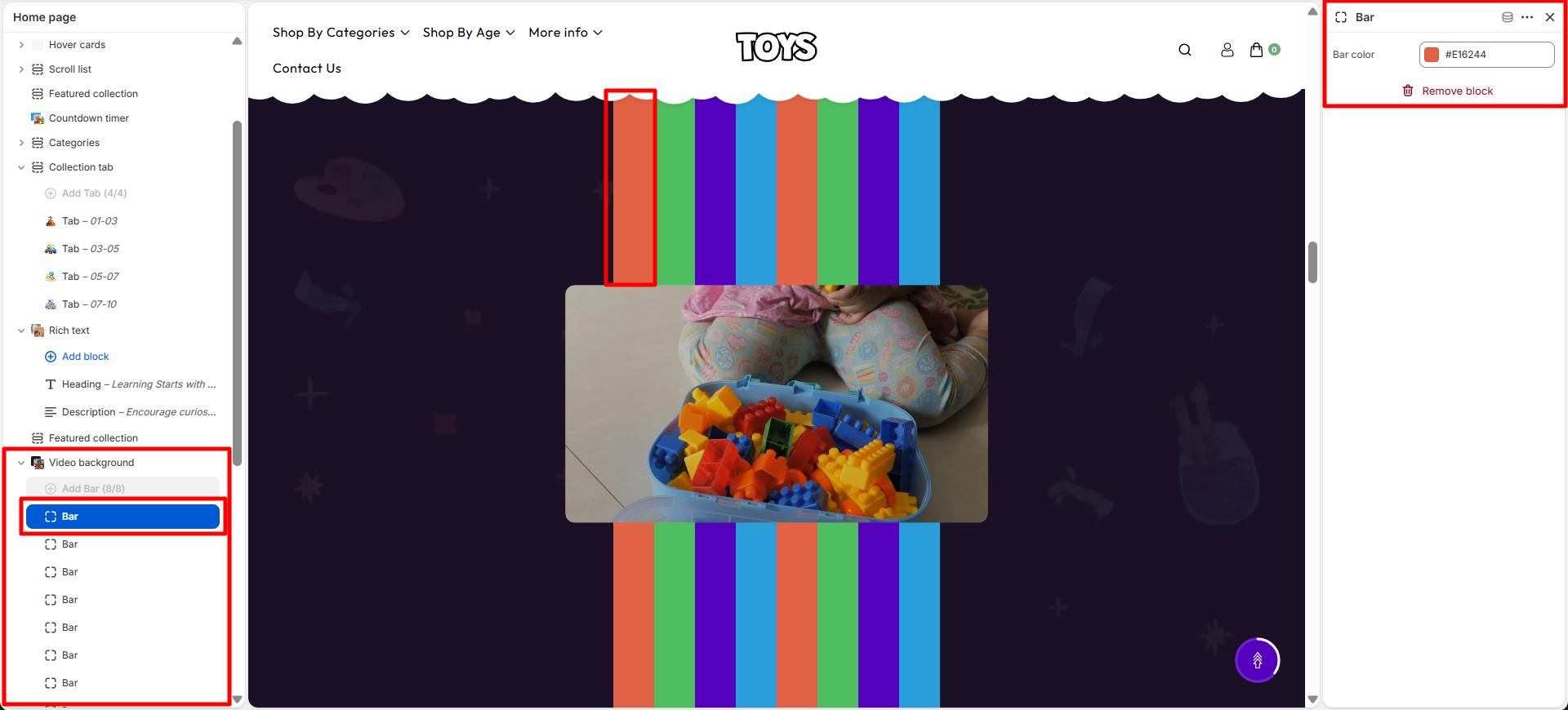
Bar Block Settings
The Bar Block helps you add and manage decorative background strips within the section. These strips can be used to enhance the visual appearance of your store, create separation between content areas, and maintain a consistent design throughout the page.
- Bar Color – Select the color of the decorative bar element displayed in the banner section.
Steps
- Open the Theme Customizer.
- Navigate to the Video Background section on the homepage.
- Upload a banner image or video for desktop and mobile devices.
- Adjust the media height, overlay, and banner width settings.
- Adjust the content position and alignment for both desktop and mobile.
- Click Save to apply the changes.
FAQs
Can I use a video instead of an image in the banner?
Yes, the Video Background section supports video backgrounds. You can upload or select a video for both desktop and mobile devices to create a more engaging banner experience.
Can I use different images for desktop and mobile?
Yes, you can upload separate images for desktop and mobile screens. This ensures the banner appears properly optimized across all devices.