
Mega Menu
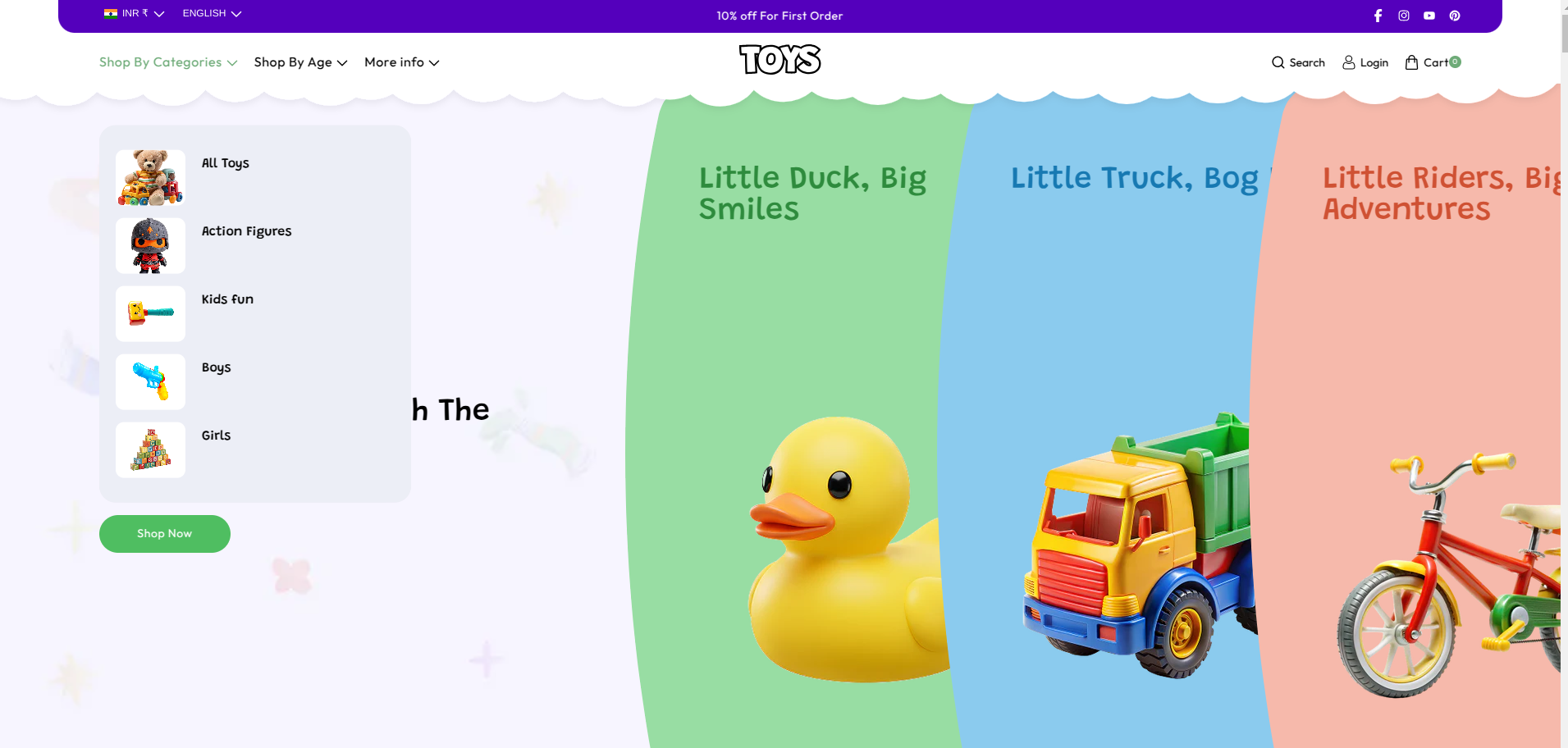
The Soft theme includes a powerful Mega Menu feature that allows you to display multiple categories, collections, and promotional images in a wide dropdown layout. This helps customers easily navigate through your store and enhances the overall shopping experience.
Mega Menu Settings
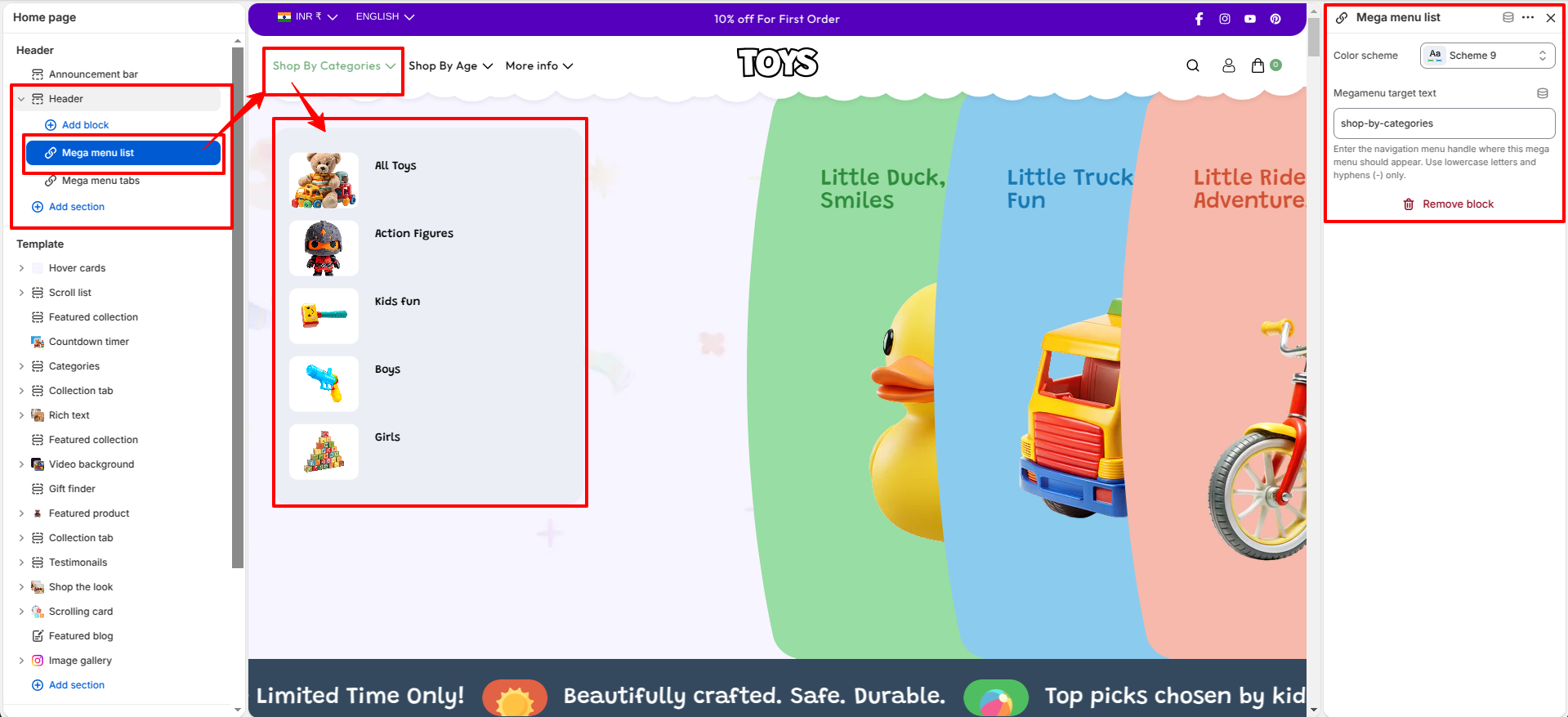
Follow these steps to configure the Mega Menu in the theme editor:
- Go to Shopify Admin > Online Store > Themes.
- Click Customize on the Soft theme.
- Navigate to Header section.
- Click on Mega Menu block.
Settings Explanation
- Color scheme: Choose a color scheme for the mega menu. Click "Edit scheme" to customize or select an existing theme color set.
-
Megamenu target text:
shop-by-categories
Enter the navigation menu handle where this mega menu should appear. Use lowercase letters and hyphens (-) only.
How to Create a Mega Menu
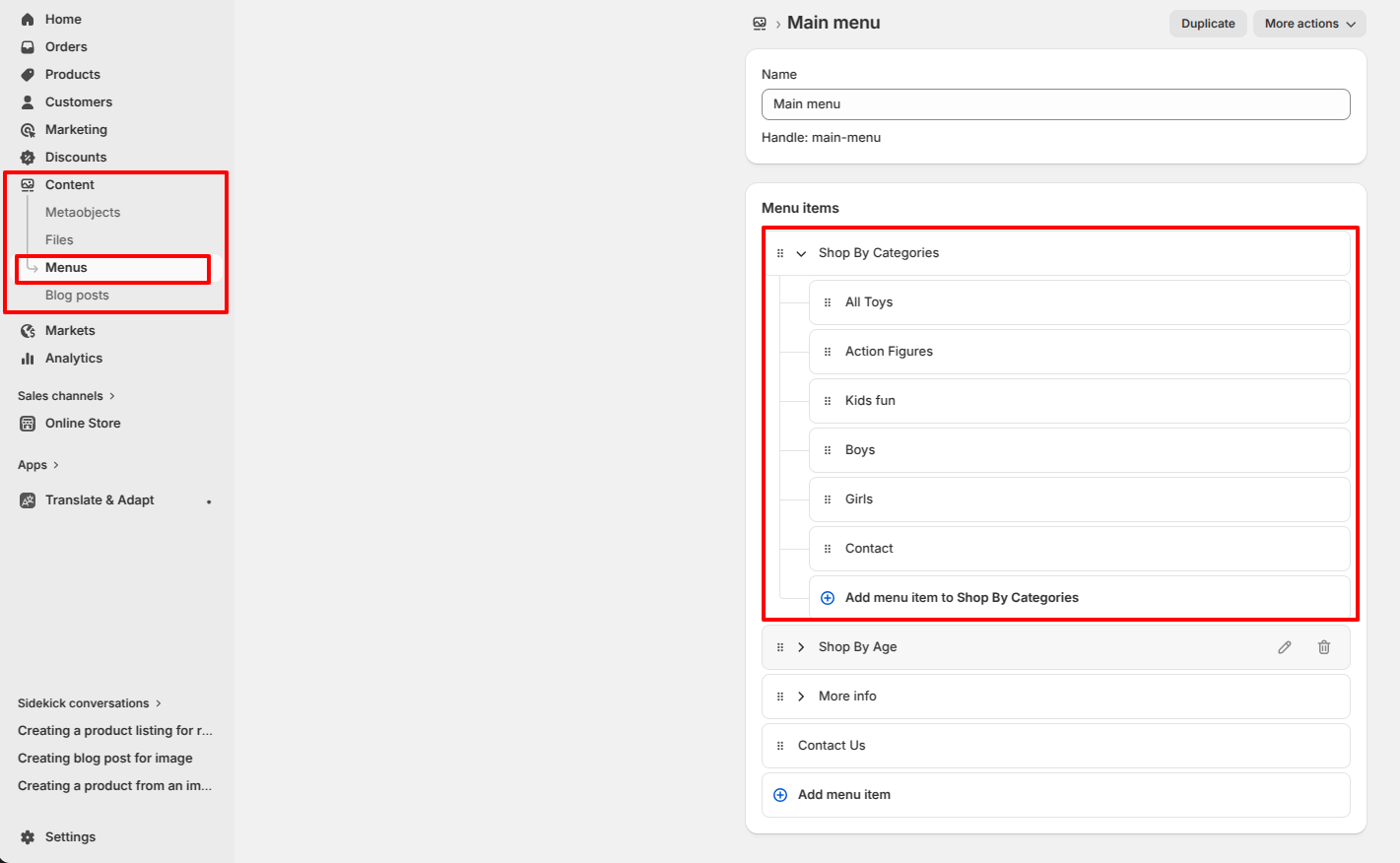
Before using the Mega Menu in the theme, you need to create a navigation menu in Shopify admin.
Steps
- Go to Shopify Admin > Online Store > Navigation.
- Open the Main Menu.
- Click Add menu item and create a main item (e.g., Boys).
- Add sub-menu items like All Toys, Action Figures, Kids fun, etc.
- Drag sub-items slightly to the right to create a dropdown structure.
- Click Save menu.
Important Notes
Why is my Mega Menu not showing?
Make sure the Menu Item name matches exactly with your Shopify navigation menu. Also ensure that sub-menu items are properly nested.
Where do menu links come from?
All menu links are managed from Shopify Navigation. The theme only controls the layout and styling of the Mega Menu.