
Scroll List
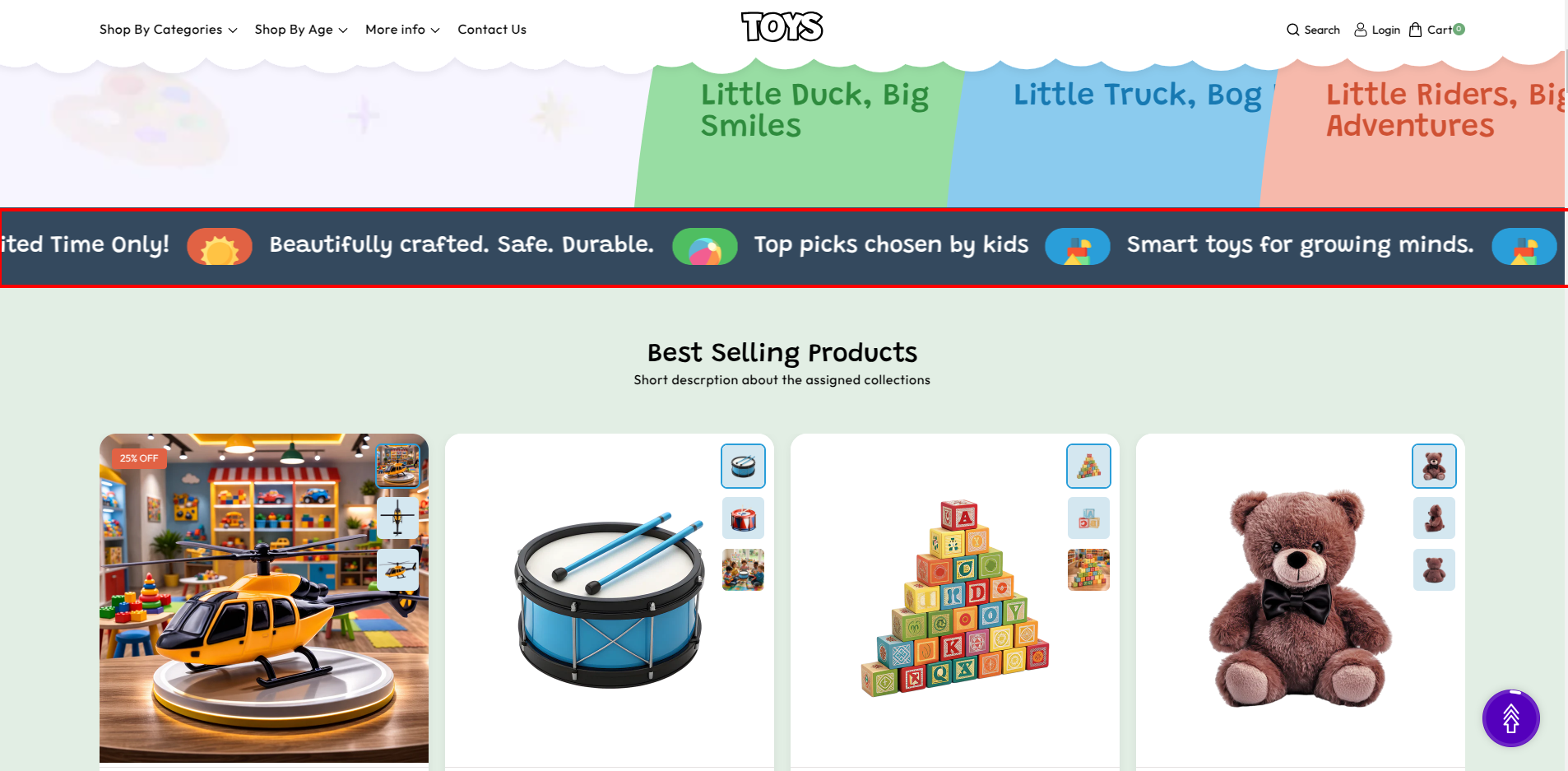
The Scroll List section in the Soft theme allows you to display continuously scrolling promotional text with optional icons or images. This section is commonly used to highlight announcements, promotions, or trending messages such as Flat 25% OFF – Limited Time Only!, Featured text, or special store updates.
The scrolling text moves horizontally across the screen, creating an eye-catching announcement bar that helps attract customer attention. You can add multiple scroll items, customize the scrolling speed, direction, spacing, and text styling to match your store’s design.
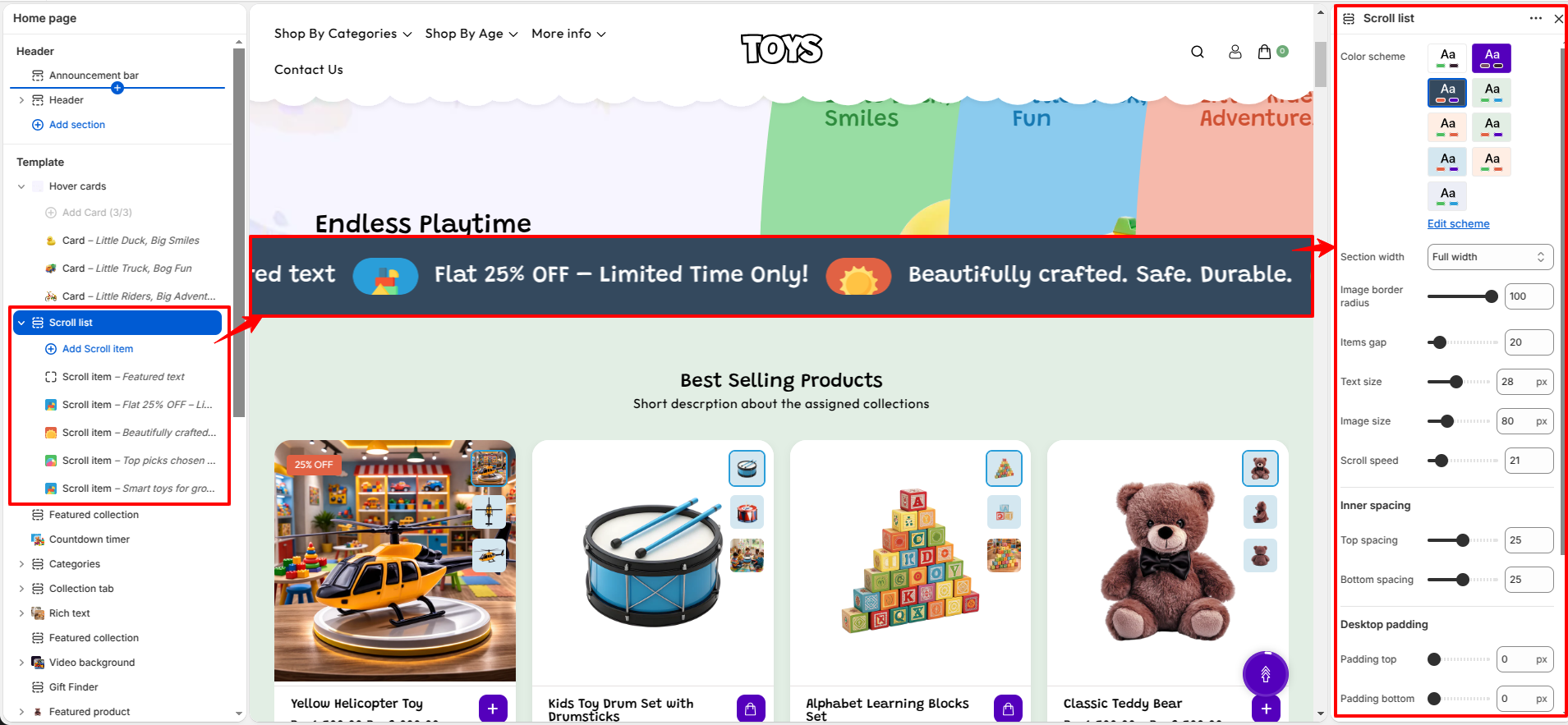
Scroll List Section Settings
The Scroll List section provides several customization options to control the design, animation behavior, and spacing of the scrolling text.
- Color Scheme – Choose the color scheme for the scroll list section to match your store’s branding and overall design style.
- Section Width – Select the width of the section, such as full width or a contained layout, to control how the scroll list spans across the page.
- Image Border Radius – Adjust the roundness of images or icons displayed in the scroll list. Higher values create more rounded visuals, while lower values keep a sharp rectangular look.
- Items Gap – Control the spacing between each scrolling item. Increasing the gap creates more breathing space, while decreasing it makes items appear closer together.
- Text Size – Set the font size of the scrolling text to improve readability and visual balance within the section.
- Image Size – Adjust the size of the icon or image displayed alongside the scrolling text for better visual emphasis.
- Scroll Speed – Control how fast the content moves across the screen. A higher value results in faster scrolling, while a lower value creates a slower, smoother effect.
-
Inner Spacing – Adjust spacing inside the section, including:
- Top Spacing – Controls space between the top of the section content and its container.
- Bottom Spacing – Controls space between the bottom of the section content and its container.
-
Desktop Padding – Adjust the outer spacing for desktop devices:
- Padding Top – Adds space above the section on desktop screens.
- Padding Bottom – Adds space below the section on desktop screens.
-
Mobile Padding – Adjust the outer spacing for mobile devices:
- Padding Top – Adds space above the section on mobile screens.
- Padding Bottom – Adds space below the section on mobile screens.
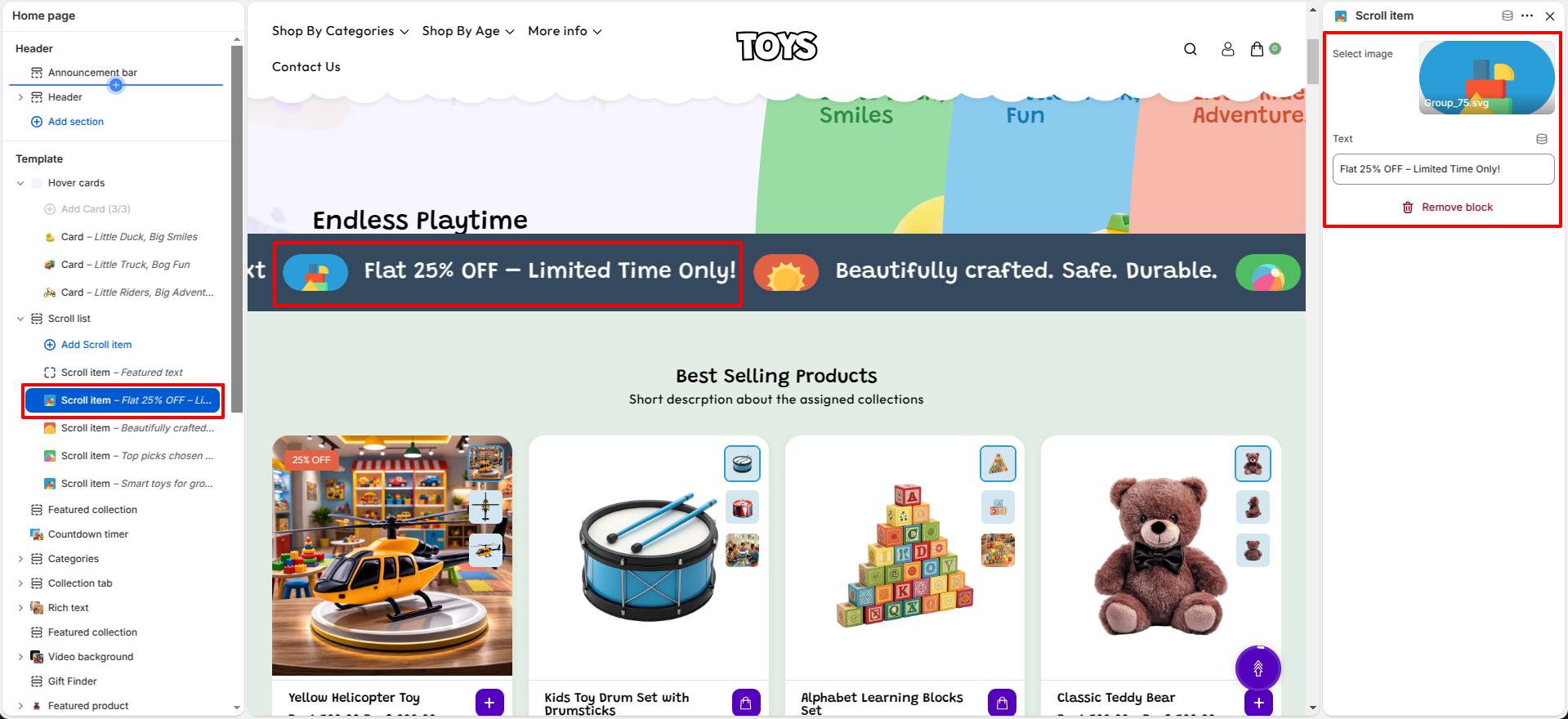
Scroll Item Block Settings
Each scrolling message can be added as a separate Scroll Item. This allows you to display multiple announcements or promotional messages within the same scrolling bar.
- Select Image – Upload an icon or image that will appear next to the scrolling text.
- Text – Enter the message you want to display in the scrolling list, such as “Flat 25% OFF – Limited Time Only!”.
Steps
- Open the Theme Customizer.
- Navigate to the Scroll List section on the homepage.
- Configure section settings such as scroll direction, text size, speed, and spacing.
- Click Add Scroll Item to create a new scrolling message.
- Upload an optional image and enter the text for the scroll item.
- Enable the text stroke effect if you want a styled outline text.
- Add multiple scroll items to display several promotional messages.
- Click Save to apply the changes.
FAQs
Where can I find the Scroll List section?
You can find the Scroll List section in the Theme Customizer. From your Shopify admin, go to Online Store > Themes and click Customize. In the homepage template, locate the Scroll List section to manage scrolling text, images, and animation settings.
How do I add text to the Scroll List?
Open the Theme Customizer and navigate to the Scroll List section. Click Add Scroll Item, enter the message you want to display, optionally upload an icon image, and save the changes. You can add multiple items to display several scrolling announcements.