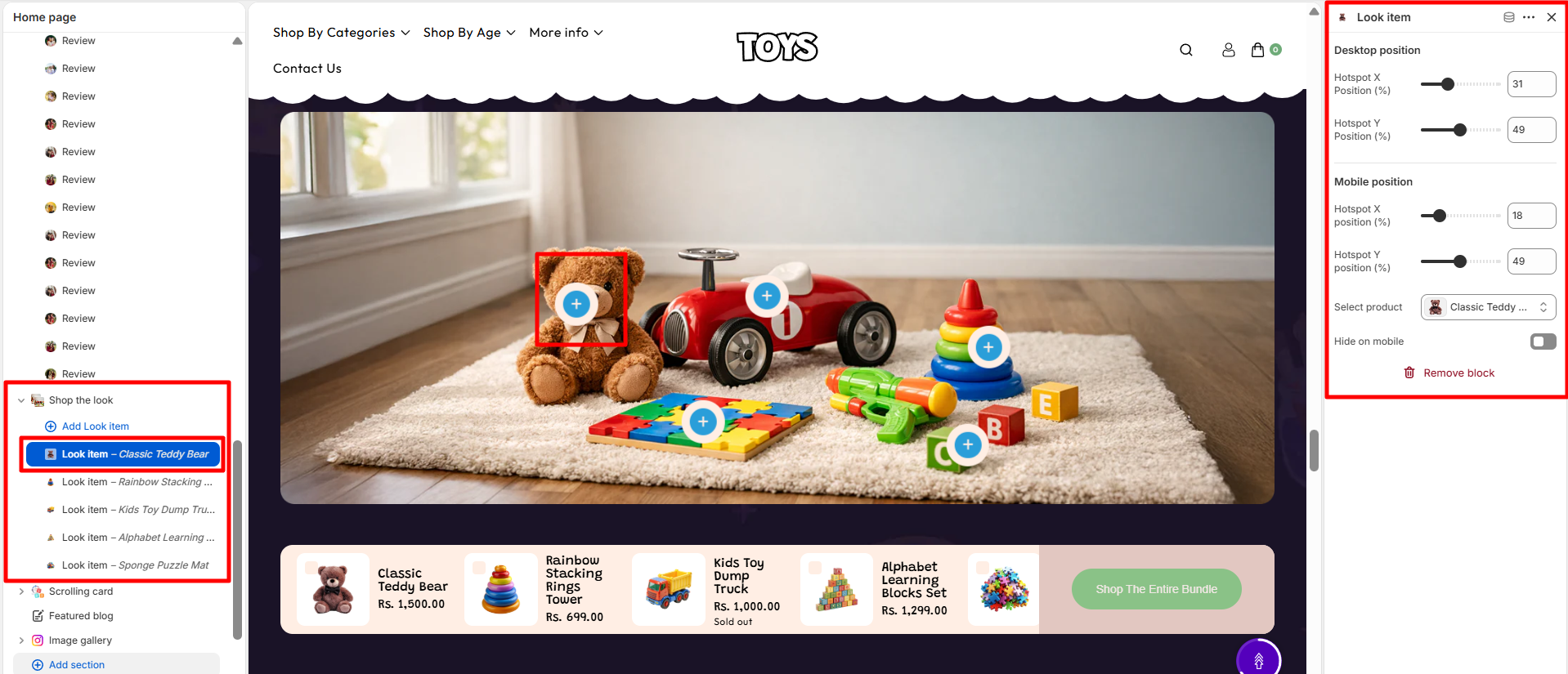
Shop the look
The Shop the Look section in the Soft theme allows you to showcase multiple products within a lifestyle image using interactive hotspot markers. Customers can click on these hotspots to discover featured items and explore the products that make up the complete look.
This section creates an engaging visual shopping experience by connecting products directly to the image. Featured products are also displayed in a product strip below the image, making it easy for customers to view details and purchase individual items or the entire curated collection.
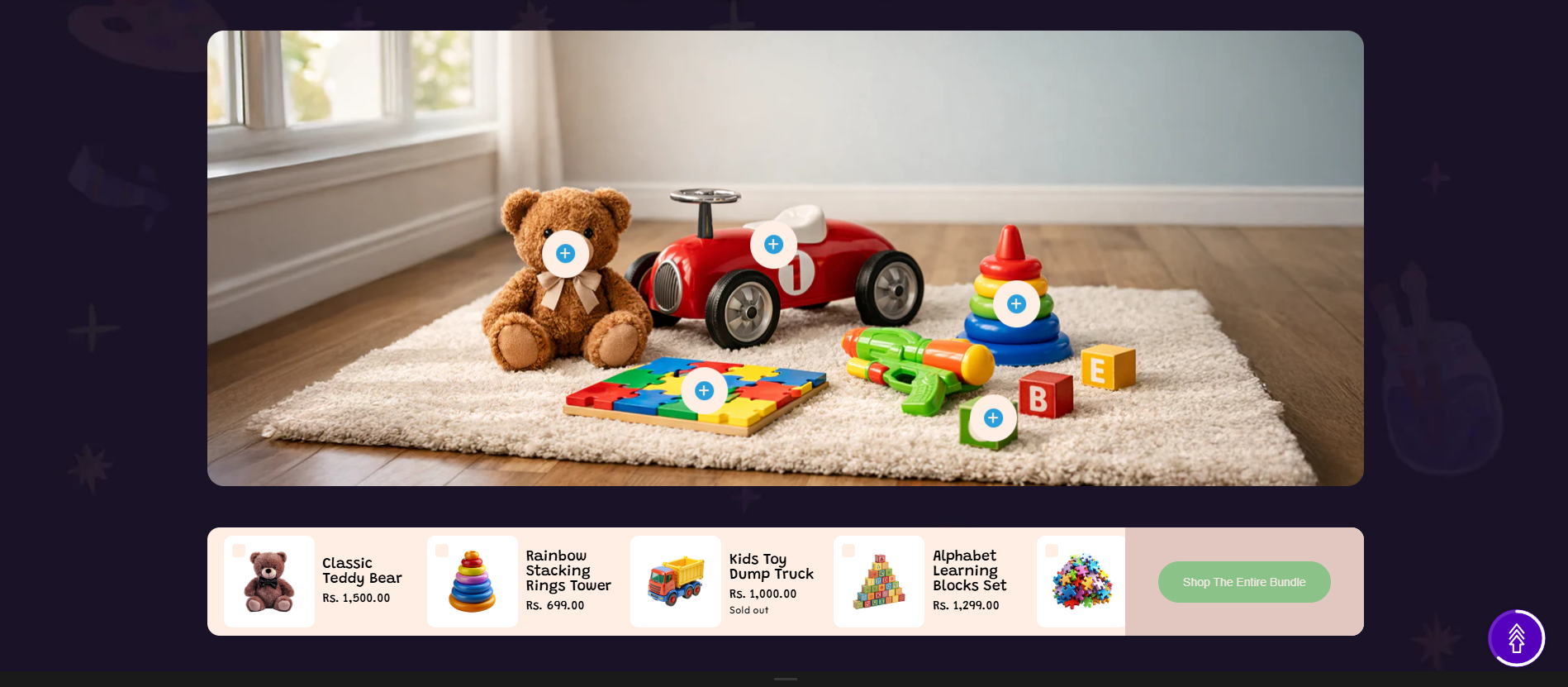
Shop the look Section Settings
- Color Scheme – Choose a predefined color palette to match the section with your store branding.
- Enable Mask – Enable this option to apply a mask effect to the image for a unique visual appearance.
- Layout – Choose the image layout style, such as displaying the image with a background.
- Image – Upload the main image that will be displayed in the section on desktop devices.
- Mobile Image – Upload a separate image optimized for mobile devices.
- Border Radius – Adjust the corner roundness of the image to create rounded or sharp edges.
- Overlay – Adjust the overlay opacity on the image to improve the visibility of content placed over it.
- Background Image – Upload a background image that appears behind the main image.
- Desktop Spacing – Adjust the spacing of the section for desktop devices.
- Padding Top – Set the top spacing of the section on desktop devices.
- Padding Bottom – Set the bottom spacing of the section on desktop devices.
- Mobile Spacing – Adjust the spacing of the section for mobile devices.
- Mobile Padding Top – Set the top spacing of the section on mobile devices.
- Mobile Padding Bottom – Set the bottom spacing of the section on mobile devices.
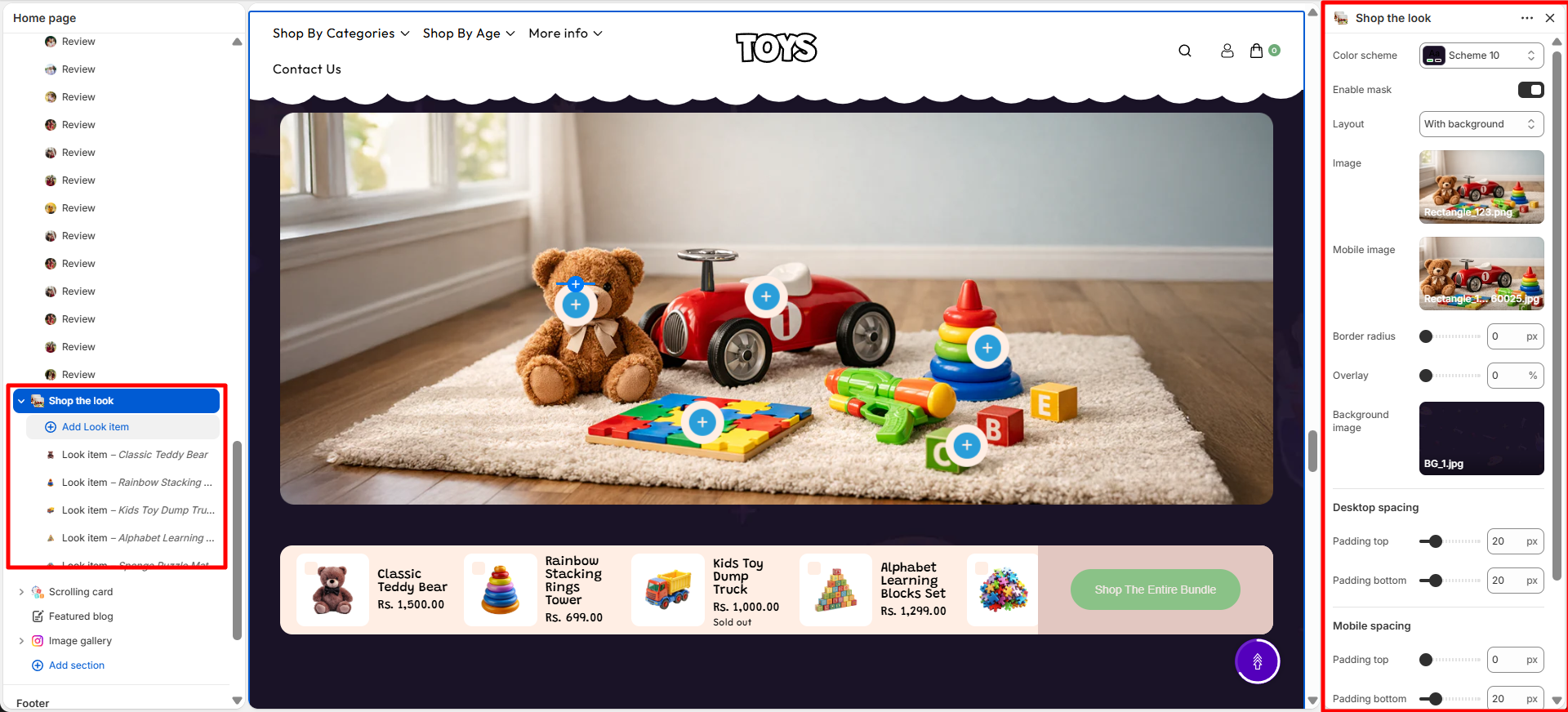
look item Blocks
The Shop the look section supports block types that allow you to create an engaging visual layout.
- Desktop Position – Adjust the hotspot placement on desktop devices using horizontal and vertical position values.
- Hotspot X Position (%) – Set the horizontal position of the hotspot on the image for desktop view.
- Hotspot Y Position (%) – Set the vertical position of the hotspot on the image for desktop view.
- Mobile Position – Adjust the hotspot placement specifically for mobile devices.
- Hotspot X Position (%) – Set the horizontal position of the hotspot on the image for mobile view.
- Hotspot Y Position (%) – Set the vertical position of the hotspot on the image for mobile view.
- Select Product – Choose the product that will be displayed when customers interact with the hotspot.
- Hide on Mobile – Enable this option to hide the hotspot on mobile devices.