
Cart
In the Soft theme, the Cart serves as a key area where customers can review and manage their selected products before proceeding to checkout. It provides an organized summary showing product details, quantities, and prices for easy management.
Designed for a seamless shopping experience, the cart lets customers adjust quantities, remove items, apply discounts, or add special instructions with ease—helping smooth the path to purchase.
Configuring Your Cart
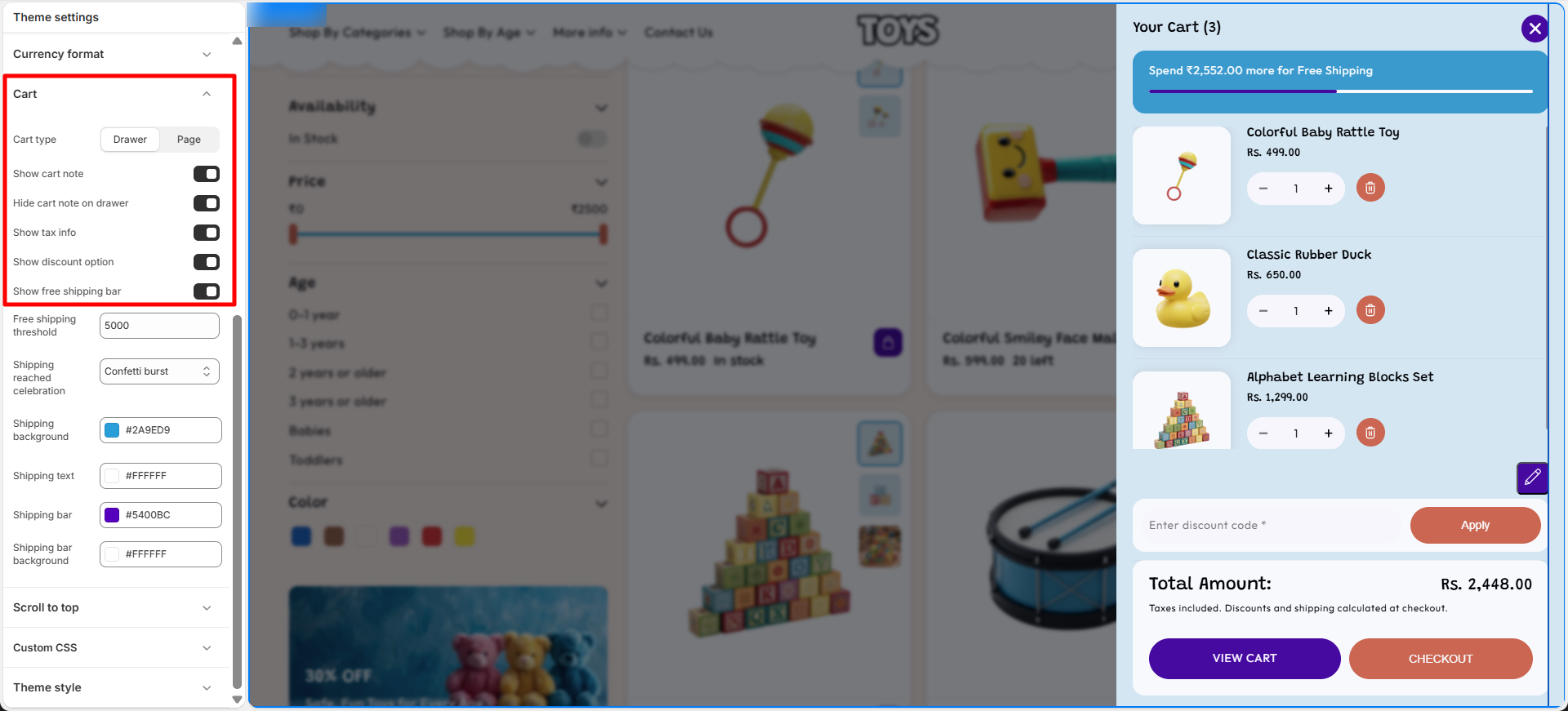
The Soft theme offers flexibility in how the cart appears on your store. You can choose between a Cart Drawer—a slide-out panel—or a dedicated Cart Page that displays all cart details on its own page.
Step
- From Shopify admin, go to Online Store → Themes.
- Click Customize on your active Soft theme.
- Open Theme Settings from the sidebar.
- Select the Cart & Cart Drawer options.
- Choose your preferred cart display type: Drawer or Page.
- Save your changes.
Cart Display Options
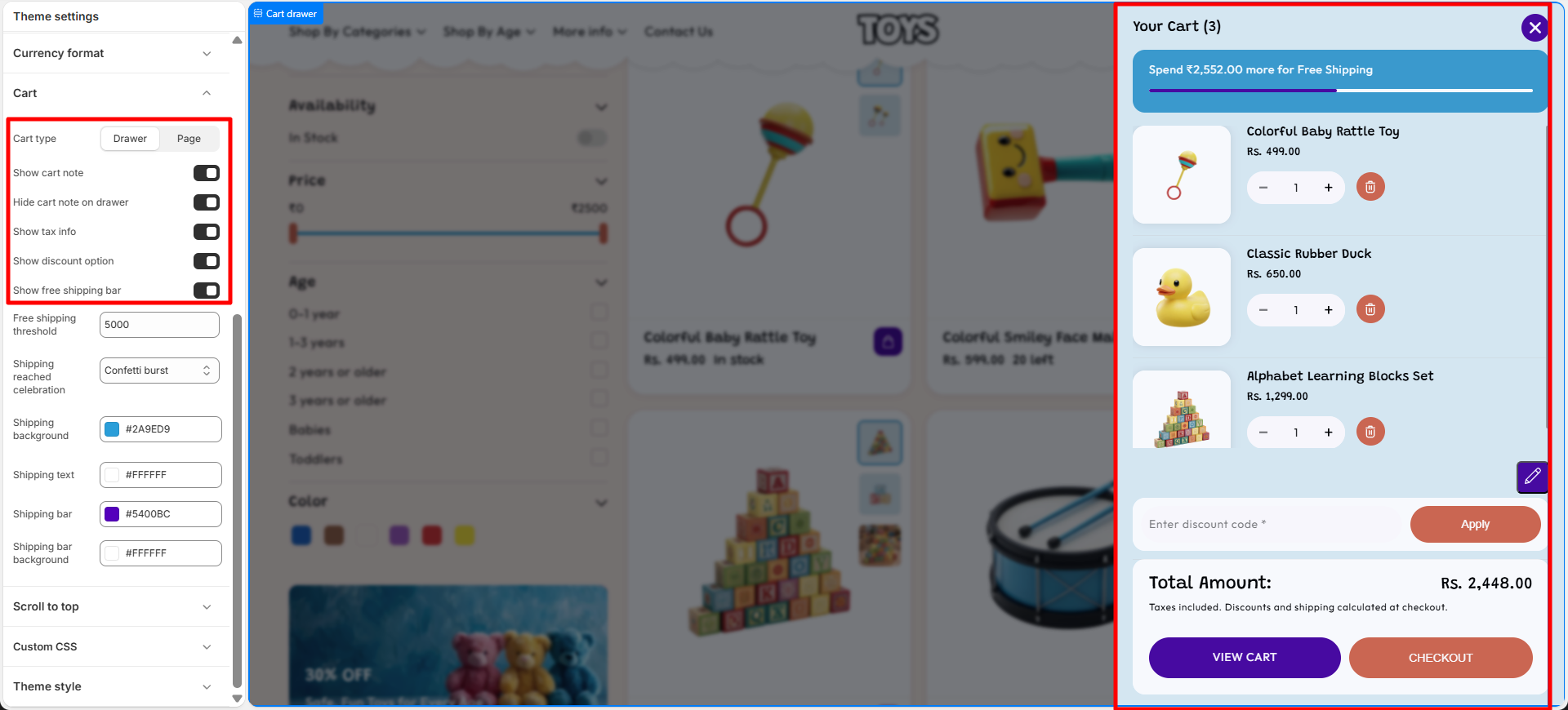
- Cart Drawer: A panel that slides out from the side, allowing customers to view and modify their cart without leaving the current page.
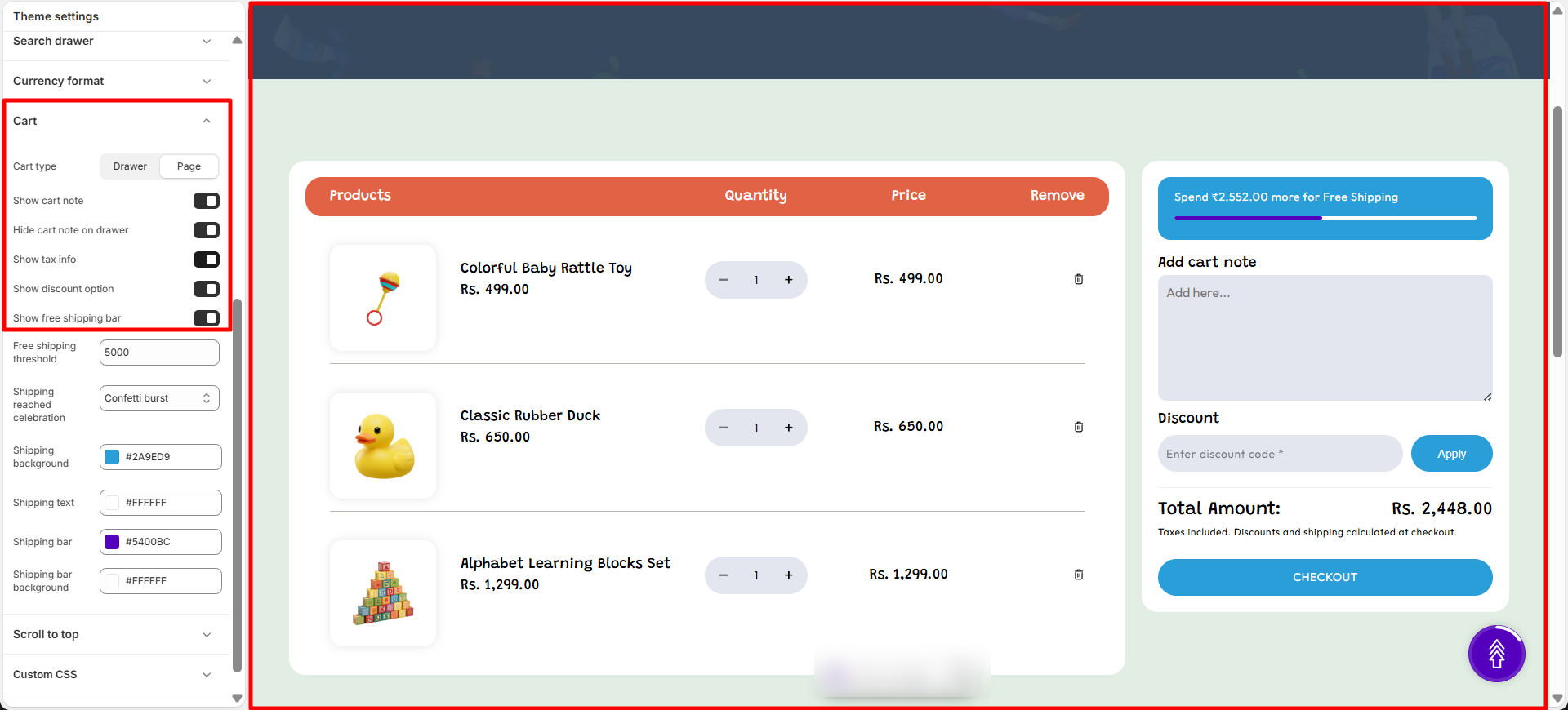
- Cart Page: Redirects shoppers to a full page dedicated to reviewing cart contents before moving to checkout.
Additional Cart Features
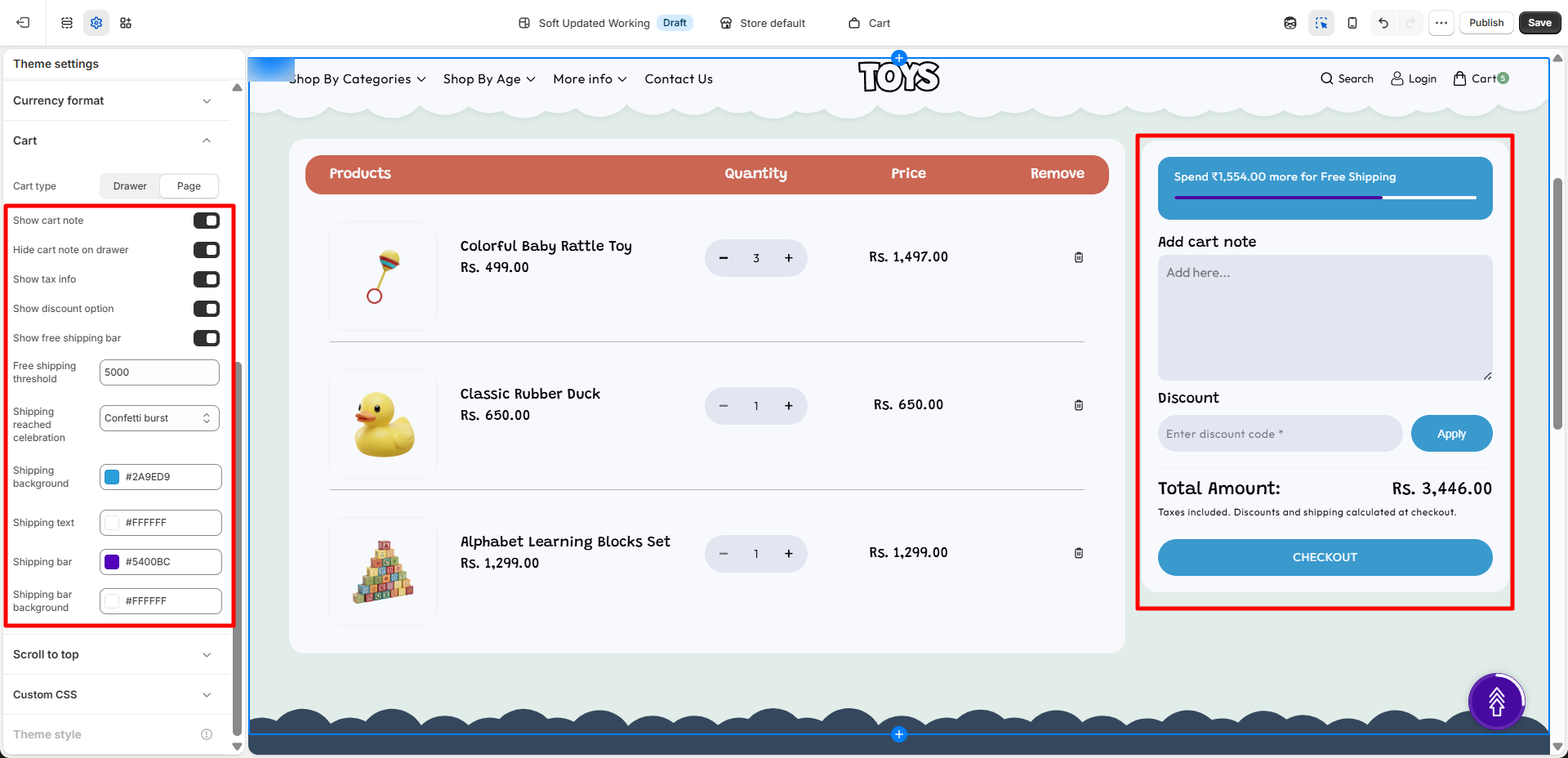
- Show Cart Note: Enable this option to allow customers to add special instructions or notes with their order from the cart page.
- Hide Cart Note on Drawer: Enable this option to hide the cart note field when the cart drawer is opened.
- Show Tax Info: Display applicable tax information in the cart so customers can view tax details before checkout.
- Show Discount Option: Display a discount code field that allows customers to apply promotional codes directly from the cart.
- Show Free Shipping Bar: Enable this option to display a progress bar that shows customers how much more they need to spend to qualify for free shipping.
- Free Shipping Threshold: Set the minimum order amount required for customers to unlock free shipping.
-
Shipping Reached Celebration: Choose the
celebration effect displayed when customers reach the free
shipping target.
- Confetti Burst: Displays a confetti animation to celebrate when free shipping is achieved.
- Shipping Background: Choose the background color of the free shipping progress message.
- Shipping Text: Select the text color used in the free shipping message.
- Shipping Bar: Choose the color of the free shipping progress indicator.
- Shipping Bar Background: Select the background color behind the shipping progress bar.
Activating Extra Cart Options
Step
- Go to Online Store → Themes in your Shopify admin.
- Open the Customize tool on the Soft theme.
- Navigate to Theme Settings → Cart & Cart Drawer.
- Toggle on the options you want like Tax Info, Cart Notes, or Discount Input.
- Save your changes to apply them.
FAQs
What’s the difference between a Cart Drawer and a Cart Page?
The Cart Drawer is a slide-out panel that lets customers check their cart without leaving the current page. The Cart Page takes customers to a separate page dedicated to cart review before checkout.
Why don’t customers see the discount code field in my cart?
Ensure the Discount Input option is enabled under Theme Settings → Cart & Cart Drawer. Once active, customers will be able to enter promo codes directly in the cart.