
Featured Product
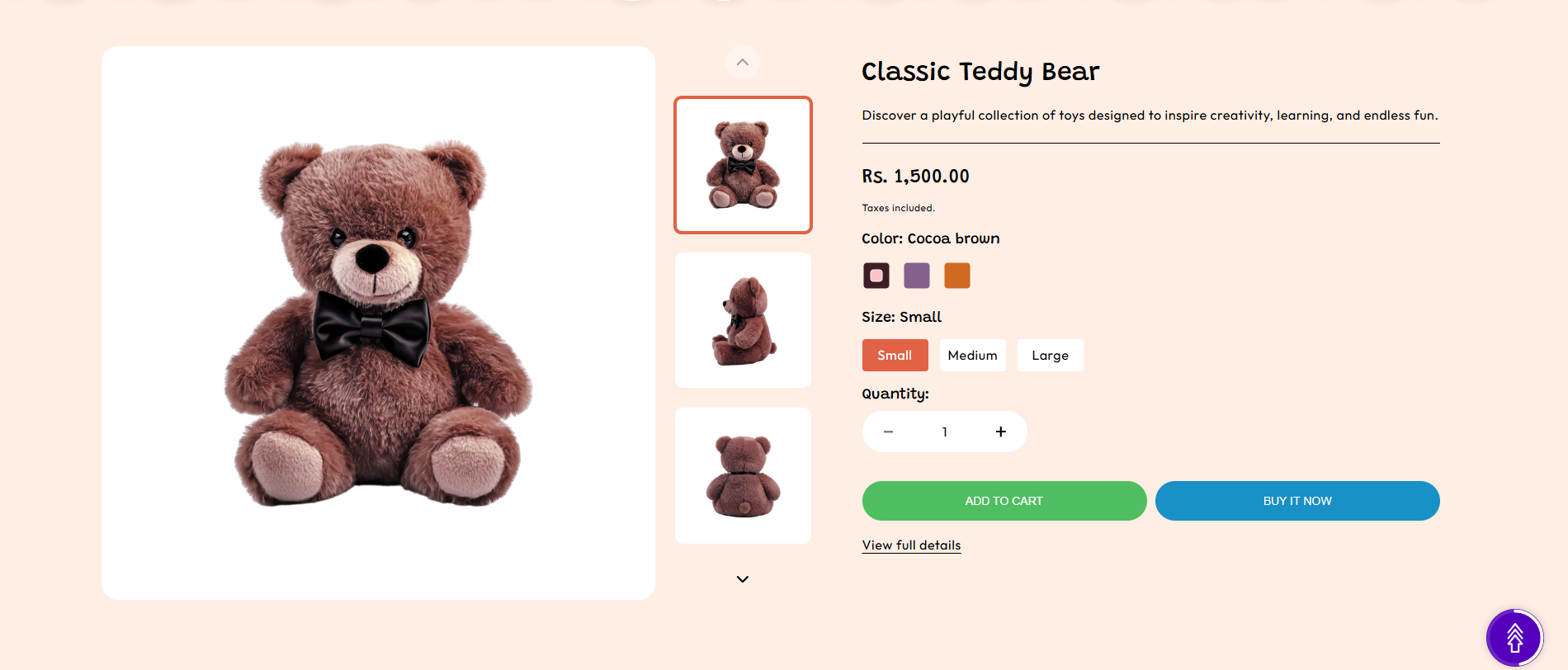
The Featured Product section in the Soft theme allows you to highlight a specific product directly on the homepage. This section helps promote important products such as best sellers, new arrivals, or promotional items by giving them greater visibility.
Customers can view the product images, price, description, variants, and purchase options directly from this section. It allows visitors to quickly explore and purchase a product without navigating to the full product page.
Featured Product Section Settings
The Featured Product section provides several customization options that allow you to control how the product appears on the homepage.
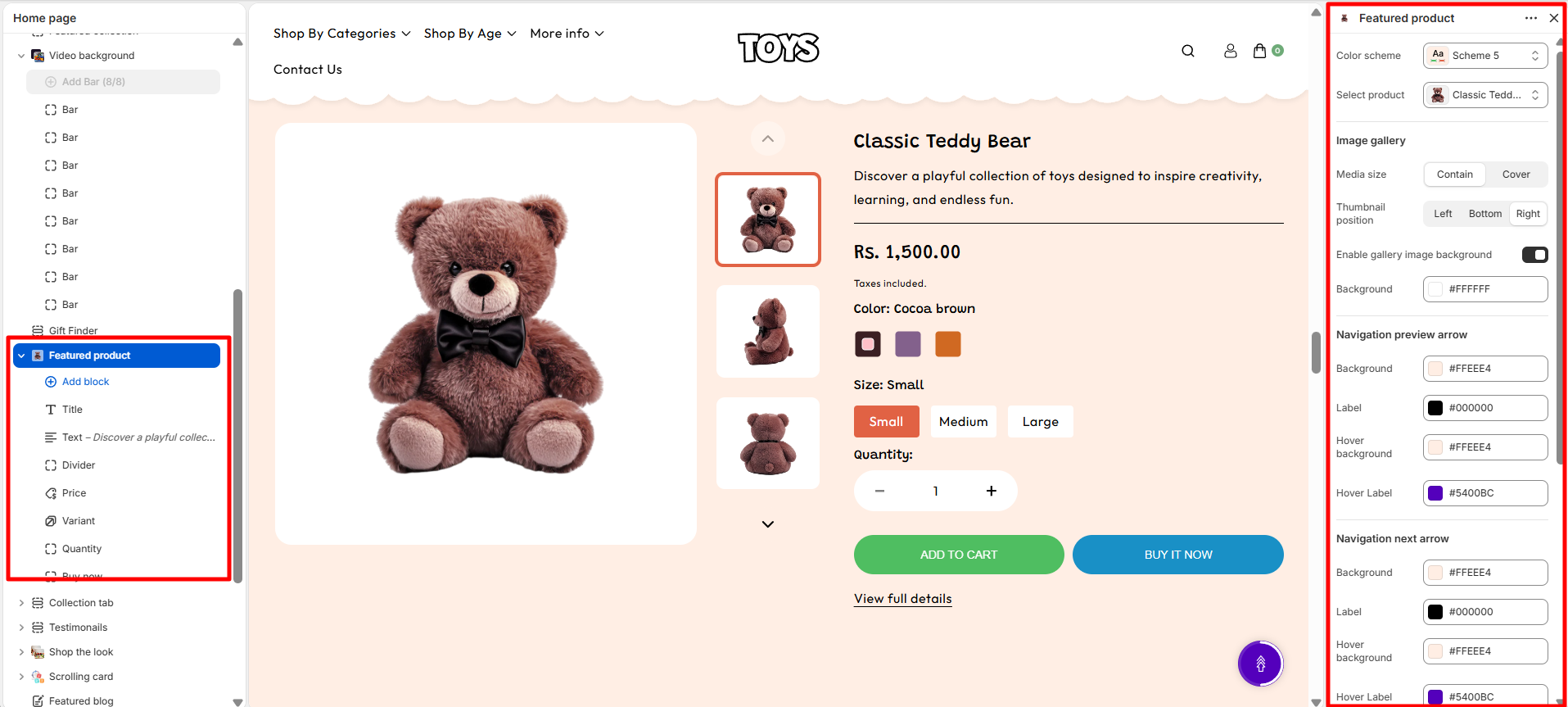
- Color Scheme – Choose the color scheme for the section to match your store branding and overall design.
- Select Product – Choose the product whose images and details will be displayed in the product gallery.
- Media Size – Choose how the product media is displayed, such as Contain or Cover.
- Thumbnail Position – Select the position of product image thumbnails, such as Left, Bottom, or Right.
- Enable Gallery Image Background – Enable this option to add a background behind the product gallery images.
- Background – Select the background color for the product gallery images.
- Background – Choose the background color of the previous navigation arrow.
- Label – Select the color of the previous navigation arrow icon.
- Hover Background – Choose the background color when the previous navigation arrow is hovered.
- Hover Label – Select the icon color when the previous navigation arrow is hovered.
- Background – Choose the background color of the next navigation arrow.
- Label – Select the color of the next navigation arrow icon.
- Hover Background – Choose the background color when the next navigation arrow is hovered.
- Hover Label – Select the icon color when the next navigation arrow is hovered.
- Desktop Padding – Adjust the spacing of the product gallery section for desktop devices.
- Padding Top – Set the top spacing of the section on desktop devices.
- Padding Bottom – Set the bottom spacing of the section on desktop devices.
- Mobile Padding – Adjust the spacing of the product gallery section for mobile devices.
- Mobile Padding Top – Set the top spacing of the section on mobile devices.
- Mobile Padding Bottom – Set the bottom spacing of the section on mobile devices.
Steps
- Open the Theme Customizer.
- Navigate to the Featured Product section on the homepage.
- Select the product you want to feature.
- Configure media settings such as layout, width, and image aspect ratio.
- Add background images to the product variants using the created metafield.
- Click Save to apply the changes.
Featured Product Available Blocks
-
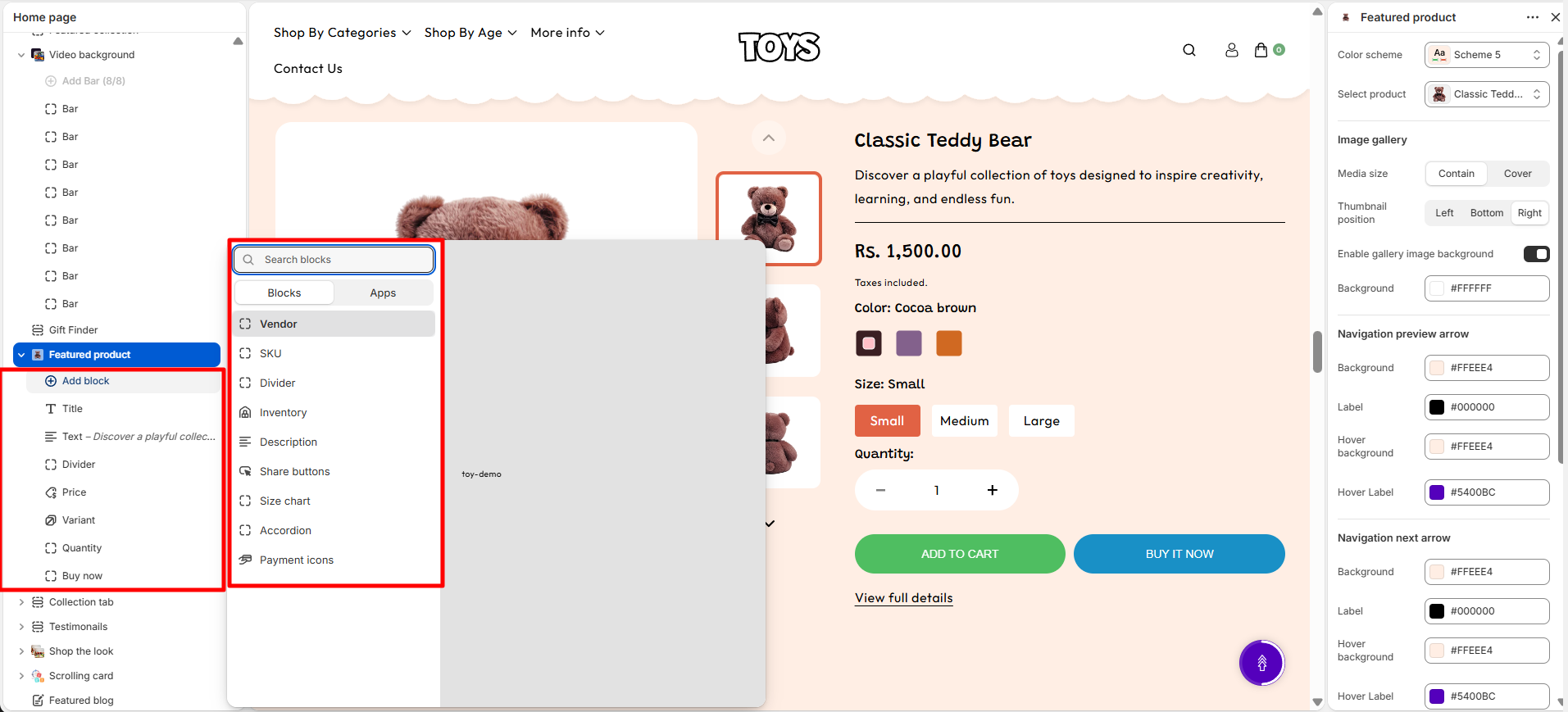
Vendor: Displays the name of the
product’s brand or supplier on the product page, helping
customers easily identify the brand associated with the
product.
-
Text Transform: Controls how the
vendor name appears.
- Default: Shows the vendor name in its original format.
- Uppercase: Displays the vendor name in uppercase letters.
-
Color: Select the color style for the
vendor text.
- Body: Uses the default theme text color.
- Highlight: Applies the highlight color to make the vendor name stand out.
-
Text Transform: Controls how the
vendor name appears.
-
Title: Displays the name of the product
prominently on the product page, helping customers quickly
identify the product they are viewing.
- Heading font weight: Controls the thickness of the product title text, allowing you to adjust how bold or prominent the title appears.
- Price: Displays the product’s pricing information on the product page, including the current price, compare-at price, and any discounts. This helps customers quickly see the product’s cost and any savings available.
- SKU: Displays the product’s Stock Keeping Unit (SKU) on the product page. This unique identifier helps both store owners and customers track and reference specific products efficiently.
-
Description: Shows the product’s detailed
description on the product page, helping customers
understand the product features, benefits, and usage.
- Number of Lines to Show by Default: Controls how many lines of the product description are visible initially. Customers can expand to see the full description if it exceeds the set limit.
- Separator: Adds a visual divider between blocks on the product page. This helps organize content and improve readability by clearly separating different elements.
-
Variant Picker: Allows customers to
choose between different product options such as size,
color, or material.
-
Options Type: Select how product
variants are displayed:
- Button: Shows variants as clickable buttons, ideal for quick selection and visual clarity.
- Dropdown: Displays variants in a compact dropdown list, suitable for products with many options.
- Swatch Shape: You can change the shape of color swatches by going to Theme Settings → Swatches → Swatch Shape. This allows you to choose between round, square, or use default one.
- For more detil about swatches click on More
- For more details about swatches, refer to Shopify’s Option with swatches documentation .
- You can also refer to Adding color swatches using category metafields for advanced customization.
-
Options Type: Select how product
variants are displayed:
- Inventory: Displays the product’s stock status on the product page. It shows messages like In Stock, Out of Stock, or Only 10 left, helping customers know product availability at a glance.
- Quantity Selector: Allows customers to choose the number of items they want to purchase directly on the product page, making it easy to adjust quantities before adding products to the cart.
-
Add to Cart Button: Displays the primary
action button on the product page, allowing customers to
add products to their cart.
- Show Dynamic Checkout Button: Enable this option to takes customers directly to the checkout page for faster purchase completion.
- Show Dynamic Checkout Button: Enable this option to display a Dynamic Checkout button,which lets customers skip the cart and go directly to the checkout page for a faster and smoother purchase experience.
- Share: Displays social media icons on the product page, allowing customers to easily share the product on platforms like Facebook, Twitter, Instagram, and more. This helps increase product visibility and reach.
FAQs
Where can I find the Featured Product section?
You can find the Featured Product section in the Theme Customizer. From your Shopify admin go to Online Store > Themes and click Customize. In the homepage template, locate the Featured Product section to manage product settings.
Why is the variant background image not showing?
Make sure the variant metafield is created with the exact name Background image and the type is set to Image (File). Also ensure that an image is uploaded for the variant and the Show Variant Background Image setting is enabled in the Featured Product section.