
Countdown Timer
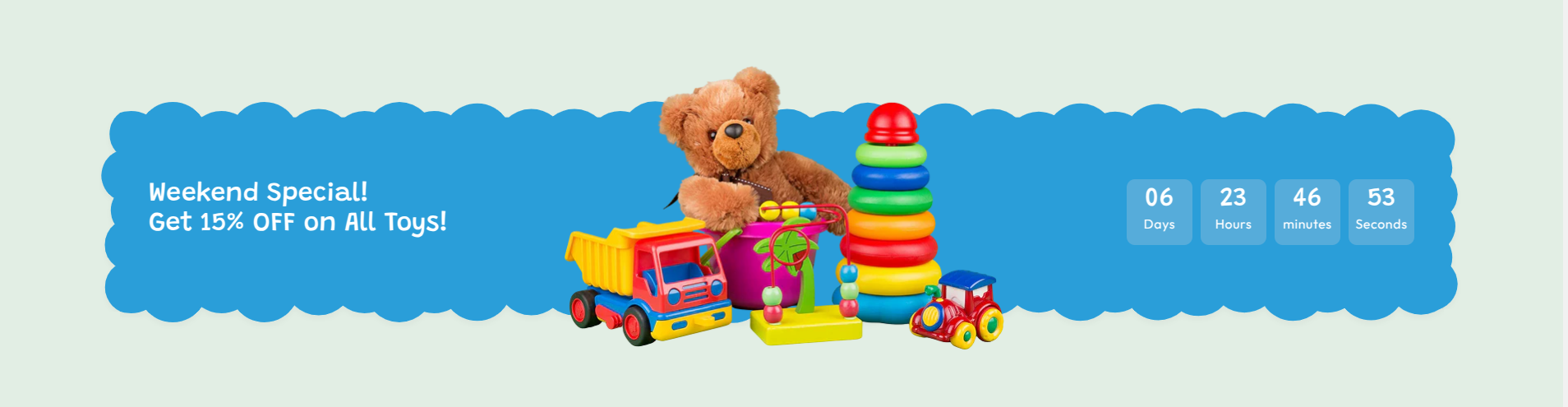
The Countdown Timer section in the Soft theme allows you to create urgency for promotions, sales campaigns, or limited-time offers by displaying a countdown timer on your store page.
This section highlights the remaining time for a deal or event using a visually engaging timer that shows days, hours, minutes, and seconds. It helps encourage customers to take action before the promotion expires.
Countdown Timer Settings
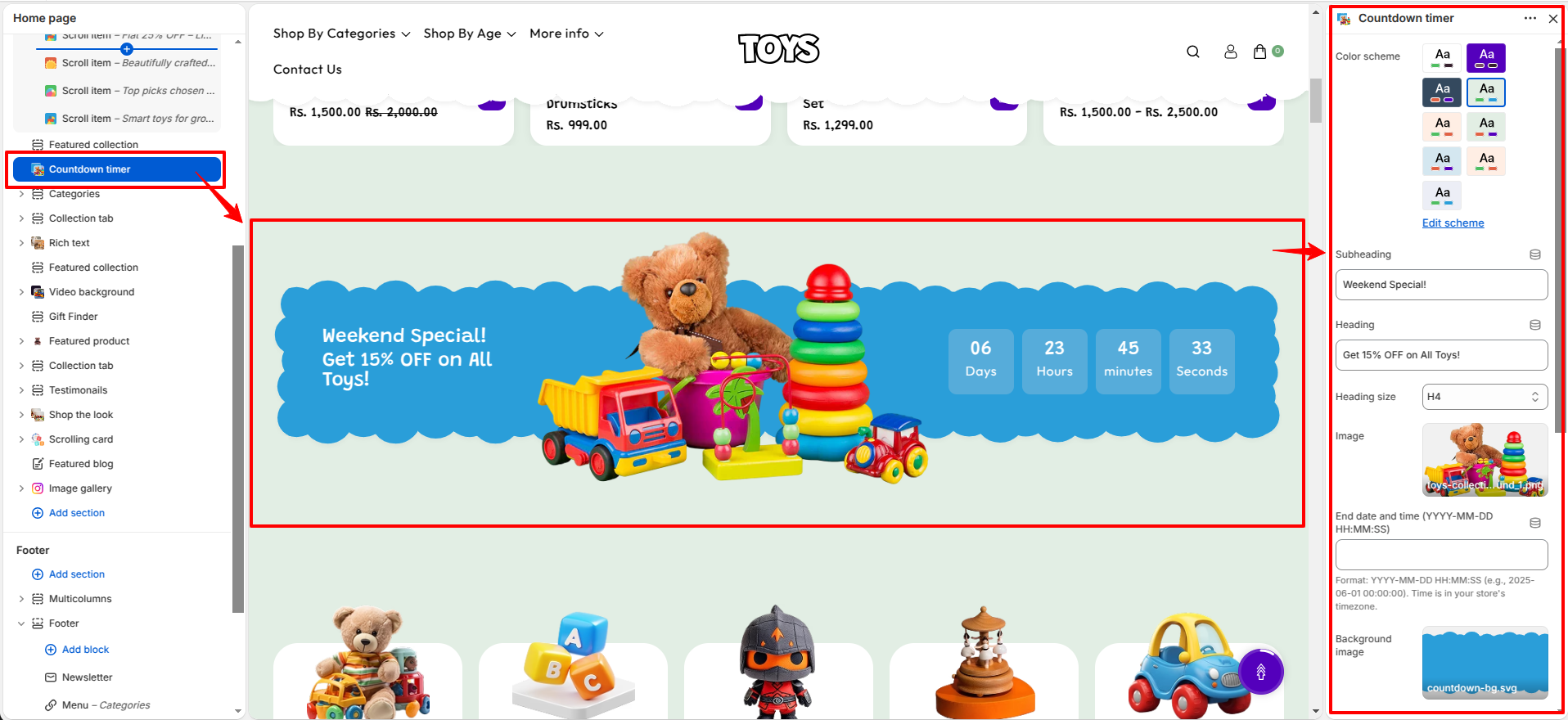
The main settings of the Countdown Timer section allow you to control the text content, timer configuration, and layout of the section.
- Color Scheme – Select the color scheme for the countdown section to match your store design.
- Subheading – Add a short supporting text displayed above the main heading (for example, “Weekend Special!”).
- Heading – Enter the main promotional heading displayed in the section (for example, “Get 15% OFF on All Toys!”).
- Heading Size – Choose the size/style of the heading (for example H4) to control its visual hierarchy.
- Image – Upload an image to visually enhance the countdown section and support the promotion.
-
End Date and Time – Set the exact date and time when the countdown will end. The timer will
automatically run until this moment is reached.
Format: YYYY-MM-DD HH:MM:SS (for example: 2025-06-01 00:00:00). The time is based on your store’s timezone. - Background Image – Upload a background image for the countdown section to improve visual appeal.
- Text Color – Set the color of the main text displayed in the countdown section.
- Countdown Box Background – Choose the background color of the individual countdown timer boxes.
- Countdown Text Color – Set the color of the numbers and labels inside the countdown timer.
-
Desktop Spacing – Adjust spacing for desktop devices:
- Padding Top – Space above the section.
- Padding Bottom – Space below the section.
-
Mobile Spacing – Adjust spacing for mobile devices:
- Padding Top – Space above the section.
- Padding Bottom – Space below the section.
Example: 31-03-2026 00:00:00
Steps
- Open the Theme Customizer.
- Navigate to the Countdown Timer section on the homepage.
- Click Add Image to upload background images for the collage layout.
- Enter a promotional Heading for the countdown section.
- Set the Countdown End Date for your campaign or sale.
- Add a Button Label and link it to the desired page or collection.
- Adjust alignment, width, and spacing settings if needed.
- Click Save to apply the changes.
FAQs
How do I set the countdown timer for a specific promotion?
You can set the countdown by entering the desired date and time in the Countdown End Date field within the Countdown Timer section settings. The timer will automatically count down until the specified date and time.
Can I add multiple images to the Countdown Timer section?
Yes, you can add multiple images by clicking Add Image inside the Countdown Timer section. These images will appear as part of the background collage design next to the timer.