
Video
The Video section in the Soft theme allows you to showcase engaging video content that highlights your products, brand story, or promotional campaigns. Videos provide an interactive way to capture your visitors' attention and create a more immersive shopping experience.
Customize the section heading, content width, video source, playback options, and spacing to seamlessly integrate videos into your storefront. You can upload a Shopify-hosted video or embed a YouTube or Vimeo video using its URL.
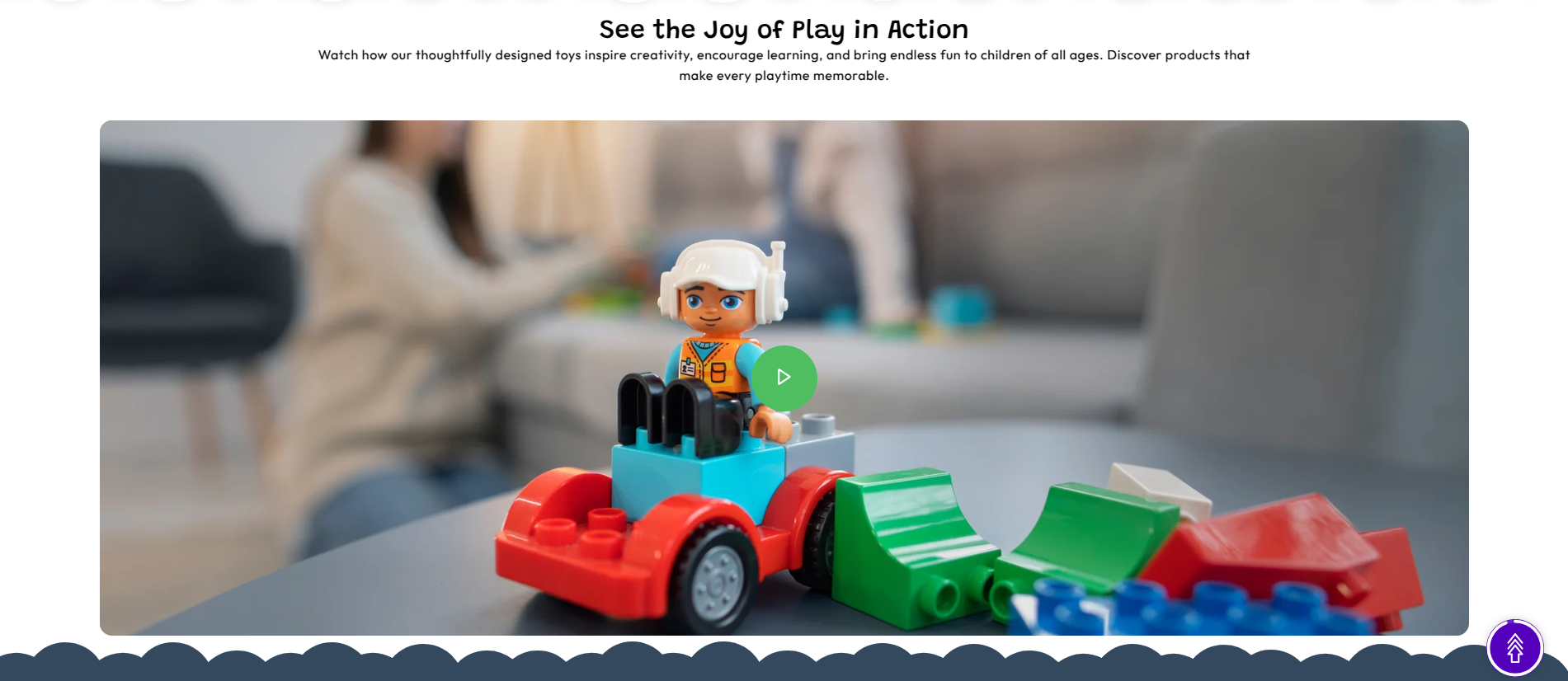
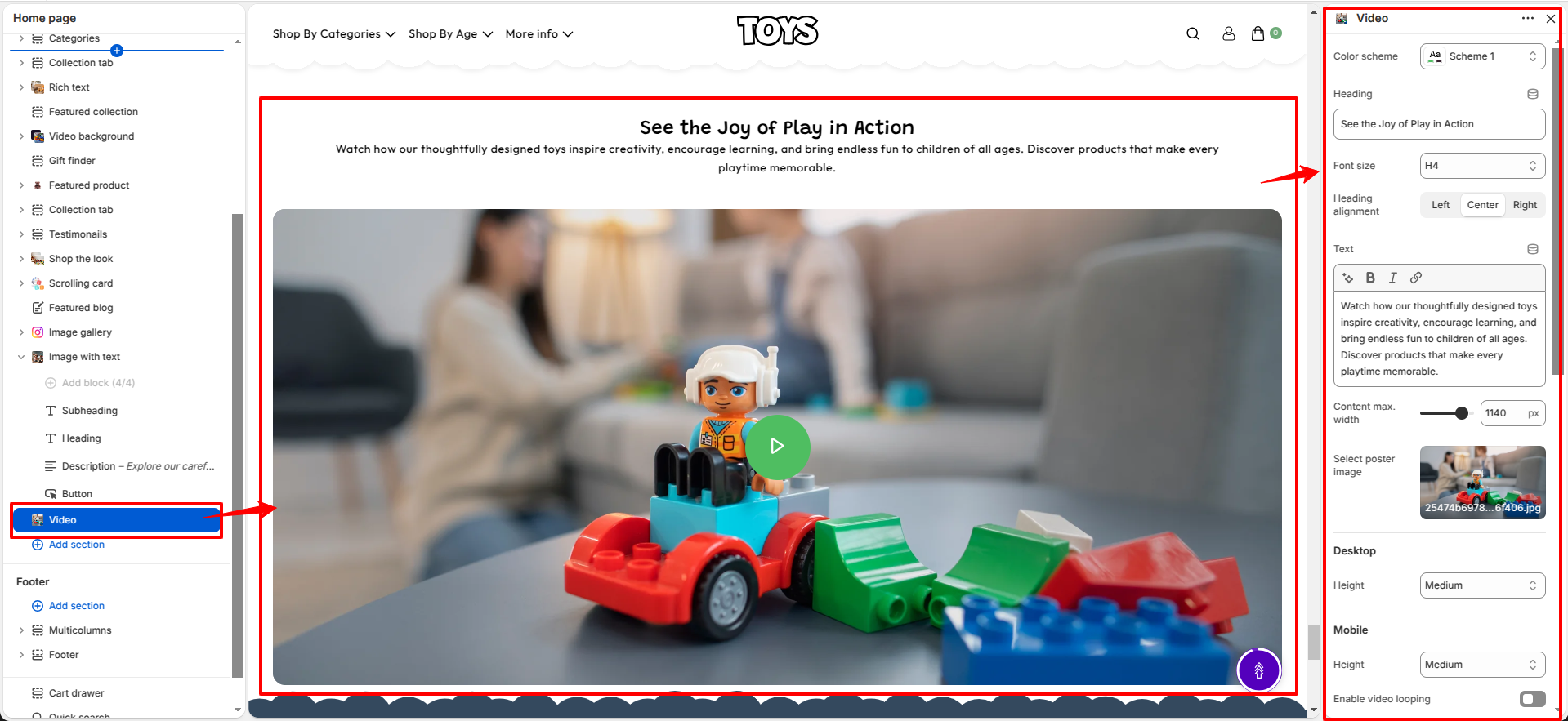
Video Section Settings
This section provides global settings to control the appearance and functionality of the video section.
- Color Scheme – Select a predefined color scheme for the section (e.g., Scheme 1).
- Heading – Add a section heading (e.g., See the Joy of Play in Action).
- Font Size – Choose the heading size (e.g., H4).
- Heading Alignment – Align the heading to the Left, Center, or Right.
- Text – Add a short description below the heading to introduce the video content.
- Content Max. Width – Set the maximum width of the content area.
- Select Poster Image – Upload a poster image that is displayed before the video starts playing.
- Desktop Height – Choose the video height for desktop devices (e.g., Small, Medium, or Large).
- Mobile Height – Choose the video height for mobile devices.
- Enable Video Looping – Enable continuous playback after the video finishes.
- Shopify-hosted Video – Select a video uploaded to your Shopify Files.
- Show Controls – Display playback controls such as play, pause, and volume.
- Mute Video – Play the video with the audio muted.
- Video URL – Embed a YouTube or Vimeo video when no Shopify-hosted video is selected.
- Desktop Spacing – Configure the section spacing for desktop devices.
- Padding Top – Set the top spacing for desktop.
- Padding Bottom – Set the bottom spacing for desktop.
- Mobile Spacing – Configure the section spacing for mobile devices.
- Mobile Padding Top – Set the top spacing for mobile.
- Mobile Padding Bottom – Set the bottom spacing for mobile.
Steps
- Open the Theme Customizer from your Shopify admin.
- Navigate to the Video section on the homepage.
- Select the preferred color scheme and add a heading and description.
- Choose the heading alignment and content width.
- Upload a poster image for the video preview.
- Set the desktop and mobile video heights.
- Upload a Shopify-hosted video or paste a YouTube or Vimeo video URL.
- Enable video looping, show playback controls, or mute the video if required.
- Adjust the desktop and mobile spacing settings.
- Click Save to publish your changes.
FAQs
Where can I find the Video section?
The Video section is available in the Theme Customizer. From Shopify admin, go to Online Store > Themes, click Customize, and locate the Video section on the homepage.
Can I use a YouTube or Vimeo video?
Yes. Paste a valid YouTube or Vimeo URL into the Video URL field. The embedded video will be displayed when no Shopify-hosted video is selected.
Can I upload a video directly to Shopify?
Yes. Use the Shopify-hosted Video option to select a video uploaded to your Shopify store for faster loading and better integration.
Can I control how the video plays?
Yes. You can enable video looping, show playback controls, mute the video, and customize the video height for both desktop and mobile devices.