
Image with Text
The Image with Text section in the Soft theme allows you to combine an engaging image with compelling text content. This flexible layout is perfect for highlighting featured collections, promoting products, sharing your brand story, or showcasing special offers while maintaining a clean and modern design.
Customize the image position, text alignment, spacing, and button style to create an attractive section that encourages visitors to explore your store and take action.
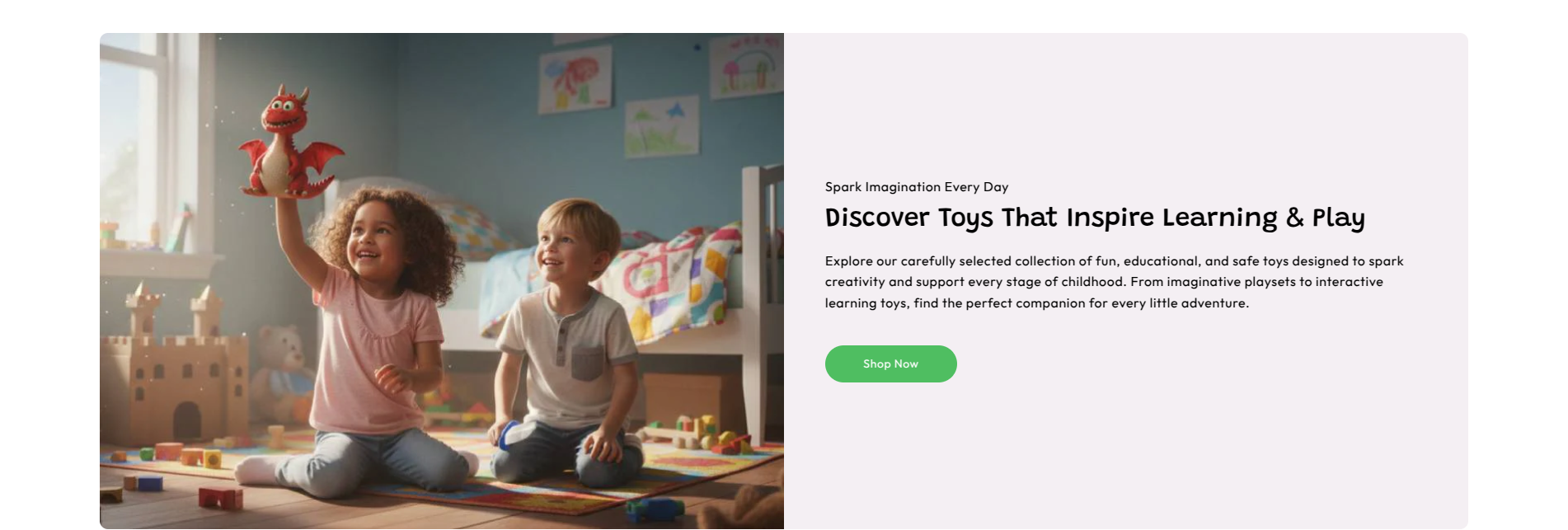
Image with Text Section Settings
This section provides global settings to control the overall appearance and layout:
- Color Scheme – Choose a predefined color scheme for the section (e.g., Scheme 1).
- Section Width – Select the section width (e.g., Container Width).
- Section Border Radius – Adjust the corner radius of the section.
- Enable Inner Padding – Enable or disable padding inside the section.
- Image – Upload the image displayed in the section.
- Aspect Ratio – Choose the image aspect ratio (e.g., Adapt to Image).
- Image Position – Display the image on the Left or Right side of the content.
- Text Alignment – Align the content to the Left, Center, or Right.
- Desktop Spacing – Configure the section spacing for desktop devices.
- Padding Top – Set the top spacing for desktop.
- Padding Bottom – Set the bottom spacing for desktop.
- Mobile Spacing – Configure the section spacing for mobile devices.
- Mobile Padding Top – Set the top spacing for mobile.
- Mobile Padding Bottom – Set the bottom spacing for mobile.
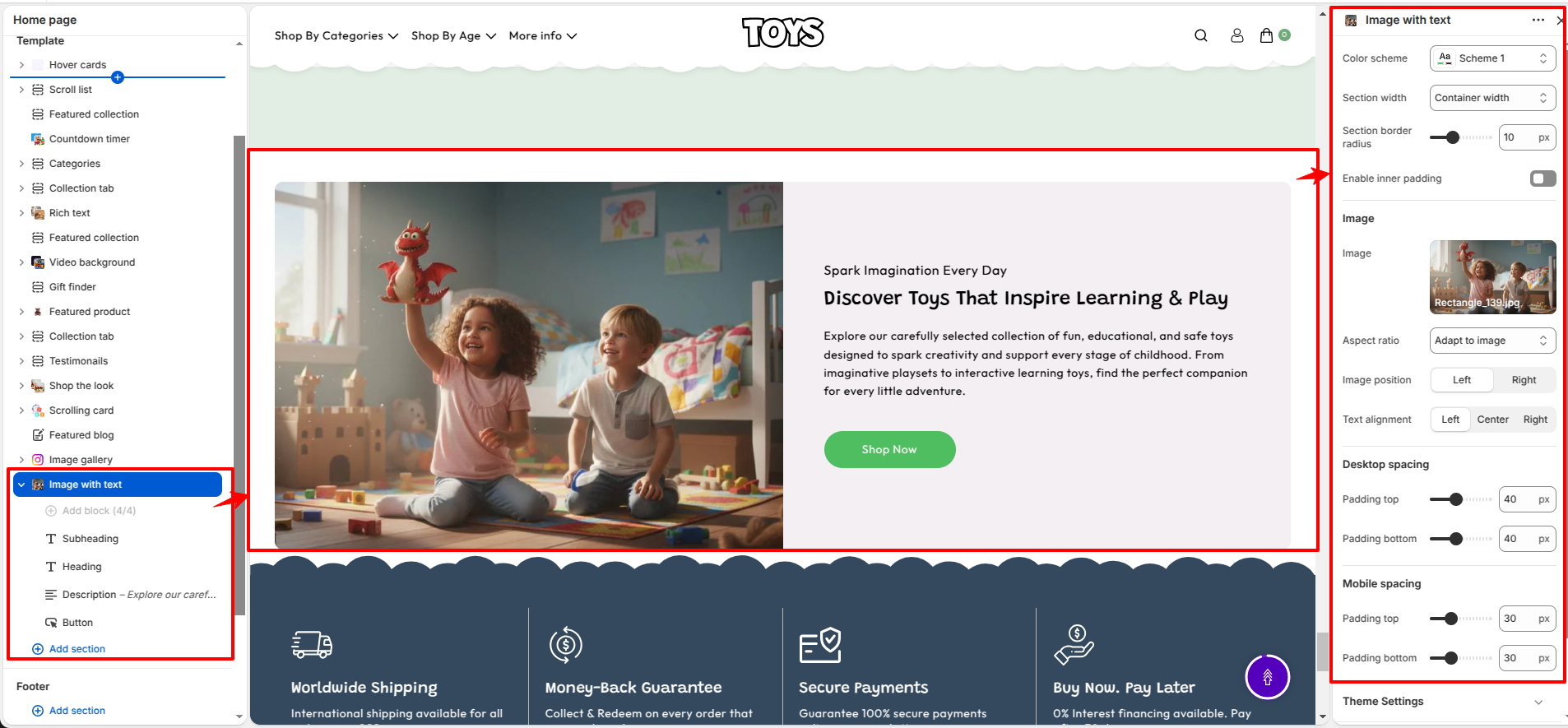
Image with Text Block Settings
The Image with Text section contains four individual blocks, each with its own settings.
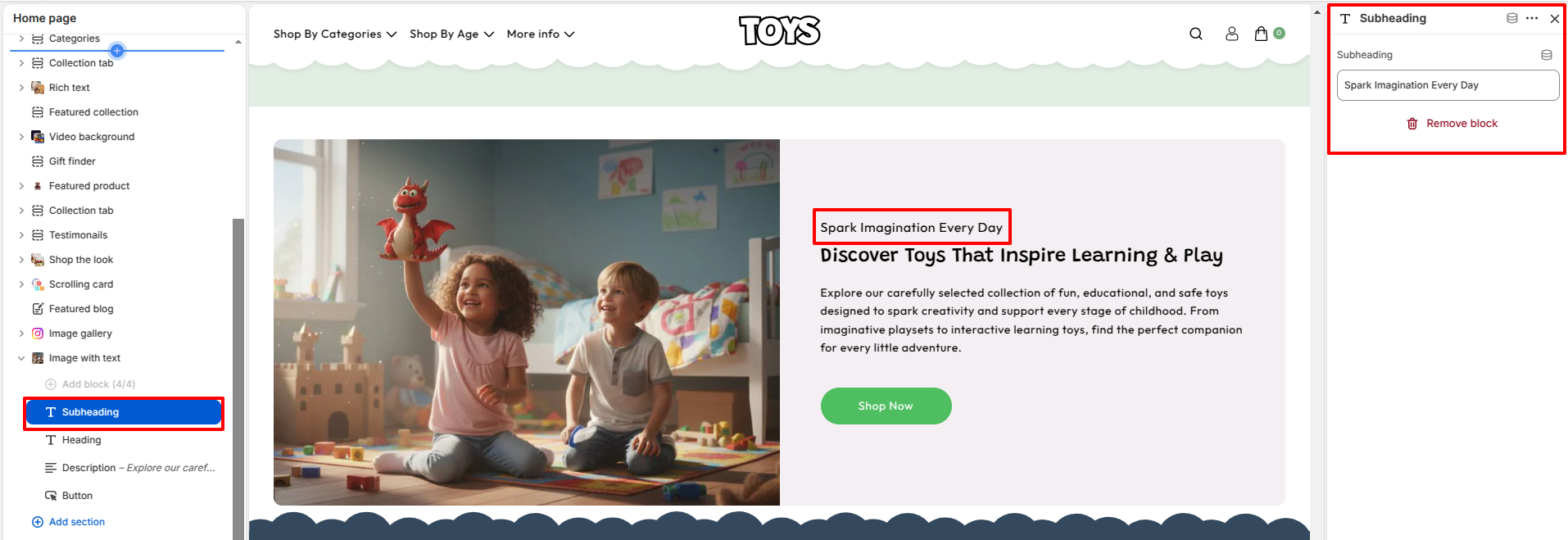
Subheading Block
The Subheading block lets you add a short introductory text displayed above the main heading.
- Subheading – Enter a short introductory text (e.g., Spark Imagination Every Day).
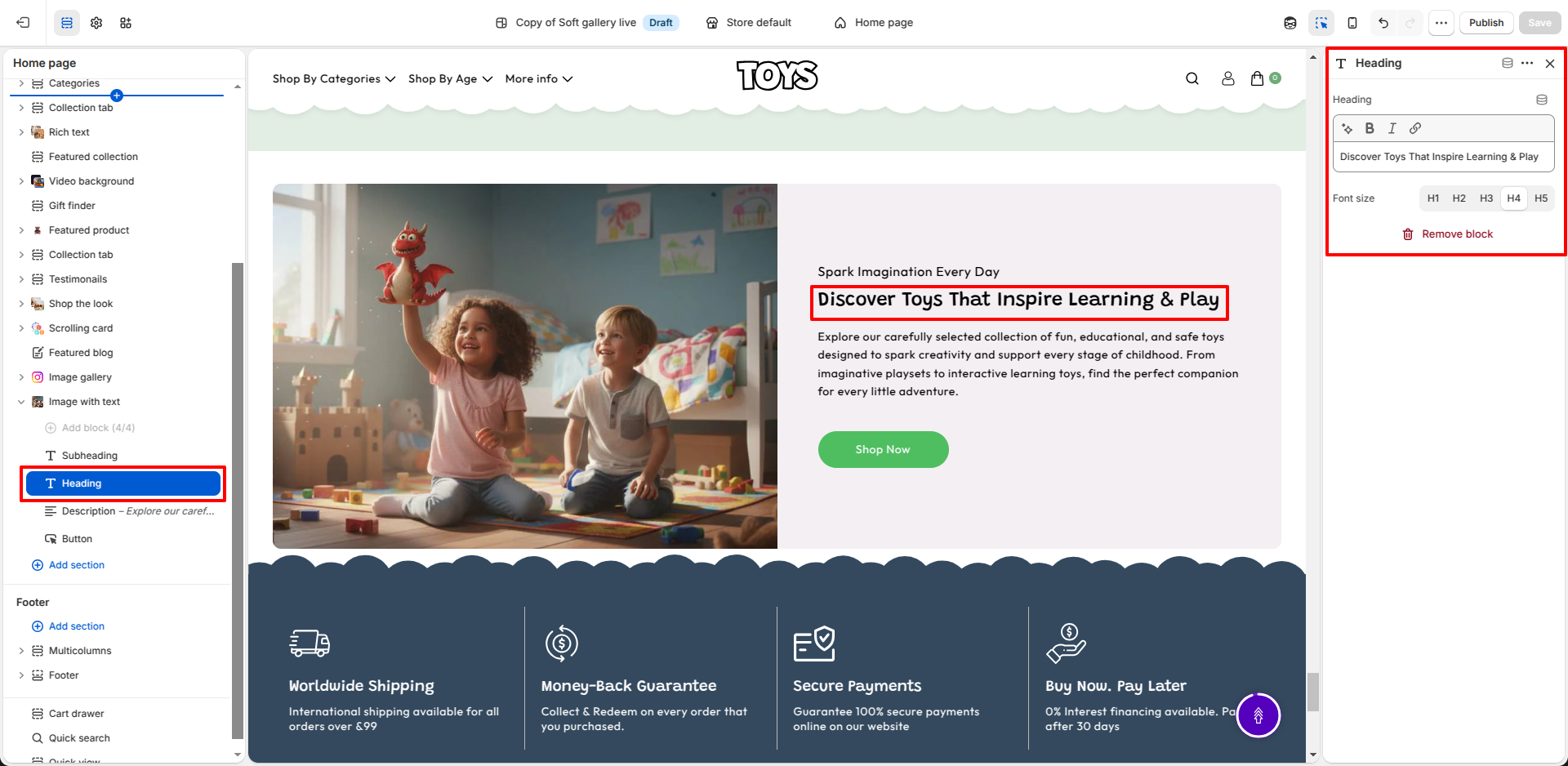
Heading Block
The Heading block allows you to display the main title for the section.
- Heading – Add the primary heading for the section.
- Font Size – Select the heading size (H1, H2, H3, H4, or H5).
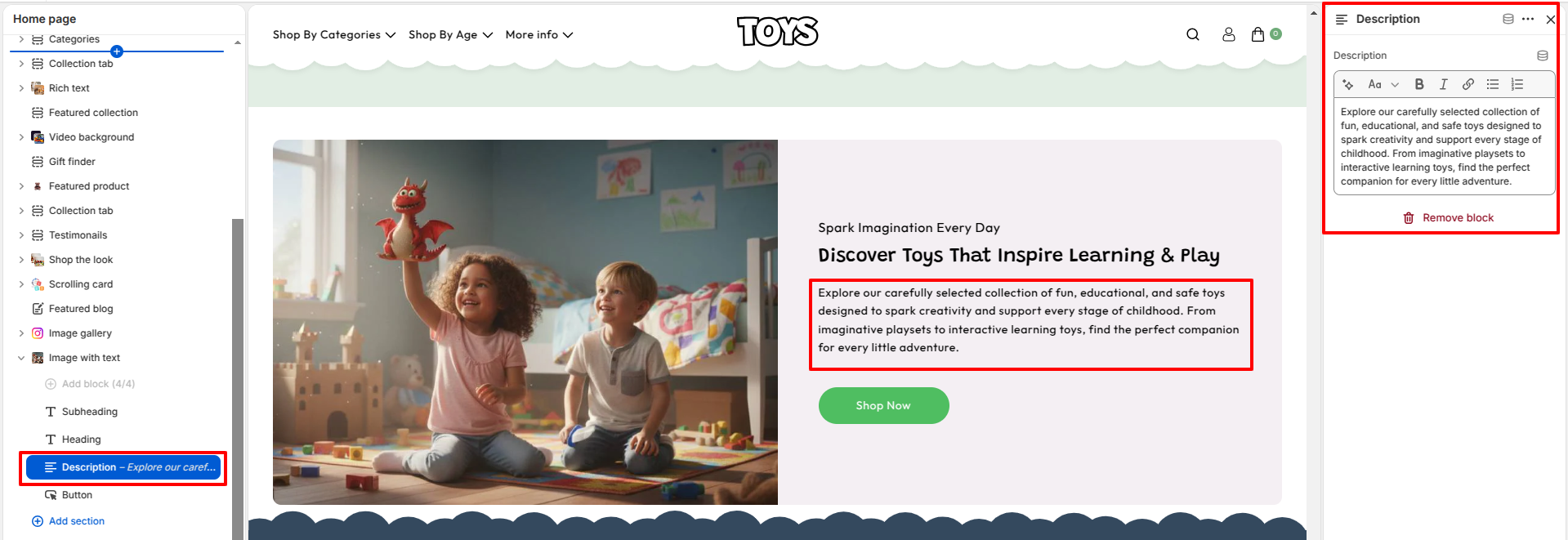
Description Block
The Description block allows you to add supporting content below the heading.
- Description – Enter descriptive text to highlight your products, services, or brand story.
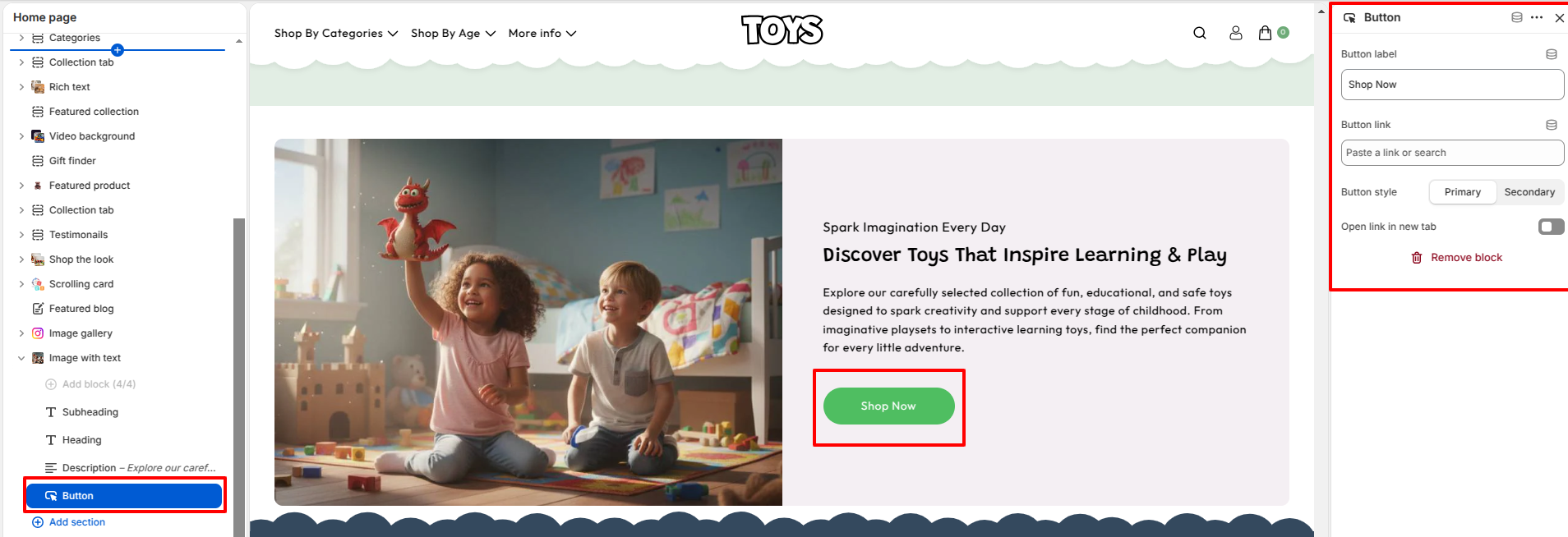
Button Block
The Button block lets you add a call-to-action button that directs visitors to another page.
- Button Label – Enter the button text (e.g., Shop Now).
- Button Link – Paste a link or search for the destination page.
- Button Style – Choose between Primary and Secondary styles.
- Open Link in New Tab – Enable this option to open the button link in a new browser tab.
Steps
- Open the Theme Customizer from your Shopify admin.
- Navigate to the Image with Text section on the homepage.
- Choose the preferred color scheme, section width, border radius, and inner padding.
- Upload an image and configure the aspect ratio and image position.
- Select the desired text alignment and adjust the desktop and mobile spacing.
- Add a subheading, heading, and description.
- Configure the heading font size.
- Add a button label, button link, choose the button style, and enable Open link in new tab if required.
- Review the section and click Save to apply your changes.
FAQs
Where can I find the Image with Text section?
The Image with Text section is available in the Theme Customizer. From Shopify admin, go to Online Store > Themes, click Customize, and locate the Image with Text section on the homepage.
Can I display the image on either side of the content?
Yes. Use the Image Position setting to display the image on either the left or right side of the text content.
Can I customize the button?
Yes. You can change the button label, assign a destination link, choose between Primary and Secondary button styles, and enable the option to open the link in a new tab.
Can I change the heading size?
Yes. The Heading block includes a Font Size option that allows you to choose from H1, H2, H3, H4, or H5 according to your design preferences.