
Sticky Image With Text
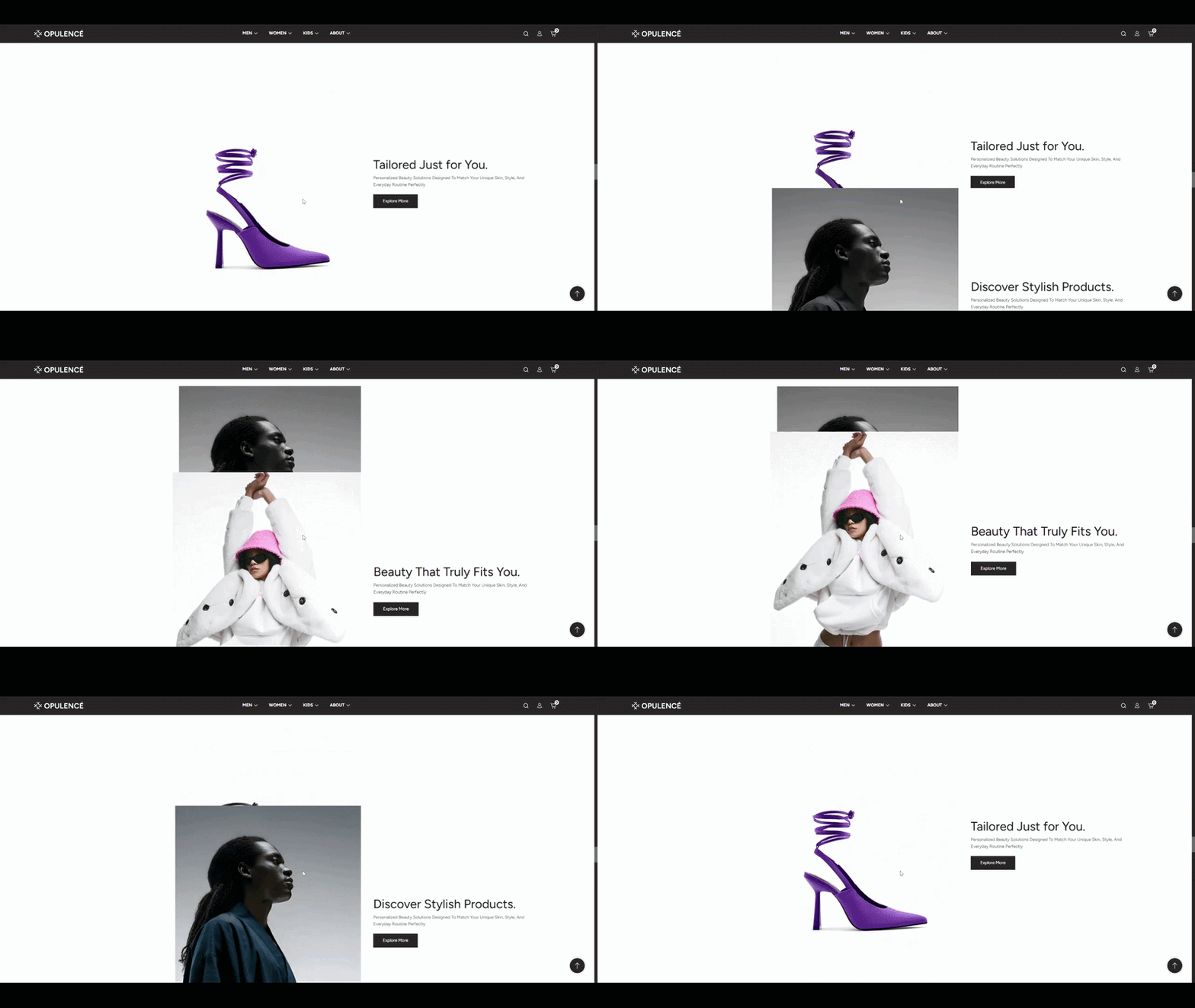
The Sticky Image With Text section in the Opulence theme allows you to showcase a product or promotional content alongside an image. The image remains visible while the text blocks scroll, creating an engaging and modern layout for storytelling, product highlights, or promotional campaigns.
This section supports multiple content blocks, allowing you to display different images and text combinations while maintaining a sticky visual element. It is ideal for highlighting product features, brand messages, or curated collections.
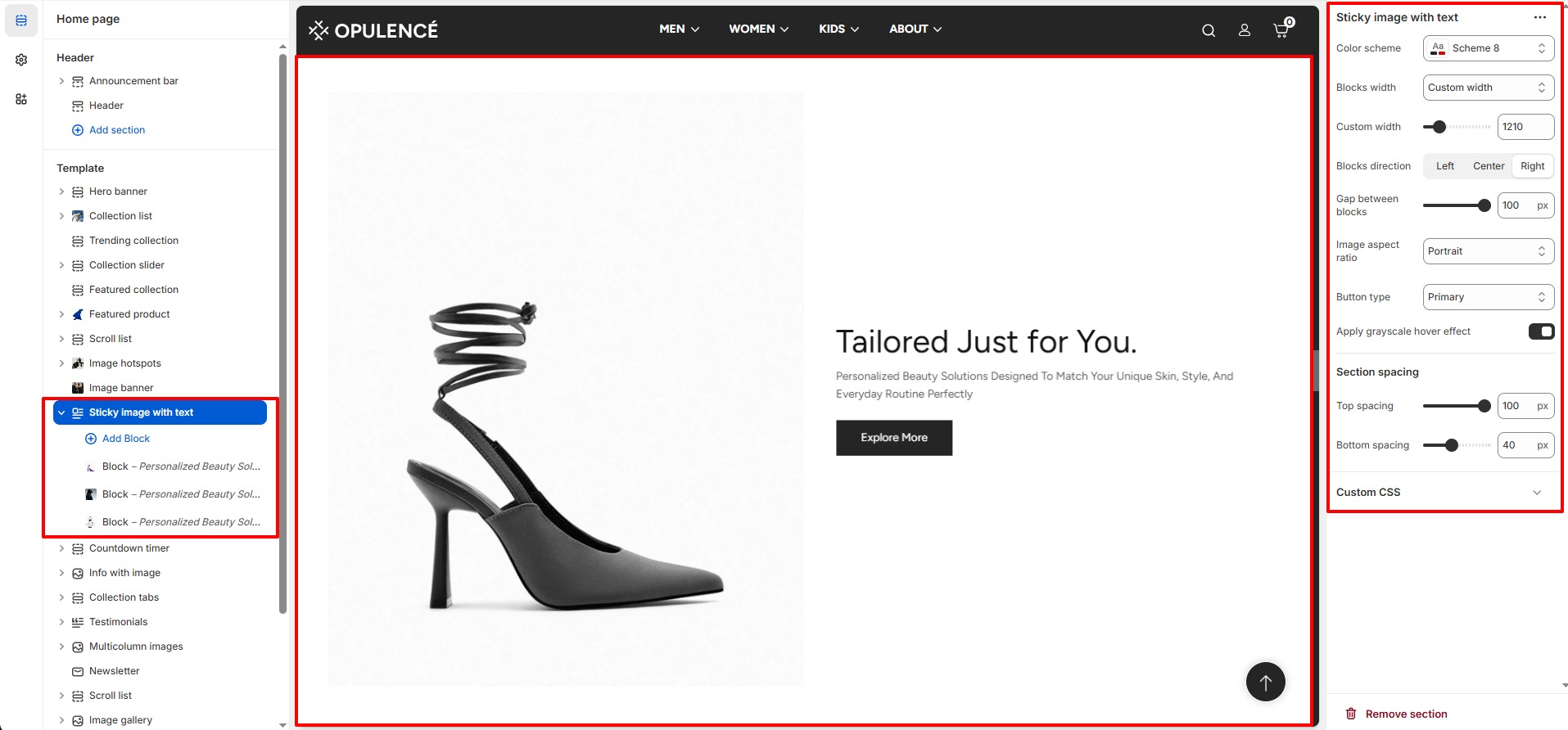
Sticky Image With Text Section Settings
The section settings allow you to control the layout, spacing, and overall appearance of the Sticky Image With Text section.
- Color Scheme – Choose the color scheme for the section to match your store branding.
- Blocks Width – Select how the content blocks should appear, such as default or custom width.
- Custom Width – Set a specific width value for the content blocks.
- Blocks Direction – Choose the direction in which the blocks appear (Left, Center, or Right).
- Gap Between Blocks – Adjust the spacing between multiple blocks within the section.
- Image Aspect Ratio – Select the aspect ratio for the images such as portrait or square.
- Button Type – Choose the style of the button (for example Primary or Secondary).
- Apply Grayscale Hover Effect – Enable this option to apply a grayscale effect on images when hovered.
- Section Spacing – Adjust the top and bottom spacing to control the distance from other sections.
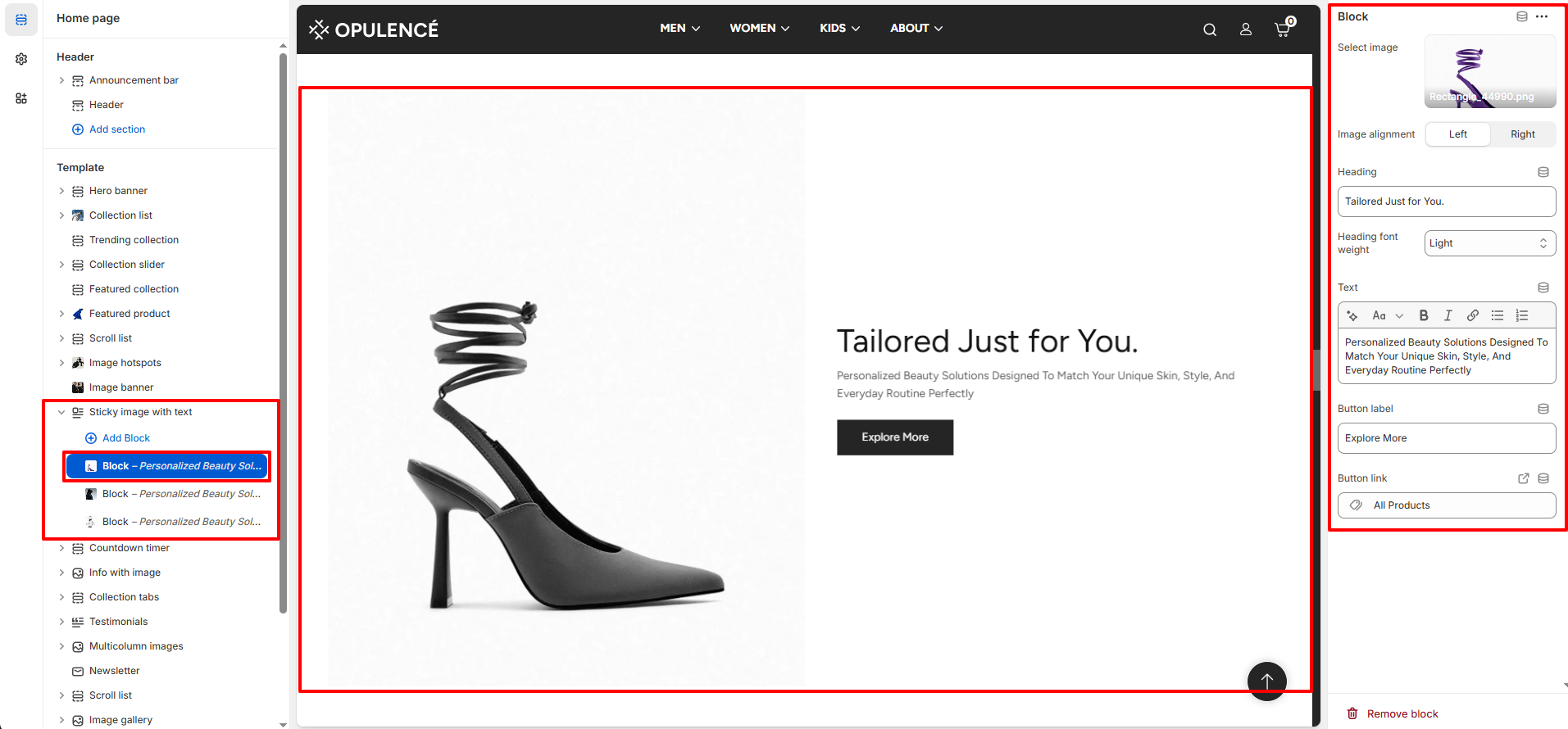
Sticky Image With Text Block Settings
Each block inside the Sticky Image With Text section allows you to configure the image and content displayed next to it.
- Select Image – Upload or choose the image that will appear alongside the text content.
- Image Alignment – Choose whether the image appears on the left or right side of the text content.
- Heading – Add the main title that highlights the message or featured product.
- Heading Font Weight – Control the thickness of the heading text such as light, regular, or bold.
- Text – Add a short description or promotional message below the heading.
- Button Label – Enter the text for the call-to-action button (for example: “Explore More”).
- Button Link – Select the destination page, collection, or product that the button will link to.
Steps
- Open the Theme Customizer.
- Navigate to the Sticky Image With Text section on the homepage.
- Click Add Block to create a new content block.
- Upload an image and add the heading and text content.
- Configure the button label and link to the desired page.
- Adjust layout settings such as block width, spacing, and image ratio.
- Click Save to apply the changes.