
Multicolumn Images
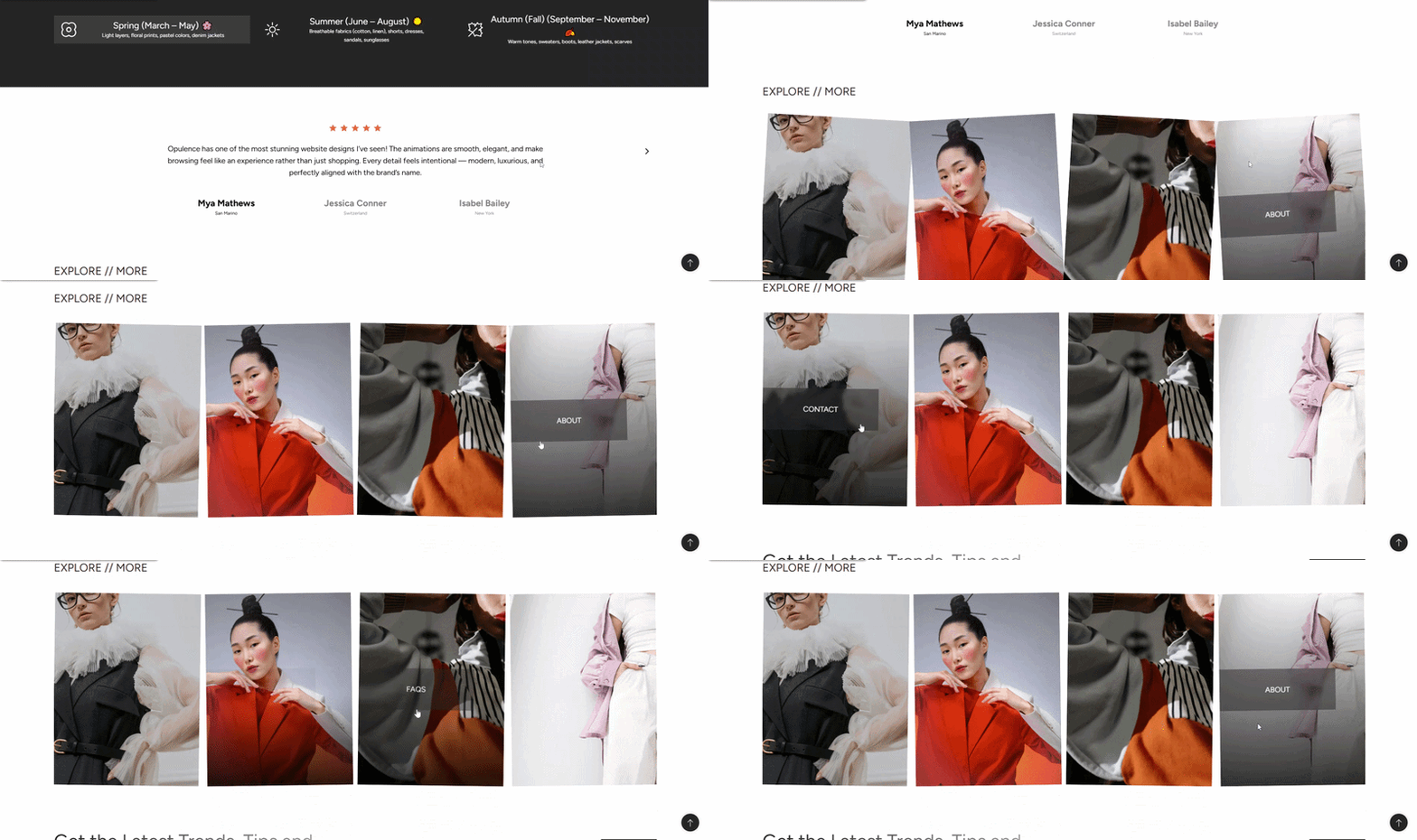
The Multicolumn Images section in the Opulence theme allows you to display multiple images side by side in a clean grid layout. Each image can have its own button, link, and call-to-action, making it ideal for highlighting collections, campaigns, or featured products.
Multicolumn Images Section Settings
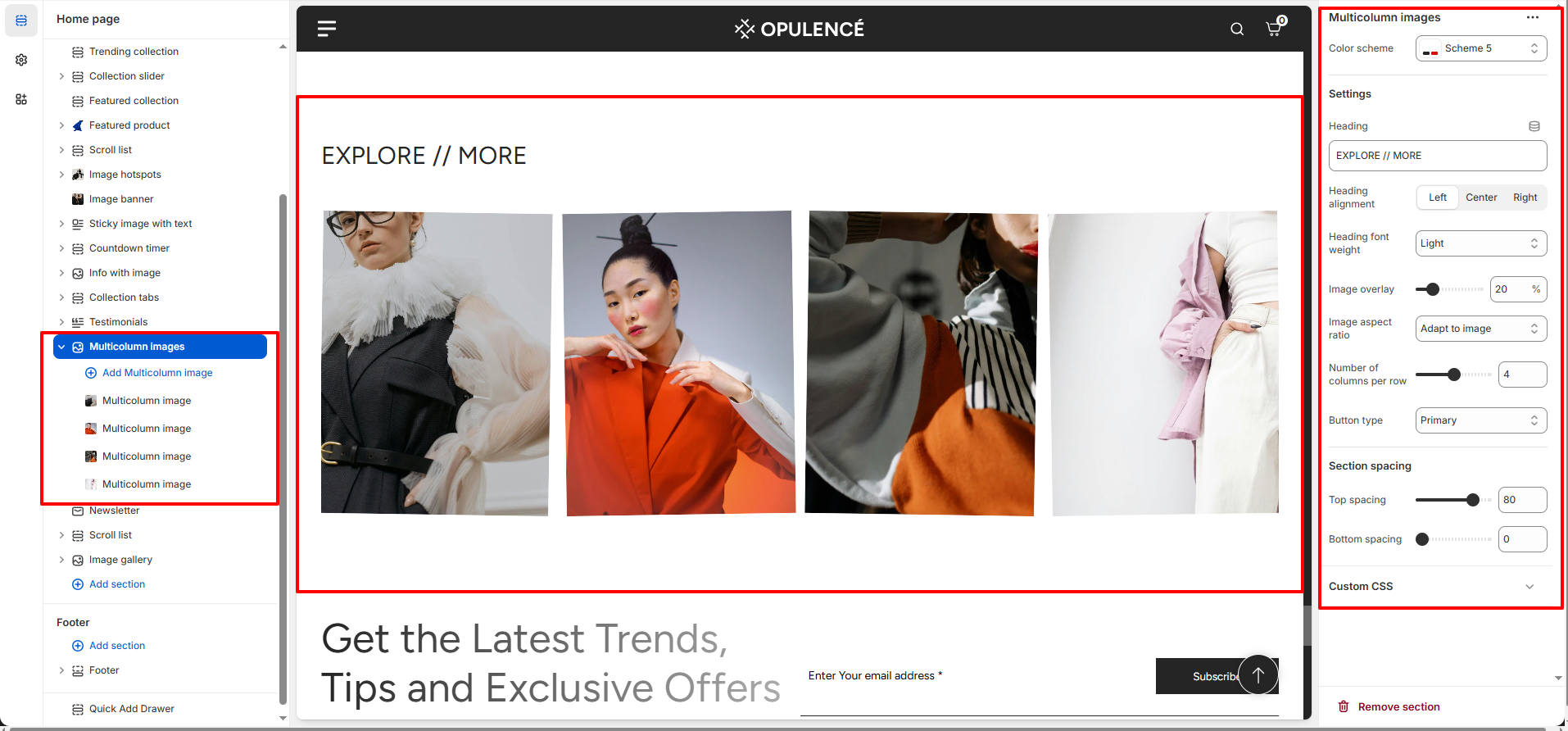
This section provides global settings to control the overall appearance and layout:
- Color Scheme – Select a predefined color palette to match the overall store design.
- Heading – Add an optional title for the section, for example “EXPLORE // MORE”.
- Heading Alignment – Align the heading to Left, Center, or Right.
- Heading Font Weight – Choose Light, Medium, or Bold.
- Image Overlay – Adjust the transparency overlay on the images.
- Image Aspect Ratio – Choose how images adapt (e.g., adapt to image or fixed ratio).
- Number of Columns per Row – Control how many images appear per row (e.g., 4).
- Button Type – Set the style for the buttons (Primary, Secondary, etc.).
- Top & Bottom Spacing – Adjust vertical spacing around the section.
Multicolumn Image Block Settings
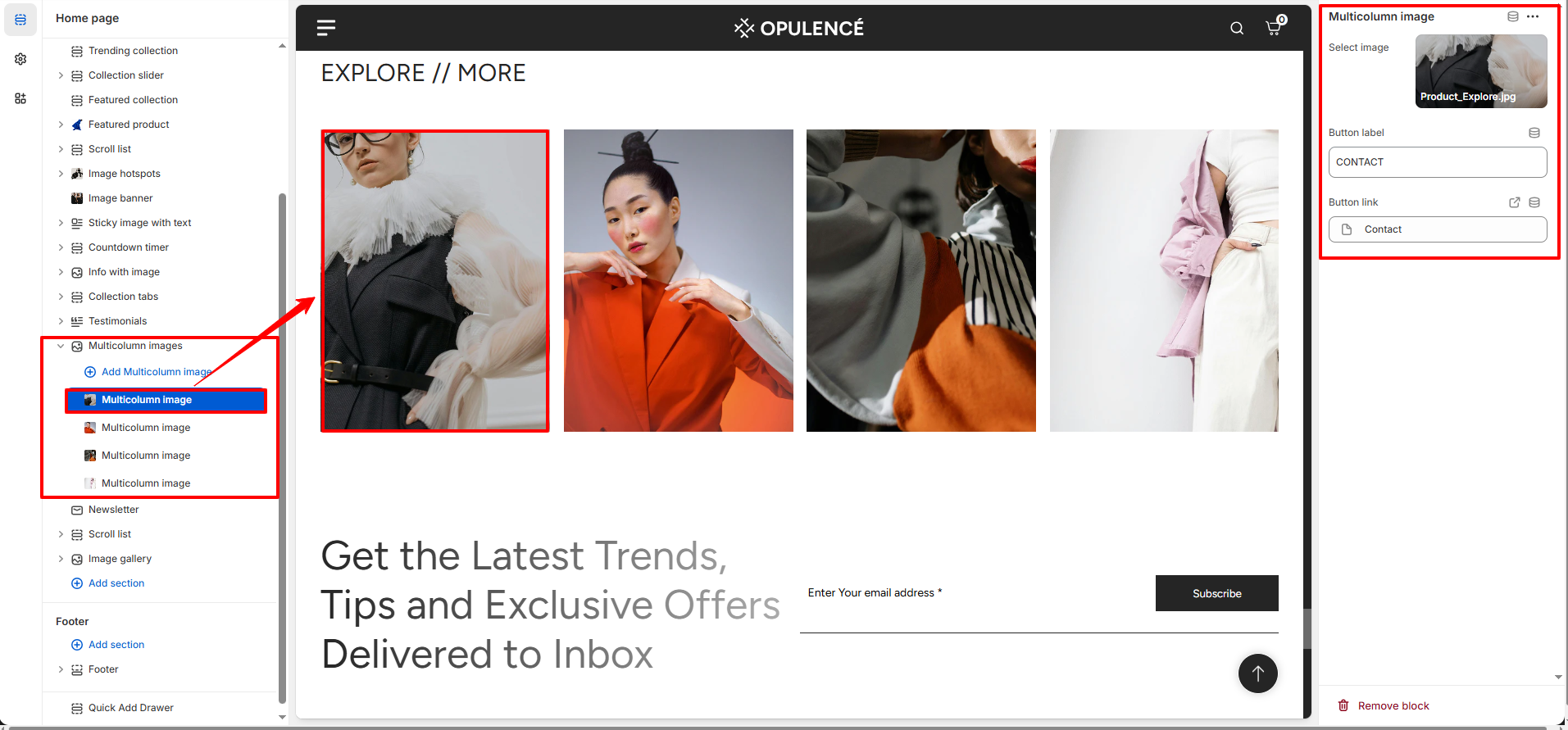
Each image in the grid has its own block settings:
- Select Image – Upload the image to display in the column.
- Button Label – Enter the text for the button (e.g., “Contact”).
- Button Link – Choose the page or collection where the button will redirect.
Steps
- Open the Theme Customizer from your Shopify admin.
- Navigate to the Multicolumn Images section on the homepage.
- Set the section heading, choose a color scheme, and configure spacing.
- Click Add Multicolumn Image to add a new image block.
- Upload the image, add a button label, and set the link destination.
- Repeat for additional images as needed.
- Adjust the number of columns per row and image overlay as desired.
- Click Save to apply your changes.
FAQs
Where can I find the Multicolumn Images section?
The Multicolumn Images section is available in the Theme Customizer. From Shopify admin, go to Online Store > Themes and click Customize. Locate the Multicolumn Images section on the homepage template.
How do I add or edit a multicolumn image?
Open the section in the Theme Customizer, click Add Multicolumn Image to add a new block, or select an existing image to edit. Upload your image, set a button label, and assign a link. Adjust layout settings such as number of columns and image overlay, then save.