
Image Hotspots
The Image Hotspots section in the Opulence theme allows you to highlight specific products or collections directly on an image using interactive hotspot markers. These clickable points help draw attention to featured items within a lifestyle image.
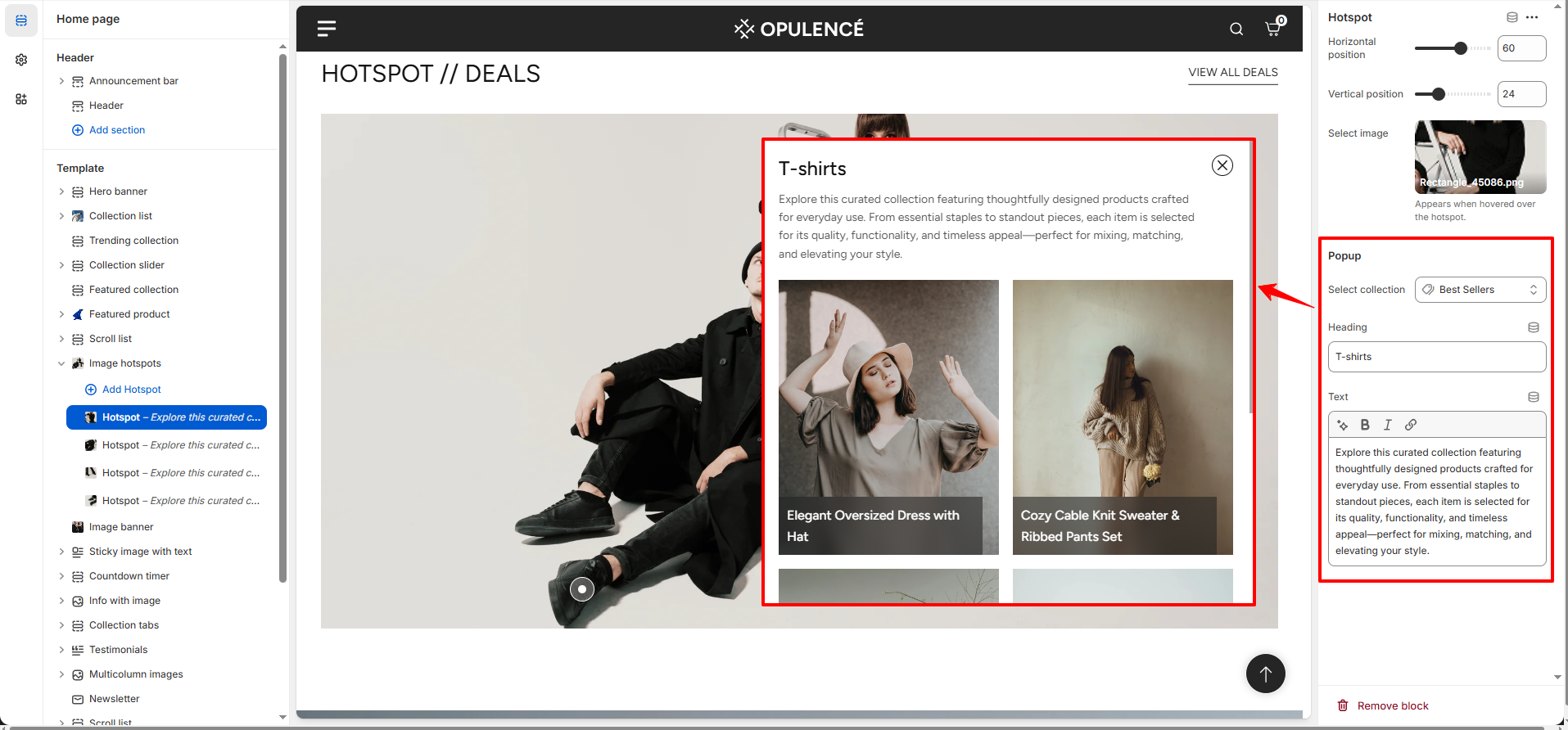
When customers hover over a hotspot, a preview popup appears displaying the selected collection along with a title and description. This feature makes it easier for shoppers to discover products visually while browsing your store.
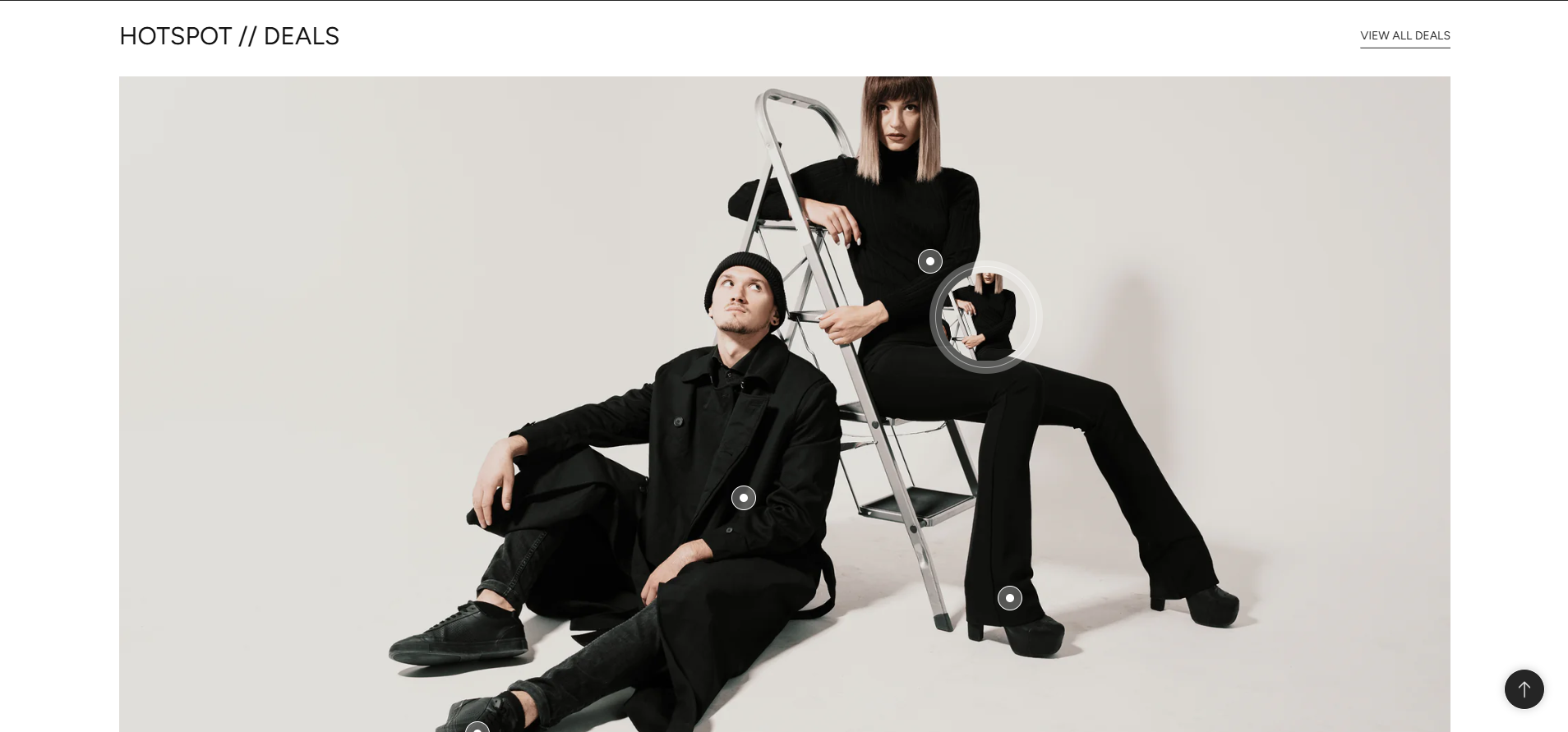
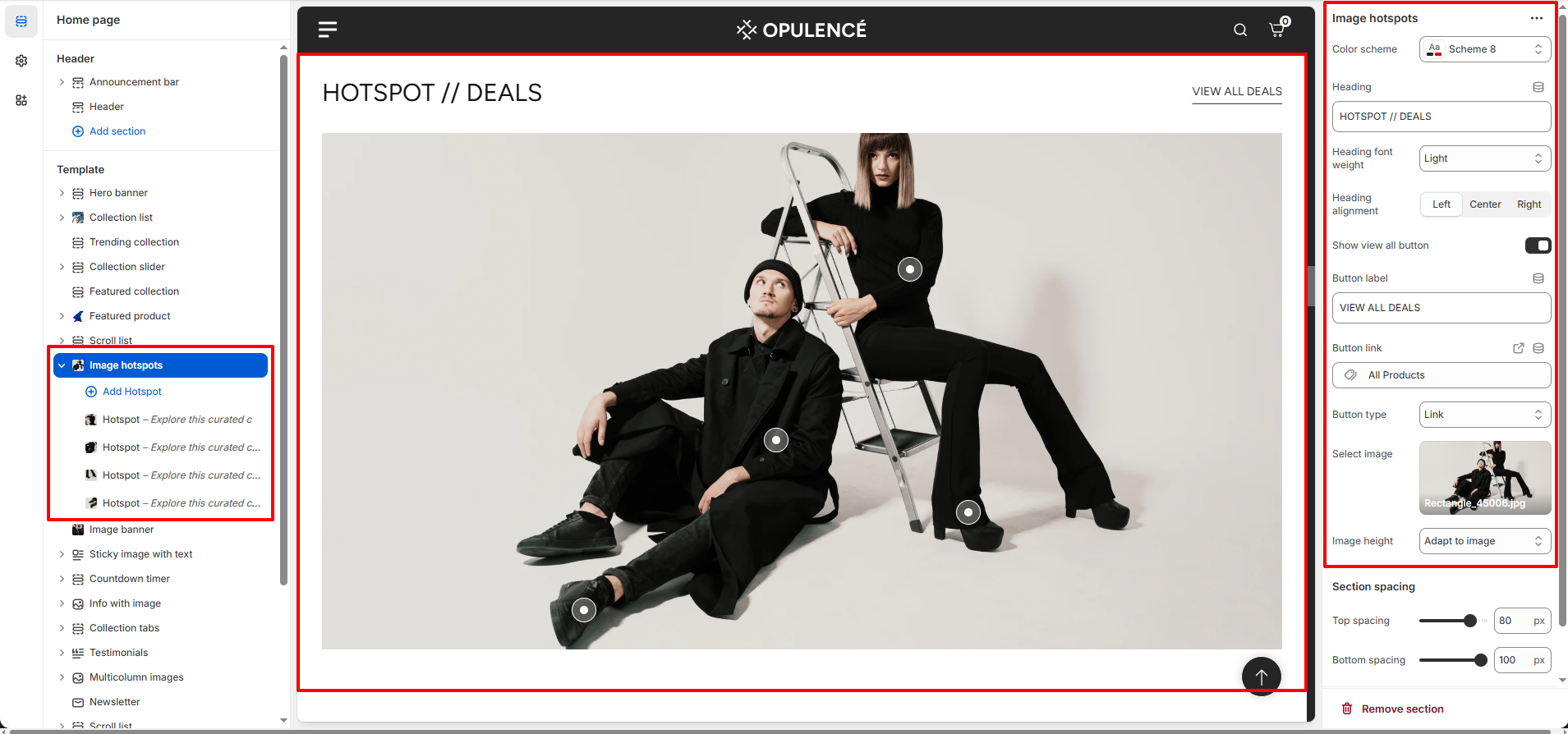
Image Hotspots Section Settings
The Image Hotspots section includes several settings that allow you to customize the layout, heading, and visual appearance of the section.
- Color Scheme – Select the color scheme for the section to match the overall design of your store.
- Heading – Add a title for the section such as “Hotspot // Deals” to introduce the featured image.
- Heading Font Weight – Adjust the thickness of the heading text to control how bold or light it appears.
- Heading Alignment – Choose how the heading will be aligned (Left, Center, or Right).
- Show View All Button – Enable this option to display a “View All Deals” button in the section.
- Button Label – Customize the text for the button that redirects customers to another page.
- Button Link – Select the page or collection where customers will be redirected when clicking the button.
- Button Type – Choose how the button appears, such as a link-style or button-style design.
- Select Image – Upload the main image where hotspots will be placed.
- Image Height – Choose how the image height should behave, such as adapting automatically to the image.
- Section Spacing – Adjust the top and bottom spacing of the section to control the layout spacing.
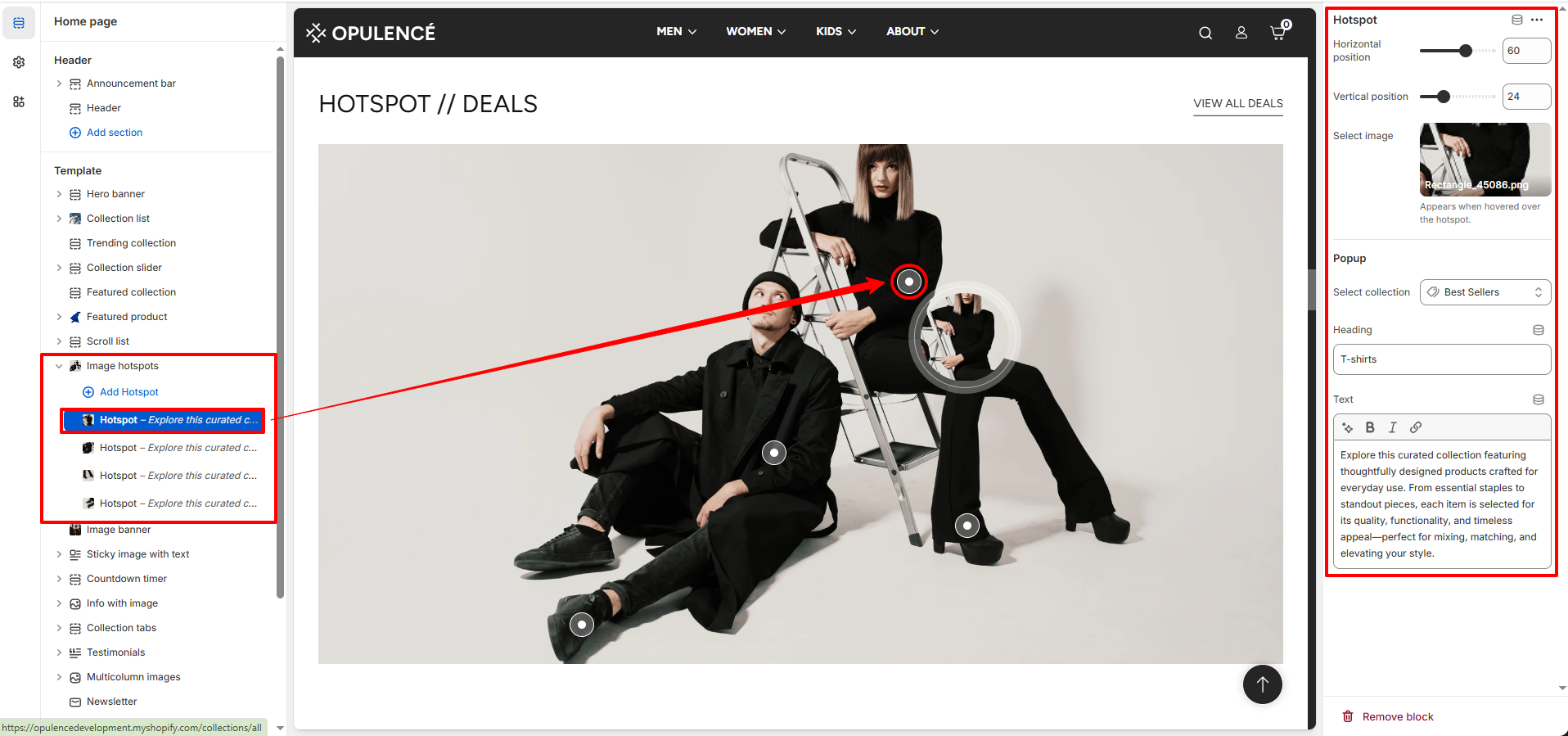
Hotspot Block Settings
Each hotspot marker can be customized individually. You can place multiple hotspots on the image and link them to different collections or promotional content.
- Horizontal Position – Adjust the horizontal placement of the hotspot across the image.
- Vertical Position – Adjust the vertical placement of the hotspot on the image.
- Select Image – Upload an image that appears when customers hover over the hotspot marker.
- Select Collection – Choose the collection that will be highlighted in the hotspot popup.
- Heading – Add a title for the hotspot popup such as “T-Shirts” or “Best Sellers”.
- Text – Add a short description that appears in the popup to provide more information about the collection or products.
Steps
- Open the Theme Customizer.
- Navigate to the Image Hotspots section on the homepage.
- Add a section heading and configure settings such as color scheme, alignment, and image options.
- Upload the main image where you want to place hotspots.
- Click Add Hotspot to create a new hotspot marker.
- Adjust the horizontal and vertical position to place the hotspot correctly on the image.
- Select a collection, add a heading, description, and optional hover image for the popup.
- Click Save to apply your changes.
FAQs
Where can I find the Image Hotspots section?
You can find the Image Hotspots section in the Theme Customizer. From your Shopify admin go to Online Store > Themes and click Customize. In the homepage template, locate the Image Hotspots section to add images and configure hotspot markers.
How do I add a hotspot to the image?
To add a hotspot, open the Image Hotspots section in the Theme Customizer and click Add Hotspot. Adjust the horizontal and vertical position sliders to place the marker on the image. Then select a collection, add a heading and description, and save your changes.