
Hero Banner
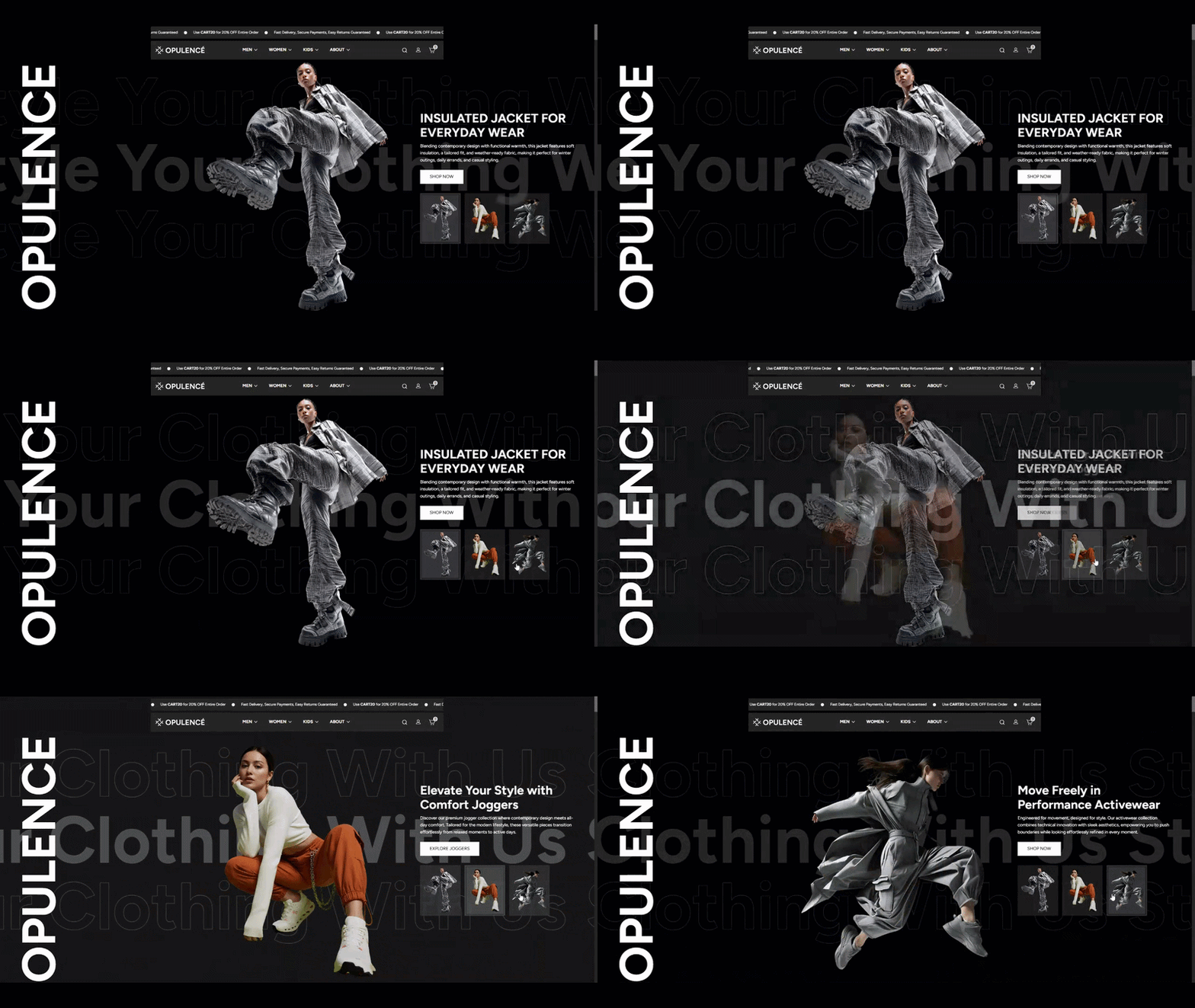
The Hero Banner section in the Opulence theme is designed to create a strong visual introduction for your store. It allows you to display large promotional images with headings, descriptions, and call-to-action buttons. This section helps highlight featured products, collections, or marketing campaigns directly on the homepage.
The hero banner supports multiple slides, enabling you to showcase different promotions or product categories in a single section. Each slide can contain images, text content, and buttons to guide customers toward important pages in your store.
Hero Banner Settings
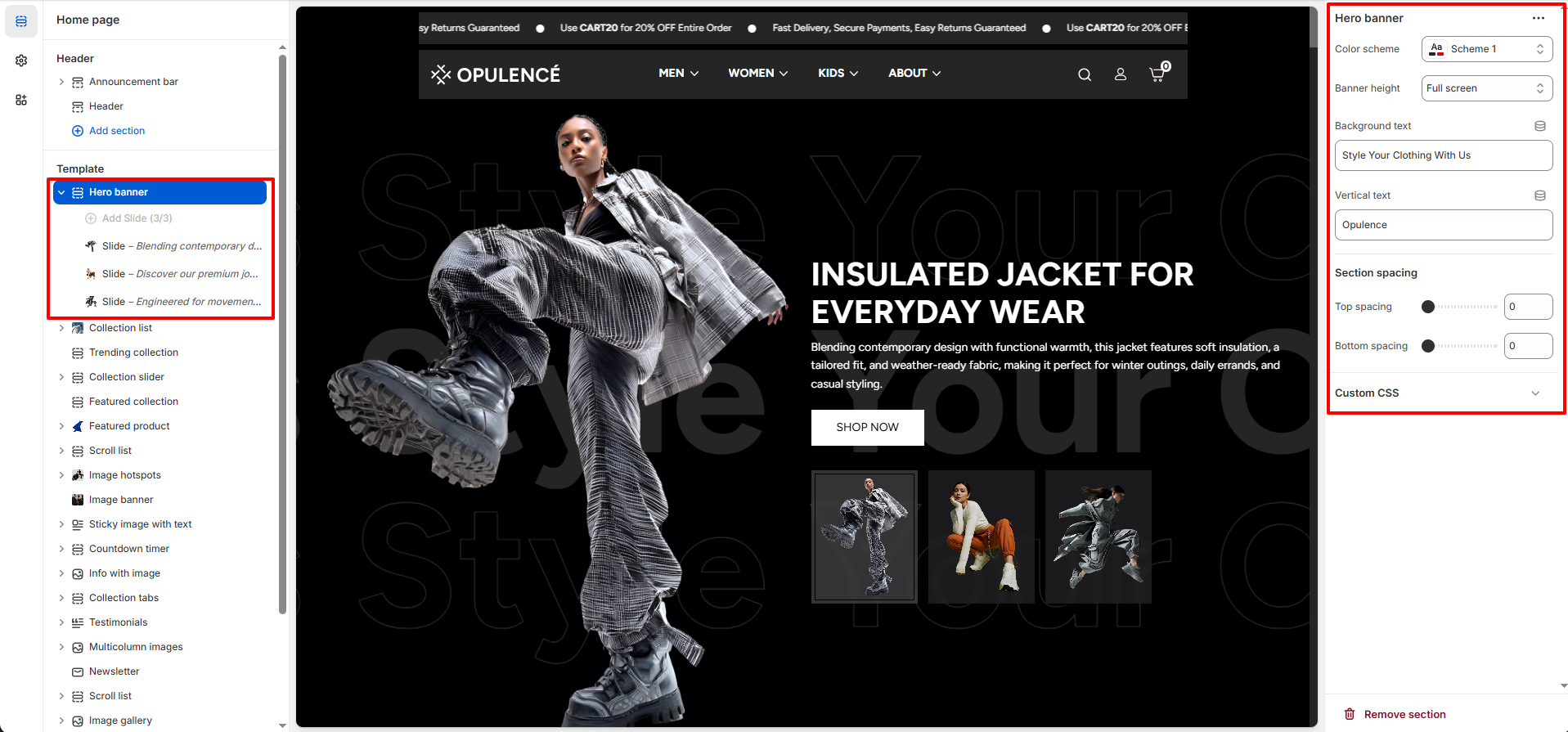
The Opulence Hero Banner provides several customization options to control the appearance of the section, including banner height, background text, vertical text, and spacing adjustments.
- Color Scheme – Select the color scheme used for the hero banner section.
- Banner Height – Choose the height of the banner such as full screen or a predefined height option.
- Background Text – Add large decorative background text that appears behind the hero content.
- Vertical Text – Add vertical text that appears along the side of the banner for a unique design effect.
- Section Spacing – Adjust the top and bottom spacing of the section to control the layout on the page.
Hero Banner Slides
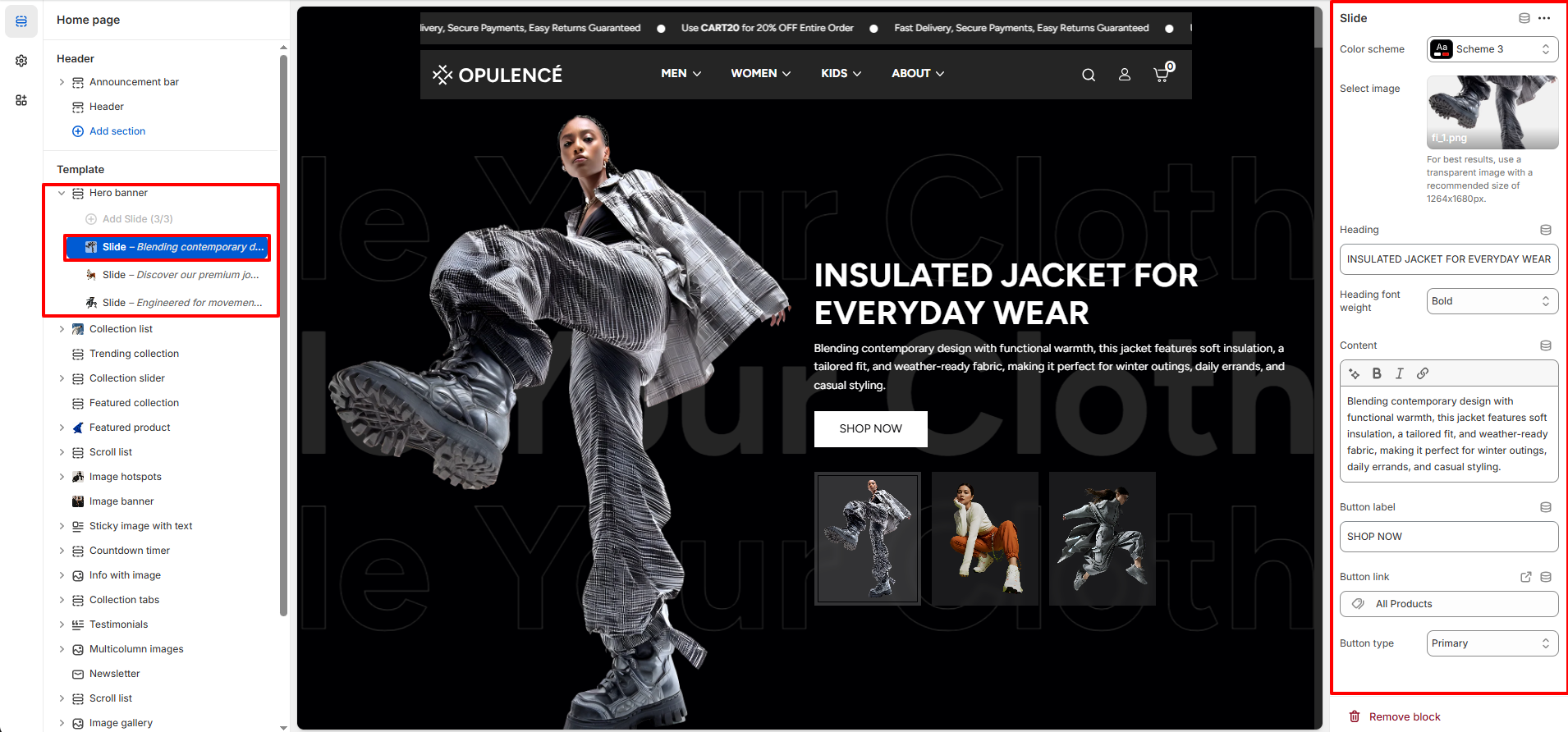
You can add multiple slides to the hero banner to display different images, promotional messages, and call-to-action buttons. Each slide can be customized individually with its own content and settings.
- Color Scheme – Select the color scheme applied to the slide content to match your store’s design.
- Select Image – Upload the main banner image for the slide. For best results, use a transparent or high-quality image with a recommended size of 1264 × 1680 px.
- Heading – Add the main title that will appear on the banner to highlight your promotion or featured product.
- Heading Font Weight – Choose the thickness of the heading text (for example, Bold) to control its visual emphasis.
- Content – Add a short description or promotional message below the heading to provide additional details.
- Button Label – Enter the text that will appear on the call-to-action button (for example, “Shop Now”).
- Button Link – Select the page, collection, or product where customers will be redirected after clicking the button.
- Button Type – Choose the style of the button, such as primary or secondary, depending on your theme design.
Steps
- Open the Theme Customizer.
- Navigate to the Hero Banner section on the homepage.
- Configure the section settings such as banner height, background text, and vertical text.
- Click Add Slide to create a new banner slide.
- Upload the slide image and add heading, text, and button details.
- Click Save to apply the changes.
FAQs
Where can I find the Hero Banner section in the theme?
You can find the Hero Banner section in the Theme Customizer. From your Shopify admin, go to Online Store > Themes and click Customize. In the homepage template, locate the Hero Banner section where you can manage slides, images, headings, and button settings.
How do I add or edit slides in the Hero Banner?
To add or edit slides, open the Theme Customizer and navigate to the Hero Banner section on the homepage. Click Add Slide to create a new slide or select an existing slide to update its image, heading, content, and button settings. Once finished, click Save to apply the changes.