
Installation Guide
Opulence is a premium Shopify theme designed to meet the demands of modern fashion and appliance stores.Opulence combines cutting-edge design with powerful functionality to deliver exceptional results.
Theme Installation
Follow these steps to install the theme on your Shopify store:
- Log in to your Shopify admin.
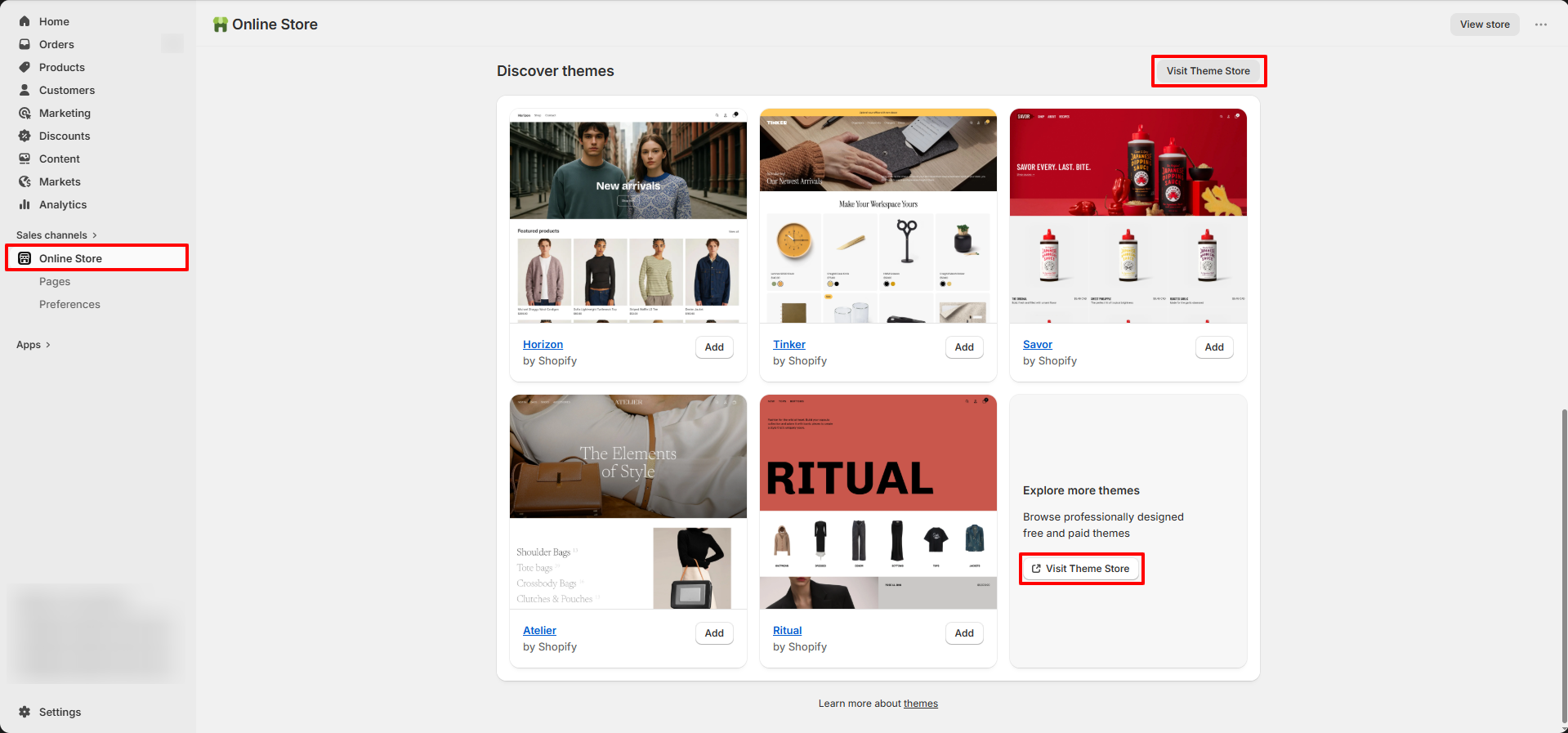
- Go to Online Store from the left sidebar.
- Scroll down to the Discover Themes section.
- Click on Visit Theme Store.
- In the Shopify Theme Store, search for Opulence Theme.
- Open the theme and click Try theme to add it to your store.
- The theme will be added to your store.
- Click Customize to start editing and setting up your store design.
Try Opulence for free from the Shopify Theme Store
Opulence, like all premium themes in the Shopify Theme Store, offers a trial period, giving you the opportunity to explore its intuitive design and easy setup features. During the trial, you can fully customize and configure the theme to create the perfect storefront. Once you're ready to go live, simply purchase the theme to activate it on your store.
Steps
- Visit the Shopify Theme Store and choose Opulence.
- Click Try theme to add the theme to your online store.
- In your Shopify admin, go to Online Store > Themes.
- In the Theme library section, click the Customize button to open the theme editor or, to preview, use the ... button to open the actions menu, then click Preview.
FAQs
How do I update my theme to a newer version?
Updating your theme to the latest version is simple! Just follow our step-by-step guide on how to update your theme and keep your store looking fresh and functional.
How do I share a preview of my theme with others?
If you’re about to launch your store or want to refresh its design, you can easily share a preview of your theme before it's published. This allows you to gather feedback without making any changes live.
Create a preview link that lets others explore your store’s design, but without the ability to access checkout. The best part? The preview link stays active for 48 hours, and you can create new links as many times as you need without affecting previous ones.
Steps to Share a Theme Preview:
- From your Shopify admin, navigate to Online Store > Themes.
- For the theme you want to preview, click the ... button, then select Preview from the actions menu.
- In the preview bar at the bottom of the page, click Share preview. A window with your unique share link will appear.
- Click Copy link to copy the link to your clipboard.
- Paste the link into emails, chats, or on social media to share with others.