
Mega Menu
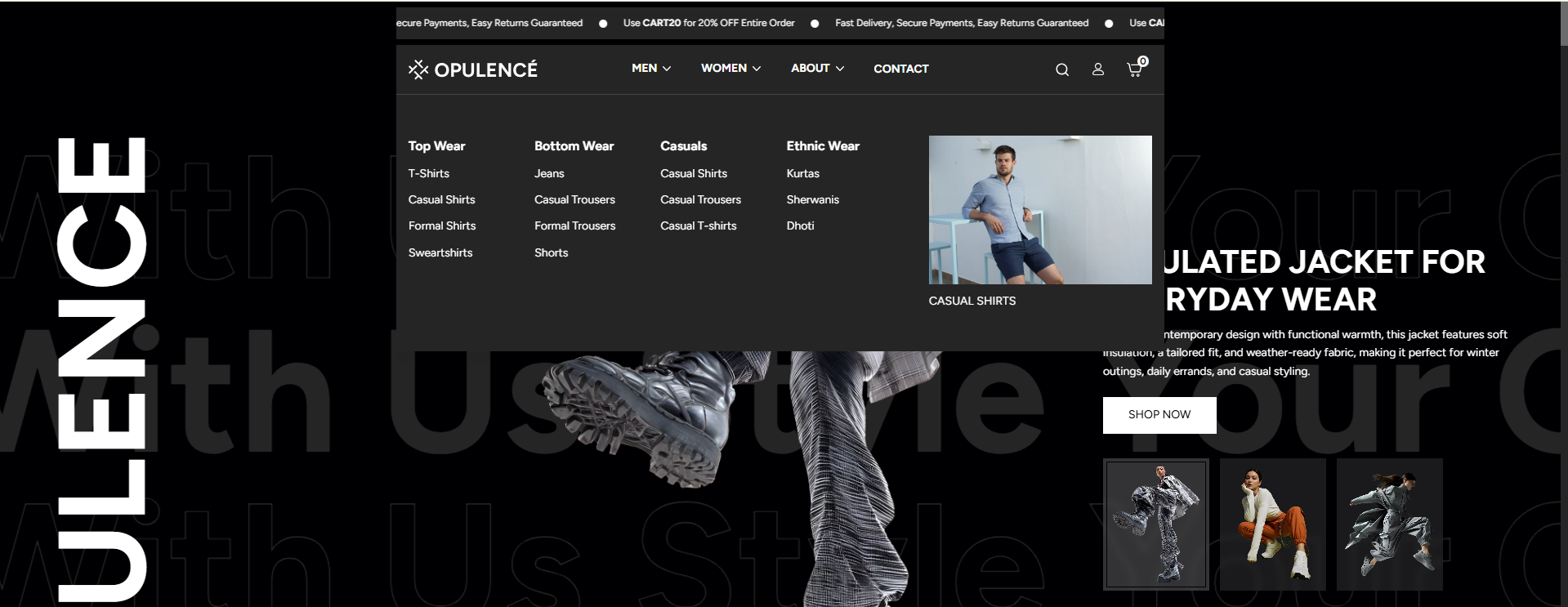
The Opulence theme includes a powerful Mega Menu feature that allows you to display multiple categories, collections, and promotional images in a wide dropdown layout. This helps customers easily navigate through your store and enhances the overall shopping experience.
Mega Menu Settings
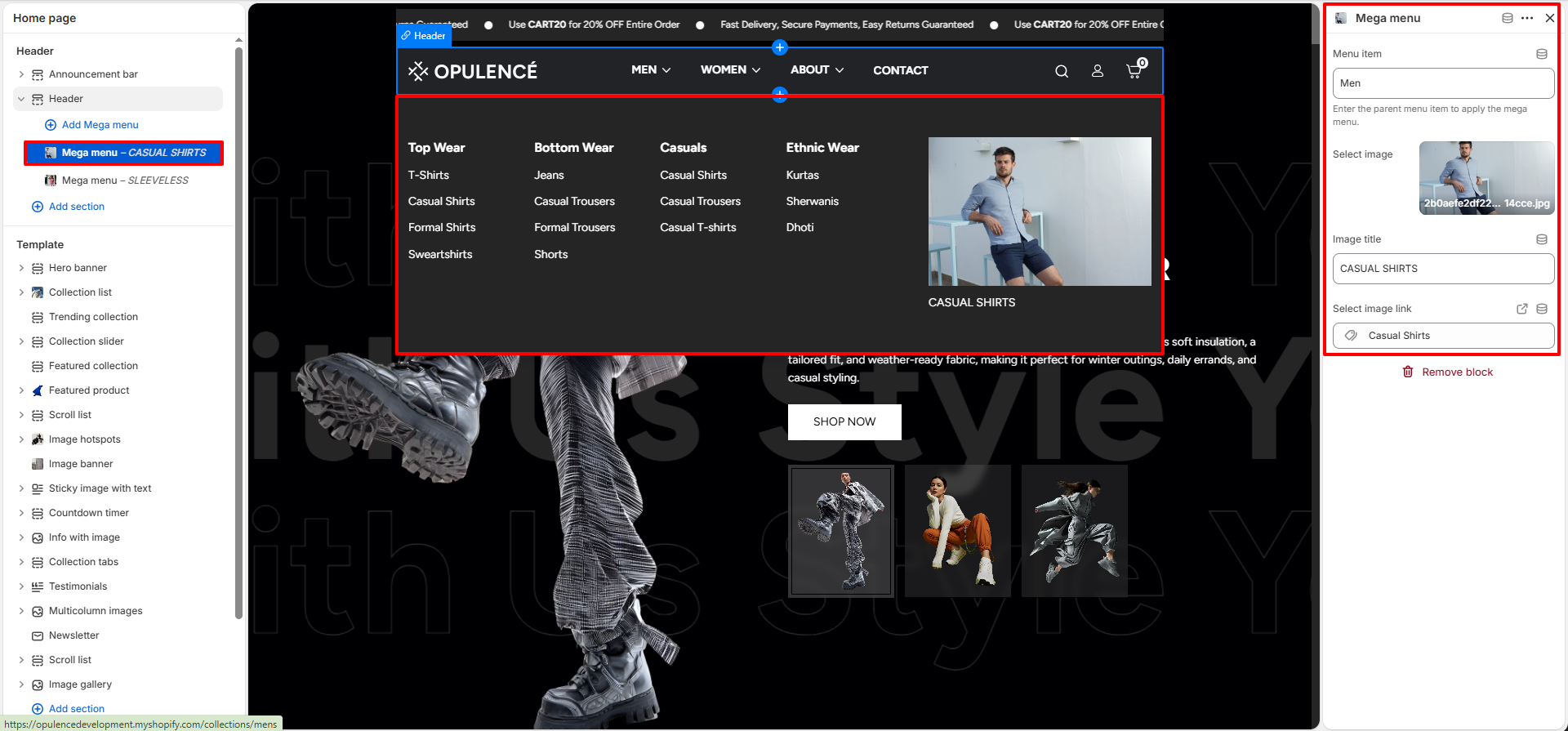
Follow these steps to configure the Mega Menu in the theme editor:
- Go to Shopify Admin > Online Store > Themes.
- Click Customize on the Opulence theme.
- Navigate to Header section.
- Click on Mega Menu block.
Settings Explanation
- Menu Item: Enter the name of the main navigation item (e.g., Men, Women). The mega menu will appear under this item.
- Select Image: Upload an image to display on the right side of the mega menu. Recommended size: 500 × 600 px.
- Image Title: Add a title below the image (e.g., CASUAL SHIRTS).
- Select Image Link: Add a link to redirect users when they click the image (e.g., collection page).
- Menu Content: The left-side menu links are automatically pulled from your Shopify Navigation.
How to Create a Mega Menu
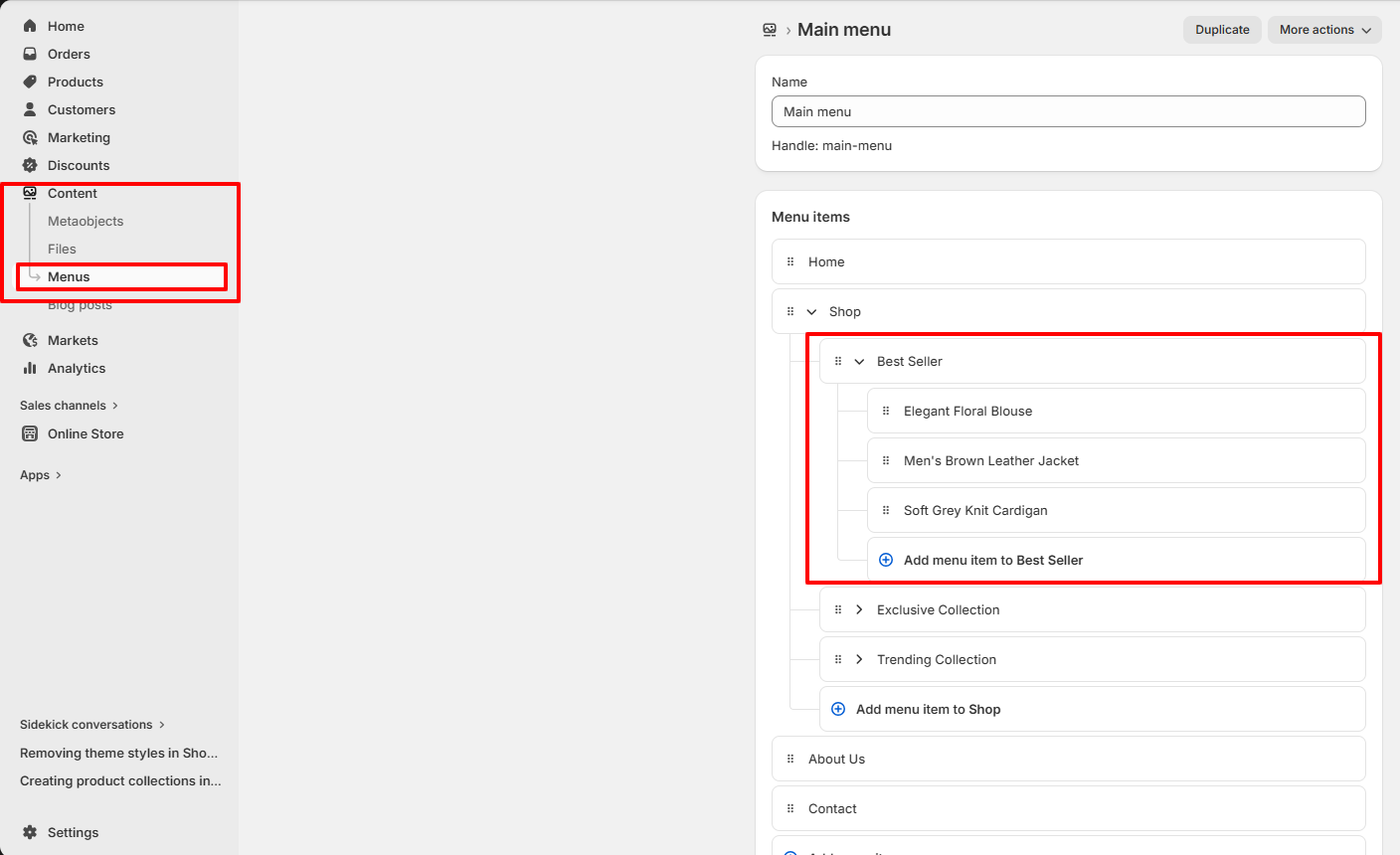
Before using the Mega Menu in the theme, you need to create a navigation menu in Shopify admin.
Steps
- Go to Shopify Admin > Online Store > Navigation.
- Open the Main Menu.
- Click Add menu item and create a main item (e.g., Men).
- Add sub-menu items like T-Shirts, Casual Shirts, Jeans, etc.
- Drag sub-items slightly to the right to create a dropdown structure.
- Click Save menu.
Important Notes
Why is my Mega Menu not showing?
Make sure the Menu Item name matches exactly with your Shopify navigation menu. Also ensure that sub-menu items are properly nested.
Where do menu links come from?
All menu links are managed from Shopify Navigation. The theme only controls the layout and styling of the Mega Menu.