
Image Banner
The Image Banner section in the Opulence theme allows you to display a large visual banner on your homepage or any page template. This section is ideal for promoting new arrivals, seasonal campaigns, featured collections, or brand messages with impactful imagery.
The banner supports images or videos and can include a heading, subheading, description text, and a call-to-action button. This helps capture customer attention and guide them to important areas of your store.
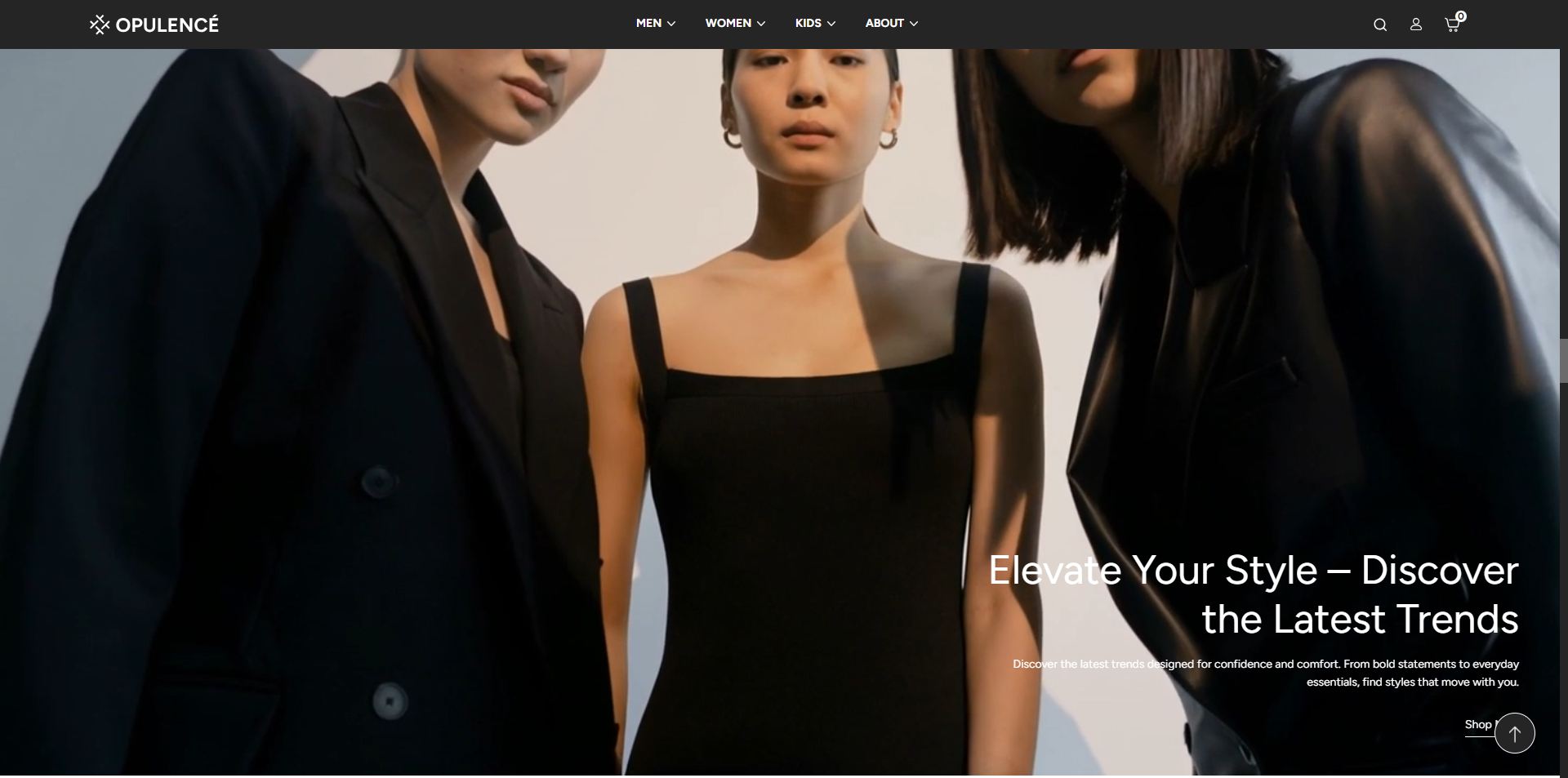
Image Banner Settings
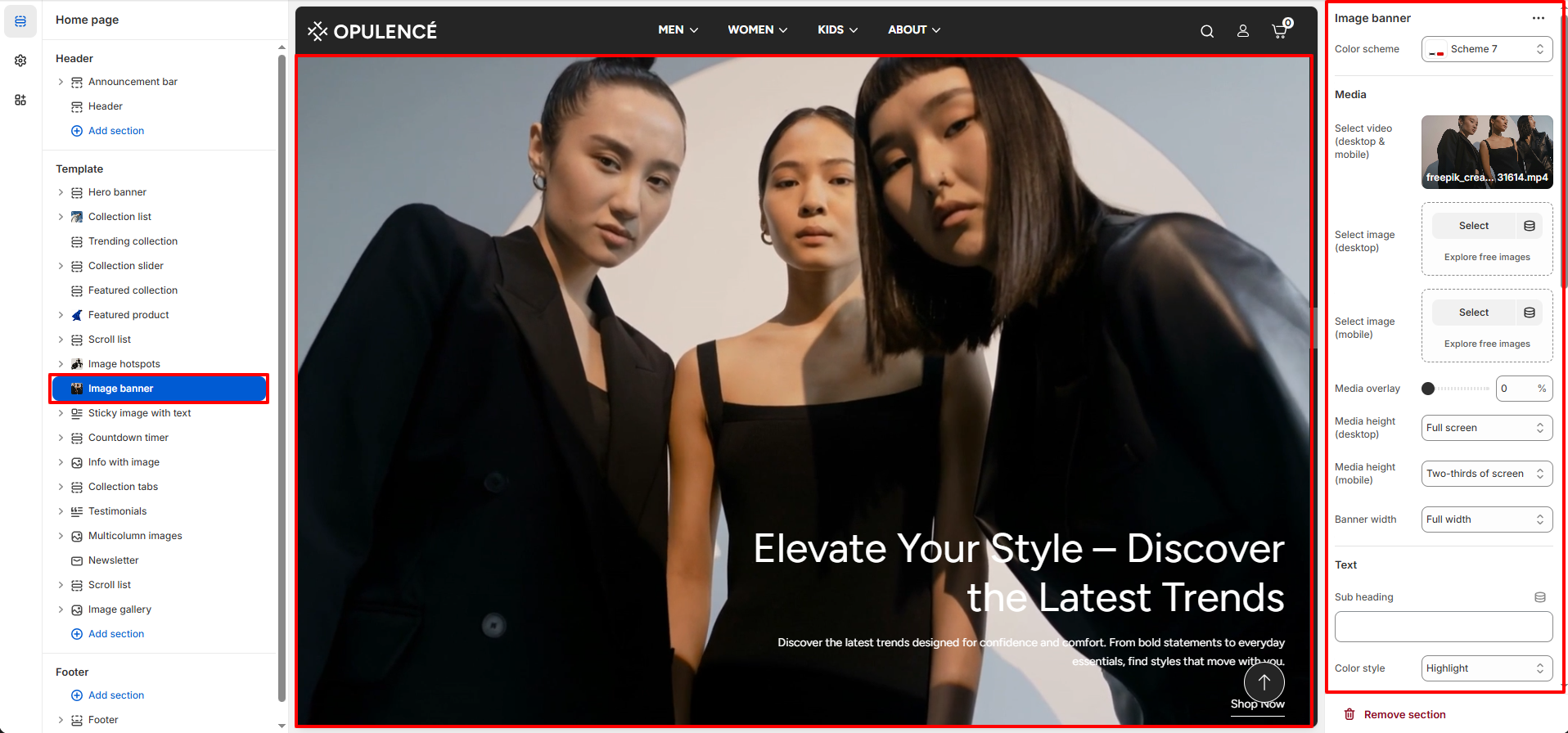
The Image Banner section provides several customization options to control the media display, text content, and layout positioning.
- Color Scheme – Choose the color scheme for the banner section to match your store's branding.
- Select Video (Desktop & Mobile) – Upload or select a video to display as the banner background for both desktop and mobile devices.
- Select Image (Desktop) – Upload the banner image that will appear on desktop screens.
- Select Image (Mobile) – Upload a separate image optimized for mobile devices.
- Media Overlay – Adjust the overlay opacity on the banner media to improve text visibility.
- Media Height (Desktop) – Choose the height of the banner on desktop devices such as full screen or custom height.
- Media Height (Mobile) – Select the banner height for mobile screens.
- Banner Width – Choose whether the banner should appear in full width or within a container layout.
Text Content Settings
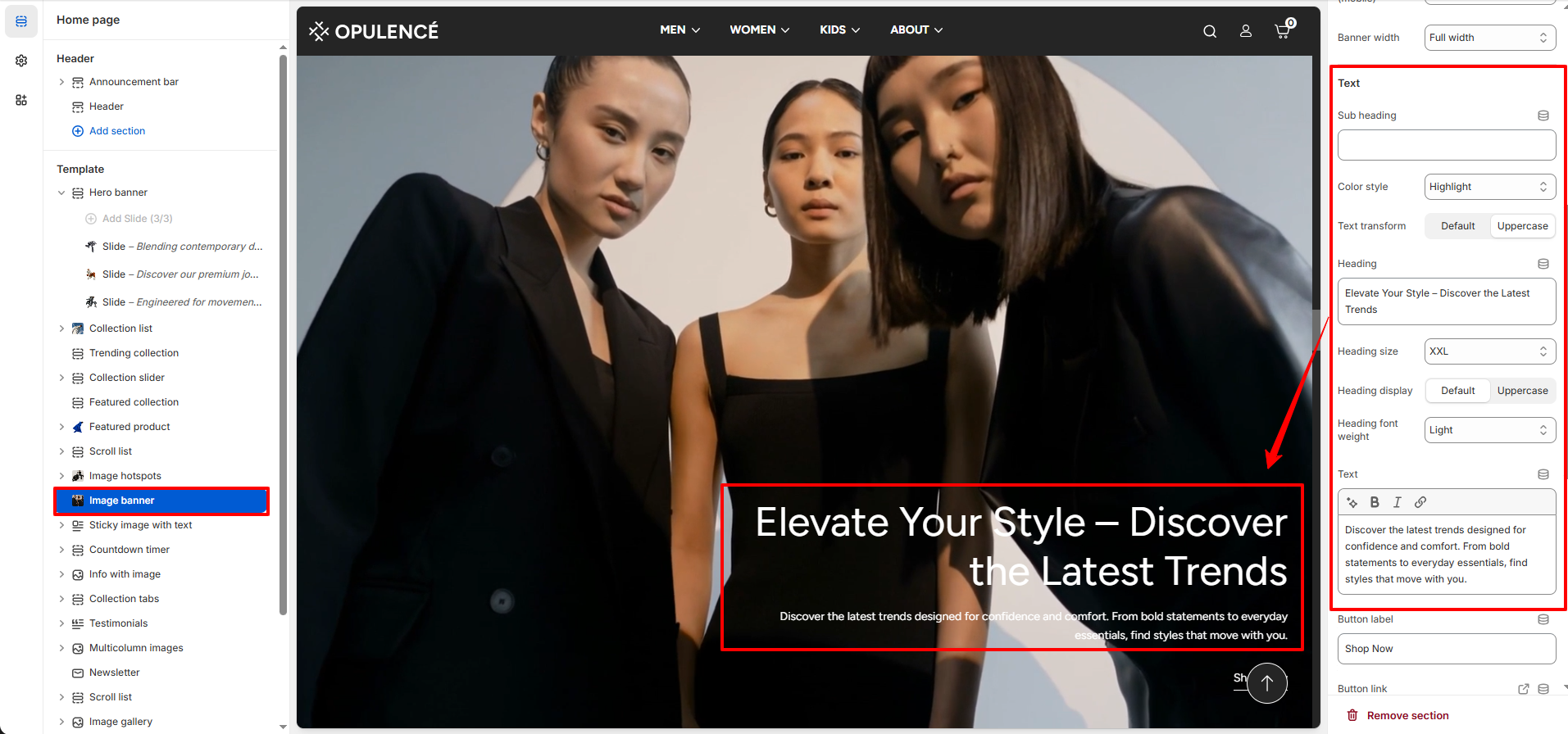
You can add promotional content on top of the banner to guide customers toward specific products or collections.
- Sub Heading – Add a smaller introductory text above the main heading.
- Color Style – Select the color style used for the banner text.
- Text Transform – Choose how the text appears such as default or uppercase styling.
- Heading – Enter the main banner heading that highlights your promotion or message.
- Heading Size – Adjust the size of the heading text (for example XL or XXL).
- Heading Display – Choose the display style for the heading.
- Heading Font Weight – Control how bold or light the heading text appears.
- Text – Add a short description or promotional message below the heading.
Button & Layout Settings
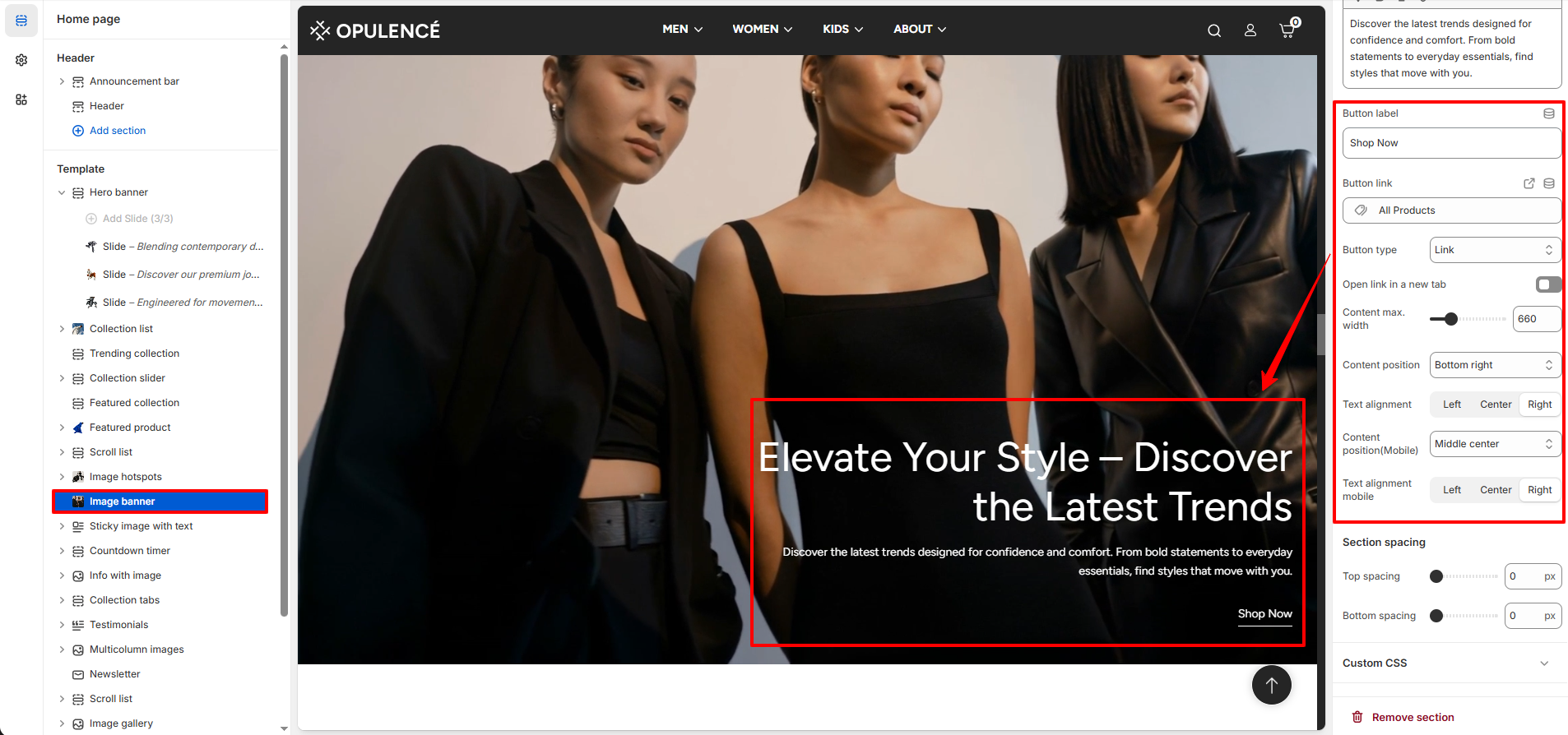
- Button Label – Enter the text for the call-to-action button such as “Shop Now”.
- Button Link – Select the page, product, or collection where customers will be redirected after clicking the button.
- Button Type – Choose the style of the button such as link or button style.
- Open Link in New Tab – Enable this option to open the button link in a new browser tab.
- Content Max Width – Control the maximum width of the banner text content.
- Content Position – Choose the vertical position of the banner content (Top, Middle, or Bottom).
- Content Alignment – Adjust the alignment of the text content (Left, Center, or Right).
- Content Position (Mobile) – Set the vertical position of banner content specifically for mobile devices.
- Text Alignment (Mobile) – Choose the alignment of text for mobile screens.
- Section Spacing – Adjust the top and bottom spacing of the banner section.
- Custom CSS – Add custom CSS if you want additional styling for the banner section.
Steps
- Open the Theme Customizer.
- Navigate to the Image Banner section on the homepage.
- Upload a banner image or video for desktop and mobile devices.
- Adjust the media height, overlay, and banner width settings.
- Add a heading, subheading, and descriptive text.
- Configure the call-to-action button and link it to the desired page.
- Adjust the content position and alignment for both desktop and mobile.
- Click Save to apply the changes.
FAQs
Can I use a video instead of an image in the banner?
Yes, the Image Banner section supports video backgrounds. You can upload or select a video for both desktop and mobile devices to create a more engaging banner experience.
Can I use different images for desktop and mobile?
Yes, you can upload separate images for desktop and mobile screens. This ensures the banner appears properly optimized across all devices.