
Image Gallery
The Image Gallery section in the Opulence theme allows you to showcase multiple images in a clean, organized layout. It’s perfect for highlighting products, lifestyle photos, or Instagram feeds directly on your homepage.
Customers can click images to open them in a larger view, while responsive settings ensure the gallery looks great on mobile and desktop devices.

Image Gallery Section Settings
The section settings give you full control over how your gallery appears.
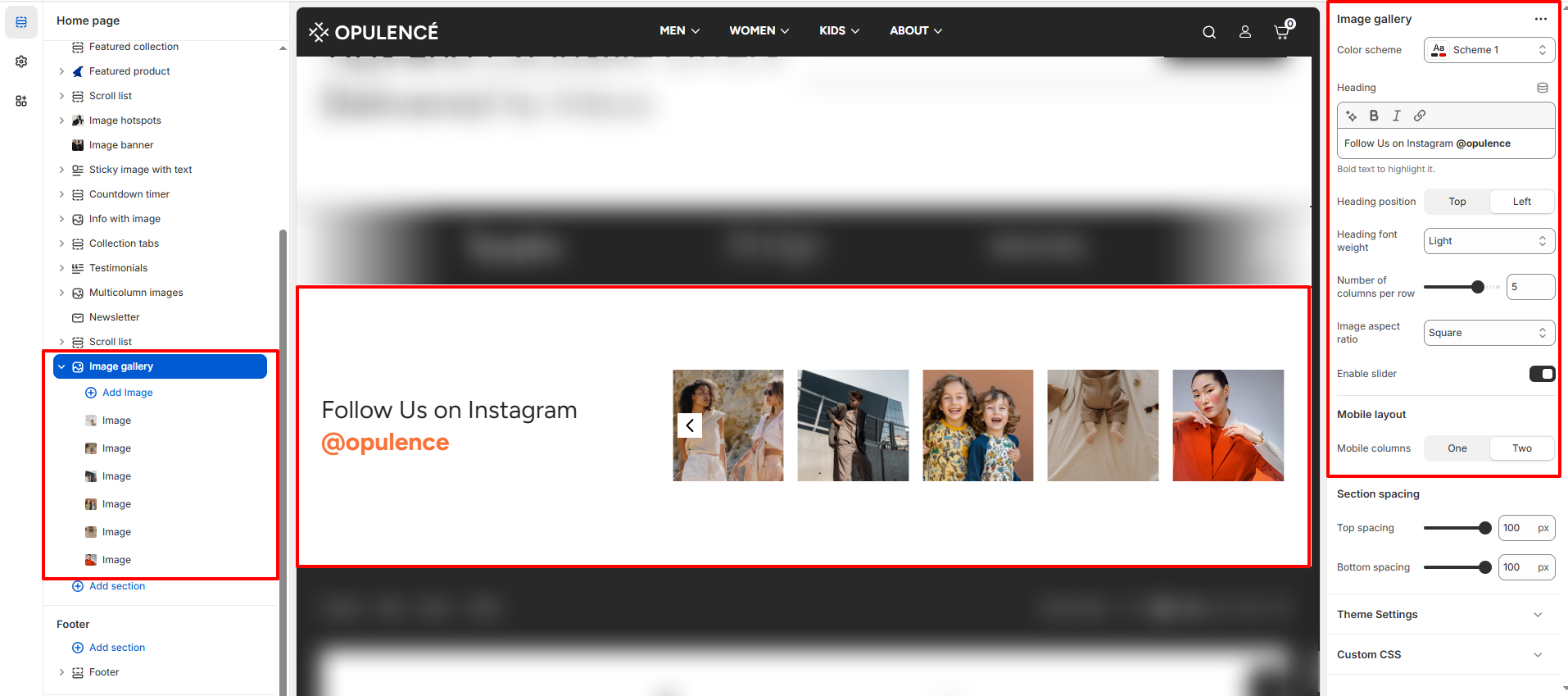
- Color Scheme – Choose a color scheme to match your store’s theme for captions or headings.
- Heading – Add a title or call-to-action, e.g., “Follow Us on Instagram @opulence”.
- Heading Position – Align the heading at the top or left of the gallery.
- Heading Font Weight – Adjust how bold or light the heading text appears.
- Number of Columns per Row – Set how many images display in each row.
- Image Aspect Ratio – Choose the shape of gallery images (Square, Portrait, or Landscape).
- Enable Slider – Toggle to allow sliding images in a carousel layout.
- Mobile Layout – Control the number of columns on mobile devices (One or Two).
- Section Spacing – Adjust the top and bottom spacing of the gallery section.
Gallery Image Settings
Each image in the gallery can be individually configured.
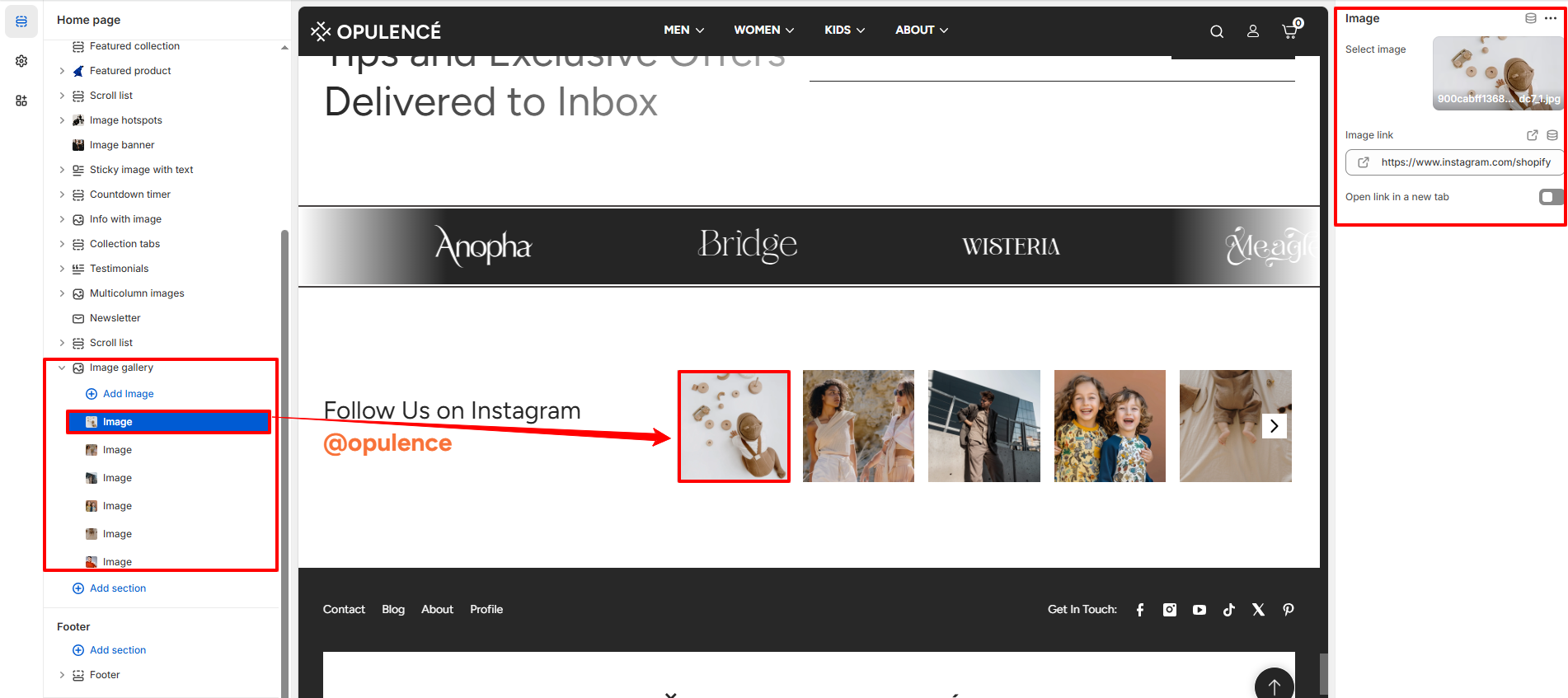
- Image – Upload the desired image for display.
- Image Link – Add a URL so customers are redirected when the image is clicked.
- Open Link in a New Tab – Enable this option to open the link in a separate browser tab.
Steps
- Open the Theme Customizer.
- Navigate to the Image Gallery section on your homepage.
- Configure gallery settings such as color scheme, heading, columns, and spacing.
- Add images by clicking Add Image.
- Set a link for each image if desired and choose whether it opens in a new tab.
- Adjust mobile layout options and enable slider functionality if needed.
- Click Save to apply your changes.
FAQs
Where can I find the Image Gallery section?
The Image Gallery section is available in the Theme Customizer. From your Shopify admin, go to Online Store > Themes, click Customize, and locate the Image Gallery section on the homepage.
How do I add images to the gallery?
To add images, open the Image Gallery section, click Add Image, upload your image, optionally add a link, and save your changes. You can also configure the number of columns and enable a slider for multiple images.