
Collection Slider
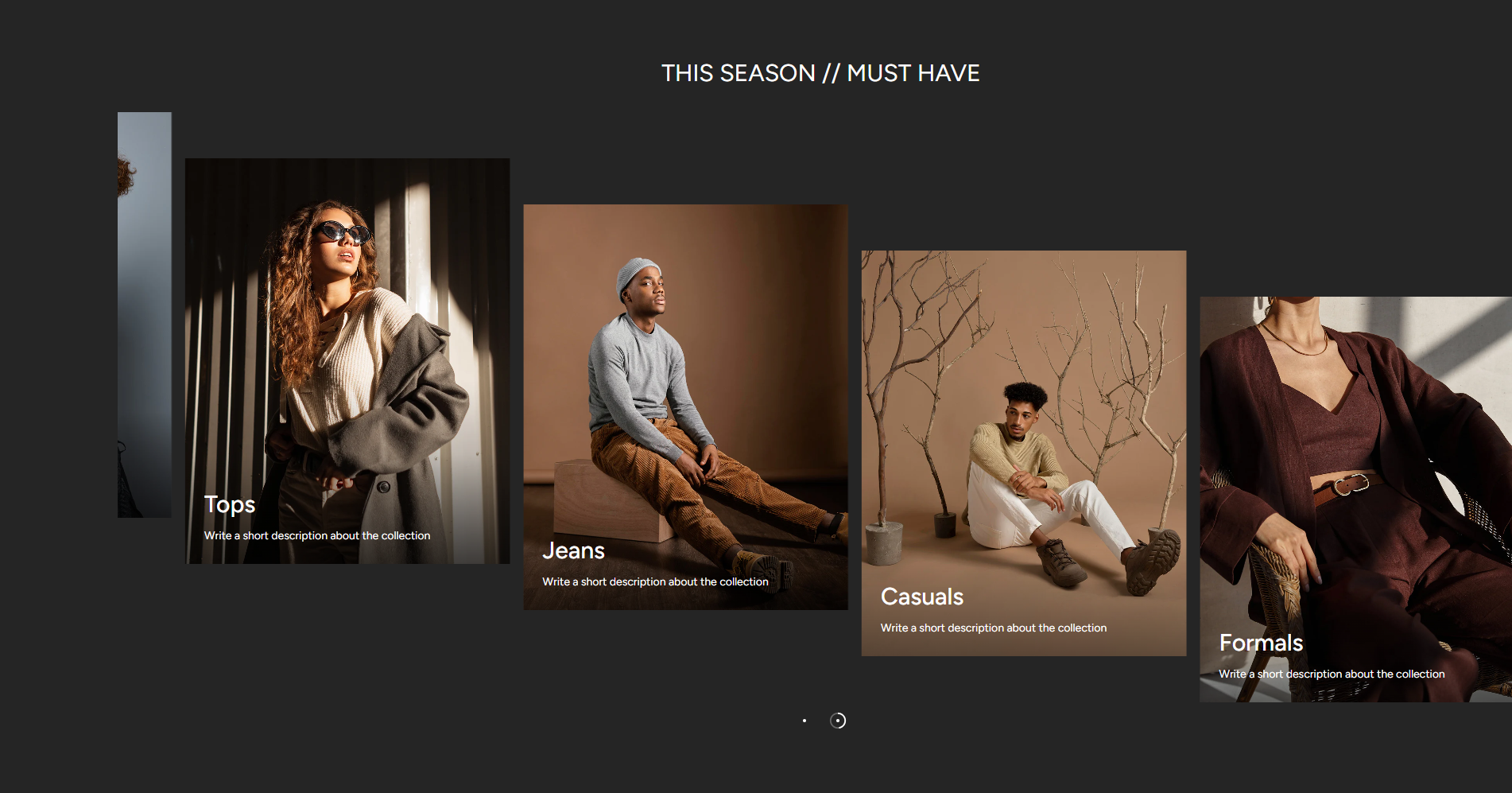
The Collection Slider section in the Opulence theme allows you to display multiple product collections in an interactive horizontal slider layout. This section is useful for highlighting important categories such as seasonal collections, trending products, or popular shopping categories.
Each collection appears as a visual card containing an image, title, and short description. Customers can easily scroll through the slider to explore different collections and click on a collection card to visit its dedicated collection page.
Collection Slider Settings
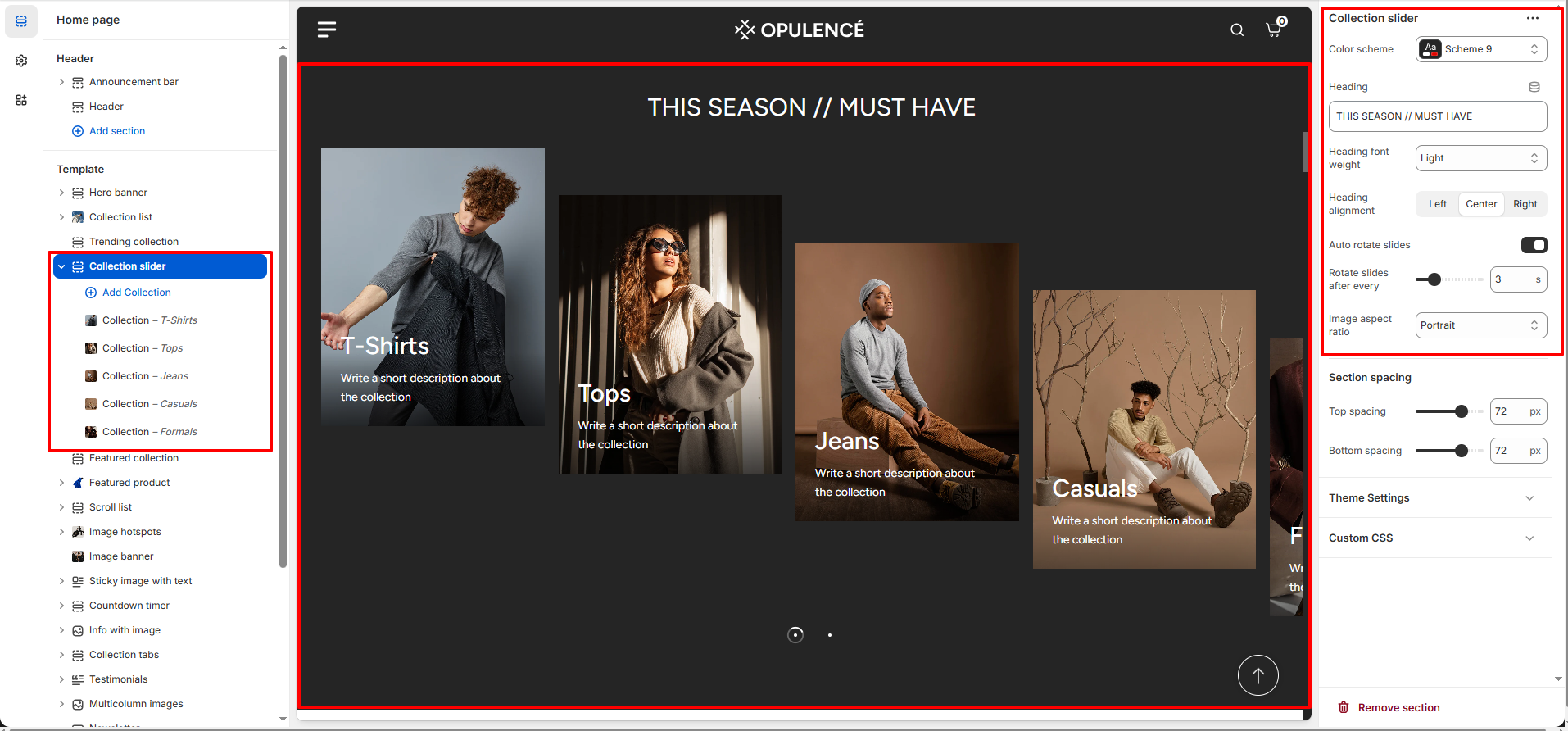
The Collection Slider section includes several customization options that allow you to control the layout, style, and behavior of the slider.
- Color Scheme – Select the color scheme for the section to match the overall design of your store.
- Heading – Add a title such as “This Season // Must Have” to introduce the collections displayed in the slider.
- Heading Font Weight – Adjust the thickness of the heading text for better visual emphasis.
- Heading Alignment – Choose the position of the heading (Left, Center, or Right).
- Auto Rotate Slides – Enable this option to automatically rotate the collection slides.
- Rotate Slides After Every – Set the time interval in seconds for automatic slide rotation.
- Image Aspect Ratio – Choose the image ratio (such as portrait) to maintain consistent collection image sizes in the slider.
- Section Spacing – Adjust the top and bottom spacing to control the distance between this section and other sections on the page.
Collection Block Settings
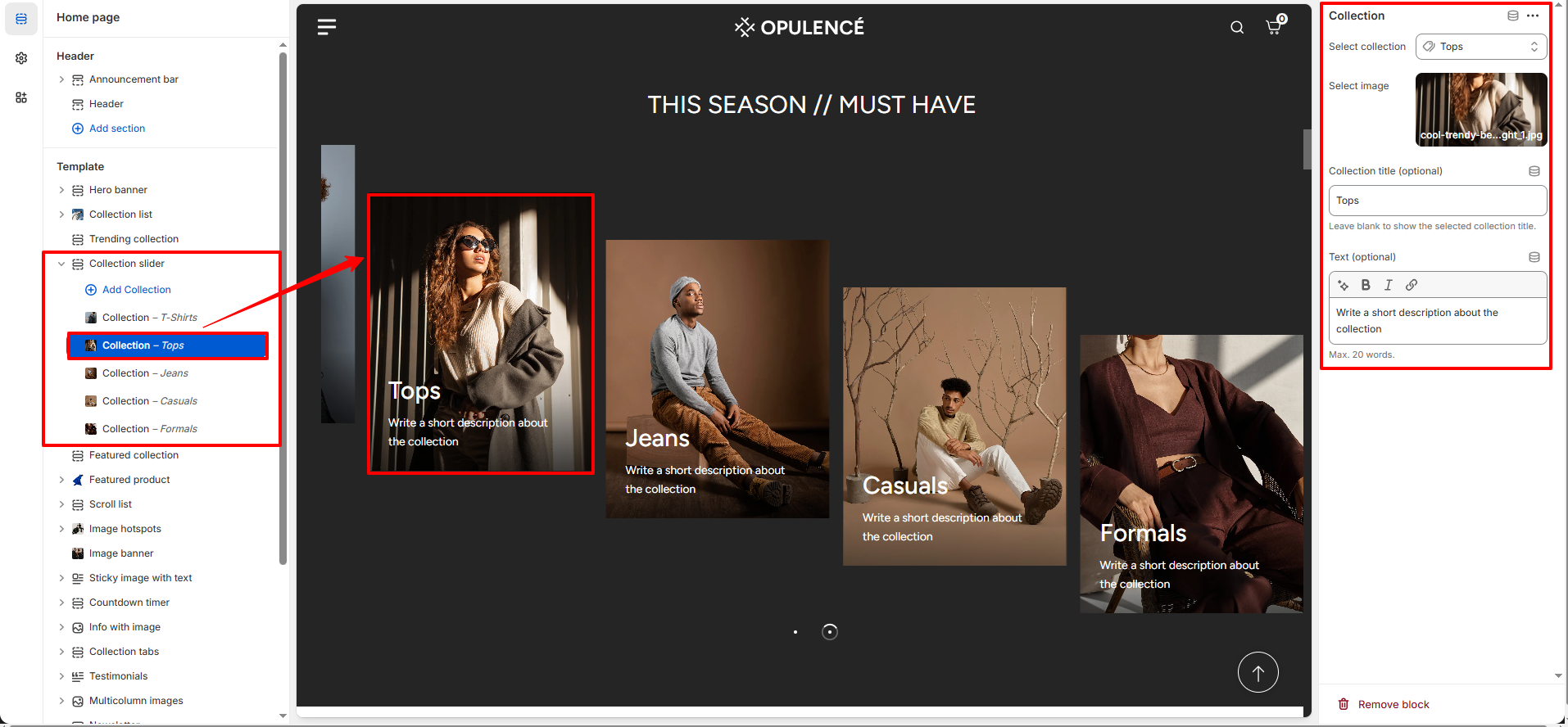
Each slide in the Collection Slider represents a collection block. You can customize each block by selecting a collection, adding an image, and writing a short description.
- Select Collection – Choose the Shopify collection that will be displayed in this slider block.
- Select Image – Upload a custom image for the collection. This image will appear as the background of the collection card.
- Collection Title (Optional) – Add a custom title for the collection. If left empty, the original collection title will be used.
- Text (Optional) – Write a short description about the collection to provide additional information to customers.
Steps
- Open the Theme Customizer.
- Navigate to the Collection Slider section on the homepage.
- Add a section heading and choose a color scheme.
- Enable or disable the auto-rotate option for the slider if needed.
- Click Add Collection to create a new collection slide.
- Select the collection, upload an image, and optionally add a custom title and description.
- Repeat the process to add multiple collections to the slider.
- Click Save to apply the changes.
FAQs
Where can I find the Collection Slider section?
You can find the Collection Slider section in the Theme Customizer. From your Shopify admin, go to Online Store > Themes and click Customize. In the homepage template, locate the Collection Slider section to manage collections, images, and slider settings.
How do I add collections to the Collection Slider?
To add collections, open the Theme Customizer and navigate to the Collection Slider section. Click Add Collection, select the collection you want to display, upload an image, and optionally add a custom title and description. Once finished, click Save to apply your changes.