
Collection Page
The Collection Page in the Opulence theme displays products from a selected collection in a clean and structured layout. It allows customers to easily browse products, explore categories, and compare items within the same collection.
Products are displayed in a responsive grid along with filtering and sorting tools that help customers quickly find what they are looking for. The collection page also provides several customization options, allowing store owners to control the layout, product card appearance, filters, pagination behavior, and mobile layout.
How to Customize the Collection Page
Steps
- From your Shopify admin, go to Online Store → Themes.
- Click Customize on the Opulence theme.
- In the Theme Editor, open the page selector dropdown.
- Select Collections → Default collection.
- Click the Collection section from the left sidebar.
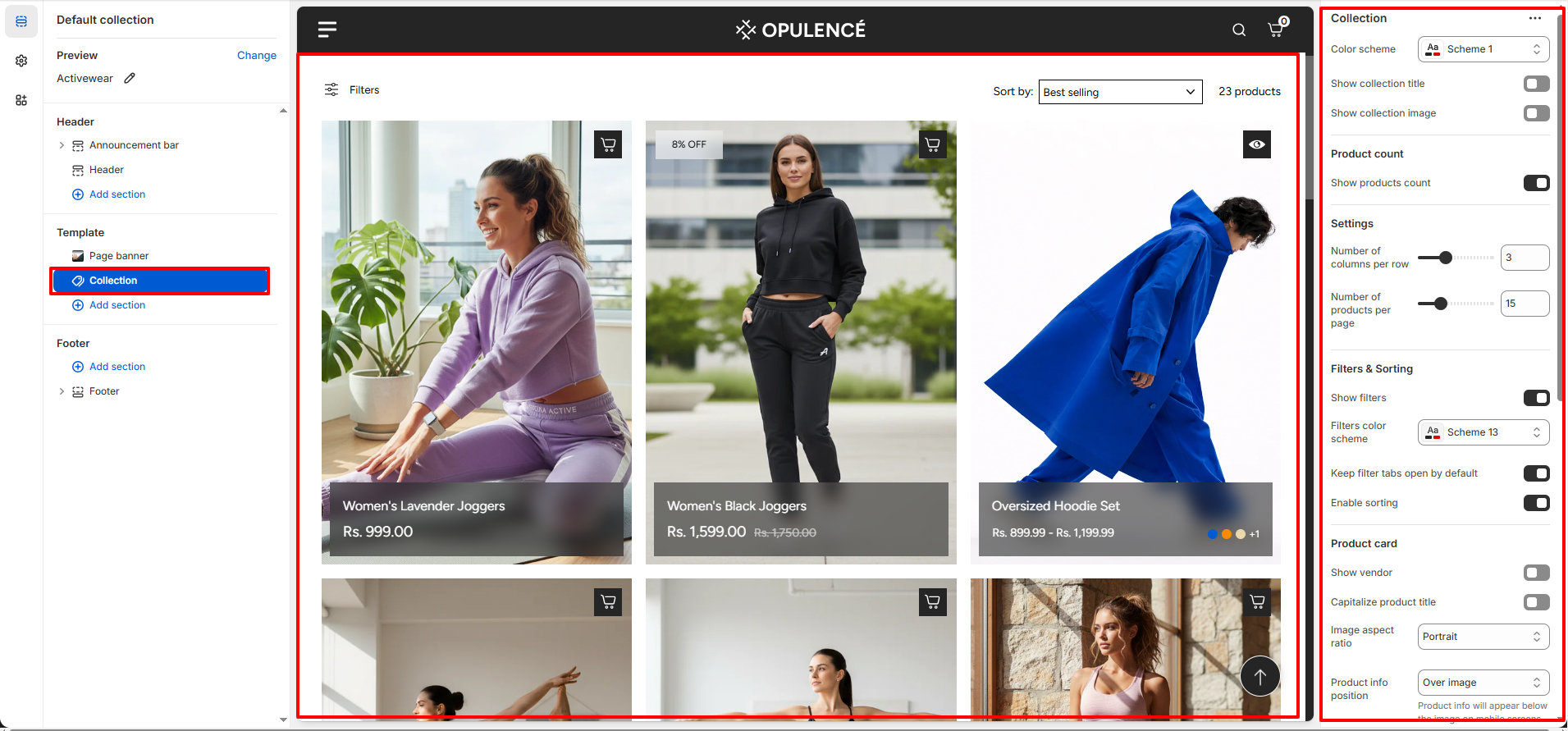
- Adjust the collection layout, filters, product card settings, and pagination options.
- Click Save to apply the changes.
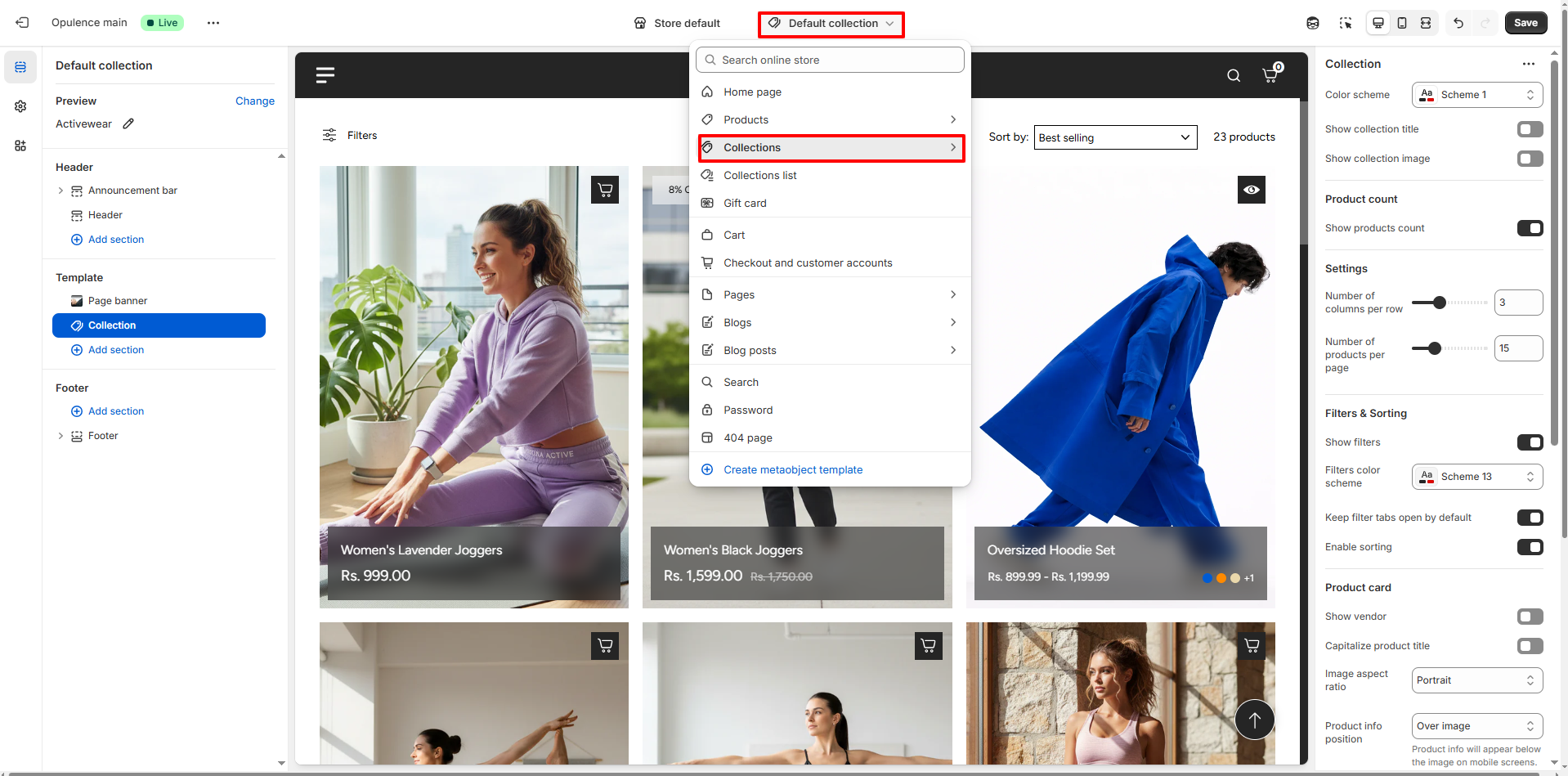
Collection Section Settings
- Color Scheme: Select a color scheme to control the background, text, and accent colors of the collection page.
- Show Collection Title: Enable this option to display the collection title at the top of the page.
- Show Collection Image: Displays the collection banner image above the product grid.
- Show Products Count: Displays the total number of products available in the selected collection.
- Number of Columns per Row: Controls how many products appear in each row of the product grid on desktop screens.
- Number of Products per Page: Defines how many products are displayed on each page before pagination loads additional products.
- Show Filters: Enables product filters so customers can refine their search based on product attributes such as price, availability, or type.
- Filters Color Scheme: Select a color scheme to style the filter area for better visual consistency with the theme.
- Keep Filter Tabs Open by Default: Keeps filter groups expanded when customers open the collection page.
- Enable Sorting: Allows customers to sort products by options such as Best Selling, Price, or Newest.
- Show Vendor: Displays the product vendor or brand name on each product card.
- Capitalize Product Title: Displays product titles in uppercase format for a bold visual appearance.
- Image Aspect Ratio: Select the shape of the product images, such as Portrait, to maintain consistent product thumbnails.
-
Product Info Position: Controls where product details such
as title and price appear.
- Over Image: Product information appears on top of the image.
- Below Image: Product information appears below the image.
- Show Product Info Background Color: Adds a background color behind the product information area for better readability.
- Show Secondary Image: Displays an additional product image when customers hover over a product card.
- Enable Quick View: Allows customers to preview product details in a quick-view popup without leaving the collection page.
- Show Color Swatches: Displays available product color variants directly on the product card.
-
Pagination Type: Choose how additional products load.
- Default: Uses standard page navigation.
- Infinite Scroll: Automatically loads products as users scroll.
- Load More Button Type: Select the style of the button used to load more products when pagination is enabled.
- Mobile Layout: Choose whether products display in one or two columns on mobile devices.
- Section Spacing: Adjust the top and bottom spacing to control the distance between this section and other sections on the page.
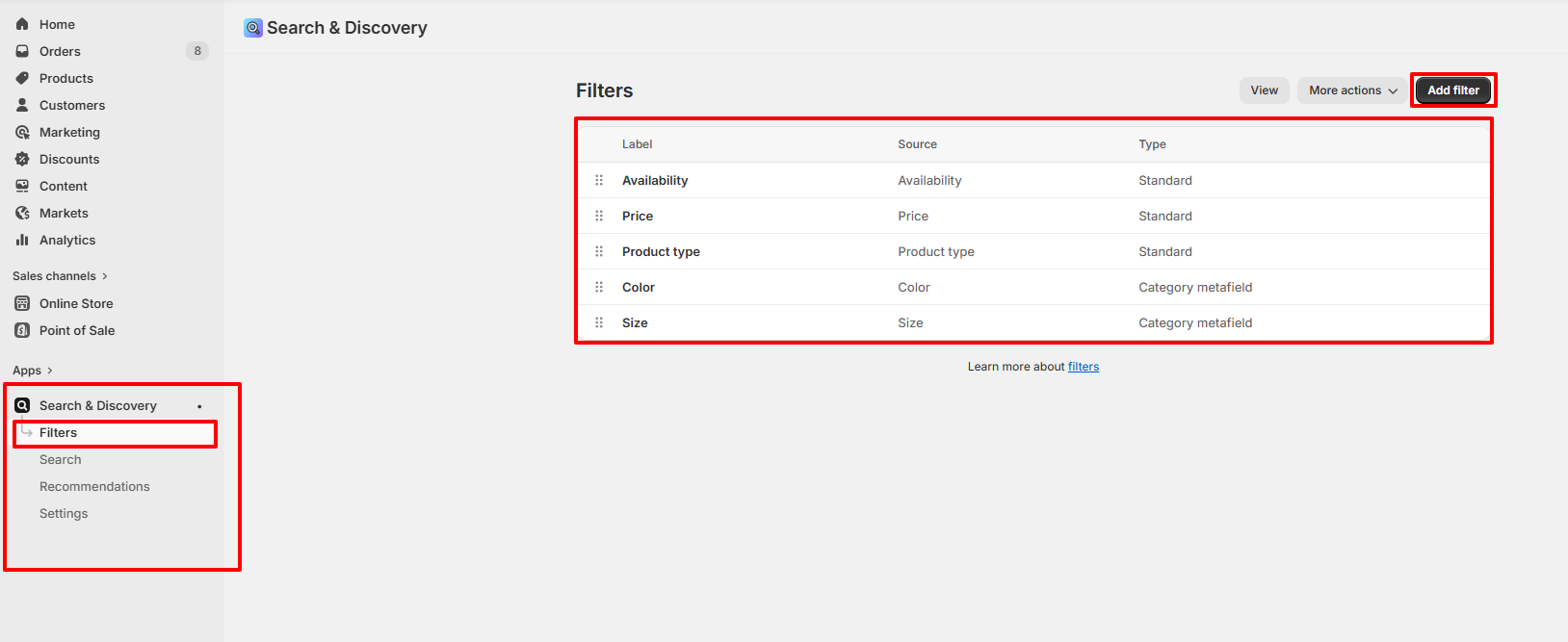
How to Customize Collection Filters Using Search & Discovery
Filters displayed on the collection page are managed through Shopify’s Search & Discovery app. This app allows you to create custom filters based on product attributes such as price, availability, product type, vendor, or metafields.
Steps
- Go to your Shopify Admin.
- Navigate to Apps and open the Search & Discovery app.
- Click on Filters.
- Select Edit Filters.
- Add, remove, or reorder filters to control which options appear on the collection page.
- Click Save to apply your changes.
For detailed guidance, refer to Shopify’s Search & Discovery filter documentation .
You can also review the Storefront Filters Customization Guide to further refine the filtering experience..
FAQs
Why are my products not appearing on the collection page?
Make sure the product is added to the selected collection and is set to Active in your Shopify admin. Also verify that the product is available for the Online Store sales channel and not set as draft or archived.
Why are filters not showing on the collection page?
Filters are managed using Shopify’s Search & Discovery app. Ensure that filters are created in the app and that the Show Filters option is enabled in the Collection section settings.
Can I change how many products appear in the collection grid?
Yes. In the Theme Editor, open the Collection section and adjust the Number of Columns per Row and Number of Products per Page settings to control the layout and number of products displayed.