Header & Dropdown Menu
The Opulence theme header includes multiple customization options such as adding a logo image, adjusting the logo width, selecting the logo position, and configuring the navigation menu. These settings help you create a well-structured header that matches your store’s branding and improves the overall user experience.
A Dropdown Menu is a navigation feature that allows you to display multiple submenu items under a main menu item in the header. This helps organize large navigation structures by grouping related links such as collections, product categories, or important store pages. Dropdown menus make it easier for customers to browse your store while keeping the header layout clean and easy to navigate.
Dropdown Menu Configuration
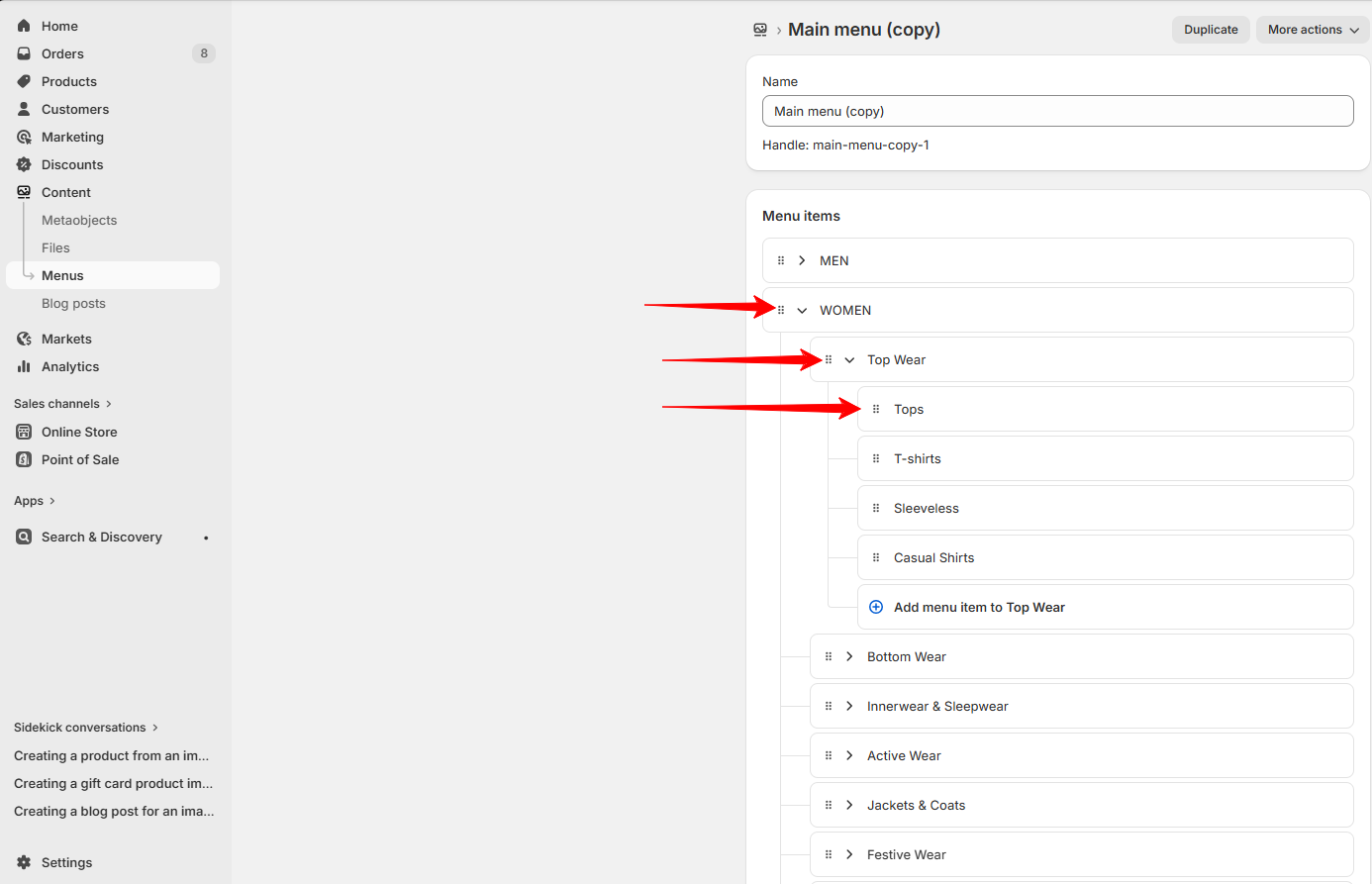
In the Opulence theme, dropdown menus are created through Shopify’s menu management system. By nesting menu items under a main menu item, you can easily create a dropdown structure that appears in the header navigation.
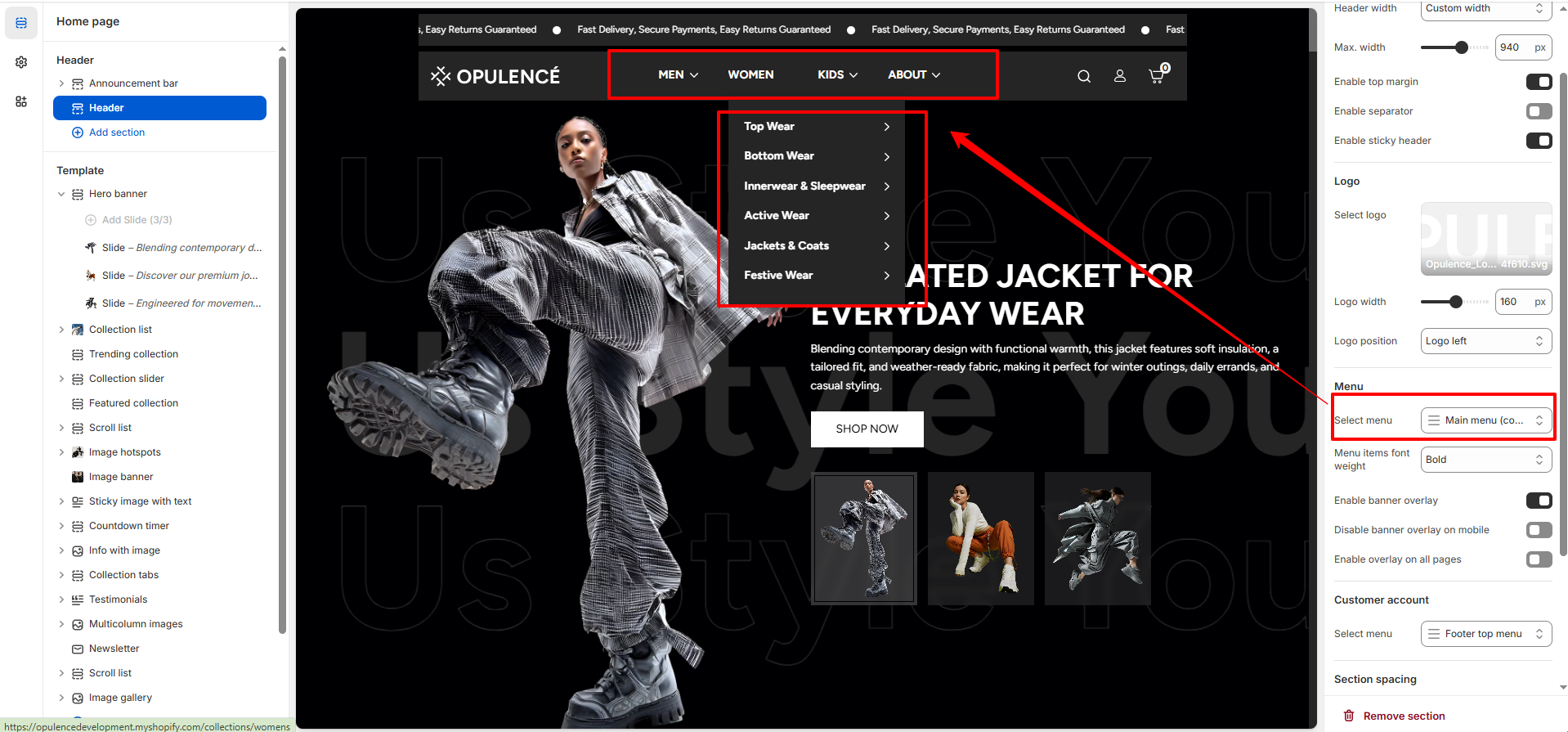
- Select Menu – Choose the navigation menu that will appear in the header of your store.
- Create Submenu Items – Add menu items under a main menu item to automatically create a dropdown menu in the header.
- Organize Navigation – Use dropdown menus to group collections, product categories, or pages for easier browsing.
Steps
- Open the Theme Customizer from your Shopify admin.
- Navigate to the Header section.
- Select the Menu you want to display in the header.
- To create a dropdown menu, go to Online Store → Content → Menus.
- Add submenu items under a main menu item to create the dropdown structure.
- Click Save to apply the changes.