
Countdown Timer
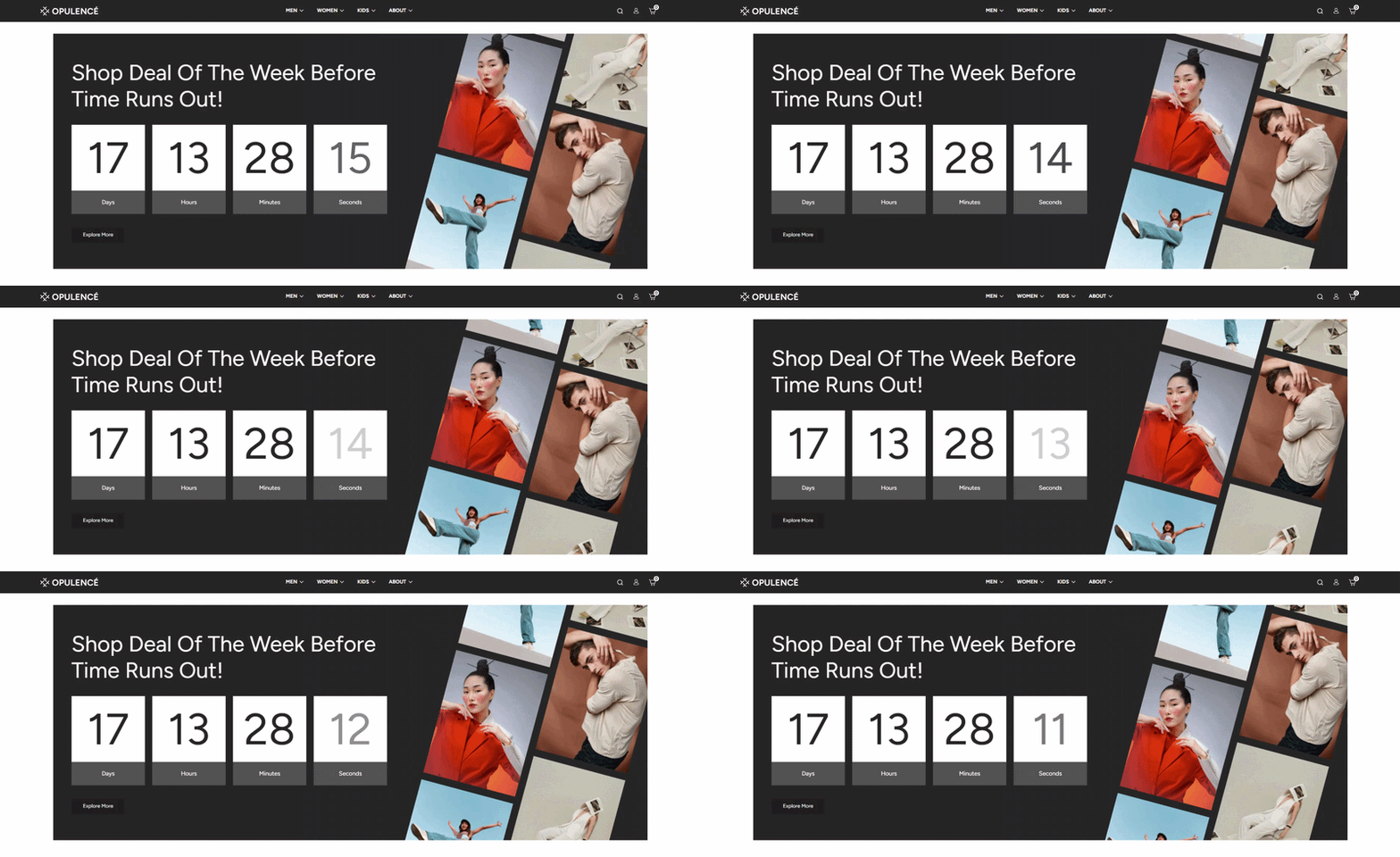
The Countdown Timer section in the Opulence theme allows you to create urgency for promotions, sales campaigns, or limited-time offers by displaying a countdown timer on your store page.
This section highlights the remaining time for a deal or event using a visually engaging timer that shows days, hours, minutes, and seconds. It helps encourage customers to take action before the promotion expires.
Countdown Timer Settings
The main settings of the Countdown Timer section allow you to control the text content, timer configuration, and layout of the section.
- Color Scheme – Select the color scheme for the countdown section to match your store design.
- Heading – Enter the promotional heading displayed above the timer, such as “Shop Deal Of The Week Before Time Runs Out”.
- Heading Font Weight – Adjust the thickness of the heading text (light, regular, or bold).
- Countdown End Date – Set the date and time when the countdown will end. The timer will automatically count down until this moment.
- Button Label – Enter the text for the call-to-action button (for example: “Explore More”).
- Button Link – Select the page, collection, or product where users will be redirected when they click the button.
- Content Max Width – Control the maximum width of the text content inside the section.
- Content Alignment – Adjust the alignment of the heading and timer (Left, Center, or Right).
- Section Spacing – Adjust the spacing above and below the section to maintain proper layout balance with other sections.
- Top Margin – Controls the outer space above the section.
- Bottom Margin – Controls the outer space below the section.
- Top Inner Spacing – Adjust the inner padding at the top of the section.
- Bottom Inner Spacing – Adjust the inner padding at the bottom of the section.
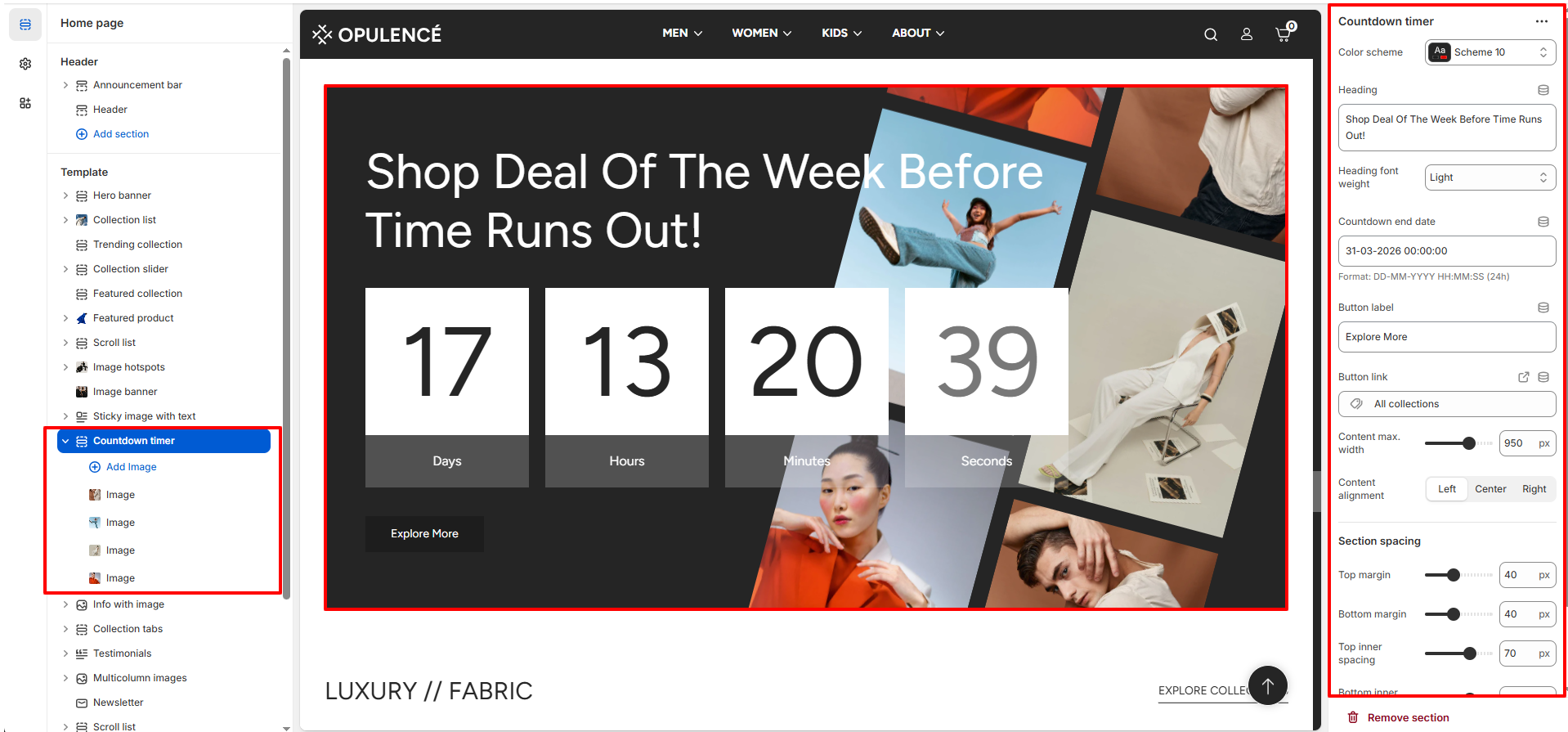
Example: 31-03-2026 00:00:00
Image Block Settings
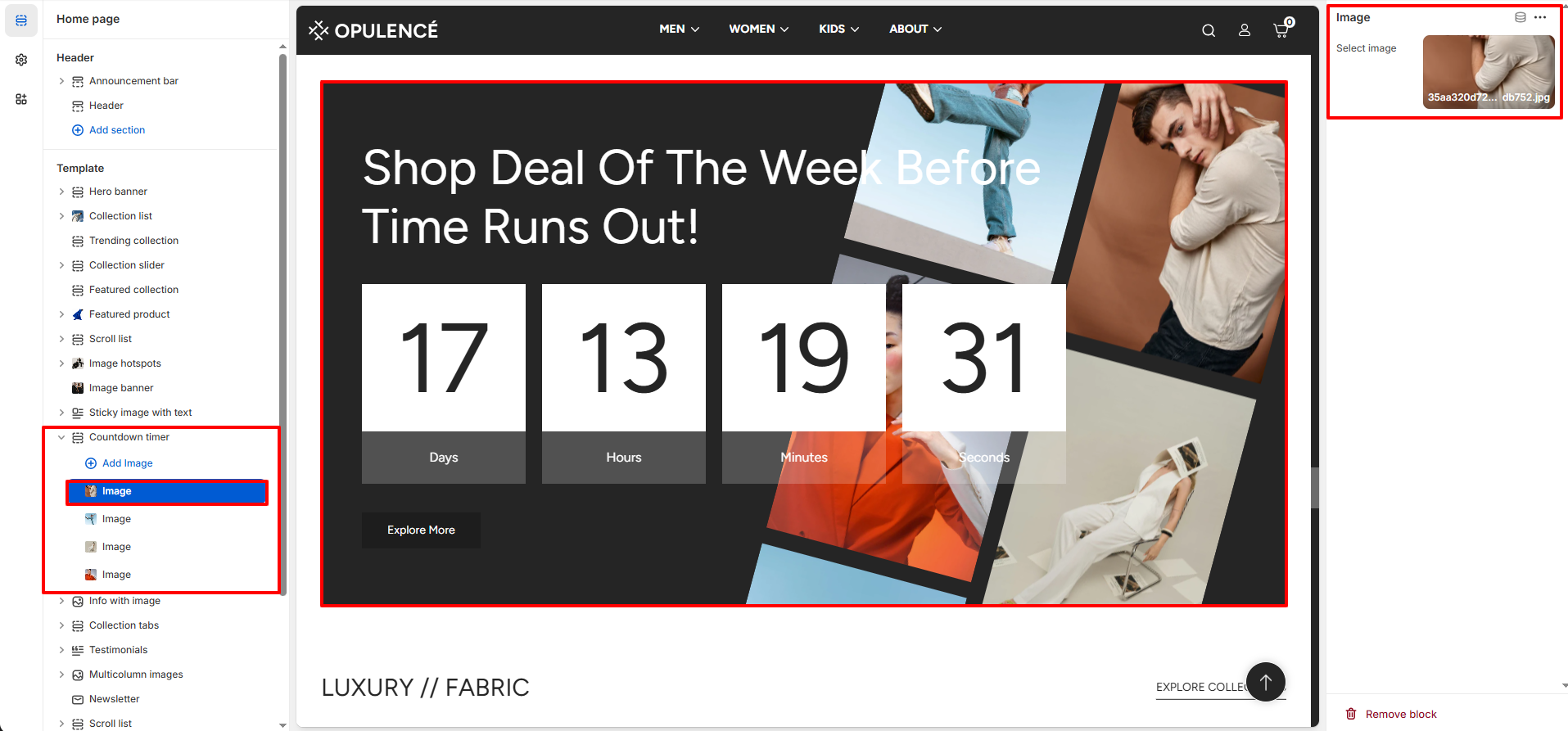
The Countdown Timer section allows you to add multiple images that appear as decorative background elements in the layout.
- Select Image – Upload or choose an image that will appear in the background collage beside the countdown timer.
Steps
- Open the Theme Customizer.
- Navigate to the Countdown Timer section on the homepage.
- Click Add Image to upload background images for the collage layout.
- Enter a promotional Heading for the countdown section.
- Set the Countdown End Date for your campaign or sale.
- Add a Button Label and link it to the desired page or collection.
- Adjust alignment, width, and spacing settings if needed.
- Click Save to apply the changes.
FAQs
How do I set the countdown timer for a specific promotion?
You can set the countdown by entering the desired date and time in the Countdown End Date field within the Countdown Timer section settings. The timer will automatically count down until the specified date and time.
Can I add multiple images to the Countdown Timer section?
Yes, you can add multiple images by clicking Add Image inside the Countdown Timer section. These images will appear as part of the background collage design next to the timer.