
Featured Collection
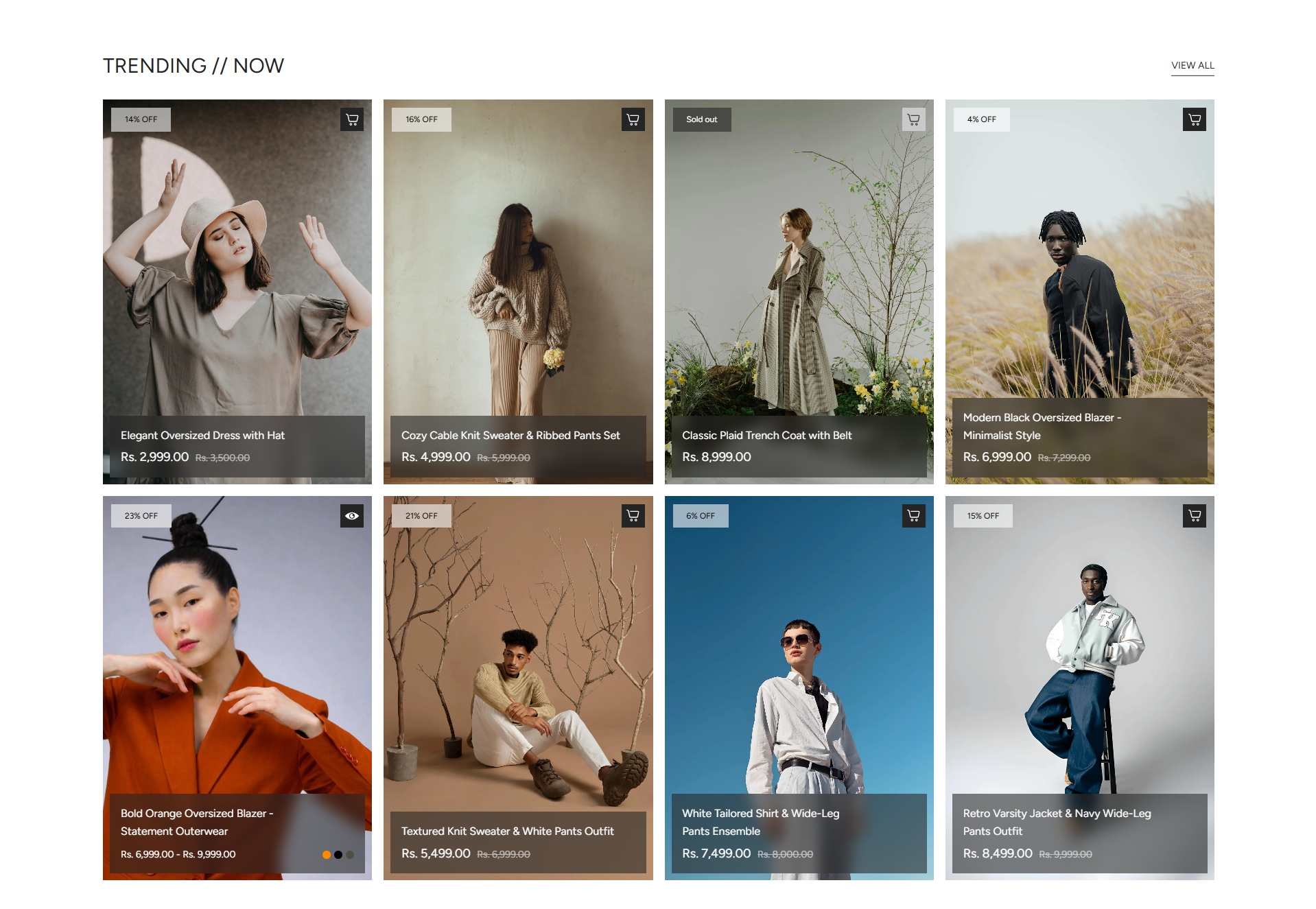
The Featured Collection section in the Opulence theme allows you to highlight selected products from a specific collection directly on your homepage. This section helps showcase trending, best-selling, or promotional products in an attractive grid or slider layout.
By displaying products from a chosen collection, customers can quickly discover popular items without navigating through multiple pages. Each product card includes product images, price details, discounts, and quick shopping options to improve the browsing experience.
Featured Collection Settings
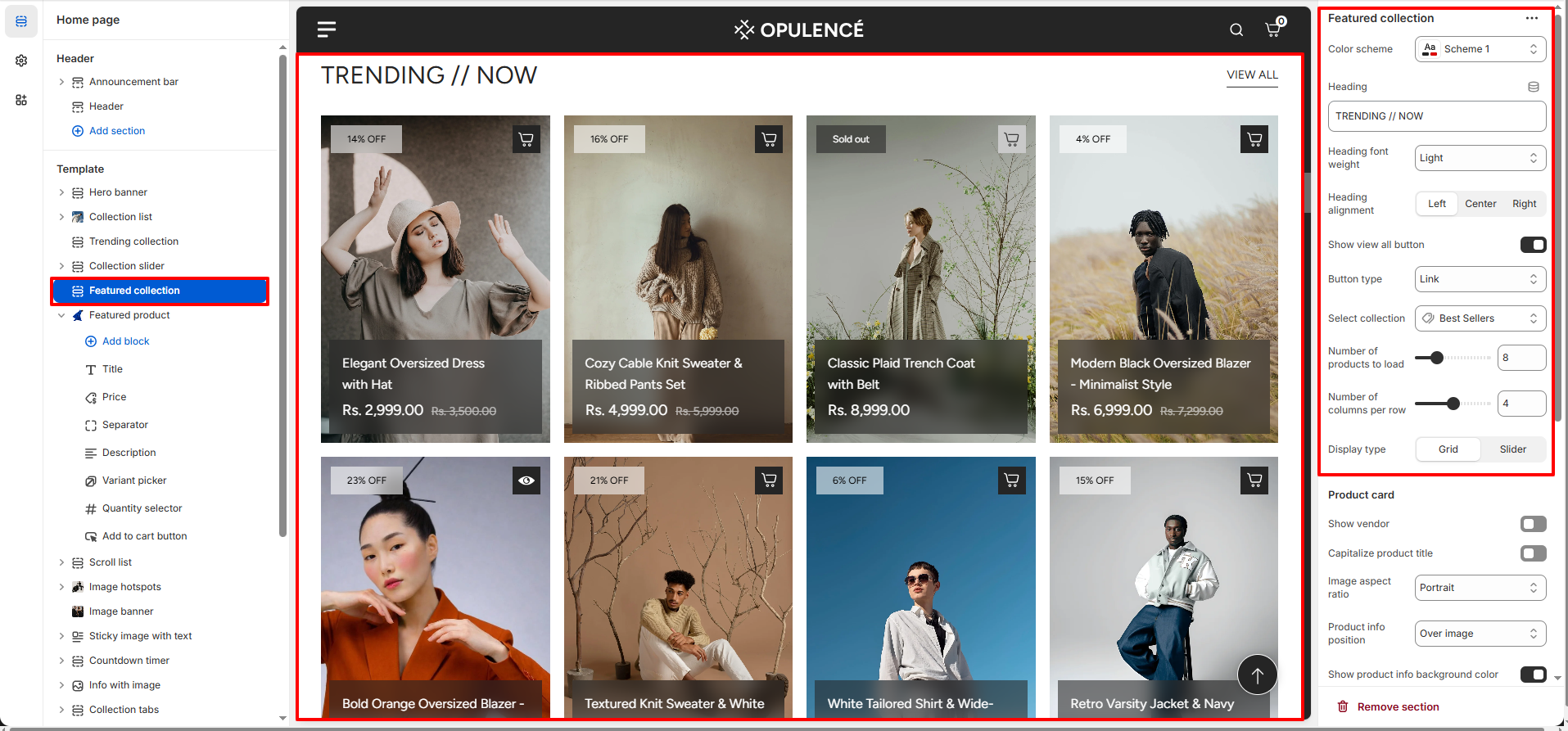
The Featured Collection section provides multiple customization options to control how products appear and how customers interact with them.
- Color Scheme – Choose the color scheme for the section to match your store’s overall design.
- Heading – Add a section title such as “Trending // Now” to highlight the featured products.
- Heading Font Weight – Adjust the thickness of the heading text to control its visual prominence.
- Heading Alignment – Select the alignment of the heading (Left, Center, or Right).
- Show View All Button – Enable this option to display a “View All” button that directs customers to the full collection page.
- Button Type – Choose whether the “View All” option appears as a link or a button style.
- Select Collection – Choose the collection from which products will be displayed in this section.
- Number of Products to Load – Control how many products will be displayed from the selected collection.
- Number of Columns per Row – Adjust how many product cards appear in a single row on desktop view.
- Display Type – Select whether the products appear in a grid layout or a slider format.
- Section Spacing – Adjust the top and bottom spacing to control the layout distance from other sections.
Product Card Settings
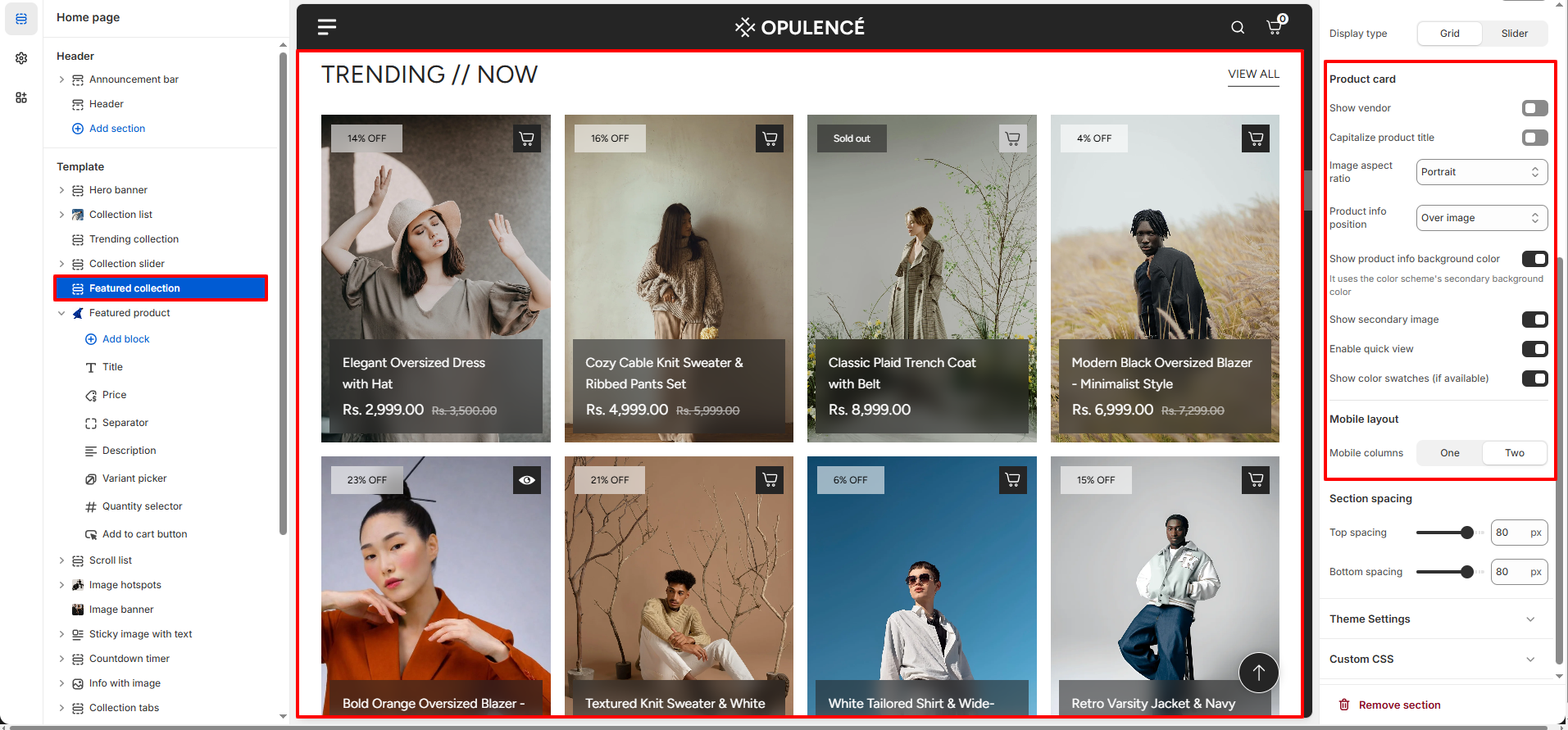
The Featured Collection section also allows you to customize how individual product cards appear to customers.
- Show Vendor – Enable this option to display the product vendor name on the product card.
- Capitalize Product Title – Automatically capitalize the product title text.
- Image Aspect Ratio – Choose the image ratio such as portrait to maintain consistent product image layout.
- Product Info Position – Control whether product information appears over the image or below it.
- Show Product Info Background – Enable this option to display a background color behind product information.
- Show Secondary Image – Display an alternate product image when a customer hovers over the product card.
- Enable Quick View – Allow customers to preview product details quickly without leaving the current page.
- Show Color Swatches – Display available color options directly on the product card (if available).
- Mobile Layout – Select the number of product columns shown on mobile devices (one or two columns).
Steps
- Open the Theme Customizer.
- Navigate to the Featured Collection section on the homepage.
- Add a section heading and choose the desired color scheme.
- Select the collection from which products should be displayed.
- Configure layout options such as number of products, columns, and display type.
- Customize product card settings like quick view, secondary image, and color swatches.
- Click Save to apply the changes.
FAQs
Where can I find the Featured Collection section?
You can find the Featured Collection section in the Theme Customizer. From your Shopify admin, go to Online Store > Themes and click Customize. In the homepage template, locate the Featured Collection section to manage product display and layout settings.
How do I display products in the Featured Collection section?
To display products, open the Theme Customizer and navigate to the Featured Collection section. Select the collection you want to showcase, configure the number of products and layout options, and then click Save to apply the changes.