
Product Color Swatches
The Product Color Swatches section in the Opulence theme allows customers to see all available product colors clearly and visually. This improves the shopping experience by making color selection faster, easier, and more interactive.
Assign a Product Category
Shopify requires products to have assigned categories in order to use category metafields such as Color or Size.
- Go to your Shopify admin and open Products.
- Click the product you want to edit.
- In the Category section, click Browse categories.
- Select the appropriate category for the product.
- Click Save.
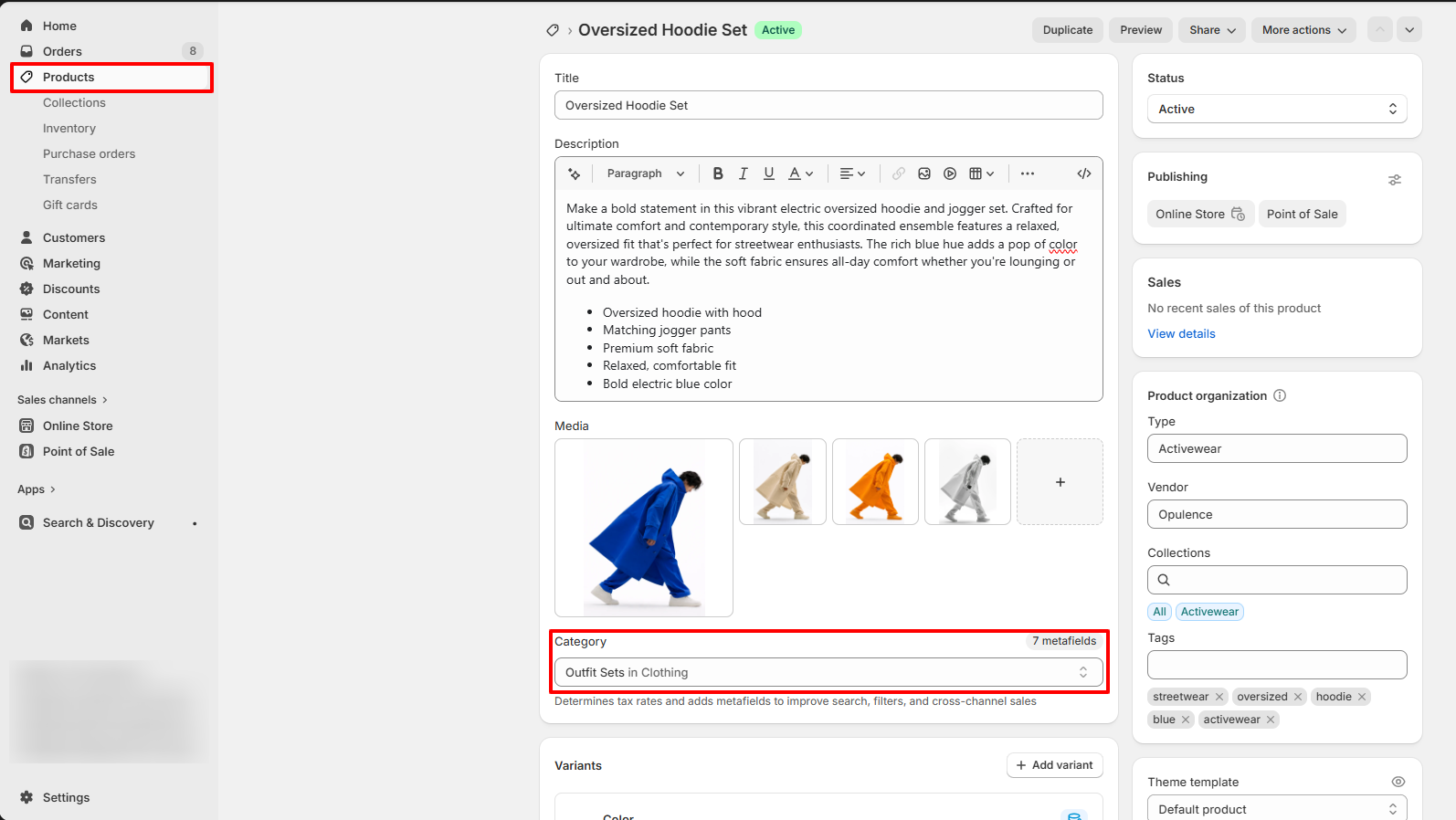
⚠ Important: Only products with assigned categories can use category metafields.
Configure the Color Metafield
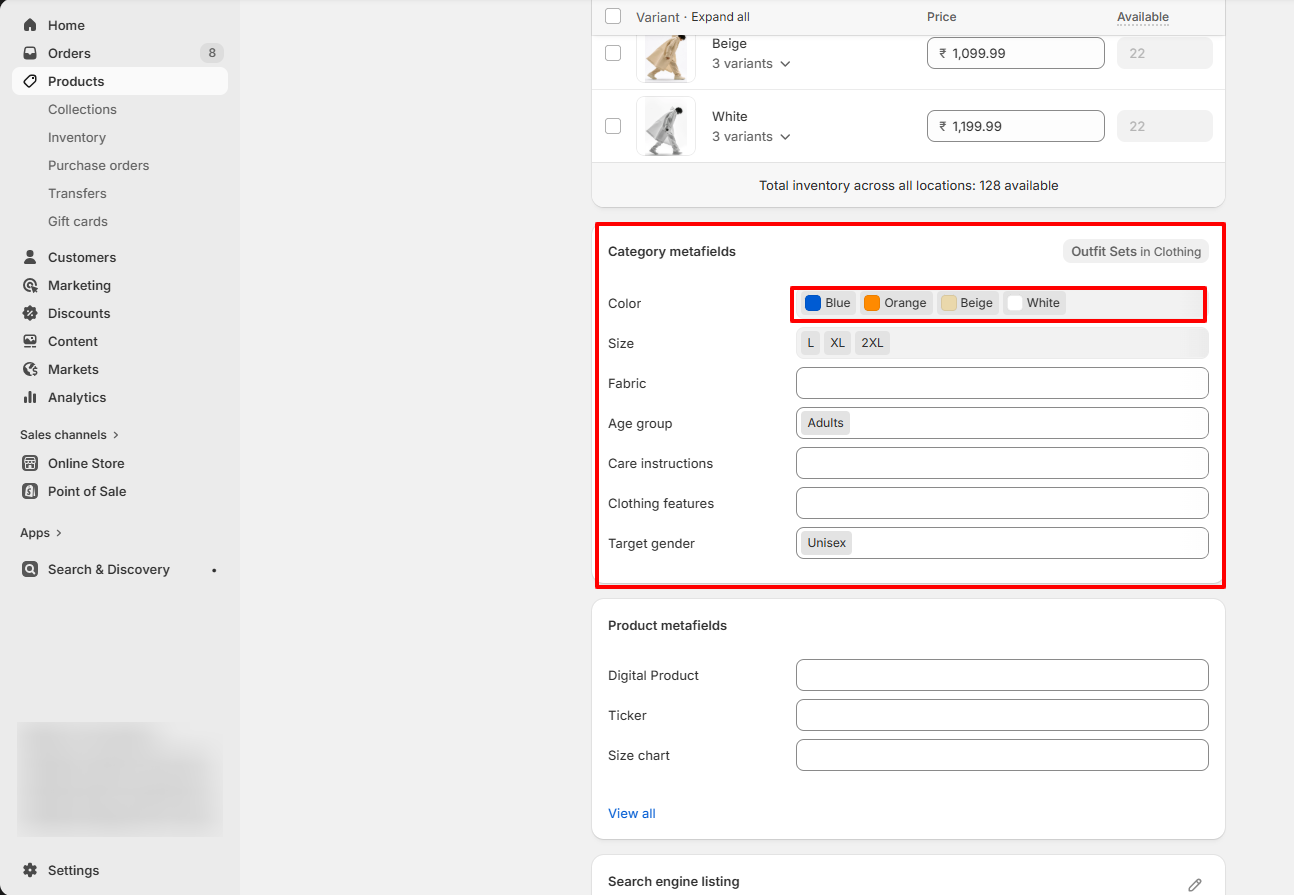
After assigning a category, configure the available values for the Color metafield:
- Go to Settings → Custom data → Categories in Shopify admin.
- Click the category you assigned earlier.
- Locate the Color metafield and click Manage entries.
- Add new color entries:
- Enter a color name (e.g., Red, Blue).
- Optionally upload a swatch image or enter a hex color code (e.g., #FF0000).
- Click Save.
Connect the Color Metafield to Variant Options
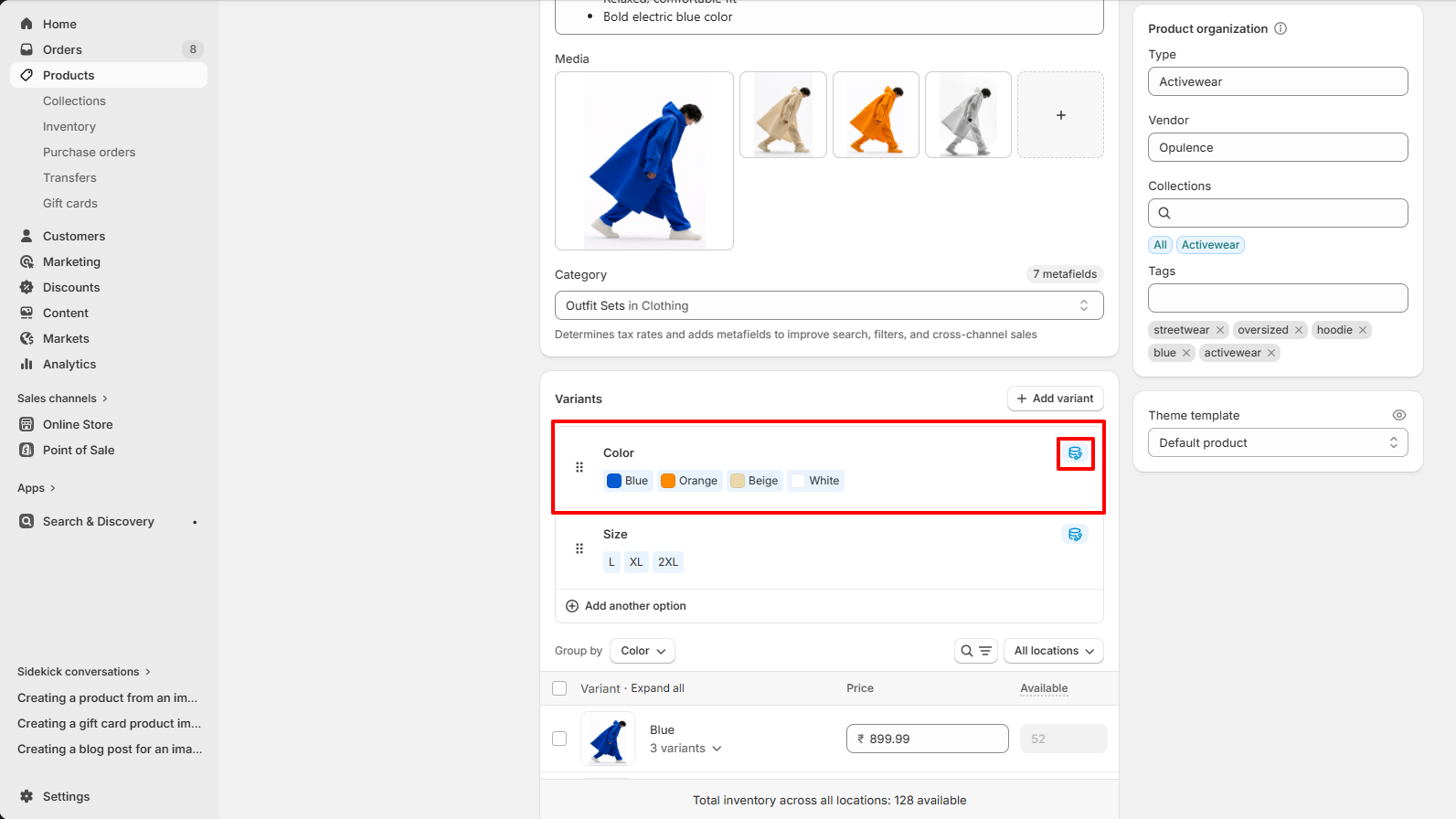
Link your product’s Color option to the configured metafield:
- Open your product in Products section.
- Under Variants, click Add options like size or color.
- In Option name, type Color.
- Click the dynamic source icon (🔗) and select the Color category metafield.
- Assign each variant the correct metafield entry (e.g., Grey, Green).
- Click Done and then Save.
Set Up Swatch Shape in Opulence Theme
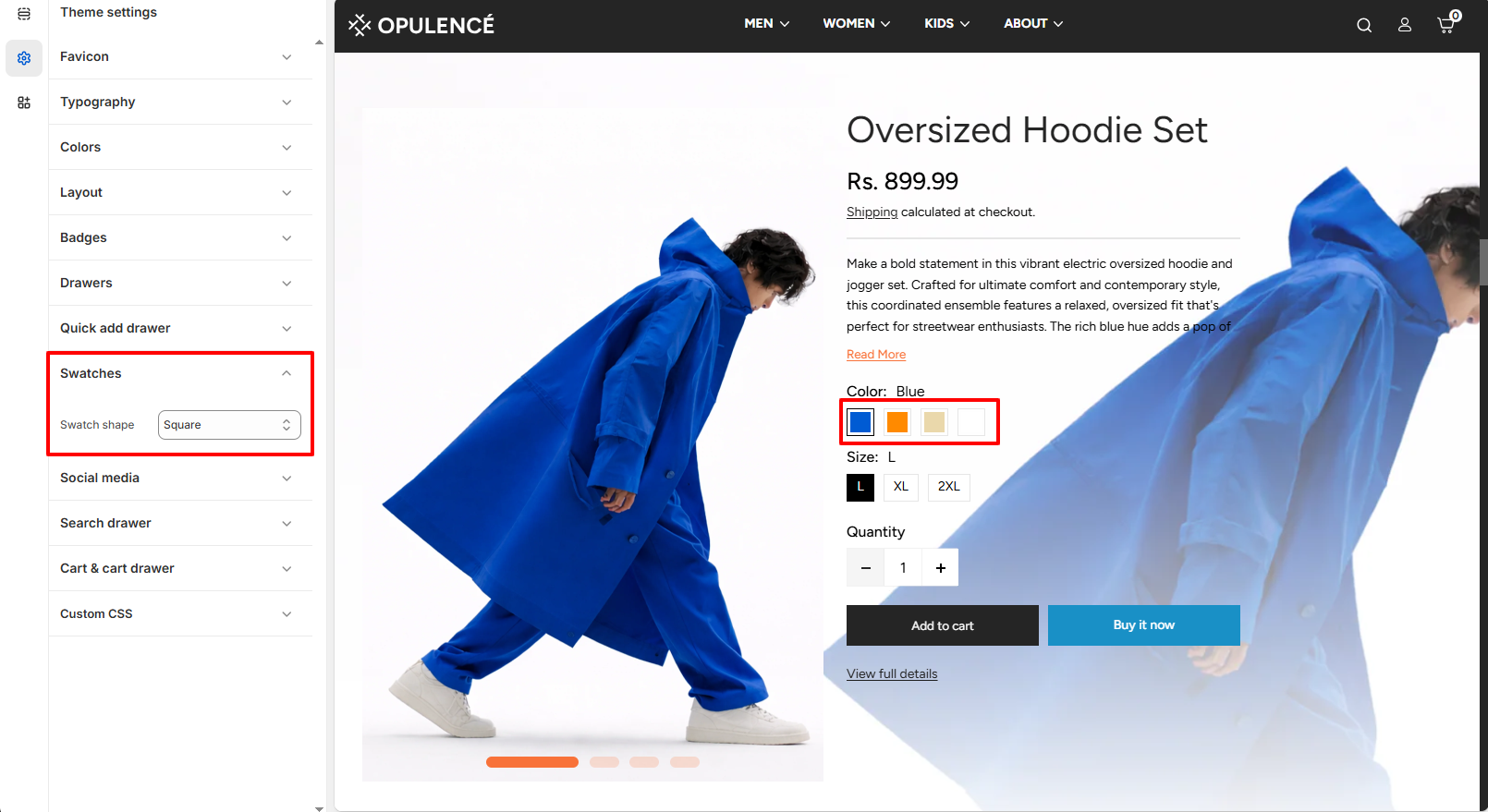
You can configure the swatch shape for each product in the Opulence theme:
- Go to Online Store → Themes.
- Click Customize on the Opulence theme.
- Select the product page template you want to edit.
- Click the Variant Picker block in the left sidebar.
- Under Variant Picker settings, choose the preferred swatch shape:
- Circle — Displays circular color swatches.
- Square — Displays square color swatches.
- Default — Uses the theme’s default swatch styling.
- Click Save to apply changes.
FAQs
Can I use swatches without assigning a category?
No. Only products with assigned categories can utilize category metafields for color swatches.
How do I change swatch shapes for my products?
In the Theme Customizer, select the product page template, open the Variant Picker block, and choose your preferred swatch shape (Circle, Square, or Default).