
Announcement Bar
The Announcement Bar is displayed at the top of your store and is designed to highlight important messages for your customers. It is commonly used to promote special offers, shipping updates, sales announcements, or important store information.
In the Opulence theme, the Announcement Bar is highly customizable. You can add multiple announcement messages, control how they appear, adjust their scrolling or sliding behavior, and customize the layout to match your store design.
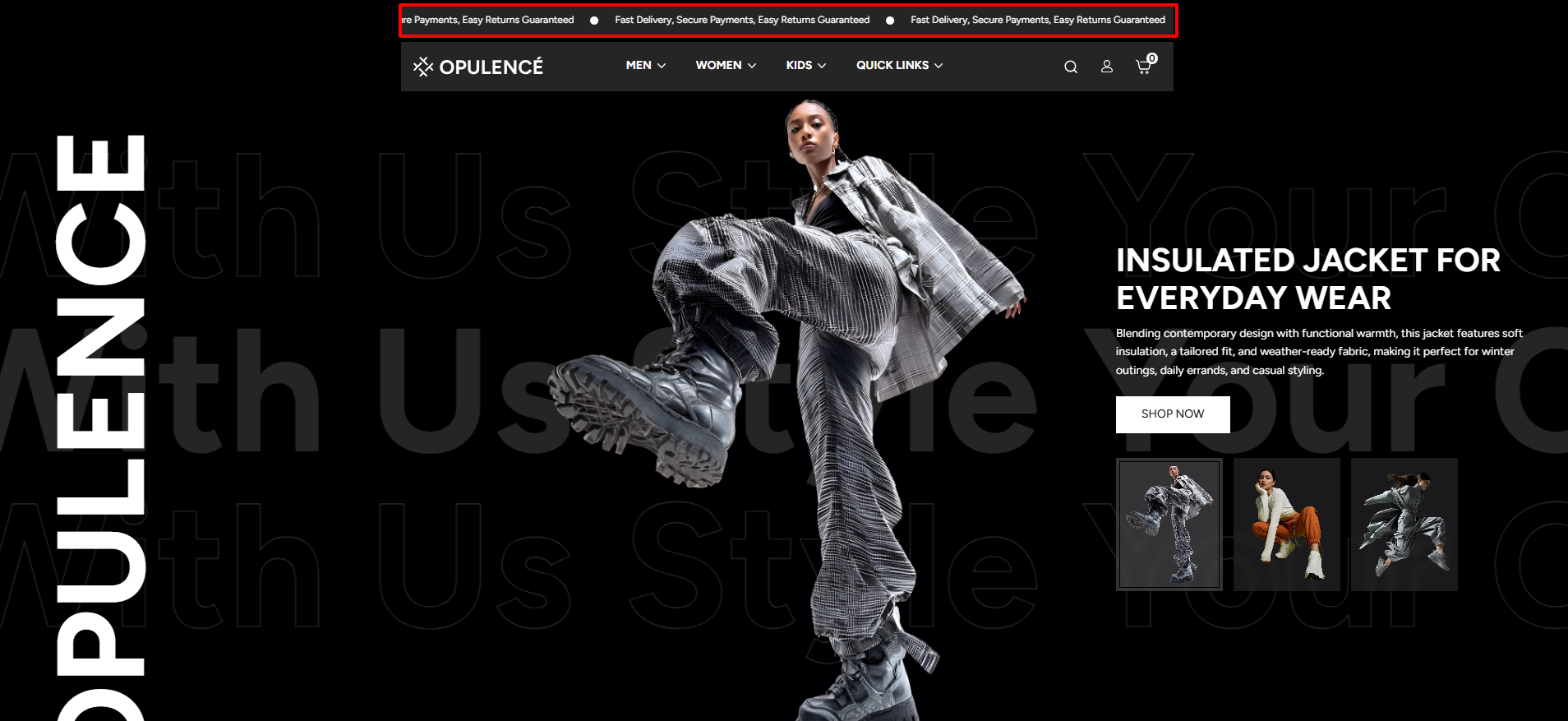
Steps to Set Up the Announcement Bar in Your Shopify Theme, Opulence
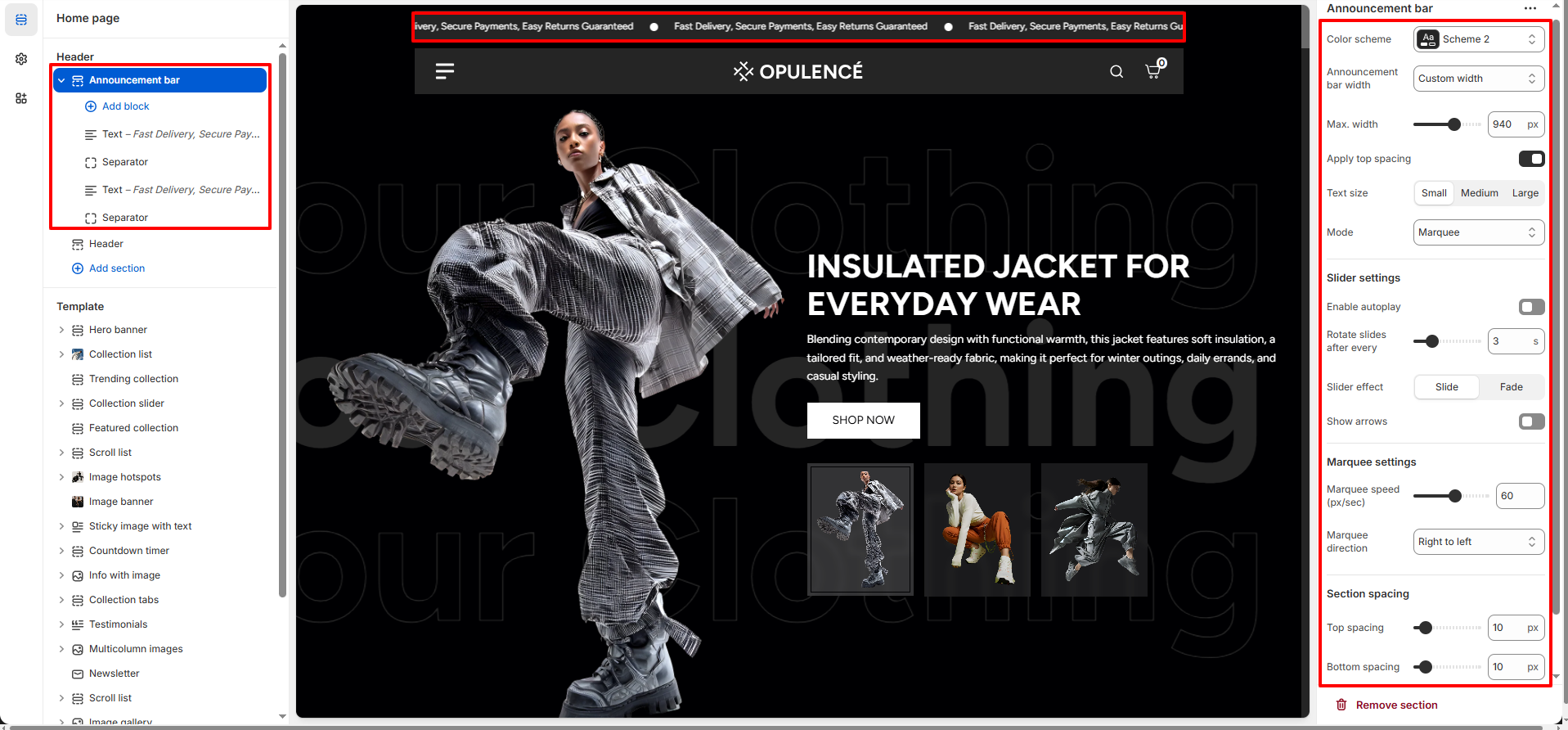
How to Configure the Announcement Bar
- From your Shopify admin, go to Online Store → Themes.
- Click Customize on the Opulence theme.
- In the Theme Editor, select the Announcement Bar section from the left sidebar.
- Add announcement blocks and adjust the available settings according to your needs.
- Click Save to apply your changes.
Follow these steps to configure your Announcement Bar
- Color Scheme: Choose a color scheme to control the background and text colors of the announcement bar.
-
Announcement Bar Width: Select how wide the
announcement bar should appear.
- Full Width – The bar stretches across the entire screen.
- Custom Width – Allows you to define a custom maximum width.
- Max Width: When Custom Width is selected, adjust the maximum width of the announcement bar using the slider.
- Apply Top Spacing: Enable this option to add spacing above the announcement bar for better layout alignment.
-
Text Size: Control the size of the announcement text.
- Small
- Medium
- Large
-
Mode: Choose how the announcements are displayed.
- Marquee – Text scrolls continuously across the bar.
- Slider – Multiple announcements rotate one by one.
- Enable Autoplay: When enabled, announcement messages automatically rotate without requiring user interaction.
- Rotate Slides After Every: Set the time interval for how often announcement slides change.
-
Slider Effect: Select the transition style used
between slides.
- Slide
- Fade
- Show Arrows: Enable this option to display navigation arrows so customers can manually switch announcements.
- Marquee Speed: Adjust the scrolling speed of the announcement text when using marquee mode.
-
Marquee Direction: Choose the scrolling direction.
- Right to Left
- Left to Right
-
Section Spacing: Control the spacing around the
announcement bar.
- Top Spacing – Adjust space above the bar.
- Bottom Spacing – Adjust space below the bar.
Available Blocks
-
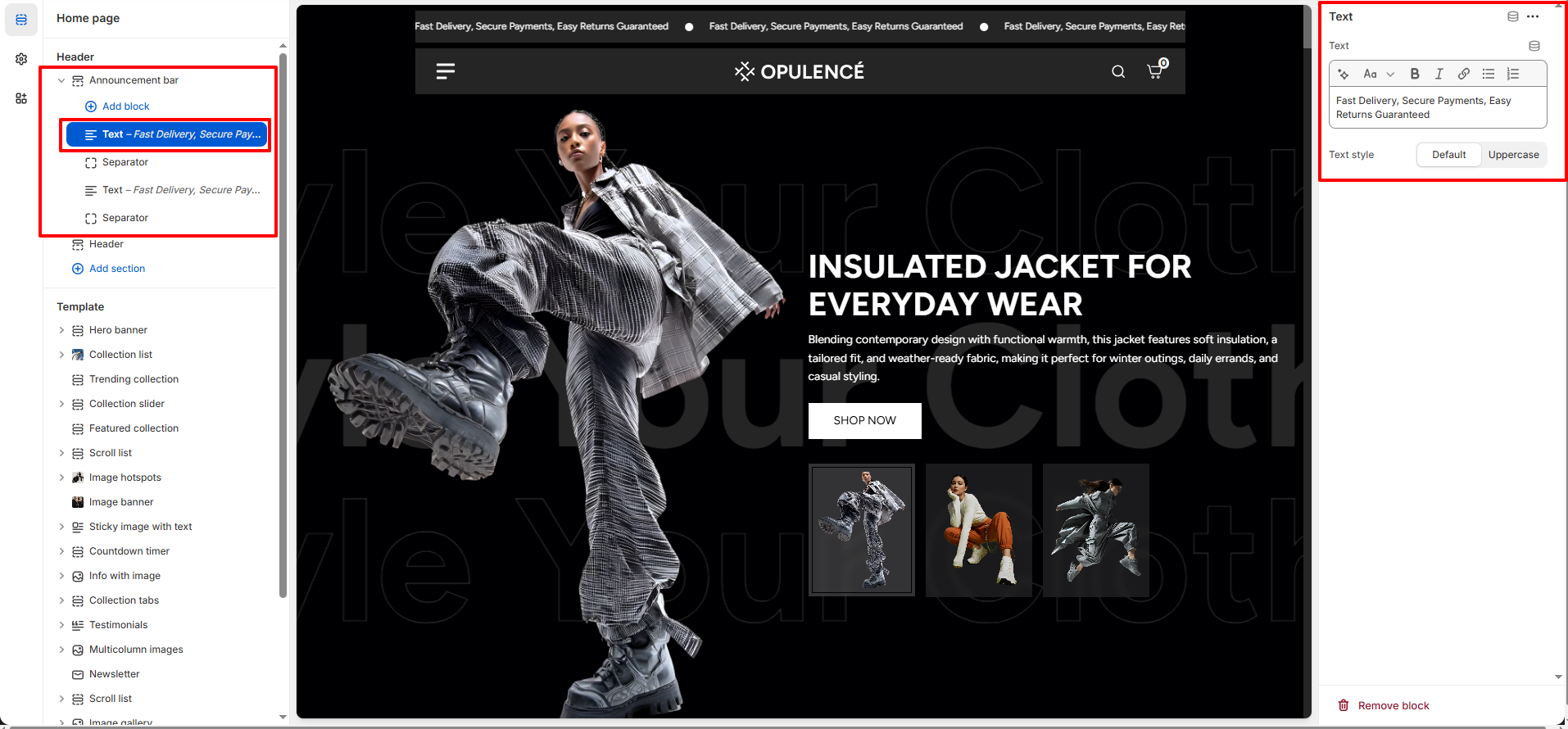
Text Block: This block allows you to add announcement
messages that will appear in the announcement bar at the top of your
store. You can use it to highlight important information such as
promotions, shipping updates, or special offers.
- Text: Enter the message you want to display in the announcement bar (for example: Fast Delivery, Secure Payments, Easy Returns Guaranteed).
-
Text Style: Choose how the text should appear.
- Default – Displays the text in normal format.
- Uppercase – Displays the announcement text in uppercase letters.
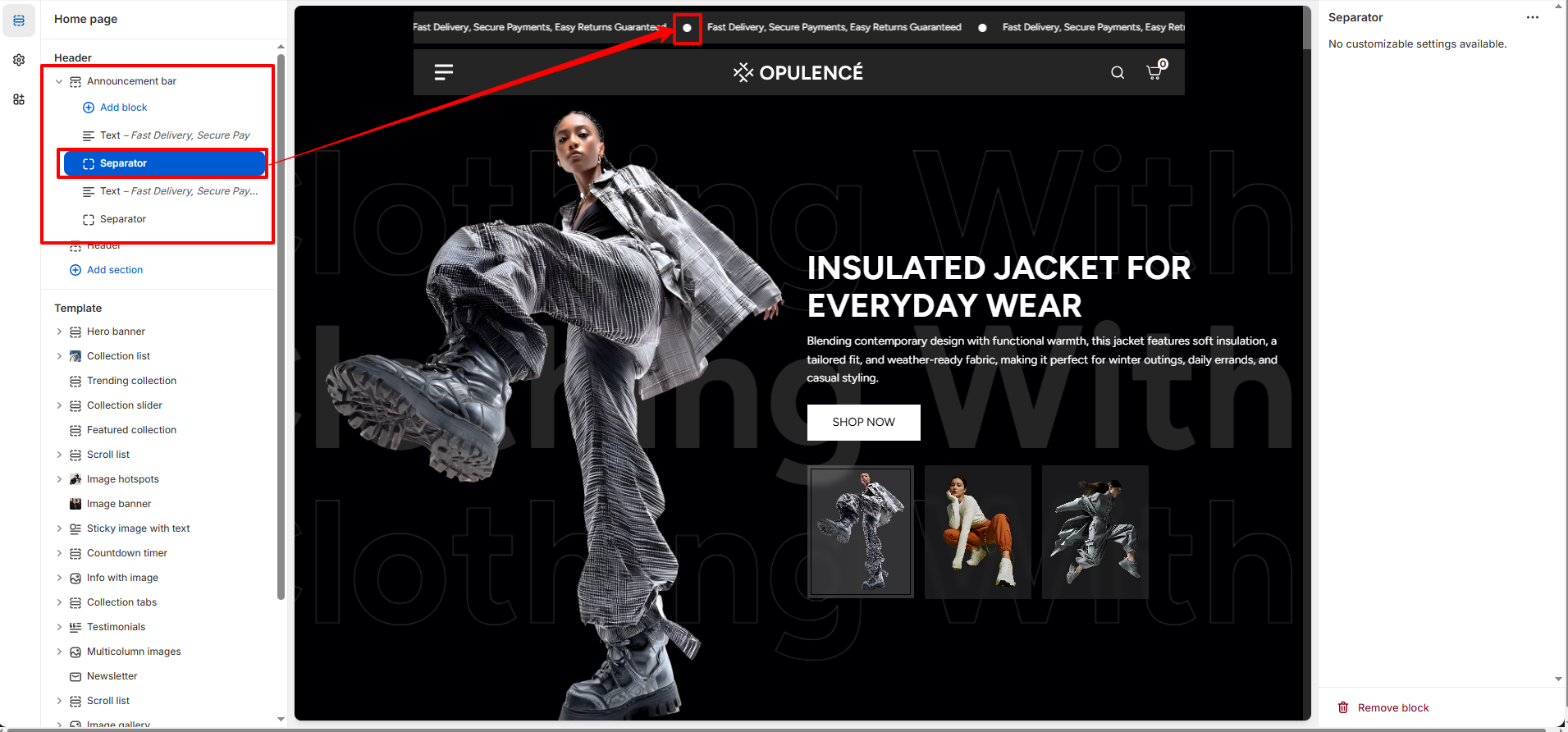
- Separator: This block adds a visual divider between announcement messages in the announcement bar. It helps separate multiple messages and improves readability when several announcements are displayed.
FAQs
How many announcements can I add?
You can add multiple announcement blocks in the Announcement Bar section. These messages can be displayed either as a scrolling marquee or as rotating slides depending on the selected mode.
Why is my announcement not sliding?
Ensure that the Slider Mode is selected and that Autoplay is enabled. If multiple announcement blocks are added, they will automatically rotate based on the configured slide duration.