
Collection List
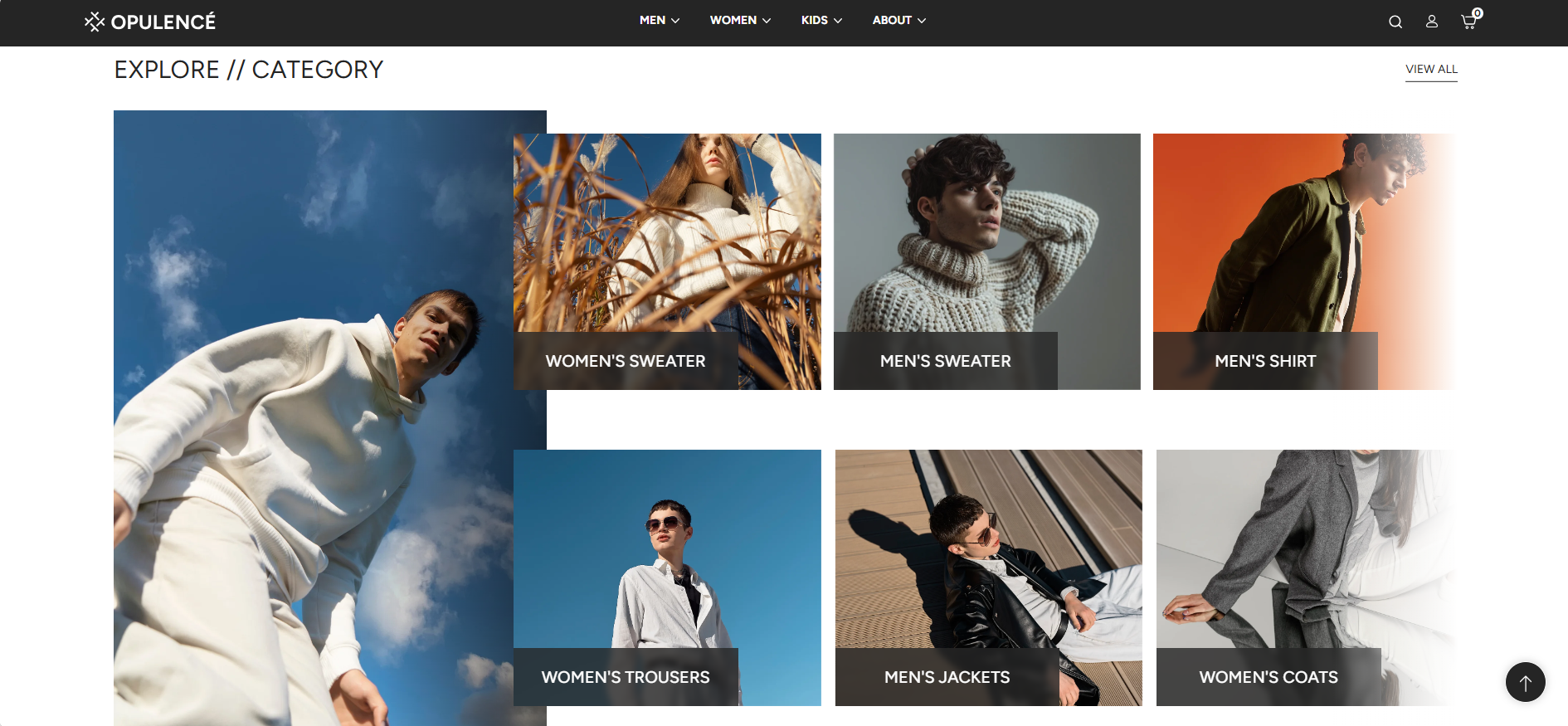
The Collection List section in the Opulence theme allows you to showcase multiple product collections in a visually appealing grid layout. This section helps customers quickly browse different categories.
Each collection is displayed with an image and title, making it easy for customers to explore your store. When customers click on a collection, they are redirected to the selected collection page where they can view all the products available in that category.
Collection List Settings
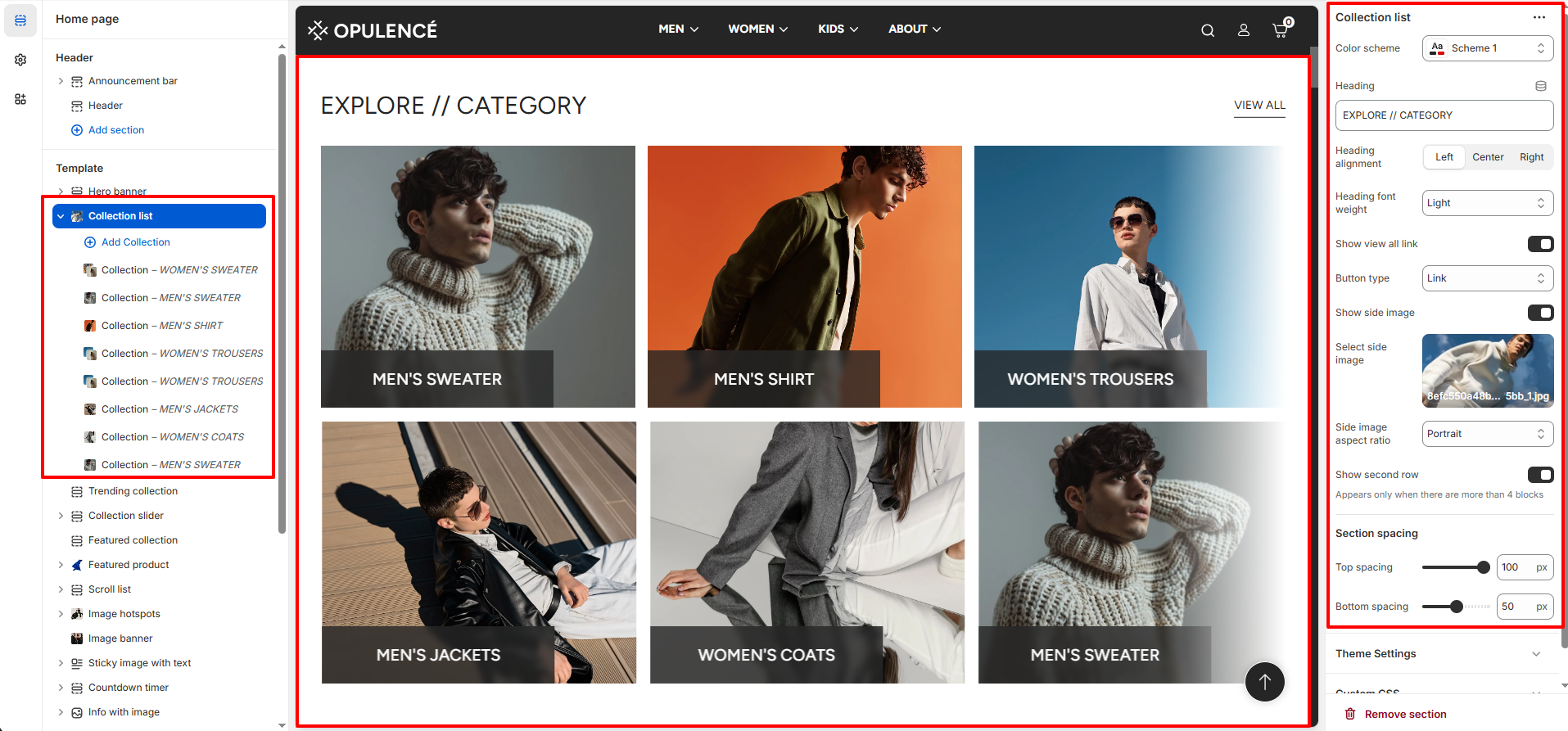
The Collection List section provides several customization options that allow you to control the layout, design, and visibility of collections.
- Color Scheme – Choose the color scheme used for the collection list section to match your store's design.
- Heading – Add a section heading such as “Explore // Category” to introduce the collection grid.
- Heading Alignment – Select the alignment of the heading (Left, Center, or Right).
- Heading Font Weight – Adjust the thickness of the heading text to control its visual appearance.
- Show View All Link – Enable this option to display a "View All" link that redirects customers to the full collections page.
- Button Type – Choose how the "View All" option appears, such as a simple link or button style.
- Show Side Image – Enable this option to display a decorative side image next to the collection grid.
- Select Side Image – Upload the image that will appear on the side of the collection list section.
- Side Image Aspect Ratio – Choose the display ratio for the side image such as portrait.
- Show Second Row – Enable this option to display additional collections in a second row. This appears only when more than four collections are added.
- Section Spacing – Adjust the top and bottom spacing of the section to control layout spacing.
Collection Block Settings
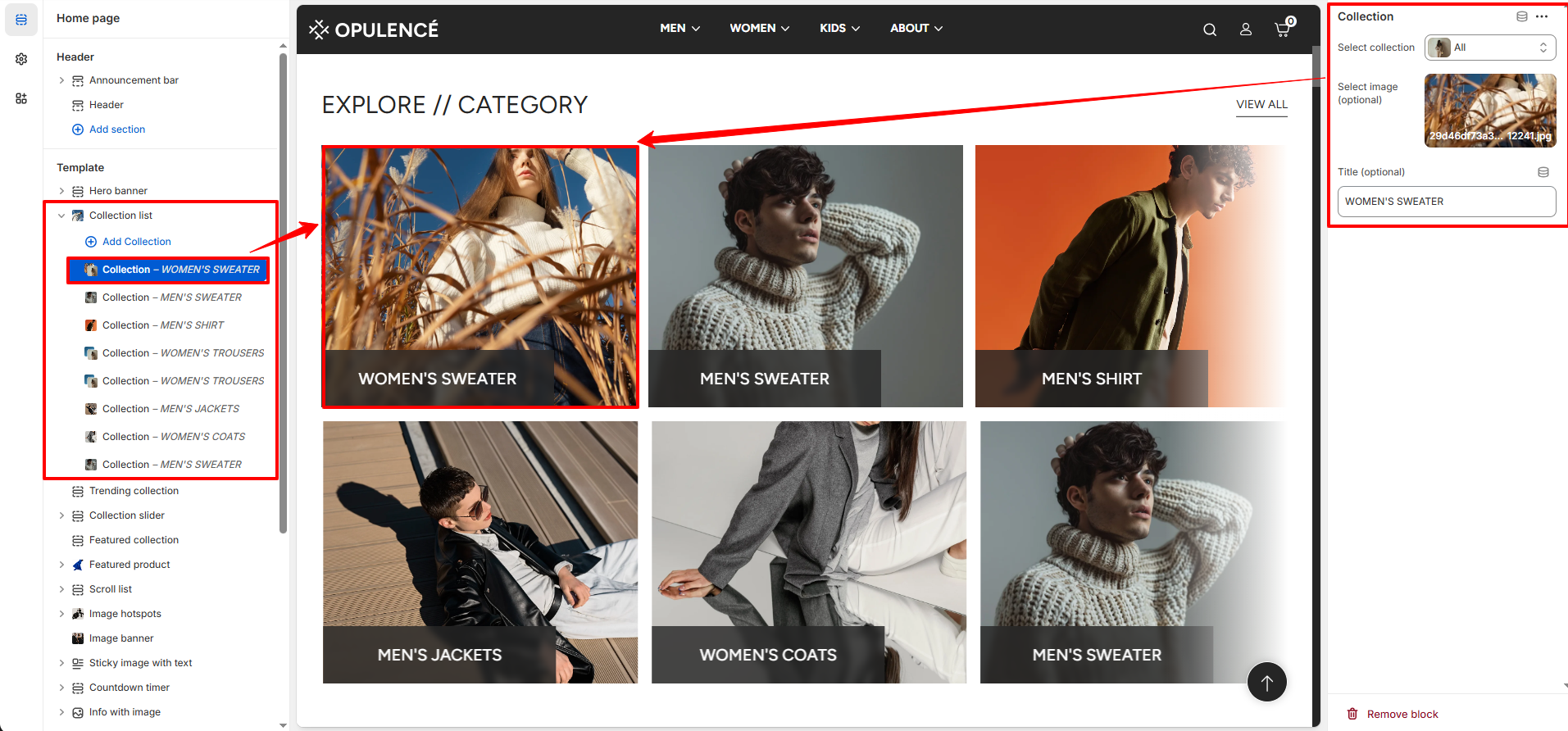
Each collection item in the Collection List can be customized individually. You can choose which collection to display, upload an image, and set the title for each collection block.
- Select Collection – Choose the Shopify collection you want to display in this block.
- Select Image (Optional) – Upload a custom image for the collection. If no image is added, the collection's default image will be displayed.
- Title (Optional) – Enter a custom title for the collection. If left empty, the original collection title will be used.
Steps
- Open the Theme Customizer.
- Navigate to the Collection List section on the homepage.
- Add a heading and configure section settings such as color scheme, alignment, and spacing.
- Click Add Collection to create a new collection block.
- Select the collection you want to display and optionally upload a custom image.
- Repeat the process to add multiple collections to the section.
- Click Save to apply the changes.
FAQs
Where can I find the Collection List section?
You can find the Collection List section in the Theme Customizer. From your Shopify admin, go to Online Store > Themes and click Customize. In the homepage template, locate the Collection List section to manage collections, images, and layout settings.
How do I add collections to the Collection List section?
To add collections, open the Theme Customizer and navigate to the Collection List section. Click Add Collection, select the collection you want to display, and optionally upload a custom image or title. Once finished, click Save to apply your changes.