
Scroll List
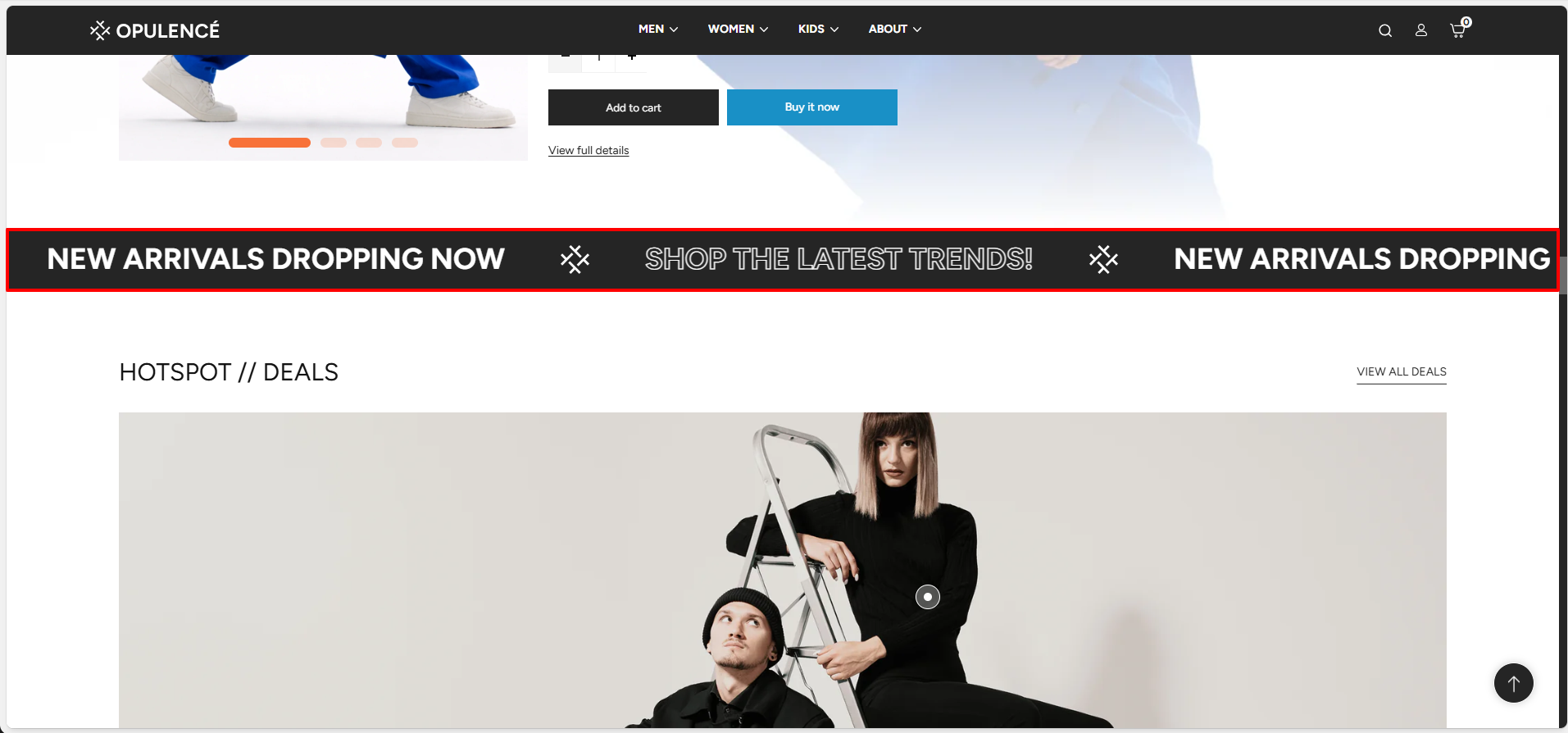
The Scroll List section in the Opulence theme allows you to display continuously scrolling promotional text with optional icons or images. This section is commonly used to highlight announcements, promotions, or trending messages such as New Arrivals, Latest Trends, or special store updates.
The scrolling text moves horizontally across the screen, creating an eye-catching announcement bar that helps attract customer attention. You can add multiple scroll items, customize the scrolling speed, direction, spacing, and text styling to match your store’s design.
Scroll List Section Settings
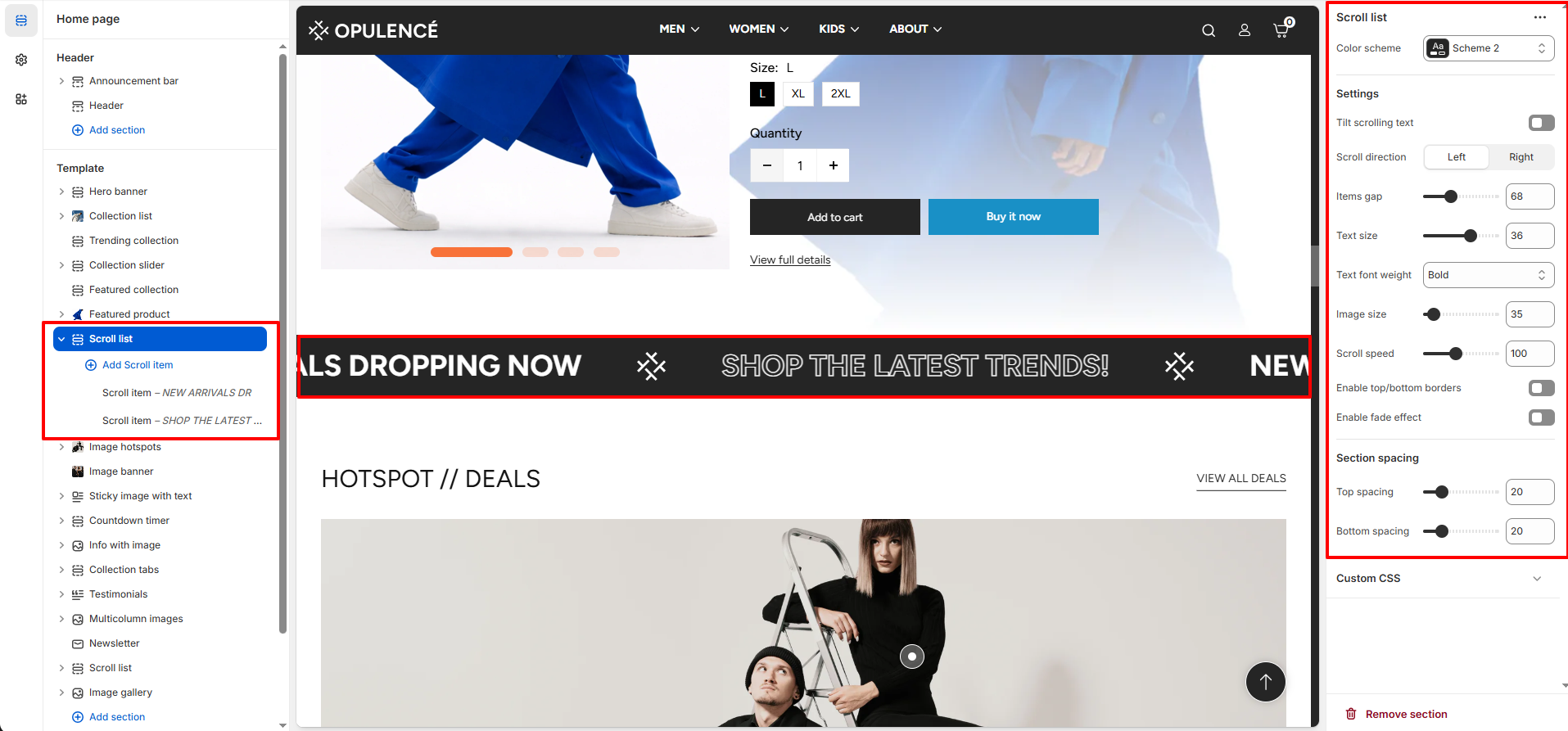
The Scroll List section provides several customization options to control the design, animation behavior, and spacing of the scrolling text.
- Color Scheme – Choose the color scheme for the scroll list section to match your store’s branding.
- Tilt Scrolling Text – Enable this option to apply a tilted style effect to the scrolling text for a more dynamic appearance.
- Scroll Direction – Select the direction in which the text scrolls (Left or Right).
- Items Gap – Adjust the spacing between each scrolling item to control layout density.
- Text Size – Control the size of the scrolling text displayed in the section.
- Text Font Weight – Choose the thickness of the text such as Regular or Bold.
- Image Size – Adjust the size of the icon or image displayed next to the scrolling text.
- Scroll Speed – Control how fast the scrolling text moves across the screen.
- Enable Top/Bottom Borders – Display borders above and below the scroll list section for better visual separation.
- Enable Fade Effect – Adds a fade effect on the edges of the scroll area for smoother animation appearance.
- Section Spacing – Adjust the top and bottom spacing of the section to control layout spacing.
Scroll Item Block Settings
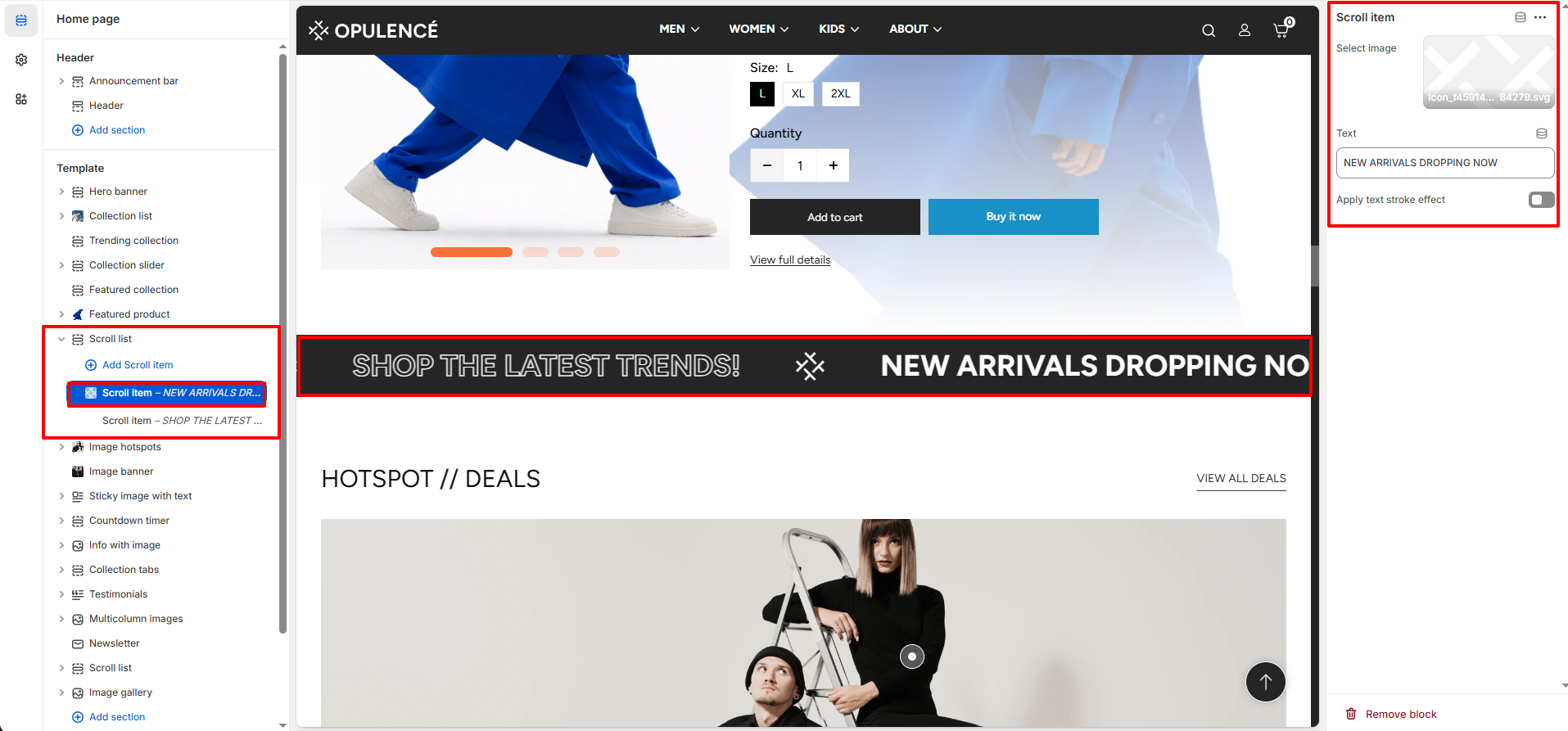
Each scrolling message can be added as a separate Scroll Item. This allows you to display multiple announcements or promotional messages within the same scrolling bar.
- Select Image – Upload an icon or image that will appear next to the scrolling text.
- Text – Enter the message you want to display in the scrolling list, such as “NEW ARRIVALS DROPPING NOW”.
- Apply Text Stroke Effect – Enable this option to add a stroke outline effect to the text for a unique visual style.
Steps
- Open the Theme Customizer.
- Navigate to the Scroll List section on the homepage.
- Configure section settings such as scroll direction, text size, speed, and spacing.
- Click Add Scroll Item to create a new scrolling message.
- Upload an optional image and enter the text for the scroll item.
- Enable the text stroke effect if you want a styled outline text.
- Add multiple scroll items to display several promotional messages.
- Click Save to apply the changes.
FAQs
Where can I find the Scroll List section?
You can find the Scroll List section in the Theme Customizer. From your Shopify admin, go to Online Store > Themes and click Customize. In the homepage template, locate the Scroll List section to manage scrolling text, images, and animation settings.
How do I add text to the Scroll List?
Open the Theme Customizer and navigate to the Scroll List section. Click Add Scroll Item, enter the message you want to display, optionally upload an icon image, and save the changes. You can add multiple items to display several scrolling announcements.